
To actually fetch a user's position we're going to use a function available on geolocation. To access it we'll add navigator.geolocation.getCurrentPosition inside the locationButton.on function next to the if statement. The getCurrentPosition function is a function that starts the process. It's going to actively get the coordinates for the user. In this case, it's going to find the coordinates based off of the browser, and this takes two functions. The first one is your success function, right here we can add our first callback. This is going to get called with the location information, we're going to name this argument position:
  navigator.geolocation.getCurrentPosition(function (position) {
  }
});
The second argument to getCurrentPosition is going to be our error handler if something goes wrong. We're going to create a function and we'll be alerting a message to the user when we're not able to fetch the location using alert. Let's go ahead and call alert a second time, printing a message like Unable to fetch location:
  navigator.geolocation.getCurrentPosition(function (position) {

  }, function() {
    alert('Unable to fetch location.');
  });
});
This is going to print if someone gets prompted to share their location with the browser but they click on Deny. We're going to say Hey, we can't fetch the location if you don't give us that permission.
Now the only case left is the success case. This is where we're going to emit the event. But before we do that, let's go ahead and simply log it to the screen so we can take a peek at what is happening inside the position argument:
  navigator.geolocation.getCurrentPosition(function (position) {
    console.log(position);
      }, function () {
    alert('Unable to fetch location.');
  });
});
I'm going to log this to the screen, our server is going to restart, and over inside Google Chrome we can open up the Developer Tools, refresh the page, and click on that Send Location button. Now this is going to work on desktop and mobile. Some mobile browsers are going to require you to be on HTTPS, which is something that we're going to have set up for Heroku, as you know the Heroku URL is secure which means it's not going to work on localhost. You can always test your mobile browsers by deploying the app to Heroku and running it there. For now, though, I will be able to click on Send Location. This is going to go ahead and start that process; the process can take up to a second:
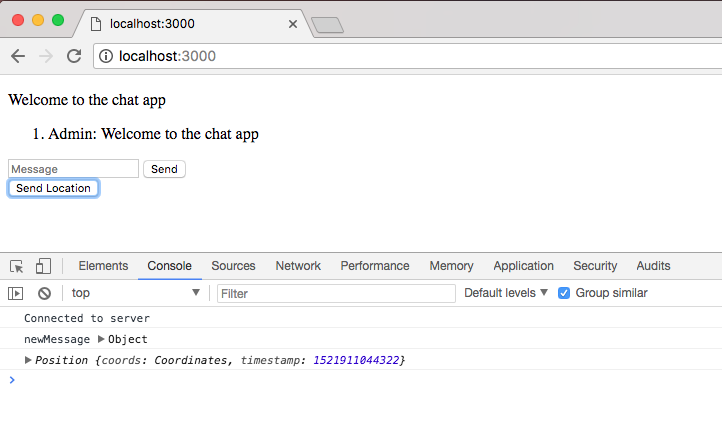
Now as you can see I did get my geolocation position. But I was never prompted as to whether or not I wanted to share my location; that's because I've already given it permission. Over the top-right corner, I can go ahead and click on Clear these settings for future visits, this means that I'm going to need to reauthorize. If I refresh the page and click on Send Location again, you're going to see this little box, which is probably going to show up for you. You can either block it, if I block it it's going to print Unable to fetch location; or you can accept it.
I'm going to clear those settings one more time, give the page a refresh, and this time I am going to accept the location sharing, And we're going to get the geolocation printing out in the console:
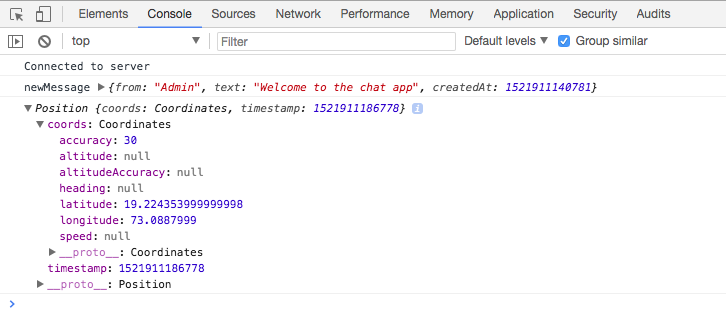
Now once we get it we can go ahead and dive in, the object itself is pretty simple, we have a timestamp of exactly when we fetched the data, this is useful if you're tracking a user over time, which we're not doing. We also have our coordinates, we have all sorts of properties we're not going to use like accuracy, altitude, which doesn't exist, and other related ones. We also have speed which is null. The only two we're ever going to use off this object is latitude and longitude, which do indeed exist.
This is the information we want to pass to the server so the server can send it to everybody else. This means we're going to go into the position object, go into the coords object, and grab those two.