To get started what we're going to do is add a new button to our application. It's going to sit alongside of Send and it's going to say something like Send Location. When the user clicks that Send Location button we're going to use the geolocation API. Usually, this is going to require the user to confirm they want to share their location with this tab in the browser, that pop-up box is going to happen, it's going to be triggered by the browser, there's no way around that.
You're going to need to make sure the user actually wants to share their location. Once you have the coordinates you're going to emit an event, that's going to go to the server, the server is going to send it to all the other connected users and we're going to be able to render that information in a nice link.
To kick things off we're going to add that button, this is going to be the button that starts the entire process. Over inside Atom, inside index.html, we're going to add a button just below our form tag. It's going to be outside our existing form. We're going to add the button tag, and we're going to go ahead and give this an ID of send-location. Now as for the visible button text we can go ahead and use SendLocation as our string, and save the file:
  <form id="message-form">
    <input name="message" type="text" placeholder="Message"/>
    <button>Send</button>
  </form>
  <button id="send-location">Send Location</button>
If we go ahead and refresh our app in the browser, we should now see we have our Send Location button showing up:
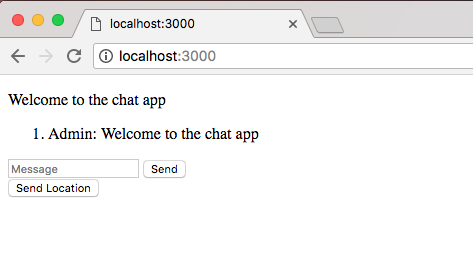
We're going to fix all this later when we add the default styles, but for now this does get the job done.
Now clicking this button currently is not going to do anything, it's not tied to a form so it's not going to do any weird form submissions or page reloads. All we need to do is add a click listener to this button and we'll be able to run whatever code we like. In our case, we're going to run that geolocation code.