
To take a quick peek at some other things Moment can do, let's head back into the docs and go to the Manipulate section:
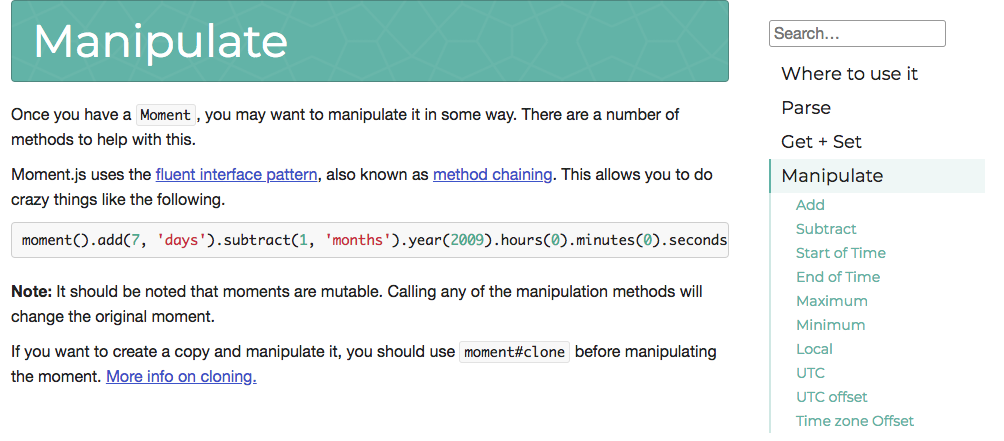
The first two methods defined under Manipulate are add and subtract. This lets you easily add and subtract time. We can call add adding seven days and we can call subtract subtracting seven months as shown in this example:

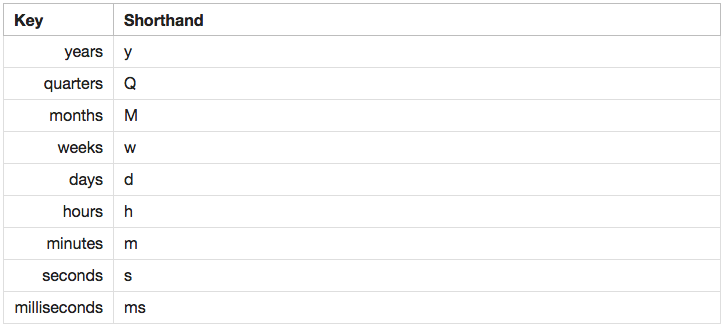
To this example, you can get a quick idea about what you can add and subtract, years, quarters, months, weeks, pretty much any unit of time can be added or subtracted:
Now to take a look at what exactly that does to the timestamp, we can go ahead and add and subtract some values. I'm going to call date.add and we're going to go ahead and add a year by putting 1 in as the value and year in as the unit:
var date = moment();
date.add(1, 'years')
console.log(date.format('MMM Do, YYY'));
Now it doesn't matter if you use the single or plural version, both are going to work the same. Here you can see we get 2019 in the Terminal:

If I change it to year singular, I also get that same value. We can add as many years as we like, I'm going to go ahead and add 100 years:
var date = moment();
date.add(100, 'year')
console.log(date.format('MMM Do, YYY'))
And now we're at 2118:

The same thing is true with subtract. We can chain on the call or we can add it as a separate statement. I'm going to subtract just like this:
date.add(100, 'year').subtract(9, 'months');
And we are currently in September, and when we subtract 9 months we go back to June:

Now you notice we went from 2118 to 2117 because subtracting those 9 months required us to change years. Moment is really great at handling just about anything you throw at it. Now we're going to be to play around with format a little more. I'm going add an output I would like and we'll need to figure out which patterns to use over inside of the documentation to get that output.
Now the current time at the writing, this is 10:35, and it is in the am, so I have a lowercase am. Your goal is to print a format like this. Now obviously if it's 12:15 when you run the code you're going to see 12:15 as opposed to 10:35; it's just the format that matters, the actual values aren't that important. Now as you'll see when you try to print hours and minutes, you're going to have a lot of options. For both of them you're going to have a padded version like 01 or an unpadded version like 1.
I want you to use the padded version for minutes and the unpadded version for hours, which would be 6, like this, and 01. If you padded the hour it looks kind of weird, and if you don't pad the minute it looks just terrible. So we would want to print something like this if it happened to be 6:01 am. Now for hour, you're also going to have the option to do either 1 to 12 or 1 to 24, I usually use a 12-hour clock so I'm going to do that using am.
Before we start, I am going to comment out the previous code, I would like you to write everything from scratch. I am going to make a new variable date by calling moment with no arguments, and we're also going to go ahead and call format inside console.log so we can print that formatted value to the screen, date.format:
var date = moment();
console.log(date.format(''))
Inside the quotes, we're going to provide our pattern and start with the unpadded hour and the padded minute. We can grab both of those patterns by heading over to the docs, going back to Display, and taking a peek. If we scroll next, the first one we're going to run into is Hour and we have quite a few options:
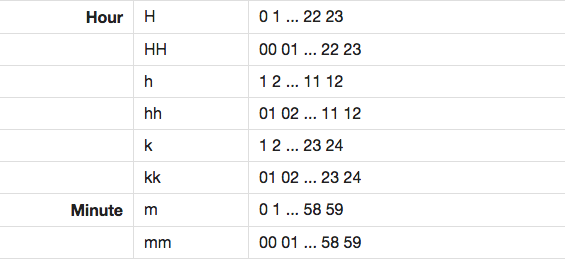
We have 24-hour options, we have 1 through 12; what we want is lowercase h which is 1 through 12 unpadded. The padded version, which is hh, exists right next that is not what we want for this one. We're going to kick things off by adding an h:
var date = moment();
console.log(date.format('h'));
I'm also going to save the file, check it out in the Terminal:

We have 4, which looks great. Next up is that padded minute, we're going to go ahead and find that pattern just next. For minute we have a lot fewer options, either padded or unpadded, we want to use mm. Now before I add mm, I am going to add a colon. This is going to get passed through in plain text, meaning it's not going to get changed. We're going to add our two lowercase ms:
console.log(date.format('h:mm'));
We can then save time.js and make sure the correct thing prints in the Terminal, and it does, 4:22 shows up:

Next up is going to be grabbing that lowercase am and pm values. We can find that pattern over inside Google Chrome just previous to Hour:

Here we can either use uppercase A for uppercase AM and PM, or lowercase a for the lowercase version. I'm going to go ahead and use a lowercase a after a space to use that lowercase version:
var date = moment();
console.log(date.format('h:mm a'))
I can save the file and over inside the Terminal, I do indeed have 4:24 printing to the screen, and we have the pm after it:

Everything looks great. That is it for this section! In the next one, we're going to actually integrate Moment into our server and our client rather than just having it in a playground file.