In order to get set up, over inside of the Terminal we're going to create a new Heroku app because currently we don't have one. heroku create is the command to get that done:

Once the application has been created we need to tell the app that we want to use mLab, which is short for Mongo Lab. In order to add this add-on, we're going to run the following command:
heroku addons:create
Now, the add-on is mongolab:, and after the : we're going to specify the plan we want to use. We're going to use the Sandbox plan, which is free:
heroku addons:create mongolab:sandbox
When we run this command it's going to configure mLab with our Heroku application and we are good to go. Now, if you run the heroku config command you can actually get a list of all the configuration variables for your Heroku application:

Right now, we just have one configuration variable; it's a MONGODB_URI. This is the database URL that mLab gave us. This is the one we need to connect to, it's the only one available for our app. Now, this MONGODB_URI variable, this is actually on process.env when the app runs on Heroku, which means we can use a similar technique to what we did inside of our mongoose.js file. Inside of mongoose.js, right in our call to connect, we can check if process.env.MONGODB_URI exists. If it does, we're going to use it; if it doesn't, after our || statement, we are going to use the localhost URL:
mongoose.connect(process.env.MONGODB_URI || 'mongodb://localhost:27017/TodoApp');
And this is going to make sure that our Heroku app connects to the actual database because connecting to localhost will fail, causing the app to crash. With this in place, we are now ready to get things going.
Over inside of the Terminal I'm going to run git status to check our changed files:
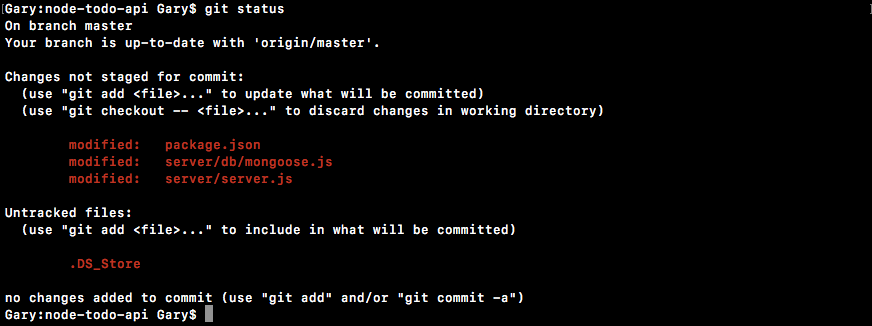
We have three; everything looks good. I can run git commit with the -am flag. This is going to let us specify our commit message, Setup app for heroku:
git commit -am 'Setup app for heroku'
I'm going to make the commit and push it up to GitHub. Now, we need to push our application to Heroku. I'm going to do that using the following command:
git push heroku master
Remember, when you create a Heroku application, it automatically adds that Heroku remote and here we're posting it to the master branch. The master branch is the only branch Heroku is actually going to do anything with. The application is getting pushed up; it should be ready in just a few seconds. Once it's done, we can open up the URL in the browser and see exactly what we get.