Table of Contents for
Learning D3.js 4 Mapping - Second Edition

Version ebook / Retour

Cover image for bash Cookbook, 2nd Edition Learning D3.js 4 Mapping - Second Edition by Lars Verspohl Published by Packt Publishing, 2017
  1. Learning D3.js 4 Mapping, Second Edition
  2. Title Page
  3. Second Edition
  4. Copyright
  5. Learning D3.js 4 Mapping
  6. Second Edition
  7. Credits
  8. About the Authors
  9. About the Reviewers
  10. www.PacktPub.com
  11. Why subscribe?
  12. Customer Feedback
  13. Table of Contents
  14. Preface
  15. What this book covers
  16. What you need for this book
  17. Who this book is for
  18. Conventions
  19. Reader feedback
  20. Customer support
  21. Downloading the example code
  22. Downloading the color images of this book 
  23. Errata
  24. Piracy
  25. Questions
  26. Gathering Your Cartography Toolbox
  27. Quick bootstrap
  28. Step-by-step bootstrap
  29. A lightweight web server
  30. Using the web browser as a development tool
  31. Installing the sample code
  32. Working with the developer tools
  33. Summary
  34. Creating Images from Simple Text
  35. The SVG coordinate system
  36. Line
  37. Rectangle
  38. Circle
  39. Polygon
  40. Path
  41. Experiment
  42. Paths with curves
  43. Transform
  44. Translate
  45. Scale
  46. Grouping
  47. Text
  48. Summary
  49. Producing Graphics from Data - the Foundations of D3
  50. Creating basic SVG elements
  51. The enter() function
  52. The update function
  53. The exit() function
  54. AJAX
  55. Summary
  56. Creating a Map
  57. Foundation - creating your basic map
  58. Including the dataset
  59. Experiment 1 – adjusting the bounding box
  60. Experiment 2 – creating choropleths
  61. Experiment 3 – adding click events to our visualization
  62. Experiment 4 – using updates and transitions to enhance our visualization
  63. Experiment 5 – adding points of interest
  64. Experiment 6 – adding visualizations as a point of interest
  65. Summary
  66. Click-Click Boom! Applying Interactivity to Your Map
  67. Events and how they occur
  68. Experiment 1 – hover events and tooltips
  69. Experiment 2 – tooltips with visualizations
  70. Experiment 3 – panning and zooming
  71. Experiment 4 – orthographic projections
  72. Experiment 5 – rotating orthographic projections
  73. Experiment 6 – dragging orthographic projections
  74. Summary
  75. Finding and Working with Geographic Data
  76. Geodata file types
  77. What are shapefiles and how do I get them?
  78. Acquiring shapefiles for a specific country
  79. GeoJSON
  80. A quick map in D3 with only GeoJSON
  81. TopoJSON basics
  82. TopoJSON command-line tips
  83. Preserving specific attributes
  84. Simplification
  85. Merging files
  86. Summary
  87. Testing
  88. Code organization and reusable assets
  89. Project structure
  90. Exploring the code directory
  91. Other administrative files
  92. Writing testable code
  93. Keeping methods/functions small
  94. Preventing side effects
  95. An example with viz.js
  96. Unit testing
  97. Creating resilient visualization code
  98. Adding a new test case
  99. Summary
  100. Drawing with Canvas and D3
  101. Introducing Canvas
  102. Drawing with Canvas
  103. The three drawing steps of every Canvas visual
  104. Drawing various shapes with Canvas
  105. Animating the Canvas
  106. Animating the Canvas way
  107. Getting a general overview
  108. Preparing the rain data
  109. Updating each drop
  110. Drawing frame by frame
  111. Canvas and D3
  112. Getting an overview of our experiment
  113. The data
  114. Updating each drop
  115. Binding the data
  116. Drawing the data
  117. Running the app
  118. Summary
  119. Mapping with Canvas and D3
  120. Choosing Canvas or SVG
  121. Reasons to choose SVG
  122. Reasons to choose Canvas
  123. Visualizing flight paths with Canvas and D3
  124. The data
  125. Building the flight path map in SVG
  126. Measuring the performance
  127. Building the flight path map in Canvas
  128. Setting up the map
  129. Drawing the map and listening for user input
  130. Preparing and drawing with Canvas
  131. Drawing the background scene
  132. Defining the planes
  133. Calculating the plane's positions
  134. Animating the plane
  135. Measuring the performance
  136. Optimizing performance
  137. Continuing with measuring performance
  138. Summary
  139. Adding Interactivity to Your Canvas Map
  140. Why Canvas interaction is different
  141. Drawing the world on a Canvas
  142. Setting up
  143. Drawing the world
  144. Making the world move
  145. Setting up the behavior
  146. Handling zoom and rotation
  147. Finding the Canvas object under the mouse - Picking
  148. Picking, the theory
  149. Creating all things hidden
  150. Drawing the hidden Canvas
  151. Picking the values
  152. Storing more data and using a lookup array
  153. Highlighting the country on mouse over
  154. Visualizing data per country and adding a tooltip
  155. Adding new data to our old globe
  156. Coloring the globe
  157. Adding a tooltip
  158. The HTML
  159. Building the static parts of the tooltip
  160. Showing and hiding the tooltip
  161. Summary
  162. Shaping Maps with Data - Hexbin Maps
  163. Reviewing map visualization techniques
  164. Choropleth maps
  165. Cartograms
  166. Dot density maps
  167. Value and use of the hexagon
  168. Making a hexbin map
  169. Reviewing the hexbin algorithm
  170. Setting it up
  171. Drawing the map
  172. Drawing a point grid for our hexagons
  173. Keeping only the points within the map
  174. Making the hex tile
  175. Retrieving the hexagon center points
  176. Drawing the hex tiles
  177. Joining data points to the layout points
  178. Dressing our data for the final act
  179. Turning our visual into an interactive app
  180. Adding additional information on hover and click
  181. Changing the hexagon size
  182. Changing the color scale interpolator
  183. Browsing different datasets
  184. Encoding data as hexagon size
  185. Summary
  186. Publishing Your Visualization with Github Pages
  187. What we will publish
  188. Understanding the type of content you can publish
  189. Hosting your code on GitHub
  190. Making sense of some key terms and concepts
  191. Tracking historic changes of your files
  192. Collaborating on a project
  193. Working on project branches
  194. Setting up a GitHub account
  195. Creating a repository
  196. Editing a file on GitHub
  197. Uploading files to the repository
  198. Publishing your project on GitHub Pages
  199. Preparing the files for publishing
  200. Keeping your paths absolute
  201. Changing the main HTML filename to index.html
  202. Publishing your project
  203. Summary

Calculating the plane's positions

How do we get to the wayPoints array? Conceptually, we've said it all already. We now express it in code. First, you need to create an array for all planes, depending on the route data the respective button press has loaded in:

var routeFromTo = [];
routes.forEach(function(el) {
var arr = [el.source_airport, el.destination_airport];
routeFromTo.push(arr);
});

This is a simple array of elements representing the three-letter origin and the destination IATA airport codes.

Next, you iterate through this array of start and end points to calculate the wayPoints. You will create an object called planes holding the data as well as two helper functions to calculate the data. But before this, have a look at the simple algorithm to produce the planes:

routeFromTo.forEach(function(el, i) {
var plane = planes.getPlane(el);
plane.route = planes.getPath(el);
plane.wayPoints = planes.getWayPoints(plane);
planes.items.push(plane);
});

Conceptually, you produce a plane for each route. Then you get this plane's route path and store it within the plane. Next, you sample the path for a number of x, y coordinates – our wayPoints – and also store it in the plane. Lastly, you add the plane with all the information you need in the planes.items array. That's all the calculation magic in an overview. As soon as that's done, you can animate the points.

Now, let's have a brief look at the planes object. Note the plural! This is different to the plane object we build for each route. It is the home of all our plane objects. planes.items will keep all plane objects, planes.getPlane() will produce them, planes.getPath() will create the route's path, and planes.getWayPoints() will sample our way points from the path:

var planes = {
items: [],
getPlane: function(planeRoute) { },
getPath: function(planeRoute) { },
getWayPoints: function(plane) { }
}

Let's look at what each planes function does. There are three simple steps: first, we build the plane, then we draw each plane's path, and finally we sample points from that path we can iterate through to make the plane move: 

  • Manufacturing a plane: the getPlane() function takes the planeRoute – the three-letter airport codes for origin and destination – and uses it to initialize the plane's position:
getPlane: function(planeRoute) {

var origin = planeRoute[0], destination = planeRoute[1];

var obj = {};

obj.od = [origin, destination];

obj.startX = projection(airportMap.get(origin).geometry.coordinates)[0];
obj.startY = projection(airportMap.get(origin).geometry.coordinates)[1];

obj.x = projection(airportMap.get(origin).geometry.coordinates)[0];
obj.y = projection(airportMap.get(origin).geometry.coordinates)[1];

obj.route = null;
obj.wayPoints = [];
obj.currentIndex = 0;

return obj;

}

It returns an object holding the startX and startY positions it retrieves from the airportMap lookup you created earlier. It also has x and y coordinates representing the current position of the plane. For the first frame this is the same as startX and startY. It also holds an as yet empty object for the route path and the wayPoints we calculate next. Lastly, it has a currentIndex keeping track of the way point the plane is at when we change its position (this will become clearer very soon).

  • Drawing each plane's path: plane initialized. Now, let's get the path. Remember that we created two path generators during setup? One was a Canvas path to draw worlds, the airport, and plane circles. The other one – pathSVG – was for creating the route as an SVG path. Why would you want to do that? Because SVG paths have the great .getTotalLength() and .getPointAtLength() methods that make it easy to sample points from that path. Here's how to use D3 to create the path:
getPath: function(planeRoute) {
var origin = planeRoute[0], destination = planeRoute[1];
var pathElement = document.createElementNS(d3.namespaces.svg,
'path');

var route = d3.select(pathElement)
.datum({
type: 'LineString',
coordinates: [
airportMap.get(origin).geometry.coordinates,
airportMap.get(destination).geometry.coordinates
]
})
.attr('d', pathSVG);

return route.node();
}

You won't create the path in the DOM, but only in memory and save it in the pathElement variable. As it's an SVG and not an HTML element, you need to specify the SVG namespace which you can do with D3's .namespaces.svg utility function. Then you create the path before returning the raw element rather than the D3 selection as route.node().

  • Retrieving the way points: all set to calculate the way points. getWayPoints() takes the plane which by now has its path stored in the plane.route property. We use the path sampling functions we just praised on its path and return an array holding all way points for this specific plane's route path:
getWayPoints: function(plane) {
var arr = [];
var points = Math.floor(plane.route.getTotalLength() * 2.5);

d3.range(points).forEach(function(el, i) {
var DOMPoints = plane.route.getPointAtLength(i/2.5);
arr.push({ x: DOMPoints.x, y: DOMPoints.y });
});

return arr;
}

First, you create an empty array called arr which will hold all your way points. Then, you produce an integer saved in the points variable. This integer will represent the number of points we want to sample from the path. You get the total length of the path, which is represented by the number of pixels the path will take up. This, you multiply by 2.5. This very factor is important and controls how many points will be sampled and hence how fast or slow the animation will be. The higher the number, the more points it will sample and the slower the animation will appear. If you choose a low number or even a fraction such as 0.1, few points will be sampled and the animation will appear faster.

You use d3.range(points).forEach() to retrieve the coordinates returned as so-called DOMPoints by .getPointAtLength() at each point of the path. Then you push each of them into the array and voila, you have your way points.

Congratulations. You have just built a plane. In fact, you have built a plane and its route and all the points you need to make it jump to so that a viewer would think it flies. This is how it looks inside:
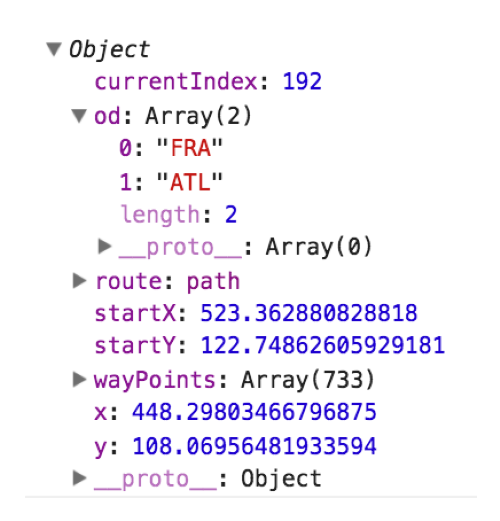
The plane flying from Frankfurt to Atlanta