
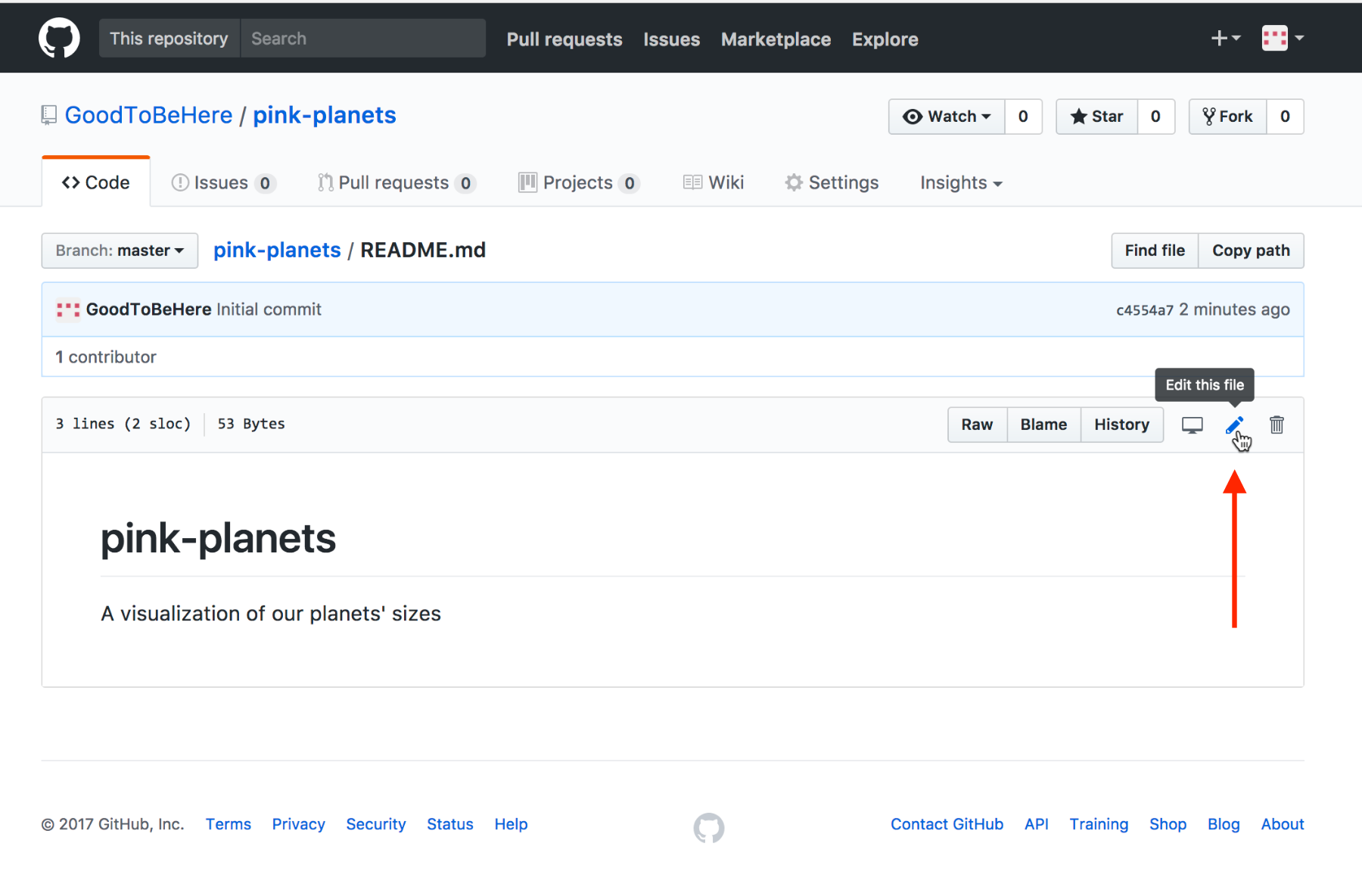
If you want to edit a file, you first need to click on its link in your repository. Next, you click on the Edit this file pencil in the upper-right corner:
This will direct you to an editable view of the file. In here, you can change the name of the file above the editor window (we leave that as we’re happy with README.md as a name), and you can change the file’s content in the Edit file view:
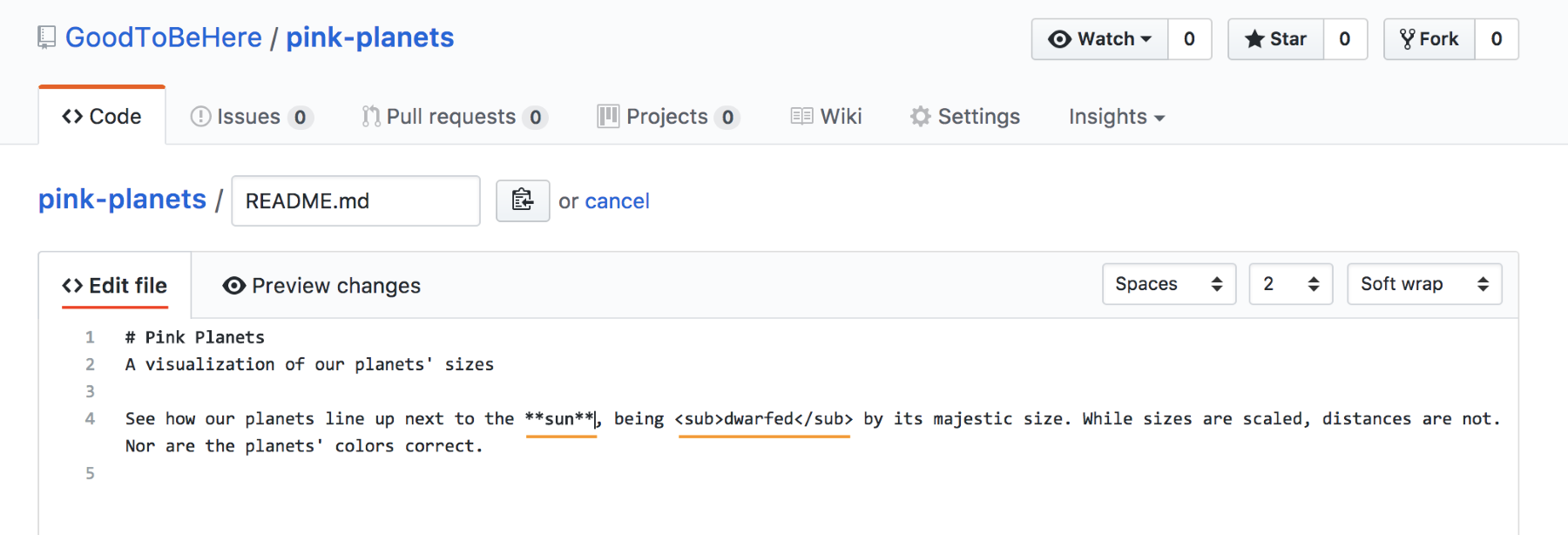
We’ve only done a few changes here: we capitalized the title and added some text to describe what the project is about. We’re using markdown syntax to mark the headline as headline 1 with the # before the text. We also use markdown to print sun in bold with the prepending and trailing asterisks. The great thing about markdown files is that we can also use normal HTML tags for styling, as we do here with the word dwarfed—writing it in subscript.
Once done with our edits, we can change from the Edit file tab to the Preview changes tab and see what we’ve done. The preview marks our changes clearly with coloring and strike-through:
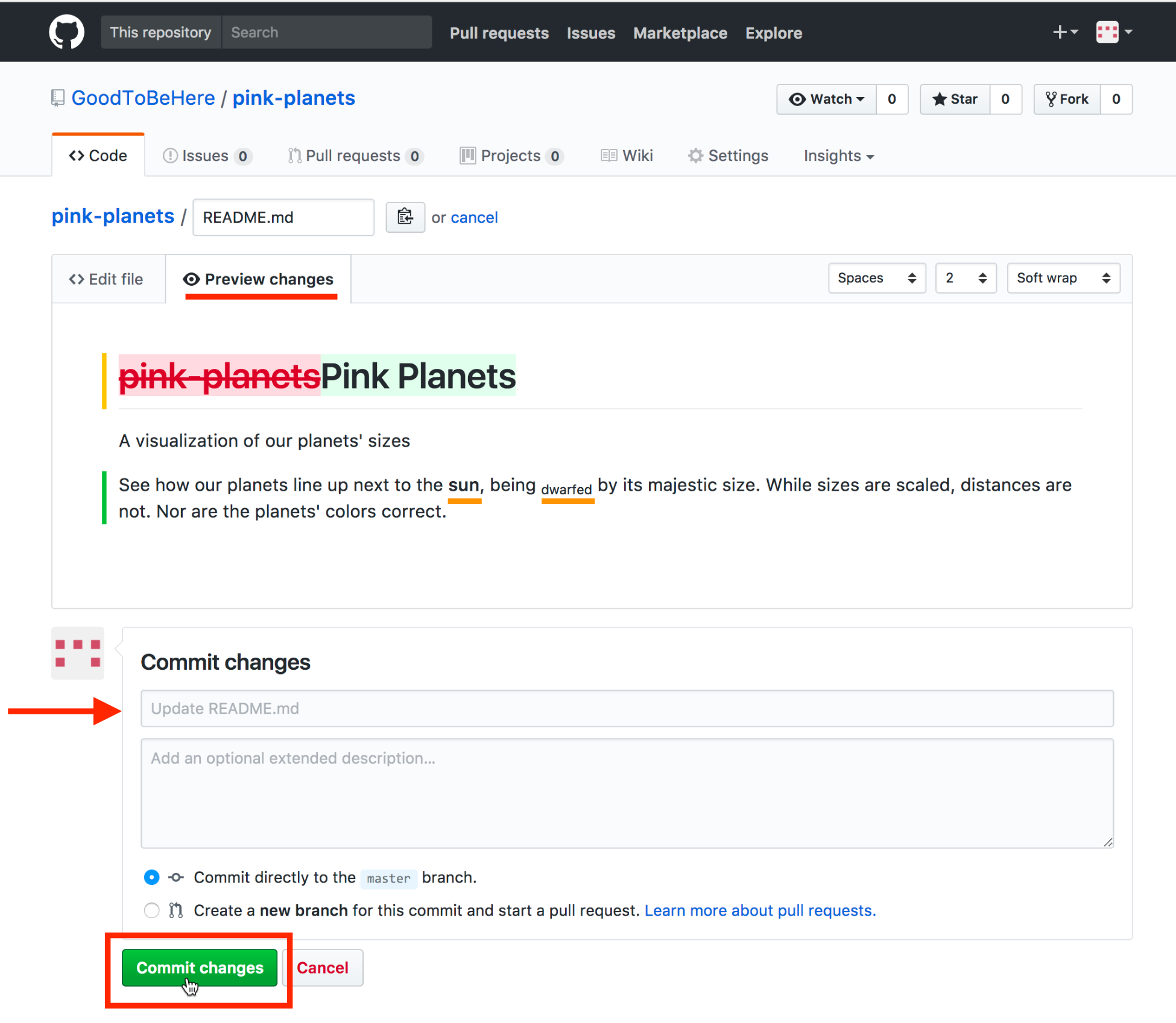
We now want to save these changes, which, in Git's language, means commit. We can do this with the big green button at the bottom. However, before we do so, we have to add a commit message consisting of a mandatory short summary line and an optional extended description. We can add those to the text fields under Commit changes. Think of the commit summary line as an email title and the extended description as the email body.
A good commit summary line is short (less than 70 characters) and completes the sentence This commit will…, summarizing concisely what the changes include. GitHub is so kind as to offer us a predefined description depending on the changes we made. In this case, it offers us Update README.md, which we’re perfectly happy with, so we won’t change it. We’ll leave the optional extended description field blank, and click on Commit changes.