Table of Contents for
Bootstrap 4 – Responsive Web Design
 Bootstrap 4 – Responsive Web Design
Published by
Packt Publishing, 2017
Bootstrap 4 – Responsive Web Design
Published by
Packt Publishing, 2017
- Cover
- Table of Contents
- Bootstrap 4 – Responsive Web Design
- Bootstrap 4 – Responsive Web Design
- Credits
- Preface
- What you need for this learning path
- Who this learning path is for
- Reader feedback
- Customer support
- 1. Module 1
- 1. Getting Started
- Setting up the framework
- Building our first Bootstrap example
- Optionally using the CDN setup
- Community activity
- Bootstrap and web applications
- Browser compatibility
- Summary
- 2. Creating a Solid Scaffolding
- Building our scaffolding
- Fluid container
- We need some style!
- Manipulating tables
- Like a boss!
- Final thoughts
- Summary
- 3. Yes, You Should Go Mobile First
- Bootstrap and the mobile-first design
- How to debug different viewports at the browser
- Cleaning up the mess
- Creating the landing page for different devices
- Summary
- 4. Applying the Bootstrap Style
- Summary
- 5. Making It Fancy
- Paying attention to your navigation
- Dropping it down
- Making an input grouping
- Getting ready for flexbox!
- Summary
- 6. Can You Build a Web App?
- Adding the navigation
- Do a grid again
- Playing the cards
- Implementing the main content
- Creating breadcrumbs
- Finishing with the right-hand-side content
- Summary
- 7. Of Course, You Can Build a Web App!
- Waiting for the progress bar
- Creating a settings page
- Summary
- 8. Working with JavaScript
- Awesome Bootstrap modals
- Creating our custom modal
- A tool for your tip
- Pop it all over
- Making the menu affix
- Finishing the web app
- Summary
- 9. Entering in the Advanced Mode
- The last navigation bar with flexbox
- Filling the main fluid content
- Filling the main content
- Overhead loading
- Fixing the toggle button for mobile
- Summary
- 10. Bringing Components to Life
- Fixing the mobile viewport
- Learning more advanced plugins
- Summary
- 11. Making It Your Taste
- Working with plugin customization
- The additional Bootstrap plugins
- Creating our Bootstrap plugin
- Defining the plugin methods
- Creating additional plugin methods
- Summary
- 2. Module 2
- 1. Introducing Bootstrap 4
- Summary
- 2. Using Bootstrap Build Tools
- Download the Bootstrap source files
- Setting up the blog project
- Setting up the JSON files
- Creating our first page template
- Summary
- 3. Jumping into Flexbox
- Ordering your Flexbox
- Wrapping your Flexbox
- Setting up the Bootstrap Flexbox layout grid
- Setting up a Flexbox project
- Designing a single blog post
- Summary
- 4. Working with Layouts
- Inserting rows into your layout
- Adding columns to your layout
- Choosing a column class
- Creating a simple three-column layout
- Mixing column classes for different devices
- Coding the blog home page
- Using responsive utility classes
- Summary
- 5. Working with Content
- Learning to use typography
- Customizing headings
- How to style images
- Coding tables
- Summary
- 6. Playing with Components
- Basic button examples
- Creating outlined buttons
- Checkbox and radio buttons
- Coding forms in Bootstrap 4
- Creating an inline form
- Adding validation to inputs
- Using the Jumbotron component
- Adding the Label component
- Using the Alerts component
- Using Cards for layout
- Updating the Blog index page
- How to use the Navs component
- Adding Breadcrumbs to a page
- Using the Pagination component
- How to use the List Group component
- Summary
- 7. Extending Bootstrap with JavaScript Plugins
- Coding Tooltips
- Avoiding collisions with our components
- Using Popover components
- Using the Collapse component
- Coding an Accordion with the Collapse component
- Coding a Bootstrap Carousel
- Summary
- 8. Throwing in Some Sass
- Using Sass in the blog project
- Importing partials in Sass
- Creating a collection of variables
- Customizing components
- Writing a theme
- Summary
- 9. Migrating from Version 3
- Big changes in version 4
- Updating your variables
- Additional global changes
- Other font updates
- Migrating components
- Migrating JavaScript
- Miscellaneous migration changes
- Summary
- 3. Module 3
- 1. Revving Up Bootstrap
- What Bootstrap 4 Alpha 4 has to offer
- Setting up our project
- Summary
- 2. Making a Style Statement
- Image elements
- Responsive utilities
- Helper classes
- Text alignment and transformation
- Summary
- 3. Building the Layout
- Adding Bootstrap components
- Summary
- 4. On Navigation, Footers, Alerts, and Content
- Improving navigation using Scrollspy
- Customizing scroll speed
- Icons
- Using and customizing alerts
- Creating a footer
- Creating and customizing forms
- Form validation
- Progress indicators
- Adding content using media objects
- Figures
- Quotes
- Abbreviations
- Summary
- 5. Speeding Up Development Using jQuery Plugins
- Enhanced pagination using bootpag
- Displaying images using Bootstrap Lightbox
- Improving our price list with DataTables
- Summary
- 6. Customizing Your Plugins
- Customizing plugins
- Writing a custom Bootstrap jQuery plugin
- Summary
- 7. Integrating Bootstrap with Third-Party Plugins
- Hover
- Summary
- 8. Optimizing Your Website
- Minifying CSS and JavaScript
- Introducing Grunt
- Running tasks automatically
- Stripping our website of unused CSS
- JavaScript file concatenation
- Summary
- 9. Integrating with AngularJS and React
- Introducing React
- Summary
- Bibliography
- Index
At this stage of our journey through mastering Bootstrap, we have built the
MyPhoto
web page using Bootstrap, along with various third-party libraries and plugins, and have optimized the web page.
MyPhoto
is now complete in terms of functionality.
In this chapter, we are not going to develop any new functionality. Instead, we will integrate
MyPhoto
with two of the currently most popular and powerful JavaScript frameworks—AngularJS (https://angularjs.org/) and React (https://facebook.github.io/react/).
AngularJS is a Model-View-* (MVC, MVV, and so on) JavaScript framework, while React is a JavaScript library which concentrates solely on the View part of the Model-View-Controller (MVC) type stack. To readers unfamiliar with the MVC, the term refers to a design pattern whereby the logic for modeling and representing the data, and the logic for creating the bridge between the two are strictly separated. This development approach is extremely powerful, and consequently a vast amount of web pages are built with frameworks or libraries such as AngularJS and React, as they provide very useful abstractions on top of JavaScript and the DOM.
At this point, we will fork MyPhoto, creating an AngularJS version and a React version. We will concentrate only on how AngularJS and React can help improve reusability and maintainability, and handle dynamic data. While AngularJS and React have other great functionalities, they are beyond the scope of this book.
In this chapter we will:
- Integrate AngularJS with
MyPhoto - Integrate React with
MyPhoto
AngularJS is a popular and powerful JavaScript framework created by Google. AngularJS provides easily consumable abstractions on top of JavaScript to aid in the development of web applications. These abstractions include easy-to-use form validation, two-way data binding, custom HTML attributes called directives for dynamic data and rendering, a simple interface for XMLHttpRequest (XHR), the ability to create custom directives, single page application routing, and more.
We are not going to cover the intricacies and the vastness of AngularJS, but we will learn how to leverage AngularJS's built-in directives, how to create custom directives and services, and how to use AngularJS's XHR interface.
First, let's add AngularJS to our project.
The AngularJS team maintains a Bower package with the latest release. Let's install AngularJS. We are going to use version 1.4.8 of AngularJS:
- In the terminal, from the
srcdirectory, run:bower install angular#1.4.8 - Create a copy of
src/index.html, calledsrc/index-angular.html. Let's add the minified version of AngularJS into theheadofindex-angular.html:<script src="bower_components/angular/angular.min.js"></script>
AngularJS requires a module definition, which is basically your application container, to hook into, so that AngularJS knows which parts of the DOM to execute upon:
- First, create a file,
src/app/myphoto.module.js, and add the following module definition:angular.module('MyPhoto', []) - Next, add the module definition to the
headof theindex-angular.html:<script src="bower_components/angular/angular.min.js"> </script> <script src="app/myphoto.module.js"></script> - Next, we need to bootstrap. In this instance, bootstrap means loading the module and hooking it to a part of the DOM, and is not to be confused with the framework that this book is based upon! To do this, we use the ngApp AngularJS directive. The ngApp directive will automatically bootstrap the defined module to the element it is attached to, using that element as the root element of the application. We will apply
ng-appto thebodyelement ofindex-angular.html:
        <body ng-app="MyPhoto" data-spy="scroll" data-
        target=".navbar" class="animated fadeIn">
As you can see, we add the
ng-app
attribute with the value of "MyPhoto"
, the name we used when defining the module in
myphoto.module.js
. Now, MyPhoto has been bootstrapped with an AngularJS module and is now technically an AngularJS application, although AngularJS doesn't execute or manipulate anything.
Now, let's see how we can leverage core AngularJS features, such as directives, data binding, and JavaScript abstractions to build reusable and dynamic components for MyPhoto.
In Chapter 7, Integrating Bootstrap with Third-Party Plugins, we built a testimonials component to demonstrate the powers of Salvattore, Hover, and Animate.css. When building this component, we hardcoded all the content and introduced a lot of repetition:
    <div role="tabpanel" class="tab-pane" id="services-testimonials">
        <div class="container">
            <div class="myphoto-testimonial-grid animated fadeIn"
            data-columns>
                <div class="myphoto-testimonial-column hvr-grow-shadow
                hvr-sweep-to-top">
                    <h6>Debbie</h6>
                    <p>Great service! Would recommend to friends!</p>
                </div>
                <div class="myphoto-testimonial-column hvr-grow-shadow
                hvr-sweep-to-top">
                    <h6>Anne</h6>
                    <p>Really high quality prints!</p>
                </div>
                <div class="myphoto-testimonial-column hvr-grow-shadow
                hvr-sweep-to-top">
                    <h6>Oscar</h6>
                    <p>Declared their greatness, exhibited greatness.</p>
                </div>
                <div class="myphoto-testimonial-column hvr-grow-shadow
                hvr-sweep-to-top">
                    <h6>Joey</h6>
                    <p>5 stars! Thanks for the great photos!</p>
                </div>
                <div class="myphoto-testimonial-column hvr-grow-shadow
                hvr-sweep-to-top">
                    <h6>Mary</h6>
                    <p>Made a stressful event much easier!
                    Absolute professionals!</p>
                </div>
                <div class="myphoto-testimonial-column hvr-grow-shadow
                hvr-sweep-to-top">
                    <h6>Alice</h6>
                    <p>Wonderful! Exactly as I imagined they would
                    turn out!</p>
                </div>
                <div class="myphoto-testimonial-column hvr-grow-shadow
                hvr-sweep-to-top">
                    <h6>Jack & Jill</h6>
                    <p>So happy with how the photos turned out! Thanks
                    for capturing the memories of our day!</p>
                </div>
                <div class="myphoto-testimonial-column hvr-grow-shadow
                hvr-sweep-to-top">
                    <h6>Nick</h6>
                    <p>Perfectly captured the mood of our gig.
                    Top notch.</p>
                </div>
                <div class="myphoto-testimonial-column hvr-grow-shadow                         hvr-sweep-to-top">
                    <h6>Tony</h6>
                    <p>Captured our Cup final win! Great stuff!</p>
                </div>
            </div>
        </div>
    </div>
We could drastically improve the maintainability of this component by making the content dynamic and then leveraging AngularJS to recursively add individual testimonials to the DOM.
Let's learn how to load dynamic content using AngularJS.
AngularJS provides an abstraction on top of XHR, the
$http
service, with a more usable interface than Vanilla JavaScript, using a Promise-based interface as opposed to Callbacks. A service is a singleton object that provides some core functionality across your application, increasing reusability. We can use
$http
to dynamically load data to use in our testimonials component.
It is good practice to use
$http
within an AngularJS service. In other words, any interaction between the application and a server should be wrapped within a service. Let's create a testimonialsService. Create a file,
src/app/services/testimonials.service.js
, with the following content:
    angular.module('MyPhoto')
    .service('testimonialsService', function($http) {
    })
Here, we are attaching a new service,
testimonialsService
, to the
MyPhoto
module, and declaring that it has a dependency on the core AngularJS
$http
service. The
testimonialsService
will now be instantiated only when a component within
MyPhoto
depends on it, and that dependency can be declared in the same way as the
$http
service is declared here. Let's add some functionality. We want this service to provide a way to load data for the testimonials component in a JSON format. Ideally, this would come from a database backed API, but here we will just load it from the filesystem. Let's create a JSON file,
src/data/testimonials.json, with the data for testimonials:
    [
      {
          "name":"Debbie",

          "message":"Great service! Would recommend to friends!"
      },
      {
          "name":"Anne",

          "message":"Really high quality prints!"
      },
      {
          "name":"Oscar",
          "message":"Declared their greatness, exhibited greatness."
      },
      {
          "name":"Joey",

          "message":"5 stars! Thanks for the great photos!"
      },
      {
          "name":"Mary",

          "message":"Made a stressful event much easier!
          Absolute professionals!"
      },
      {
          "name":"Alice","message":"Wonderful! Exactly as I imagined they would turn out!"
      },
      {
          "name":"Jack & Jill","message":"So happy with how the photos turned
          out! Thanks for capturing the memories of our day!"
      },
      {
          "name":"Nick",
          "message":"Perfectly captured the mood of our gig. Top notch."
      },
      {
          "name":"Tony",

          "message":"Captured our Cup final win! Great stuff!"
      }
    ]
With the data in place, let's update
testimonialsService
with a function to retrieve
testimonials.json
:
    angular.module('MyPhoto')
    .service('testimonialsService', function($http) {
        function getTestimonials() {
            $http.get('./data/testimonials.json')
            .then(
                function(success) {
                    return success.data
                },
                function(error) {
                    return error
                }
            )
        }
        return {
            getTestimonials: getTestimonials
        }
})AngularJS includes a service based on Promises to allow for asynchronous functions, called
$q
. As the
getTestimonials
function includes an asynchronous request, we need to make the function itself asynchronous. To do this, first we add a dependency on
$q
to
testimonialsService
. We then create a deferred object, which will resolve when the HTTP request succeeds, or reject when the request fails. Finally, we return a Promise, which will eventually resolve:
    angular.module('MyPhoto')

//Declare the service and any dependencies, attaching
    it to the MyPhoto module..
    .service('testimonialsService', function($http, $q) {
        function getTestimonials() {
            //Create the deferred object
            var deferred = $q.defer()
            //Use $http.get to create a promise to load testimonials.json
            $http.get('/data/testimonials.json')

//Call the then method of the promise
            .then(
                //Define what happens if the promise returns
                successfully

function(success) {
                    //Resolve the deferred and return the data
                    property of the success object
                    deferred.resolve(success.data)
                },
                //Define what happens if the promise returns an error

function(error) {
                    //Reject the deferred, returning the error value
                    deferred.reject(error)
                }
            )
            //Return the deferred promise

return deferred.promise
        }
        return {
            getTestimonials: getTestimonials
        }
    })
Now, our function returns a Promise, which will resolve to either the data part of our success object, or reject and return the error object. The usage of
getTesimonials
would now be something like:
    testimonialsService.getTestimonials()
    .then(
        function(response) {
            console.log(response)
        },
        function(error) {
            console.error(error)
        }
    )
What is happening here is self-explanatory. We call the
getTestimonials
function of
testimonialsService
. The
getTestimonials
function has a
then
property. We pass two functions to
then
: the first function takes the successful response as a parameter and defines what to do when the Promise resolves; the second function takes the rejected response and defines what to do when the Promise is rejected. Now that we have a service that will return the list of testimonials, let's create an AngularJS directive to render the component.
AngularJS provides an API for extending HTML with custom elements, attributes, comments, and classes. The AngularJS compiler will recognize a custom directive in the DOM and execute a certain specified behavior on the attached element. We are going to build the testimonial's directive using the directive interface. Let's create a new file,
src/app/directives/testimonials.directive.js
, with the following content:
    angular.module('myPhoto')
    .directive('testimonials', function(testimonialsService) {
        return {
            restrict: 'EA',
            replace: true,
            templateUrl: './app/templates/testimonials.html',
            controller: function($scope) {
            },
            link: function(scope, elem, attr, ctrl) {
            }
        }
    })
Here, we are adding a new directive—
testimonials
—to the
MyPhoto
module, which has a dependency on
testimonialsService
. Directives return an object with a set of properties that are interpreted by AngularJS. We will touch on a few of them here.
First, we have
restrict: 'EA'
. This means that the directive can be used as either an element or an attribute. For instance, we can use as the directive in either of the following ways:
    <testimonials></testimonials>
    <div testimonials></div>
There are two other ways of using a directive—as a class, by adding
C
to the restrict property, and as a comment, by adding
M
to the restrict property.
Next, we have the
replace
property. By setting this to
true
, the DOM elements generated by the directive will directly replace the DOM element calling it. If replace is set to
false
, then the generated elements will be nested within the calling element.
After
replace
, we have the
templateUrl
property. The
templateUrl
is a path to a partial HTML template which will be generated and executed upon by the directive. There is a template property also available, to allow for inline HTML in the directive. We are going to store the testimonials template in
src/app/templates/testimonials.html
. As
src
will effectively be the root of our deployed application, we will use an absolute path to the application directory.
The
controller
property is next, where we pass in the
$scope
object. The scope in AngularJS represents the data model of the current application, or the current context of the application. The
$scope
model here is exclusive to this instance of the testimonials directive, and cannot be manipulated by any other part of the application. The
controller
code is the first to be executed when a directive is instantiated, so makes for the perfect place to gather necessary data or set scope variables for the directive to use.
Finally, we have the
link
function. The
link
function is the last code to be executed during the directive life cycle. The
link
function is executed immediately after the directive template has been added to the DOM, so is perfect for setting event listeners or emitters, or for interacting with third-party scripts. We pass in four variables into the
link
function:
scope: This is a reference to the $scope of the directiveelem: This is a reference to the rendered DOM elementattr: This is a reference to the attributes of the elementctrl: This is a reference to the previously defined controller
The variable names are unimportant here, they can be anything, but these names are pretty standard.
This is just a skeleton of a directive. AngularJS directives have many more features and intricacies than described here, and this example is just one way of writing a directive; there are many other styles. For the purposes of this example, the form of this directive is perfect.
We want the
testimonials
directive to render the testimonials component. To do that, it will need a list of said testimonials. In the
controller
function, we can use
testimonialsService
to retrieve the list:
    .directive('testimonials', function(testimonialsService) {
        return {
            restrict: 'EA',
            replace: true,
            templateUrl: './app/templates/testimonials.html',
            controller: function($scope) {
                testimonialsService.getTestimonials()
                .then(function(response) {
                    $scope.testimonials = response
                    }, function(error) {
                        console.error(error)
                    })
                },
                link: function(scope, elem, attr, ctrl) {
                }
           }
})In the
controller
function, we call
testimonialsService.getTestimonials
. When
getTestimonials
resolves, we create a scope variable,
testimonials
, with the value of the response. If the Promise does not resolve, we output an error to the console. With this, our directive has a list of testimonials before it renders, as the
controller
is the first step of the directive life cycle. Now, let's write the testimonials template.
Create src/app/templates/testimonials.html with the following content:
    <div class="myphoto-testimonial-grid animated fadeIn" data-columns>
        <div ng-repeat="testimonial in testimonials track by $index"
        class="myphoto-testimonial-column hvr-grow-shadow hvr-sweep-to
        -top">
            <h6>{{testimonial.name}}</h6>
            <p>{{testimonial.message}}</p>
        </div>
    </div>
That's it. Compare this to the hard coded version and notice the difference in the amount of HTML we wrote. So, what is going on here? Well, we took the raw HTML for the testimonial component and removed the individual testimonial elements. We then added a new attribute,
ng
-
repeat
, to the
myphoto-testimonials-column
div
element. The
ng-repeat attribute is actually an AngularJS directive itself. The
ng-repeat
attribute loops through the data passed to it, repeatedly adding the element which is an attribute of the DOM. We give
ng-repeat
the value of "testimonial in testimonials track by $index"
. Simply, we are saying repeat this element for every entry in the
testimonials
property of the directive's scope, giving each value the reference testimonial. We are also telling
ng
-
repeat
to track each entry by
$
index
, which is the position of the entry in
testimonials
. Using
track by
has great performance benefits for
ng-repeat
. Without
track by
, AngularJS will only identify the entries by its own built-in unique identifier,
$id
. If the data used for the entries is reloaded, AngularJS will recreate each DOM element in the list again. Using
track by $index
allows AngularJS to just reuse the entries, as it now knows which DOM elements need to be recreated and which can be reused. One caveat with using $index for tracking is that AngularJS will expect the reloaded data to be in the same order. You can use any property of the entry with
track by
. For example, if each object in
testimonials.json
had an
id
property, we could use
track by testimonial.id
. Within the
myphoto-testimonial-column div
, we create a
h6
and
p
element, just like the raw HTML testimonial markup. Instead of hard coding values, we use the reference to the entries in the testimonials array,
testimonial
, provided by
ng-repeat
. Using
testimonial
along with handlebar notation, we can access the properties of each entry as
ng-repeat
loops through testimonials. As we loop through, AngularJS will execute on the handlebar notation, replacing them with the correct values.
Let's test the testimonials directive out. First, add
testimonials.service.js
and
testimonials.directive.js
to the
head
of
index-angular.html
:
    <script src="app/services/testimonials.service.js"></script>
    <script src="app/directives/testimonials.directive.js"></script>
Next, replace the markup for the testimonials component with the directive markup. We will use the attribute form of the
testimonials
directive, as an attribute of a
div
element:
    <div role="tabpanel" class="tab-pane" id="services-testimonials">
        <div class="container">
            <div testimonials></div>

        </div>
    </div>
With that in place, AngularJS will replace this element with the template defined in
testimonials.directive
, and with the testimonials from
testimonials.json
, served by
testimonialsService.getTestimonials
. Let's check it out:
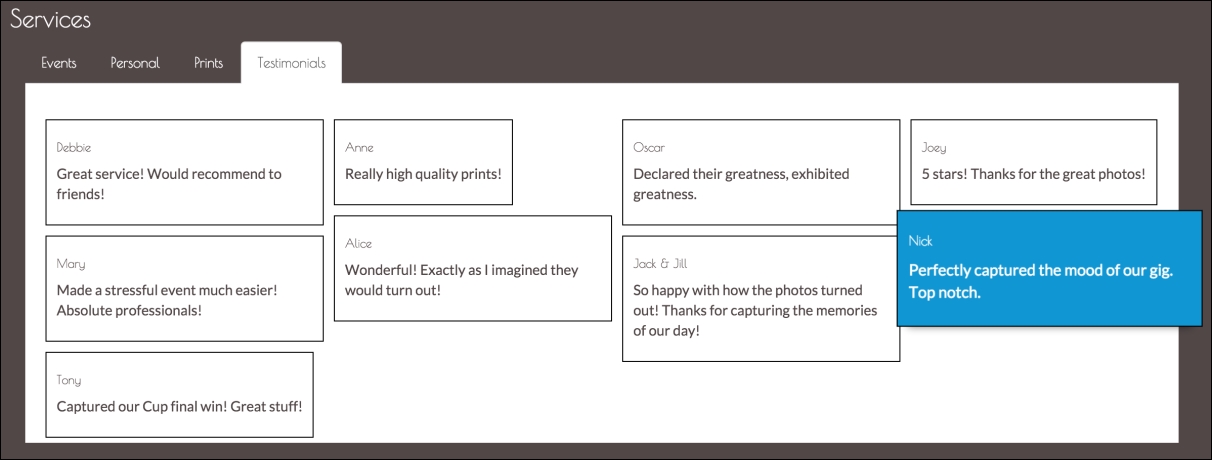
Figure 9.1: The improved testimonials section, displaying testimonials dynamically
Awesome! We now have a dynamic Testimonials tab, thanks to AngularJS. Something is not right here, though. Salvatorre, the dynamic grid library we introduced in Chapter 7 , Integrating Bootstrap with Third-Party Plugins does not seem to be taking effect on this component anymore.
The reason for this is simple—by the time AngularJS has rendered the testimonials component, Salvatorre has already instrumented the DOM.
We need to register the testimonials component with Salvatorre after it has rendered. We can do this through the
link
function. First, let's add
$timeout
service as a dependency:
.directive('testimonials', function(testimonialsService, $timeout)The
$timeout
service is the AngularJS wrapper for the
window.setTimeout
function. As you may know, AngularJS works on a digest cycle, where it uses dirty-checking techniques to see which parts of the application needs to be updated. This happens routinely, or can be forced. We can use
$timeout
to ensure that certain code is executed in a later digest cycle. Let's update the link function with the following:
    link: function(scope, elem, attr, ctrl) {
        $timeout(function() {
            salvattore.registerGrid(elem[0])
        }, 1000)
    }
Here, we are using
$timeout
with two parameters. The latter parameter is a delay of 10 milliseconds, to ensure the code is executed in a later digest cycle; 1,000 milliseconds should be enough to ensure the testimonial component has completed rendering. We pass in a function as the first parameter, responsible for calling Salvatorre's
registerGrid
function. The
registerGrid
function forcibly instruments the passed element with Salvattore. We pass the first element in the
elem
array, which is the rendered testimonial component. With this in place, the Testimonial tab will have a dynamic grid layout.
As such, we have managed to replicate the Testimonial tab—which leverages Bootstrap, Salvattore, Hover, and Animate.css—through AngularJS services and directives, using dynamic content instead of hardcoded values. Time to move onto React.