Table of Contents for
Bootstrap 4 – Responsive Web Design
 Bootstrap 4 – Responsive Web Design
Published by
Packt Publishing, 2017
Bootstrap 4 – Responsive Web Design
Published by
Packt Publishing, 2017
- Cover
- Table of Contents
- Bootstrap 4 – Responsive Web Design
- Bootstrap 4 – Responsive Web Design
- Credits
- Preface
- What you need for this learning path
- Who this learning path is for
- Reader feedback
- Customer support
- 1. Module 1
- 1. Getting Started
- Setting up the framework
- Building our first Bootstrap example
- Optionally using the CDN setup
- Community activity
- Bootstrap and web applications
- Browser compatibility
- Summary
- 2. Creating a Solid Scaffolding
- Building our scaffolding
- Fluid container
- We need some style!
- Manipulating tables
- Like a boss!
- Final thoughts
- Summary
- 3. Yes, You Should Go Mobile First
- Bootstrap and the mobile-first design
- How to debug different viewports at the browser
- Cleaning up the mess
- Creating the landing page for different devices
- Summary
- 4. Applying the Bootstrap Style
- Summary
- 5. Making It Fancy
- Paying attention to your navigation
- Dropping it down
- Making an input grouping
- Getting ready for flexbox!
- Summary
- 6. Can You Build a Web App?
- Adding the navigation
- Do a grid again
- Playing the cards
- Implementing the main content
- Creating breadcrumbs
- Finishing with the right-hand-side content
- Summary
- 7. Of Course, You Can Build a Web App!
- Waiting for the progress bar
- Creating a settings page
- Summary
- 8. Working with JavaScript
- Awesome Bootstrap modals
- Creating our custom modal
- A tool for your tip
- Pop it all over
- Making the menu affix
- Finishing the web app
- Summary
- 9. Entering in the Advanced Mode
- The last navigation bar with flexbox
- Filling the main fluid content
- Filling the main content
- Overhead loading
- Fixing the toggle button for mobile
- Summary
- 10. Bringing Components to Life
- Fixing the mobile viewport
- Learning more advanced plugins
- Summary
- 11. Making It Your Taste
- Working with plugin customization
- The additional Bootstrap plugins
- Creating our Bootstrap plugin
- Defining the plugin methods
- Creating additional plugin methods
- Summary
- 2. Module 2
- 1. Introducing Bootstrap 4
- Summary
- 2. Using Bootstrap Build Tools
- Download the Bootstrap source files
- Setting up the blog project
- Setting up the JSON files
- Creating our first page template
- Summary
- 3. Jumping into Flexbox
- Ordering your Flexbox
- Wrapping your Flexbox
- Setting up the Bootstrap Flexbox layout grid
- Setting up a Flexbox project
- Designing a single blog post
- Summary
- 4. Working with Layouts
- Inserting rows into your layout
- Adding columns to your layout
- Choosing a column class
- Creating a simple three-column layout
- Mixing column classes for different devices
- Coding the blog home page
- Using responsive utility classes
- Summary
- 5. Working with Content
- Learning to use typography
- Customizing headings
- How to style images
- Coding tables
- Summary
- 6. Playing with Components
- Basic button examples
- Creating outlined buttons
- Checkbox and radio buttons
- Coding forms in Bootstrap 4
- Creating an inline form
- Adding validation to inputs
- Using the Jumbotron component
- Adding the Label component
- Using the Alerts component
- Using Cards for layout
- Updating the Blog index page
- How to use the Navs component
- Adding Breadcrumbs to a page
- Using the Pagination component
- How to use the List Group component
- Summary
- 7. Extending Bootstrap with JavaScript Plugins
- Coding Tooltips
- Avoiding collisions with our components
- Using Popover components
- Using the Collapse component
- Coding an Accordion with the Collapse component
- Coding a Bootstrap Carousel
- Summary
- 8. Throwing in Some Sass
- Using Sass in the blog project
- Importing partials in Sass
- Creating a collection of variables
- Customizing components
- Writing a theme
- Summary
- 9. Migrating from Version 3
- Big changes in version 4
- Updating your variables
- Additional global changes
- Other font updates
- Migrating components
- Migrating JavaScript
- Miscellaneous migration changes
- Summary
- 3. Module 3
- 1. Revving Up Bootstrap
- What Bootstrap 4 Alpha 4 has to offer
- Setting up our project
- Summary
- 2. Making a Style Statement
- Image elements
- Responsive utilities
- Helper classes
- Text alignment and transformation
- Summary
- 3. Building the Layout
- Adding Bootstrap components
- Summary
- 4. On Navigation, Footers, Alerts, and Content
- Improving navigation using Scrollspy
- Customizing scroll speed
- Icons
- Using and customizing alerts
- Creating a footer
- Creating and customizing forms
- Form validation
- Progress indicators
- Adding content using media objects
- Figures
- Quotes
- Abbreviations
- Summary
- 5. Speeding Up Development Using jQuery Plugins
- Enhanced pagination using bootpag
- Displaying images using Bootstrap Lightbox
- Improving our price list with DataTables
- Summary
- 6. Customizing Your Plugins
- Customizing plugins
- Writing a custom Bootstrap jQuery plugin
- Summary
- 7. Integrating Bootstrap with Third-Party Plugins
- Hover
- Summary
- 8. Optimizing Your Website
- Minifying CSS and JavaScript
- Introducing Grunt
- Running tasks automatically
- Stripping our website of unused CSS
- JavaScript file concatenation
- Summary
- 9. Integrating with AngularJS and React
- Introducing React
- Summary
- Bibliography
- Index
Dead code is never good. As such, whatever the project that you are working on may be, you should always strive to eliminate code that is no longer in use, as early as possible. This is especially important when developing websites, as unused code will inevitably be transferred to the client, and hence result in additional, unnecessary, bytes being transferred (although maintainability is also a major concern).
Programmers are not perfect, and we all make mistakes. As such, unused code or style rules are bound to slip past us during development and testing. Consequently, it would be nice if we could establish a safeguard to ensure that at least no unused style makes it past us into production. And this is where grunt-uncss fits in. Visit https://github.com/addyosmani/grunt-uncss for more.
UnCSS strips any unused CSS from our style sheet. When configured properly, it can therefore be very useful to ensure that our production-ready website is as small as possible. Let's go ahead and install UnCSS:
sudo npm install grunt-uncss -save-dev
Once installed, we need to tell Grunt about our plugin. Just as in the previous sub-sections, update the Gruntfile.js by adding the line grunt.loadNpmTasks('grunt-uncss'); to our Grunt configuration. Next, go ahead and define the uncss task:
    "uncss": {
        "target": {
            "files": {
                "src/styles/output.css": ["src/index.html"]
            }
        }
    },
In the preceding code, we specified a target consisting of the file index.html. This index.html will be parsed by Uncss. The class and id names used within it will be compared to those appearing in our style sheets. Should our style sheets contain selectors that are unused, then those are removed from the output. The output itself will be written to src/styles/output.css.
Let's go ahead and test this. Add a new style to our myphoto.css that will not be used anywhere within our index.html. For example:
    #foobar {
        color: red;
    }
Save and then run:
grunt uncss
Upon successful execution, the terminal should display output along the lines of:
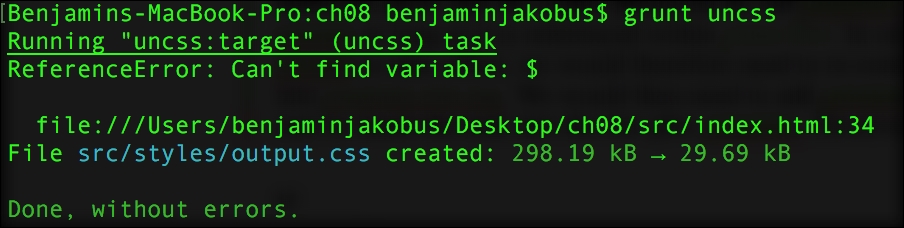
Figure 8.5: The console output after executing our uncss task
Go ahead and open the generated output.css file. The file will contain a concatenation of all our CSS files (including Bootstrap). Go ahead and search for #foobar. Find it? That's because UnCSS detected that it was no longer in use and removed it for us.
Now, we successfully configured a Grunt task to strip our website of the unused CSS. However, we need to run this task manually. Would it not be nice if we could configure the task to run with the other watch tasks? If we were to do this, the first thing that we would need to ask ourselves is, how do we combine the CSS minification task with UnCSS? After all,
grunt watch
would run one before the other. As such, we would be required to use the output of one task as input for the other. So how would we go about doing this?
Well, we know that our cssmin task writes its output to myphoto.min.css. We also know that index.html references myphoto.min.css. Furthermore, we also know uncss receives its input by checking the style sheets referenced in index.html. We therefore know that the output produced by our cssmin task is sure to be used by our uncss as long as it is referenced within index.html.
In order for the output produced by uncss to take effect, we would therefore need to reconfigure the task to write its output into myphoto.min.css. We would then need to add uncss to our list of watch tasks, taking care to insert the task into the list after cssmin. However, this leads to a problem: running uncss after cssmin will produce an un-minified style sheet. Furthermore, it also requires the presence of myphoto.min.css. However, as myphoto.min.css is actually produced by cssmin, the sheet will not be present when running the task for the first time. We therefore need a different approach. We will need to use the original myphoto.css as input to uncss, which then writes its output into a file called myphoto.min.css.
Our cssmin task then uses this file as input, minifiying it as discussed previously. Since uncss parses the style sheet references in index.html, we would need to first revert our index.html to reference our development style sheet, myphoto.css. Go ahead and do just that. Replace the line: <link rel="stylesheet" href="styles/myphoto.min.css" /> with: <link rel="stylesheet" href="styles/myphoto.css" />.
For the minified changes to take effect, we now need a tool that replaces our style sheet references with our production-ready style sheets. Meet grunt-processhtml. Visit https://www.npmjs.com/package/grunt-processhtml
for more.
Go ahead and install it using the following command:
sudo npm install grunt-processhtml --save-dev
Add grunt.loadNpmTasks('grunt-processhtml'); to our Gruntfile.js to enable our freshly installed tool.
While grunt-processhtml is very powerful, we will only cover how to replace style sheet references. We therefore recommend that you read the tool's documentation to discover further features.
In order to replace our style sheets with myphoto.min.css, we wrap them inside special grunt-processhtml comments:
    <!-- build:css styles/myphoto.min.css -->
        <link rel="stylesheet" href="bower_components/bootstrap/
        dist/css/bootstrap.min.css" />
        <link href='https://fonts.googleapis.com/css?family=Poiret+One'
        rel='stylesheet' type='text/css'>
        <link href='http://fonts.googleapis.com/css?family=Lato&
        subset=latin,latin-ext' rel='stylesheet' type='text/css'>
        <link rel="stylesheet" href="bower_components/Hover/css/
        hover-min.css" />
        <link rel="stylesheet" href="styles/myphoto.css" />
        <link rel="stylesheet" href="styles/alert.css" />
        <link rel="stylesheet" href="styles/carousel.css" />
        <link rel="stylesheet" href="styles/a11yhcm.css" />
        <link rel="stylesheet" href="bower_components/components-
        font-awesome/css/font-awesome.min.css" />
        <link rel="stylesheet" href="bower_components/lightbox-for
        -bootstrap/css/bootstrap.lightbox.css" />
        <link rel="stylesheet" href="bower_components/DataTables/
        media/css/dataTables.bootstrap.min.css" />
        <link rel="stylesheet" href="resources/animate/animate.min.css" />
    <!-- /build -->
Note how we reference the style sheet that is meant to replace the style sheets contained within the special comments on the first line, inside the comment:
<!-- build:css styles/myphoto.min.css -->
Last, but not least, add the following task:
    "processhtml": {
        "dist": {
            "files": {
                "dist/index.html": ["src/index.html"]
            }
        }
    },
Notice how the output of our processhtml task will be written to
dist
. Test the newly configured task through the command grunt processhtml.
The task should execute without errors:

Figure 8.6: The console output after executing the processhtml task
Open dist/index.html and observe how, instead of the 12
link
tags, we only have one:
<link rel="stylesheet" href="styles/myphoto.min.css">
Next, we need to reconfigure our uncss task to write its output to myphoto.min.css. To do so, simply replace the output path 'src/styles/output.css' with 'dist/styles/myphoto.min.css' inside our Gruntfile.js (note how myphoto.min.css will now be written to dist/styles as opposed to src/styles). We then need to add uncss to our list of watch tasks, taking care to insert the task into the list after cssmin:
    "watch": {
        "target": {
            "files": ["src/styles/myphoto.css"],
            "tasks": ["uncss", "cssmin", "processhtml"],
            "options": {
                "livereload": true
            }
        }
     }
Next, we need to configure our cssmin task to use myphoto.min.css as input:
    "cssmin": {
        "target": {
            "files": {
                "dist/styles/myphoto.min.css":
                ["src/styles/myphoto.min.css"]
            }
        }
    },
Note how we removed
'src/styles!*.min.css', which would have prevented cssmin from reading files ending with the extension min.css.
Running
grunt watch
and making a change to our myphoto.css file should now trigger the uncss task and then the cssmin task, resulting in console output indicating the successful execution of all tasks. That is, the console output should indicate that first uncss, cssmin, and then processhtml were successfully executed. Go ahead and check myphoto.min.css inside the dist folder. You should see how:
- The CSS file contains an aggregation of all our style sheets
- The CSS file is minified
- The CSS file contains no unused style rules
However, you will also notice that the dist folder contains none of our assets—neither images, Bower components, nor our custom JavaScript files. As such, you will be forced to copy any assets manually. Of course, this is less than ideal. So let's see how we can copy our assets to our dist folder automatically.
Note
The dangers of using UnCSS
U
nCSS
may cause you to lose styles that are applied dynamically. As such, care should be taken when using this tool. Take a closer look at the MyPhoto style sheet and see whether you spot any issues. You should notice that our style rules for overriding the background color of our navigation pills was removed. One potential fix for this is to write a dedicated class for gray nav pills (as opposed to overriding them with the Bootstrap classes).
To copy our assets from
src
into
dist
we will use
grunt-contrib-copy
. Visit https://github.com/gruntjs/grunt-contrib-copy
for more on this. Go ahead and install it:
sudo npm install grunt-contrib-copy -save-dev
Once installed, enable it by adding grunt.loadNpmTasks('grunt-contrib-copy'); to our Gruntfile.js. Then configure the copy task:
    "copy": {
        "target": {
            "files": [
                {
                    "cwd": "src/images",
                    "src": ["*"],
                    "dest": "dist/images/",
                    "expand": true
                },
                {
                    "cwd": "src/bower_components",
                    "src": ["*"],
                    "dest": "dist/bower_components/",
                    "expand": true
                },
                {
                    "cwd": "src/js",
                    "src": ["*"],
                    "dest": "dist/js/",
                    "expand": true
                },
             ]
        }
    },
The preceding configuration should be self-explanatory. We are specifying a list of copy operations to perform; src indicates the source and dest indicates the destination. The cwd variable indicates the current working directory. Note how, instead of a wildcard expression, we could also match a certain
src
pattern. For example, to only copy minified JS files, we could write:
"src": ["*.min.js"]
Take a look at the following screenshot:

Figure 8.7: The console output indicating the number of copied files and directories after running the copy task
Update the watch task:
    "watch": {
        "target": {
            'files": ['src/styles/myphoto.css"],
            "tasks": ["uncss", "cssmin", "processhtml", "copy"]
        }
    },
Test the changes by running grunt watch. All tasks should execute successfully. The last task that was executed should be the
copy
task.
Another common source for unnecessary bytes is comments. While needed during development, they serve no practical purpose in production. As such, we can configure our cssmin task to strip our CSS files of any comments by simply creating an options property and setting its nested keepSpecialComments property to 0:
    "cssmin": {
        "target":{
            "options": {
                "keepSpecialComments": 0
            },
            "files": {
                "dist/src/styles/myphoto.min.css": ["src/styles
                /myphoto.min.css"]
            }
        }
    },
Note
Did you know?
You can minify class and identifier names using the lessons learned so far in this chapter. Recall our earlier discussion on class names and identifier names—long names may improve code readability and code maintainability. Short names, on the other hand, require fewer bytes to transfer. As such, developers who want a highly optimized site are caught between two fronts—maintainability versus size. Of course, in most cases, the few extra bytes caused by slightly more descriptive identifier names will not be a cause for major concern. However, it does become a point of consideration once your website reaches a specific volume. Therefore, meet the Grunt class and id minifier at https://github.com/yiminghe/grunt-class-id-minifier. Another useful and alternative tool is Munch at https://www.npmjs.com/package/munch.