Table of Contents for
Bootstrap 4 – Responsive Web Design
 Bootstrap 4 – Responsive Web Design
Published by
Packt Publishing, 2017
Bootstrap 4 – Responsive Web Design
Published by
Packt Publishing, 2017
- Cover
- Table of Contents
- Bootstrap 4 – Responsive Web Design
- Bootstrap 4 – Responsive Web Design
- Credits
- Preface
- What you need for this learning path
- Who this learning path is for
- Reader feedback
- Customer support
- 1. Module 1
- 1. Getting Started
- Setting up the framework
- Building our first Bootstrap example
- Optionally using the CDN setup
- Community activity
- Bootstrap and web applications
- Browser compatibility
- Summary
- 2. Creating a Solid Scaffolding
- Building our scaffolding
- Fluid container
- We need some style!
- Manipulating tables
- Like a boss!
- Final thoughts
- Summary
- 3. Yes, You Should Go Mobile First
- Bootstrap and the mobile-first design
- How to debug different viewports at the browser
- Cleaning up the mess
- Creating the landing page for different devices
- Summary
- 4. Applying the Bootstrap Style
- Summary
- 5. Making It Fancy
- Paying attention to your navigation
- Dropping it down
- Making an input grouping
- Getting ready for flexbox!
- Summary
- 6. Can You Build a Web App?
- Adding the navigation
- Do a grid again
- Playing the cards
- Implementing the main content
- Creating breadcrumbs
- Finishing with the right-hand-side content
- Summary
- 7. Of Course, You Can Build a Web App!
- Waiting for the progress bar
- Creating a settings page
- Summary
- 8. Working with JavaScript
- Awesome Bootstrap modals
- Creating our custom modal
- A tool for your tip
- Pop it all over
- Making the menu affix
- Finishing the web app
- Summary
- 9. Entering in the Advanced Mode
- The last navigation bar with flexbox
- Filling the main fluid content
- Filling the main content
- Overhead loading
- Fixing the toggle button for mobile
- Summary
- 10. Bringing Components to Life
- Fixing the mobile viewport
- Learning more advanced plugins
- Summary
- 11. Making It Your Taste
- Working with plugin customization
- The additional Bootstrap plugins
- Creating our Bootstrap plugin
- Defining the plugin methods
- Creating additional plugin methods
- Summary
- 2. Module 2
- 1. Introducing Bootstrap 4
- Summary
- 2. Using Bootstrap Build Tools
- Download the Bootstrap source files
- Setting up the blog project
- Setting up the JSON files
- Creating our first page template
- Summary
- 3. Jumping into Flexbox
- Ordering your Flexbox
- Wrapping your Flexbox
- Setting up the Bootstrap Flexbox layout grid
- Setting up a Flexbox project
- Designing a single blog post
- Summary
- 4. Working with Layouts
- Inserting rows into your layout
- Adding columns to your layout
- Choosing a column class
- Creating a simple three-column layout
- Mixing column classes for different devices
- Coding the blog home page
- Using responsive utility classes
- Summary
- 5. Working with Content
- Learning to use typography
- Customizing headings
- How to style images
- Coding tables
- Summary
- 6. Playing with Components
- Basic button examples
- Creating outlined buttons
- Checkbox and radio buttons
- Coding forms in Bootstrap 4
- Creating an inline form
- Adding validation to inputs
- Using the Jumbotron component
- Adding the Label component
- Using the Alerts component
- Using Cards for layout
- Updating the Blog index page
- How to use the Navs component
- Adding Breadcrumbs to a page
- Using the Pagination component
- How to use the List Group component
- Summary
- 7. Extending Bootstrap with JavaScript Plugins
- Coding Tooltips
- Avoiding collisions with our components
- Using Popover components
- Using the Collapse component
- Coding an Accordion with the Collapse component
- Coding a Bootstrap Carousel
- Summary
- 8. Throwing in Some Sass
- Using Sass in the blog project
- Importing partials in Sass
- Creating a collection of variables
- Customizing components
- Writing a theme
- Summary
- 9. Migrating from Version 3
- Big changes in version 4
- Updating your variables
- Additional global changes
- Other font updates
- Migrating components
- Migrating JavaScript
- Miscellaneous migration changes
- Summary
- 3. Module 3
- 1. Revving Up Bootstrap
- What Bootstrap 4 Alpha 4 has to offer
- Setting up our project
- Summary
- 2. Making a Style Statement
- Image elements
- Responsive utilities
- Helper classes
- Text alignment and transformation
- Summary
- 3. Building the Layout
- Adding Bootstrap components
- Summary
- 4. On Navigation, Footers, Alerts, and Content
- Improving navigation using Scrollspy
- Customizing scroll speed
- Icons
- Using and customizing alerts
- Creating a footer
- Creating and customizing forms
- Form validation
- Progress indicators
- Adding content using media objects
- Figures
- Quotes
- Abbreviations
- Summary
- 5. Speeding Up Development Using jQuery Plugins
- Enhanced pagination using bootpag
- Displaying images using Bootstrap Lightbox
- Improving our price list with DataTables
- Summary
- 6. Customizing Your Plugins
- Customizing plugins
- Writing a custom Bootstrap jQuery plugin
- Summary
- 7. Integrating Bootstrap with Third-Party Plugins
- Hover
- Summary
- 8. Optimizing Your Website
- Minifying CSS and JavaScript
- Introducing Grunt
- Running tasks automatically
- Stripping our website of unused CSS
- JavaScript file concatenation
- Summary
- 9. Integrating with AngularJS and React
- Introducing React
- Summary
- Bibliography
- Index
A Tooltip is a marker that will appear over a link when you hover over it in the browser. They are pretty easy to add with data attributes in Bootstrap, but we do need to make some updates to get them working. In Bootstrap 4 they have started using a third-party JavaScript library for Tooltips called Tether. Before we go any further, head over to the Tether website below and download the library:
http://github.hubspot.com/tether/
Once you've downloaded the library, unzip it and open the main directory where you'll see a number of files. Navigate to the /dist/js directory and find the file named tether.min.js:
Now copy tether.min.js into the /js directory of our blog project. This is the only file you need from Tether's directory, so you can keep the rest of the files or delete them. Once the file is in our project directory we need to update our template.
Now that we have the Tether file in our project directory we need to update our _layout.ejs template to include it when the page is compiled. From the root of our project directory, open up _layout.ejs and insert the following line of code near the bottom after jQuery. It's critical that the Tether file is loaded after jQuery, but before bootstrap.min.js:
<script src="js/tether.min.js"></script>
Save the file and make sure you recompile your project so that this is imported into all of your HTML files. Once that's done, you will now be able to use Tooltips on any page that is included in our project.
Now that we've included the Tether library, we can learn how to actually use Tooltips in Bootstrap. Let's try them out on one of our project files. Open up index.ejs in your text editor and find a section of code that is just text, like this:
<p>Pellentesque habitant morbi tristique senectus et netus et malesuada fames ac turpis egestas...</p>
Once you've found that section of code, let's wrap an <a> tag around the first three words with the following attributes on it:
<p><a href="#" data-toggle="tooltip" >Pellentesque habitant morbi</a> tristique senectus et netus et malesuada fames ac turpis egestas.</p>
This is the basic markup needed to render a Tooltip. Let's breakdown what is happening here:
- The
data-toggleattribute is required to tell the browser that this is a Tooltip. The value should be set totooltip. - The
titleattribute is also required and the value will be the text that appears in your Tooltip. In this case, I have set it toThis is a tooltip!.
Before we can test this out in the browser, we need to add something else to our _layout.ejs template. Open that file in your text editor and insert the following code after the Tether library:
<script src="js/bootstrap.min.js"></script>
<script>
  $("a").tooltip();
</script>
In Bootstrap 4, Tooltips need to be initialized before you can use them. Therefore, I'm using a little jQuery here to say that all a tags should be initialized to use the Tooltip method, which will activate all link tags for use with a Tooltip. This is a little trick you can use so you don't have to use an ID to indicate every Tooltip you want to initialize. Once you've completed this step, save all your files, recompile them, and then view your project in the browser; it should look like this when you rollover the link anchor text:
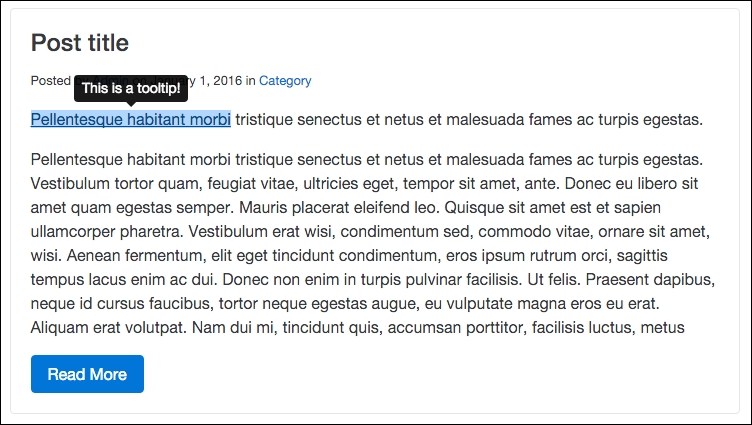
By default, in Bootstrap the position for Tooltips is above the anchor text. However, using the data-placement attribute will allow you to place the tip above, below, left, or right of the anchor text. Let's take a look at the code required to render the different versions:
<p><a href="#" data-toggle="tooltip"  data-placement="top">Pellentesque habitant morbi</a> tristique senectus et netus et malesuada fames ac turpis egestas.</p>
<p><a href="#" data-toggle="tooltip"  data-placement="bottom">Pellentesque habitant morbi</a> tristique senectus et netus et malesuada fames ac turpis egestas.</p>
<p><a href="#" data-toggle="tooltip"  data-placement="right">Pellentesque habitant morbi</a> tristique senectus et netus et malesuada fames ac turpis egestas.</p>
<p><a href="#" data-toggle="tooltip"  data-placement="left">Pellentesque habitant morbi</a> tristique senectus et netus et malesuada fames ac turpis egestas.</p>
As you can see, I've added the data-placement attribute to each link tag. The following values will control the position of the Tooltip when you hover over it:
- Top:
data-placement="top" - Bottom:
data-placement="bottom" - Right:
data-placement="right" - Left:
data-placement="left"
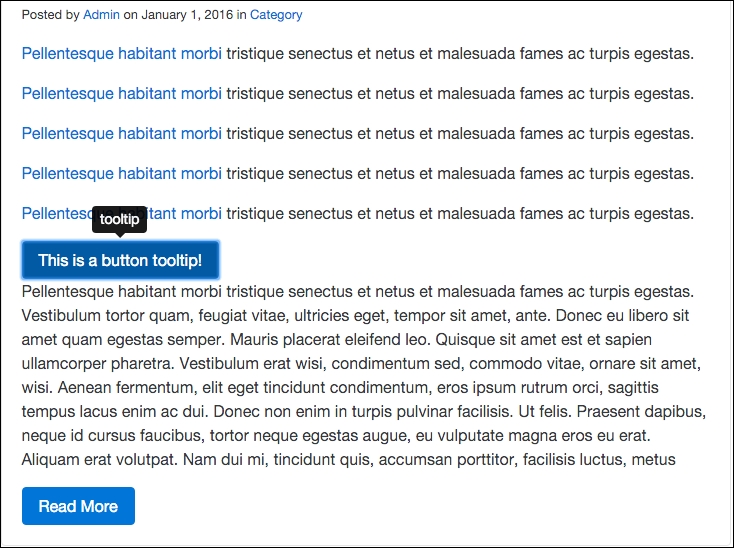
It's also quite easy to add a Tooltip to a button by using the same data attributes as links. Let's take a look at how to code a simple button with a Tooltip above it:
<button type="button" class="btn btn-primary" data-toggle="tooltip" data-placement="top" data-original->This is a button tooltip!</button>
Here you'll see a basic button component, but with the Tooltip data attributes:
- I've added the
data-toggleattribute with a value oftooltip - You can optionally include the
data-placementattribute; if you leave it out it will default to top - You need to include the
data-original-titleattribute and the value will be the Tooltip message
To get Tooltips on buttons working, you need to initialize them the same way you did the links in the previous section. Open up _layout.ejs again in your text editor and include the following line of code. The entire section of JavaScript should now look like this:
<script>
  $("a").tooltip();
  $("button").tooltip();
</script>
Like we did with the link tags, we'll initialize all button tags to use the Tooltip component if called in the HTML template. Let's take a look at how our Tooltip on a button should look in the browser when it's done correctly: