Table of Contents for
Mastering PostCSS for Web Design
 Mastering PostCSS for Web Design
Published by
Packt Publishing, 2016
Mastering PostCSS for Web Design
Published by
Packt Publishing, 2016
- Cover
- Table of Contents
- Mastering PostCSS for Web Design
- Mastering PostCSS for Web Design
- Credits
- About the Author
- About the Reviewer
- www.PacktPub.com
- Preface
- What you need for this book
- Who this book is for
- Conventions
- Reader feedback
- Customer support
- 1. Introducing PostCSS
- Introducing PostCSS
- Setting up a development environment
- Creating a simple example using PostCSS
- Linting code using plugins
- Exploring how PostCSS works
- Summary
- 2. Creating Variables and Mixins
- Creating a hover effect example
- Transitioning to using PostCSS
- Adding variable support to PostCSS
- Updating our hover effect demo
- Setting the order of plugins
- Creating mixins with PostCSS
- Looping content with PostCSS
- Summary
- 3. Nesting Rules
- Navigating through pages
- Transitioning to using PostCSS plugins
- Exploring the pitfalls of nesting
- Making the switch to BEM
- Exploring our changes in more detail
- Summary
- 4. Building Media Queries
- Exploring custom media queries in PostCSS
- Making images responsive
- Adding responsive text support
- Optimizing media queries
- Retrofitting support for older browsers
- Moving away from responsive design
- Taking things further with CSS4
- Summary
- 5. Managing Colors, Images, and Fonts
- Managing fonts with PostCSS
- Creating image sprites
- Working with SVG in PostCSS
- Adding support for WebP images
- Manipulating colors and color palettes
- Creating color functions with PostCSS
- Summary
- 6. Creating Grids
- Creating an example with Bourbon Neat
- Exploring the grid plugins in PostCSS
- Transitioning to using PostCSS-Neat
- Creating a site using Neat and PostCSS
- Adding responsive capabilities
- Summary
- 7. Animating Elements
- Moving away from jQuery
- Making use of pre-built libraries
- Switching to using SASS
- Making the switch to PostCSS
- Exploring plugin options within PostCSS
- Updating code to use PostCSS
- Creating a demo in PostCSS
- Optimizing our animations
- Using our own animation plugin
- Summary
- 8. Creating PostCSS Plugins
- Dissecting the architecture of a standard plugin
- Creating an transition plugin
- Building a custom font plugin
- Simplifying the development process
- Guidelines for plugin building
- Making the plugin available for use
- Summary
- 9. Working with Shortcuts, Fallbacks, and Packs
- Exploring plugin packs for PostCSS
- Adding shortcuts with Rucksack
- Linting and optimizing your code
- Providing fallback support
- Summary
- 10. Building a Custom Processor
- Exploring our processor
- Dissecting issues with our processor
- Optimizing the output
- Adding reload capabilities
- Extending our processor further
- Testing the final pre-processor
- Getting started with some hints and tips
- Introducing the CSStyle library
- Summary
- 11. Manipulating Custom Syntaxes
- Preparing our environment
- Implementing custom syntax plugins
- Parsing CSS
- Formatting the output with the API
- Highlighting our syntax code
- Summary
- 12. Mixing Preprocessors
- Exploring the conversion process
- Introducing the Pleeease library
- Compiling with other preprocessors
- Using the PreCSS library
- Converting a WordPress installation
- Setting up our environment
- Considering the conversion process
- Making changes to our code
- Compiling and testing the changes
- Summary
- 13. Troubleshooting PostCSS Issues
- Exploring some common issues
- Getting help from others
- Summary
- 14. Preparing for the Future
- Converting CSS4 styles for use
- Supporting future syntax with cssnext
- Creating plugins to provide extra CSS4 support
- Summary
- Index
A website isn't a great website without some form of color, imagery, or fonts—a mix of these will add interest, express content more clearly where words might be insufficient, and generally help maintain visitor engagement.
Users of existing preprocessors will of course be familiar with libraries such as the Compass authoring framework for SASS from http://www.compass-style.org; what if we could produce similar effects, but much faster, and without the need for dependencies? No problem, with PostCSS, we can pick and choose which plugins are needed for our site, and begin to build up a processor that suits our needs. We will cover a number of topics throughout this chapter, which will include:
- An overview of plugins available to handle colors, images, and fonts
- Creating image sprites using existing preprocessors
- Adding SVG support using existing preprocessors
- Transitioning to using PostCSS plugins
- Manipulating colors and color palettes using PostCSS plugins
Let's make a start…!
A picture paints a thousand words…
Originally created in the 1920s, this phrase is so apt in the world of digital content—writing a hundred words doesn't have the same appeal if we can replace it with a single image and still convey the same meaning!
A part of any developer or designer's work will be to source the right images or fonts, or choose the right colors, and include them on the site they are building so they can be referenced at the appropriate point. We'll explore some of the plugins and tricks we can use to modify colors, but for now, let's take a look at some of the plugins available for manipulating images and fonts within a site.
When sourcing media for a site, the usual process will be to create a folder for fonts, another for images, and so on, if any part of the process is likely to fail, then it is likely to be with applying incorrect links in our code. The risk of this happening will of course increase if we have a particularly complex folder structure!
Instead, we can take an alternative approach: why not get PostCSS (or a plugin) to do the work for us?
We can use the postcss-assets plugin for this purpose; if we specify a name, it will look in the files relative to the source file, then file paths specified in the loadPaths configuration option, and finally search in the URL specified in the basePath config path. The beauty of this is that we can simply reference the image name, and provided PostCSS finds an image with the same name in one of these preassigned locations, then it will substitute in the appropriate path for us at compilation.
If a link needs to change, then no problem, we can either add a new one in, or modify the existing one; CSS styles will be updated at the next compilation. Let's put this into practice, using the postcss-assets plugin, in a simple demo.
Remember the moody landscape image from Chapter 4, Building Media Queries?
In our first example, we're going to rework this demo, but this time use the postcss-assets plugin (available from https://github.com/borodean/postcss-assets) to automate the insertion of links for all of our assets. We'll focus on images and fonts, but this can equally apply to media such as videos as well.
Here's a screenshot to remind ourselves of that image:
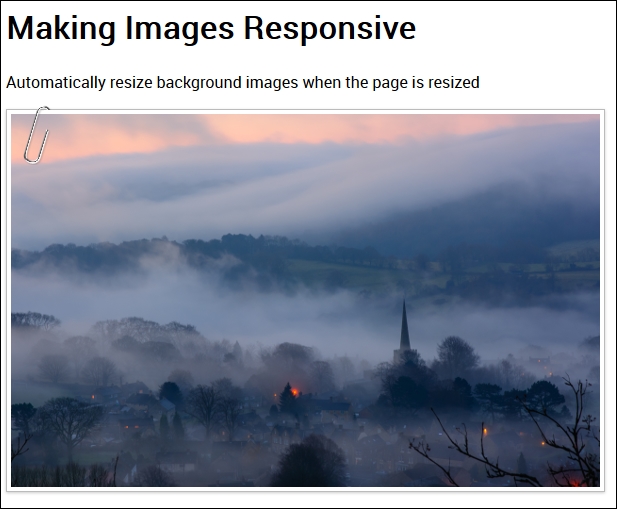
Let's make a start:
- Go ahead and download a copy of the
Tuturial19folder from the code download that accompanies this book, save this at the root of our project area. This contains a partially reworked version of the demo from Chapter 4, Building Media Queries. - Next, go ahead and remove any copies of
gulpfile.jsandpackage.jsonfrom the root of our project area—we'll start this chapter with fresh copies from our code download. - We now need to install the
postcss-assetsplugin, so fire up a Node.js command prompt session, enter this command, and then press Enter:npm install postcss-assets --save-devDon't close it, we will use it again shortly!
- We need to extract copies of the
gulpfile.jsandpackage.jsonfiles from the code download—go ahead and save them to the root of our project area.The sharp-eyed amongst you will note we are not installing any other plugins—we're using ones that we have already installed in earlier exercises; the
package.jsonfile will include references to these and thepostcss-assetsfile. - In the
Tutorial19folder, look for and copy thestyles – pre-compile.cssfile to thesrcfolder in our project area; rename it tostyles.css. - Revert back to the Node.js command prompt window, then enter gulp at the prompt and press Enter.
- If all is well, we should have a
mapsfolder and two CSS stylesheets (one full version, one minified)—if we copy these back to thecssfolder in theTutorial19folder, then run the demo, we should see a familiar image of a landscape with early mist, as shown at the start of this demo.
Okay, the image is displayed, along with the text in Roboto font, but how does it all work? It's worth taking a few moments to explore the code; setting it up correctly will help save you a lot of time!
Most of what is in the gulp file you will recognize from earlier demos—we've included the same linting, renaming, and source map creations as before. In addition to the new assets task (to handle our asset links), we've removed the autoprefixer task; we're not calling anything that requires vendor prefixes, so there is no need to use it.
The key process in the gulp file centers on this code—this creates, and substitutes in, the correct asset links. We start with the options configuration object—the loadPaths take care of the asset locations, and relativeTo tells the plugin to set relative links in relation to the dest/ folder. In this case, loadPaths defines specific folders to use; we use relativeTo to make these paths relative:
var options = {
  loadPaths: ['img/', 'fonts/'],
  relativeTo: 'dest/'
};
The dest/ folder is used in our creation process—in reality, this would be the location of our CSS style sheets on the production server. This next simple task simply calls the postcss-assets plugin, and processes each style sheet found in the src folder:
gulp.task('assets', function() {
  return gulp.src('src/*.css')
    .pipe(postcss([ assets(options) ]))
    .pipe(gulp.dest('dest/'));
});
We then simply call the task, if we were to call gulp from a command prompt, then it will run all of these tasks:
gulp.task('default', ['assets', 'lint-styles', 'rename', 'sourcemap']);
All in all, a very simple but highly effective tool, it removes the need to insert any links manually, provided we've included them within the configuration object.
Alright…let's move on: we've covered a simple method to ensure we always have the right links for font or image files. There is still an element of manual work required though—do we really need to include all of the lines added for our custom font?
Well, we could always just use a font hosted on Google, but that destroys the point of using PostCSS! Instead, we can simply use the custom font name in our style sheet, but get PostCSS to add in the custom font-face declaration automatically at compilation. Intrigued? Let's take a look at how, as part of our next exercise.