Table of Contents for
QGIS: Becoming a GIS Power User
 QGIS: Becoming a GIS Power User
Published by
Packt Publishing, 2017
QGIS: Becoming a GIS Power User
Published by
Packt Publishing, 2017
- Cover
- Table of Contents
- QGIS: Becoming a GIS Power User
- QGIS: Becoming a GIS Power User
- QGIS: Becoming a GIS Power User
- Credits
- Preface
- What you need for this learning path
- Who this learning path is for
- Reader feedback
- Customer support
- 1. Module 1
- 1. Getting Started with QGIS
- Running QGIS for the first time
- Introducing the QGIS user interface
- Finding help and reporting issues
- Summary
- 2. Viewing Spatial Data
- Dealing with coordinate reference systems
- Loading raster files
- Loading data from databases
- Loading data from OGC web services
- Styling raster layers
- Styling vector layers
- Loading background maps
- Dealing with project files
- Summary
- 3. Data Creation and Editing
- Working with feature selection tools
- Editing vector geometries
- Using measuring tools
- Editing attributes
- Reprojecting and converting vector and raster data
- Joining tabular data
- Using temporary scratch layers
- Checking for topological errors and fixing them
- Adding data to spatial databases
- Summary
- 4. Spatial Analysis
- Combining raster and vector data
- Vector and raster analysis with Processing
- Leveraging the power of spatial databases
- Summary
- 5. Creating Great Maps
- Labeling
- Designing print maps
- Presenting your maps online
- Summary
- 6. Extending QGIS with Python
- Getting to know the Python Console
- Creating custom geoprocessing scripts using Python
- Developing your first plugin
- Summary
- 2. Module 2
- 1. Exploring Places – from Concept to Interface
- Acquiring data for geospatial applications
- Visualizing GIS data
- The basemap
- Summary
- 2. Identifying the Best Places
- Raster analysis
- Publishing the results as a web application
- Summary
- 3. Discovering Physical Relationships
- Spatial join for a performant operational layer interaction
- The CartoDB platform
- Leaflet and an external API: CartoDB SQL
- Summary
- 4. Finding the Best Way to Get There
- OpenStreetMap data for topology
- Database importing and topological relationships
- Creating the travel time isochron polygons
- Generating the shortest paths for all students
- Web applications – creating safe corridors
- Summary
- 5. Demonstrating Change
- TopoJSON
- The D3 data visualization library
- Summary
- 6. Estimating Unknown Values
- Interpolated model values
- A dynamic web application – OpenLayers AJAX with Python and SpatiaLite
- Summary
- 7. Mapping for Enterprises and Communities
- The cartographic rendering of geospatial data – MBTiles and UTFGrid
- Interacting with Mapbox services
- Putting it all together
- Going further – local MBTiles hosting with TileStream
- Summary
- 3. Module 3
- 1. Data Input and Output
- Finding geospatial data on your computer
- Describing data sources
- Importing data from text files
- Importing KML/KMZ files
- Importing DXF/DWG files
- Opening a NetCDF file
- Saving a vector layer
- Saving a raster layer
- Reprojecting a layer
- Batch format conversion
- Batch reprojection
- Loading vector layers into SpatiaLite
- Loading vector layers into PostGIS
- 2. Data Management
- Joining layer data
- Cleaning up the attribute table
- Configuring relations
- Joining tables in databases
- Creating views in SpatiaLite
- Creating views in PostGIS
- Creating spatial indexes
- Georeferencing rasters
- Georeferencing vector layers
- Creating raster overviews (pyramids)
- Building virtual rasters (catalogs)
- 3. Common Data Preprocessing Steps
- Converting points to lines to polygons and back – QGIS
- Converting points to lines to polygons and back – SpatiaLite
- Converting points to lines to polygons and back – PostGIS
- Cropping rasters
- Clipping vectors
- Extracting vectors
- Converting rasters to vectors
- Converting vectors to rasters
- Building DateTime strings
- Geotagging photos
- 4. Data Exploration
- Listing unique values in a column
- Exploring numeric value distribution in a column
- Exploring spatiotemporal vector data using Time Manager
- Creating animations using Time Manager
- Designing time-dependent styles
- Loading BaseMaps with the QuickMapServices plugin
- Loading BaseMaps with the OpenLayers plugin
- Viewing geotagged photos
- 5. Classic Vector Analysis
- Selecting optimum sites
- Dasymetric mapping
- Calculating regional statistics
- Estimating density heatmaps
- Estimating values based on samples
- 6. Network Analysis
- Creating a simple routing network
- Calculating the shortest paths using the Road graph plugin
- Routing with one-way streets in the Road graph plugin
- Calculating the shortest paths with the QGIS network analysis library
- Routing point sequences
- Automating multiple route computation using batch processing
- Matching points to the nearest line
- Creating a routing network for pgRouting
- Visualizing the pgRouting results in QGIS
- Using the pgRoutingLayer plugin for convenience
- Getting network data from the OSM
- 7. Raster Analysis I
- Using the raster calculator
- Preparing elevation data
- Calculating a slope
- Calculating a hillshade layer
- Analyzing hydrology
- Calculating a topographic index
- Automating analysis tasks using the graphical modeler
- 8. Raster Analysis II
- Calculating NDVI
- Handling null values
- Setting extents with masks
- Sampling a raster layer
- Visualizing multispectral layers
- Modifying and reclassifying values in raster layers
- Performing supervised classification of raster layers
- 9. QGIS and the Web
- Using web services
- Using WFS and WFS-T
- Searching CSW
- Using WMS and WMS Tiles
- Using WCS
- Using GDAL
- Serving web maps with the QGIS server
- Scale-dependent rendering
- Hooking up web clients
- Managing GeoServer from QGIS
- 10. Cartography Tips
- Using Rule Based Rendering
- Handling transparencies
- Understanding the feature and layer blending modes
- Saving and loading styles
- Configuring data-defined labels
- Creating custom SVG graphics
- Making pretty graticules in any projection
- Making useful graticules in printed maps
- Creating a map series using Atlas
- 11. Extending QGIS
- Defining custom projections
- Working near the dateline
- Working offline
- Using the QspatiaLite plugin
- Adding plugins with Python dependencies
- Using the Python console
- Writing Processing algorithms
- Writing QGIS plugins
- Using external tools
- 12. Up and Coming
- Preparing LiDAR data
- Opening File Geodatabases with the OpenFileGDB driver
- Using Geopackages
- The PostGIS Topology Editor plugin
- The Topology Checker plugin
- GRASS Topology tools
- Hunting for bugs
- Reporting bugs
- Bibliography
- Index
In this chapter, we will use a mix of web services to provide an editable collaborative data system.
While the visualization and data viewing capabilities that we've seen so far are a powerful means to reach an audience, we can tap into an audience—whether they are members of our organization, community stakeholders, or simply interested parties out on the web—to contribute improved geometric and attribute data for our geographic objects. In this chapter, you will learn to build a system of web services that provides these capabilities for a university community. As far as editable systems go, this is at the simpler end of things. Using a map server such as GeoServer, you could extend more extensive geometric editing capabilities based on a sophisticated user access management.
In this chapter, we will cover the following topics:
- Google Sheets for collaborative data management and services
- AJAX for web service processing
- OpenStreetMap for collaborative data contribution
- MBTiles and UTFGrid data formats
- Interactive data hosting through Mapbox
- Parsing and mapping JSON to an object
- Mixing web service data
- Setting up an Ubuntu virtual machine with Vagrant
- TileStream for local MBTiles hosting
Google Sheets provides us with virtually everything we need in a basic data management platform—it is web-based, easily editable through a spreadsheet interface, has fine-grained editing controls and API options, and is consumable through a simple JSON web service—at no cost, in most cases.
To create a new Google document, you'll need to sign up for a Google account at https://accounts.google.com. Perform the following steps:
- Create a new Google Sheets document at https://docs.google.com/spreadsheets.
- Import data from an Excel file.
- Navigate to File | Import.
- Then, navigate to Upload |
c7/data/original/building_export.xlsx.
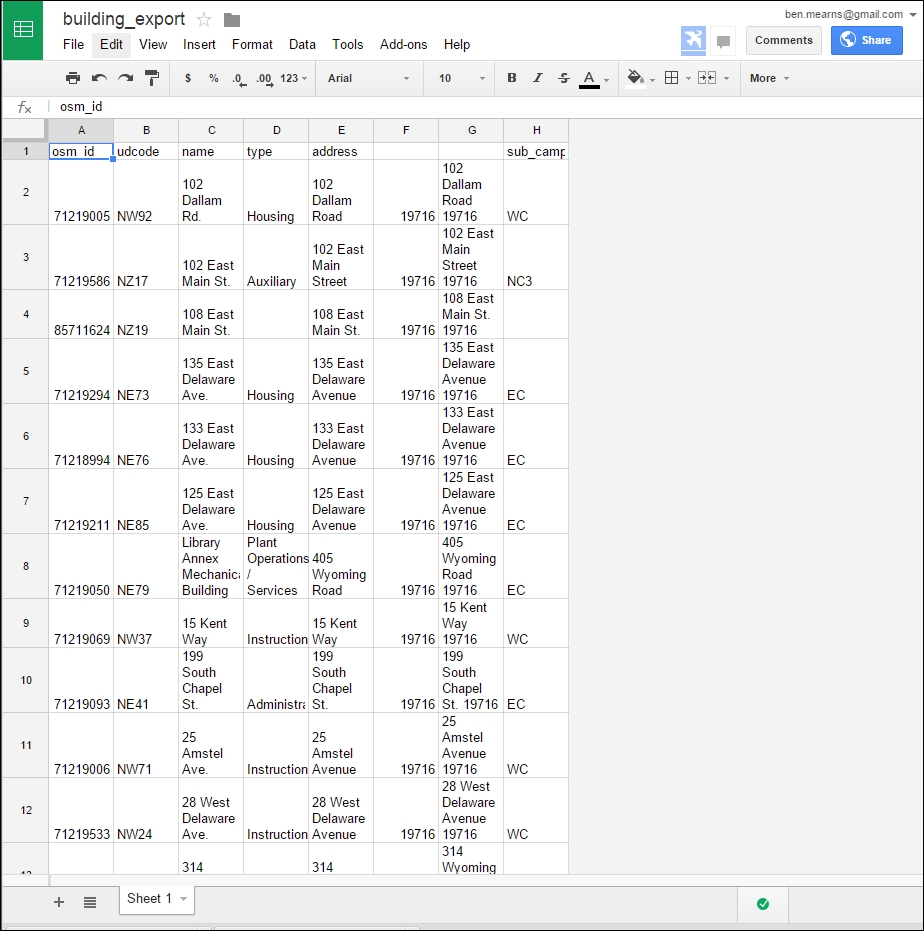
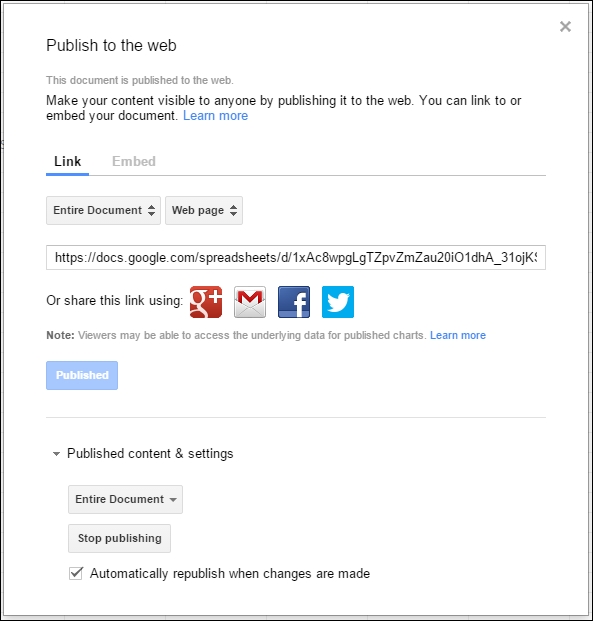
By default, Google Sheets will not be publicly viewable. In addition, no web service feed is exposed. To enable access to our data hosted by Google Sheets from our web application, we must publish the sheet. Perform the following steps:
- Navigate to File | Publish to the web.
- Copy and paste the URL (which appears after clicking on Published) to a location that you can refer to later (for example, in your favorite text editor).
- Select the Automatically republish when changes are made checkbox if it is not already selected, as shown in the following screenshot:
Now that we've published the sheet, our feed is exposed as JSON. We can view the JSON feed by substituting KEY with our spreadsheet unique identifier in a URL of the format https://spreadsheets.google.com/feeds/list/KEY/1/public/basic?alt=json. For example, it would look similar to the following URL:
This produces the following JSON response. For brevity, the response has been truncated after the first building object:
{"version":"1.0","encoding":"UTF-8","feed":{"xmlns":"http://www.w3.org/2005/Atom","xmlns$openSearch":"http://a9.com/-/spec/opensearchrss/1.0/","xmlns$gsx":"http://schemas.google.com/spreadsheets/2006/extended","id":{"$t":"https://spreadsheets.google.com/feeds/list/19xiRHxZE4jOnVcMDXFx1pPyir4fXVGisWOc8guWTo2A/od6/public/basic"},"updated":{"$t":"2012-04-06T13:55:10.774Z"},"category":[{"scheme":"http://schemas.google.com/spreadsheets/2006","term":"http://schemas.google.com/spreadsheets/2006#list"}],"title":{"type":"text","$t":"Sheet 1"},"link":[{"rel":"alternate","type":"application/atom+xml","href":"https://docs.google.com/spreadsheets/d/19xiRHxZE4jOnVcMDXFx1pPyir4fXVGisWOc8guWTo2A/pubhtml"},{"rel":"http://schemas.google.com/g/2005#feed","type":"application/atom+xml","href":"https://spreadsheets.google.com/feeds/list/19xiRHxZE4jOnVcMDXFx1pPyir4fXVGisWOc8guWTo2A/od6/public/basic"},{"rel":"http://schemas.google.com/g/2005#post","type":"application/atom+xml","href":"https://spreadsheets.google.com/feeds/list/19xiRHxZE4jOnVcMDXFx1pPyir4fXVGisWOc8guWTo2A/od6/public/basic"},{"rel":"self","type":"application/atom+xml","href":"https://spreadsheets.google.com/feeds/list/19xiRHxZE4jOnVcMDXFx1pPyir4fXVGisWOc8guWTo2A/od6/public/basic?alt\u003djson"}],"author":[{"name":{"$t":"Ben.Mearns"},"email":{"$t":"ben.mearns@gmail.com"}}],"openSearch$totalResults":{"$t":"293"},"openSearch$startIndex":{"$t":"1"},"entry":[{"id":{"$t":"https://spreadsheets.google.com/feeds/list/19xiRHxZE4jOnVcMDXFx1pPyir4fXVGisWOc8guWTo2A/od6/public/basic/cokwr"},"updated":{"$t":"2012-04-06T13:55:10.774Z"},"category":[{"scheme":"http://schemas.google.com/spreadsheets/2006","term":"http://schemas.google.com/spreadsheets/2006#list"}],"title":{"type":"text","$t":"71219005"},"content":{"type":"text","$t":"udcode: NW92, name: 102 Dallam Rd., type: Housing, address: 102 Dallam Road, _ciyn3: 19716, _ckd7g: 102 Dallam Road 19716, subcampus: WC"},"link":[{"rel":"self","type":"application/atom+xml","href":"https://spreadsheets.google.com/feeds/list/19xiRHxZE4jOnVcMDXFx1pPyir4fXVGisWOc8guWTo2A/od6/public/basic/cokwr"}]}, …
]}}To work with the JSON data from this web service, we will use jQuery's AJAX capabilities. Using the attributes of the JSON elements, we can take a look at how the data is rendered in HTML as a simple web page.
Start up SimpleHTTPServer on port 8000 for c7/data/web on the Windows command line using the following commands:
cd c:\packt\c7\data\web
python -m SimpleHTTPServer 8000
You can take a look at the following code (on the file system at c7/data/web/gsheet.html) to test our ability to parse the JSON data:
<html>
  <body>
    <div class="results"></div>
  </body>
  <script src="http://code.jquery.com/jquery-1.11.3.min.js"></script>
  <script>

    // ID of the Google Spreadsheet
    var spreadsheetID = "1xAc8wpgLgTZpvZmZau20iO1dhA_31ojKSIBmlG6FMzQ";

    // Make sure it is public or set to Anyone with link can view
    var url = "https://spreadsheets.google.com/feeds/list/" + spreadsheetID + "/1/public/values?alt=json";

    $.getJSON(url, function(data) {

      var entry = data.feed.entry;

      $(entry).each(function(){
        // Column names are name, type, etc.
        $('.results').prepend('<h2>'+this.gsx$name.$t+'</h2><p>'+this.gsx$type.$t+'</p>');
      });

    });

  </script>
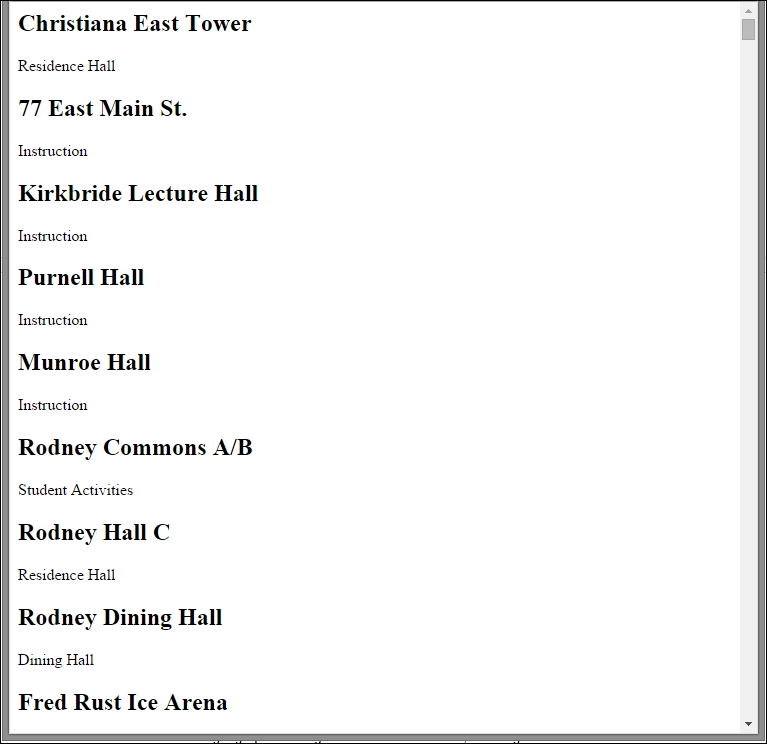
You can preview this in a web browser at http://localhost:8000/gsheet.html. You'll see building names followed by types, as shown in the following image:
Now let's take look at how we would operationalize this system for collaborative data editing.
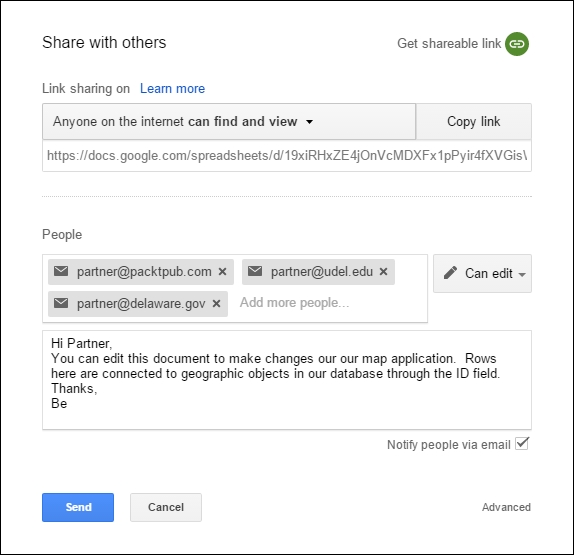
In the sheet, click on the blue Share button in the upper-right corner. Alternatively, from Drive, select the file by clicking on it and then click on the icon that looks like a person with a plus sign on it. Ensure that anyone can find and view the document. Finally, add the address of the people you'd like to be able to edit the document and give them edit permissions, as shown in the following screenshot:
Now that your collaborators have received an invitation to edit the sheet, they just need to sign in with their Google credentials and make a change to the sheet—the changes will be saved automatically. Of course, if they don't have any Google credentials, they'll need to create an account.
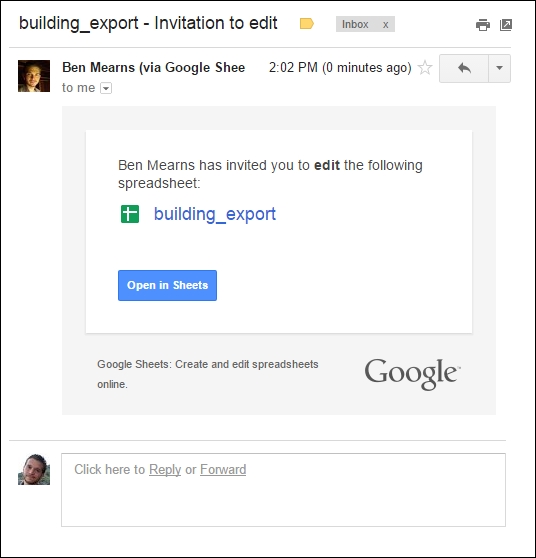
To go to the sheet, your collaborator will just need to click on Open in Sheets. The sheet should now also appear under their drive in Shared with me.
Here, you can see the type fields for Christiana Hall, Kirkbride Lecture Hall, and Purnell Hall after the changes are made:
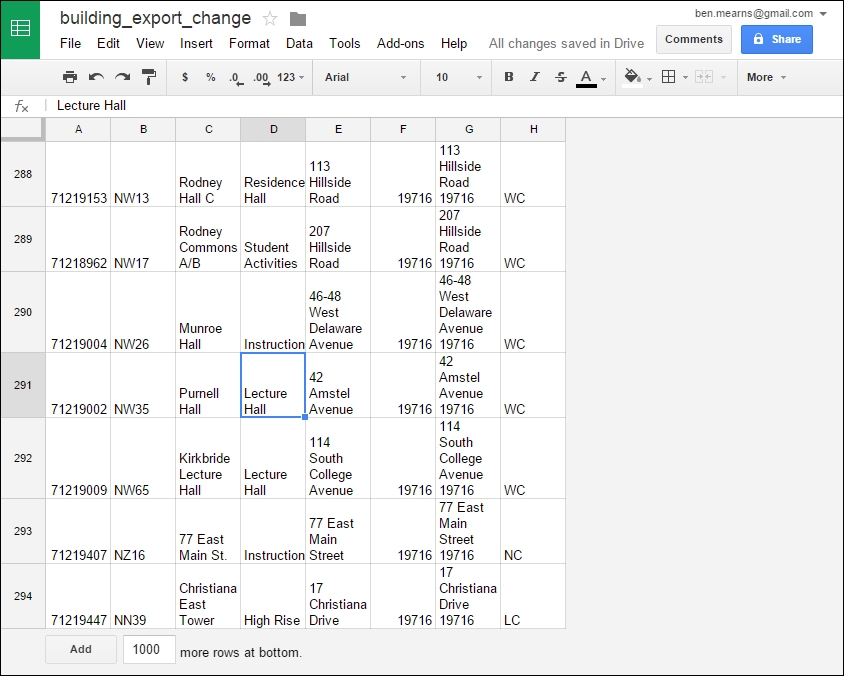
There is no need for an administrative intervention after the collaborators make changes. Data changed in sheets is automatically republished in the JSON feed, as we selected this option when we published the sheet. If you require more control over the publication of the collaborator edits, you may want to consider unselecting that option and setting up notifications of the changes. This way, you can republish after you've vetted the changes.
You can do a rollback of the changes as needed in the revision history. Perform the following steps:
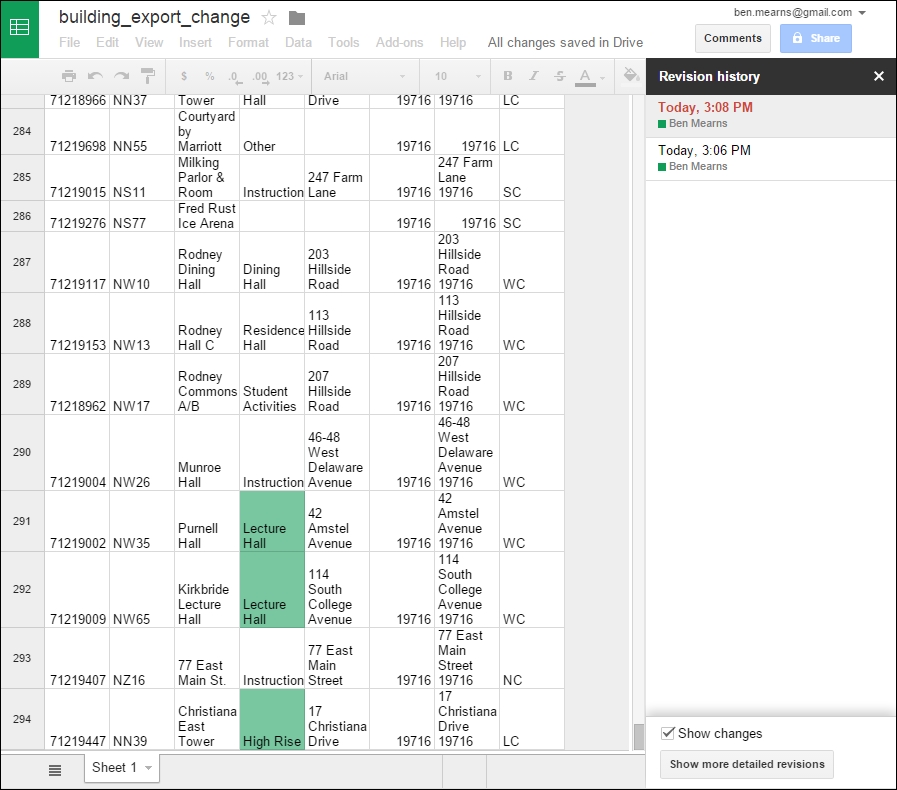
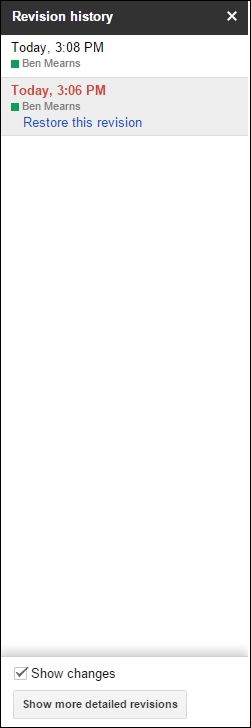
Go to http://localhost:8000/gsheet.html again to see how the changes to your sheet affected your JSON feed. Note in the following image the changes we made to the type fields for Christiana East Tower, Kirkbride Lecture Hall, and Purnell Hall:

In the final section of this chapter, we will also take a look at how we can preview this in the map interface.