Table of Contents for
OpenLayers 3.x Cookbook - Second Edition
 OpenLayers 3.x Cookbook - Second Edition
Published by
Packt Publishing, 2016
OpenLayers 3.x Cookbook - Second Edition
Published by
Packt Publishing, 2016
- Cover
- Table of Contents
- OpenLayers 3.x Cookbook Second Edition
- OpenLayers 3.x Cookbook Second Edition
- Credits
- About the Authors
- About the Reviewer
- www.PacktPub.com
- Preface
- What you need for this book
- Who this book is for
- Sections
- Conventions
- Reader feedback
- Customer support
- 1. Web Mapping Basics
- Creating a simple fullscreen map
- Playing with the map's options
- Managing the map's stack layers
- Managing the map's controls
- Moving around the map view
- Restricting the map's extent
- 2. Adding Raster Layers
- Using Bing imagery
- Using OpenStreetMap imagery
- Adding WMS layers
- Changing the zoom effect
- Changing layer opacity
- Buffering the layer data to improve map navigation
- Creating an image layer
- Setting the tile size in WMS layers
- 3. Working with Vector Layers
- Adding a GML layer
- Adding a KML layer
- Creating features programmatically
- Exporting features as GeoJSON
- Reading and creating features from a WKT
- Using point features as markers
- Removing or cloning features using overlays
- Zooming to the extent of a layer
- Adding text labels to geometry points
- Adding features from a WFS server
- Using the cluster strategy
- Reading features directly using AJAX
- Creating a heat map
- 4. Working with Events
- Creating a side-by-side map comparator
- Implementing a work-in-progress indicator for map layers
- Listening for the vector layer features' events
- Listening for mouse or touch events
- Using the keyboard to pan or zoom
- 5. Adding Controls
- Adding and removing controls
- Working with geolocation
- Placing controls outside the map
- Drawing features across multiple vector layers
- Modifying features
- Measuring distances and areas
- Getting feature information from a data source
- Getting information from a WMS server
- 6. Styling Features
- Styling layers
- Styling features based on geometry type
- Styling based on feature attributes
- Styling interaction render intents
- Styling clustered features
- 7. Beyond the Basics
- Working with projections
- Creating a custom control
- Selecting features by dragging out a selection area
- Transitioning between weather forecast imagery
- Using the custom OpenLayers library build
- Drawing in freehand mode
- Modifying layer appearance
- Adding features to the vector layer by dragging and dropping them
- Making use of map permalinks
- Index
A great feature when browsing the World Wide Web is the ability to bookmark websites that interest you. These bookmarks offer a way for you to save the link and return to the same content at a later date.
Some web pages contain variables in the URL, which identify the particular content that you're accessing. You can share a copy of the URL with someone else, and they can see exactly what you are seeing too. Of course, we can also apply this convenience to web-mapping applications.
Wouldn't it be nice if we could share the URL (the permalink) of a map so that when it's loaded on someone else's device, the same position on the map can be restored? We can achieve this on the client in the JavaScript code, rather than using logic on the server side to help structure the map loading, which is based on the URL.
To demonstrate this, we'll have a URL with a hash of keys and values (a technique that's common with JavaScript applications). These values will tell us the centre of the map viewport, the zoom level, and also the available map controls.
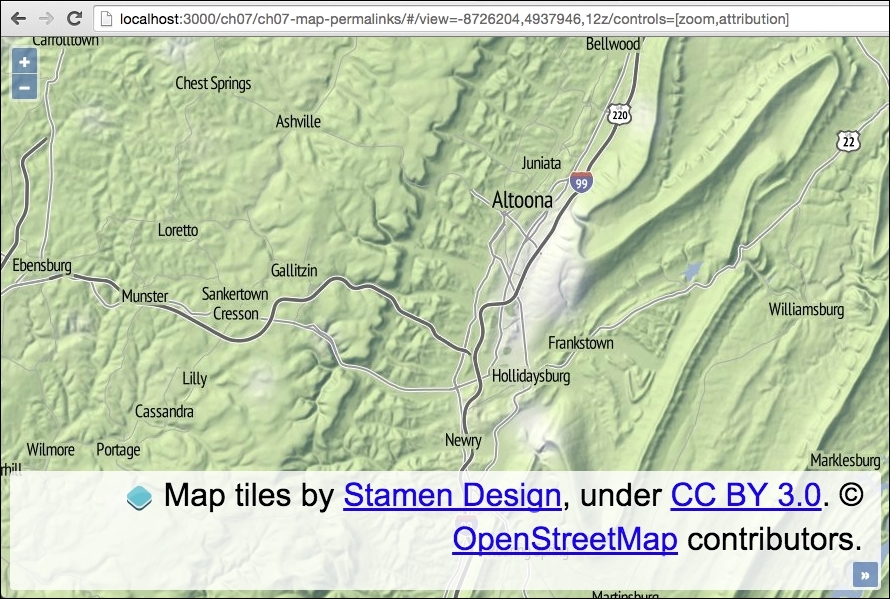
The source code can be found in ch07/ch07-map-permalinks, and here's a screenshot of an instantiated map based upon the URL content:
- Create an HTML file with the OpenLayers dependencies and a
divelement to hold the map. - Create a custom JavaScript file and set up the regular expressions to perform matching against the URL, as well as some other default variable assignment:
var viewHashRegex = /view=([^z]+)/;
var controlHashRegex = /controls=\[(.+)\]/;
var defaultView = [-8726204, 4937946, 12];
var view, viewArray, controls, controlsArray;
- Instantiate a new
mapinstance withoutcontrolsand with a raster tile layer:var map = new ol.Map({ target: 'js-map', layers: [ new ol.layer.Tile({ source: new ol.source.Stamen({layer: 'terrain'}) }) ], controls: [] }); - Check for the availability of the URL hash content and retrieve the
viewandcontrolsdetails if they are present:if (window.location.hash) { view = window.location.hash.match(viewHashRegex); controls = window.location.hash.match(controlHashRegex); if (view) { viewArray = view[1].split(','); if (viewArray.length === 3) { defaultView[0] = viewArray[0]; defaultView[1] = viewArray[1]; defaultView[2] = viewArray[2]; } } if (controls) { controlsArray = controls[1].split(','); controlsArray.forEach(function (control) { var name = control.charAt(0).toUpperCase() + control.slice(1); if (typeof ol.control[name] === 'function') { map.addControl(new ol.control[name]()); } }) } } - Set up the map view based on the provided URL or use the default values, as follows:
map.setView(new ol.View({ center: [defaultView[0], defaultView[1]], zoom: defaultView[2] })); - Subscribe to the panning and zoom changes on the view of the map and update the URL accordingly:
map.getView()
  .on(['change:center', 'change:resolution'], function() {
    window.location.hash = window.location.hash.replace(
      viewHashRegex, 'view=' +
      this.getCenter().join(',') + ',' + this.getZoom()
    );
});
To help with the understanding behind the code, let's assume that the value of the hash content in the URL is as follows:
#/view=-8726204,4937946,12z/controls=[zoom,attribution]
This content in the URL forms part of the map's permalink, and we need to dynamically load the map based on this bookmark.
For the view, the value is preceded with view=, followed by the x position, y position, and then zoom number, which is delimited by commas and terminated with the letter z. The next character, the slash (/), acts as a visual break between this and the next value.
For the controls, the value is preceded with controls= and the name of the controls wrapped in square braces ([]) and delimited by commas.
Now, let's take a look at how the JavaScript handles this custom URL:
var viewHashRegex = /view=([^z]+)/;
var controlHashRegex = /controls=\[(.+)\]/;
We store two regular expressions in variables for reuse. The view regular expression looks for the view= characters, followed by any character, one or more times, up until (and excluding) the z character. The characters between the view= characters and the z characters are captured in a group of their own (that's what the parenthesis do).
The controls regular expression begins in a similar fashion. It matches the controls= characters, followed by a literal [ character (the backslash ensures a literal match, as the square braces have special meaning within a regular expression), followed by any character one or more times, which is captured, followed by another literal closing square brace (]).
Note that these regular expressions have not been battle tested; they are for demonstration purposes only. For more on regular expressions please refer to https://developer.mozilla.org/en/docs/Web/JavaScript/Guide/Regular_Expressions.
var defaultView = [-8726204, 4937946, 12];
We set up an array with a default centre coordinate and zoom level. This gets used if values for the view are not specified as part of the URL.
We won't cover the map instantiation in detail, but note that the controls property has been assigned an empty array (controls: []).
Let's dissect the content of the core logic within the conditional check:
if (window.location.hash) {
  view = window.location.hash.match(viewHashRegex);
  controls = window.location.hash.match(controlHashRegex);
We begin by checking to see whether a hash value actually exists within the URL; if this is not the case, we can just create the map based on our defaults.
The result of both the view and controls' regular expressions are stored in the view and controls variables, respectively.
if (view) {
  viewArray = view[1].split(',');

  if (viewArray.length === 3) {
    defaultView[0] = viewArray[0];
    defaultView[1] = viewArray[1];
    defaultView[2] = viewArray[2];
  }
}
If a regular expression using the JavaScript method, match, does not find any results, then it returns null. Otherwise, it returns the matched results in an array. The first value is the whole match, followed by any capture group matches.
Using the example URL from the beginning of this section, we'll be returned an array from match with the following values:
["view=-8726204,4937946,12", "-8726204,4937946,12"]
With this in mind, we run the JavaScript split method on the second item in the array, which will convert the '-8726204,4937946,12' string, to the following array:
["-8726204", "4937946", "12"]
We move on to ensure that the array has an expected length of three and override the default view array with the custom values discovered in the URL.
if (controls) {
  controlsArray = controls[1].split(',');
  controlsArray.forEach(function (control) {
    var name = control.charAt(0).toUpperCase() + control.slice(1);

    if (typeof ol.control[name] === 'function') {
      map.addControl(new ol.control[name]());
    }
  })
}
We next check to see whether or not the regular expression for controls returned null. If we have a match, we once again access the second item in the returned array from match and convert the string to an array of controls. Using our URL as the example, match returns the following array:
["controls=[zoom,attribution]", "zoom,attribution"]
Then, once we run split on the string inside the second array item, we produce the following array:
["zoom", "attribution"]
We then loop over each item in the preceding array using the JavaScript forEach method. We're expecting the URL to be all in lowercase, meaning that the ol.control.Zoom OpenLayers control is identified by zoom in the URL.
When we attempt to call the control's constructor, the control name must be capitalized, for example, Zoom, not zoom. To do this, we take the first character (charAt(0)), in this case that's 'z', convert it to uppercase, and then concatenate the remainder of the string with the JavaScript slice method. Now, we have the value 'Zoom' inside a name variable.
We check to see whether this control is available by testing if it's a type of function; if so, we dynamically call the control's constructor and add it to the map.
map.setView(new ol.View({
  center: [defaultView[0], defaultView[1]],
  zoom: defaultView[2]
}));
Outside of the conditional checks, we finally assign view to the map, which will either be the default values or the custom values provided in the URL (which override the default value).
map.getView().on(['change:center', 'change:resolution'], function() {
  window.location.hash = window.location.hash.replace(
    viewHashRegex, 'view=' +
    this.getCenter().join(',') + ',' + this.getZoom()
  );
});
We finish by subscribing to changes from the map center position (change:center), and also any zoom level adjustments (change:resolution). Inside our handler, we update the view values within the URL (using the same regular expression), based on the current map values. This ensures that our permalink reflects the latest visible map and can be shared once again.