Table of Contents for
OpenLayers 3.x Cookbook - Second Edition
 OpenLayers 3.x Cookbook - Second Edition
Published by
Packt Publishing, 2016
OpenLayers 3.x Cookbook - Second Edition
Published by
Packt Publishing, 2016
- Cover
- Table of Contents
- OpenLayers 3.x Cookbook Second Edition
- OpenLayers 3.x Cookbook Second Edition
- Credits
- About the Authors
- About the Reviewer
- www.PacktPub.com
- Preface
- What you need for this book
- Who this book is for
- Sections
- Conventions
- Reader feedback
- Customer support
- 1. Web Mapping Basics
- Creating a simple fullscreen map
- Playing with the map's options
- Managing the map's stack layers
- Managing the map's controls
- Moving around the map view
- Restricting the map's extent
- 2. Adding Raster Layers
- Using Bing imagery
- Using OpenStreetMap imagery
- Adding WMS layers
- Changing the zoom effect
- Changing layer opacity
- Buffering the layer data to improve map navigation
- Creating an image layer
- Setting the tile size in WMS layers
- 3. Working with Vector Layers
- Adding a GML layer
- Adding a KML layer
- Creating features programmatically
- Exporting features as GeoJSON
- Reading and creating features from a WKT
- Using point features as markers
- Removing or cloning features using overlays
- Zooming to the extent of a layer
- Adding text labels to geometry points
- Adding features from a WFS server
- Using the cluster strategy
- Reading features directly using AJAX
- Creating a heat map
- 4. Working with Events
- Creating a side-by-side map comparator
- Implementing a work-in-progress indicator for map layers
- Listening for the vector layer features' events
- Listening for mouse or touch events
- Using the keyboard to pan or zoom
- 5. Adding Controls
- Adding and removing controls
- Working with geolocation
- Placing controls outside the map
- Drawing features across multiple vector layers
- Modifying features
- Measuring distances and areas
- Getting feature information from a data source
- Getting information from a WMS server
- 6. Styling Features
- Styling layers
- Styling features based on geometry type
- Styling based on feature attributes
- Styling interaction render intents
- Styling clustered features
- 7. Beyond the Basics
- Working with projections
- Creating a custom control
- Selecting features by dragging out a selection area
- Transitioning between weather forecast imagery
- Using the custom OpenLayers library build
- Drawing in freehand mode
- Modifying layer appearance
- Adding features to the vector layer by dragging and dropping them
- Making use of map permalinks
- Index
Unless you want to create a completely static map without the controls required for users to pan, zoom or rotate, you would like the user to be able to navigate and explore the map.
There can be situations when the built-in controls are not enough. Imagine a web application where the user can search for a term, such as 'Everest', and the application must find its location and pan to it. In this case, you need to navigate by code and not using a control.
This recipe shows you some programmatic ways to move around the map without using the default controls. The source code can be found in ch01/ch01-moving-around, and here's what we'll end up with:
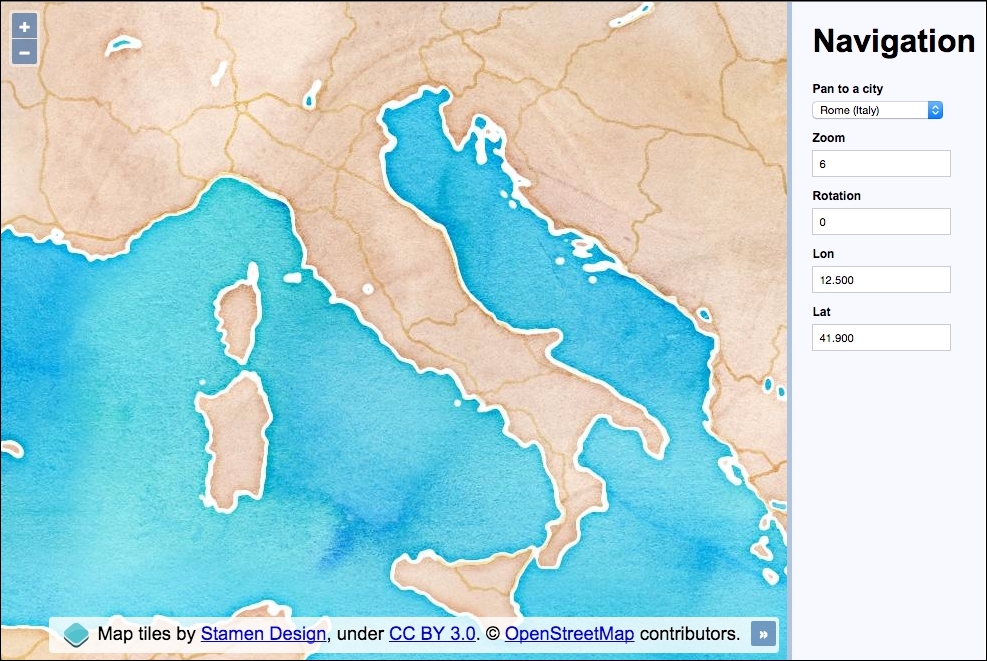
The application contains a selection of European cities, which when changed will pan the map to the selected city. The current zoom, rotation, longitude, and latitude values are kept up-to-date with map interactions. These input fields can also be manually edited to update their respective map properties.
- Create an HTML file with OpenLayers dependencies. Most of the HTML will be self explanatory, but in particular, here's the HTML for the city selection menu (this will help our understanding of the JavaScript later on):
<select id="js-city">
  <option value="12.5,41.9">Rome (Italy)</option>
  <option value="30.517,50.45">Kiev (Ukraine)</option>
  <option value="-9.183,38.7">Lisbon (Portugal)</option>
  <option value="-0.117,51.5">London (England)</option>
  <option value="14.417,50.083">Prague (Czech Rep)</option>
</select>
- Create a
mapinstance, as follows:var map = new ol.Map({ layers: [ new ol.layer.Tile({ source: new ol.source.Stamen({ layer: 'watercolor' }) }) ], target: 'js-map', view: new ol.View({ zoom: 6, center: ol.proj.fromLonLat([12.5, 41.9]) }) }); - Cache some DOM elements to reusable variables:
var citySelect = document.getElementById('js-city'); var zoomInput = document.getElementById('js-zoom'); var rotateInput = document.getElementById('js-rotate'); var lonInput = document.getElementById('js-lon'); var latInput = document.getElementById('js-lat'); - Add some event listeners to the map view along with an event handler function:
var updateUI = function(event) { var view = event && event.currentTarget || map.getView(); zoomInput.value = view.getZoom(); rotateInput.value = view.getRotation(); var centerLonLat = ol.proj.toLonLat(view.getCenter()); lonInput.value = centerLonLat[0].toFixed(3); latInput.value = centerLonLat[1].toFixed(3); }; updateUI(); map.getView().on([ 'change:center', 'change:resolution', 'change:rotation' ], updateUI); - Create a helper function to set the new map view center:
var setCenter = function(lon, lat) { map.getView().setCenter(ol.proj.fromLonLat([ parseFloat(lon), parseFloat(lat) ])); }; - Create an event listener and handler for input field updates:
window.addEventListener('keyup', function(event) { switch(event.target.id) { case 'js-zoom': map.beforeRender(ol.animation.zoom({ resolution: map.getView().getResolution(), duration: 150 })); map.getView().setZoom(parseInt(event.target.value, 10)); break; case 'js-rotate': map.beforeRender(ol.animation.rotate({ rotation: map.getView().getRotation(), duration: 250 })); map.getView().setRotation(parseFloat(event.target.value)); break; case 'js-lon': setCenter(event.target.value, latInput.value); break; case 'js-lat': setCenter(lonInput.value, event.target.value); break; } }); - Create the event listener and handler for city selections:
citySelect.addEventListener('change', function() {
  map.beforeRender(ol.animation.pan({
    source: map.getView().getCenter(),
    duration: 500
  }));
  setCenter.apply(null, this.value.split(','));
});
There's a fair bit going on here, as we've introduced manual control over a range of map navigation methods. We've also hooked into map events, animations and projection conversions. It's time to take a closer look at what's going on:
new ol.layer.Tile({
  source: new ol.source.Stamen({
    layer: 'watercolor'
  })
})
The tile service for this recipe is from the Stamen source with the watercolor layer style. This is another source that OpenLayers has built-in support for and is made easy to include.
view: new ol.View({
  zoom: 6,
  center: ol.proj.fromLonLat([12.5, 41.9])
})
For this recipe, we are using longitude and latitude values to navigate around the map. However, the default projection for the map view is EPSG:3857 (Spherical Mercator) and longitude and latitude is in the EPSG:4326 projection. We need a way to convert these longitude and latitude coordinates.
Luckily for us, ol.proj has many helpful methods, one of which is to convert coordinates from longitude and latitude to EPSG:3857, which we've just used. You can also pass a target projection as the second parameter to fromLonLat, but the default target projection is EPSG:3857 anyway, so we don't need to bother.
var citySelect = document.getElementById('js-city');
var zoomInput = document.getElementById('js-zoom');
var rotateInput = document.getElementById('js-rotate');
var lonInput = document.getElementById('js-lon');
var latInput = document.getElementById('js-lat');
The DOM elements that the user interacts with have been cached into variables for efficiency. We refer to these elements in order to retrieve and update values.
var updateUI = function(event) {
  var view = event && event.currentTarget || map.getView();
  zoomInput.value = view.getZoom();
  rotateInput.value = view.getRotation();

  var centerLonLat = ol.proj.toLonLat(view.getCenter());
  lonInput.value = centerLonLat[0].toFixed(3);
  latInput.value = centerLonLat[1].toFixed(3);
};
updateUI();
A function called updateUI has been created in order to synchronize the input fields with the current map state. This function will either be called upon page initialization or as an event handler. To account for both these scenarios, the map view will derive from either the event argument if it is available (event.currentTarget will be the map view in this case), or we grab it ourselves (map.getView()). Of course, we could have used map.getView in both scenarios, but it's good to familiarize ourselves with some of the available map event properties.
Updating the zoom and rotation values are easy with simple get methods offered from the view (getZoom and getRotation).
The center positions need a little more work. Remember that the map view projection is in EPSG:3857, but we want to display the coordinates in longitude and latitude. We do the opposite of what we did before when setting up the view using the ol.proj.toLonLat method to convert the coordinates from Spherical Mercator to EPSG:4326. This method accepts a second parameter to identify the source projection. The default source projection is EPSG:3857, which matches our map view projection anyway, so we can skip specifying this.
The result returns an array, which we store in centerLonLat. We then retrieve the respective values for display in the input field and constrain the decimal points to 3.
map.getView().on([
  'change:center',
  'change:resolution',
  'change:rotation'
], updateUI);
The ol.View class has an on method which enables us to subscribe to particular events from the view and specify an event handler. We attach three event listeners to view: center, resolution, and rotation. The resolution event listener is for changes in the zoom level. When any of these view properties change, our updateUI event handler is called.
var setCenter = function(lon, lat) {
  map.getView().setCenter(ol.proj.fromLonLat([
    parseFloat(lon), parseFloat(lat)
  ]));
};
Within this recipe, we need to set a new center position from a range of different places in the code. To make this a bit easier for ourselves, we've created a setCenter function, which takes the lon and lat values. It converts the provided longitude and latitude coordinates into map projection coordinates and sets the new center position.
As the longitude and latitude values will come from input elements as strings, we pass the values into the parseFloat JavaScript method in order to ensure they're in the expected type format for OpenLayers.
window.addEventListener('keyup', function(event) {
  switch(event.target.id) {
We attach a global keyup event listener to the window object rather than adding individual event listeners per input field. When this event handler is called, we determine what actions are performed by inspecting the target element ID attribute through a switch statement.
For example, if the zoom input field value is modified, then the target ID will be js-zoom because the HTML markup is <input type="number" id="js-zoom">:
case 'js-zoom':
  map.beforeRender(ol.animation.zoom({
    resolution: map.getView().getResolution(),
    duration: 150
  }));
  map.getView().setZoom(parseInt(event.target.value, 10));
break;
The first switch case is for the zoom input field. Instead of simply setting the new zoom level on the map view, we'd prefer to animate the transition between zoom levels. To do this, we add functions to be called before rendering the zoom change via the ol.Map.beforeRender method. It expects one or more functions of type ol.PreRenderFunction, ol.animation.zoom method returns this particular function type, which animates the resolution transition.
The resolution property of ol.animation.zoom provides the starting point of the animation, which is the current resolution. The duration property is given in milliseconds, so this will be a quick and snappy animation.
After we've attached the prerender function, we take the user input value and set the final zoom level (setZoom) via the parseInt JavaScript method, which ensures that the input field string is converted to the expected number type for OpenLayers.
case 'js-rotate':
  map.beforeRender(ol.animation.rotate({
    rotation: map.getView().getRotation(),
    duration: 250
  }));
  map.getView().setRotation(parseFloat(event.target.value));
break;
This switch case catches the rotation input field. Similar to the previous zoom control, we want to animate the transition again. To do this, we create a prerender function with ol.animate.rotate. We pass in the current rotation of the view and also a custom duration of 250 milliseconds. After this, we set the new rotation amount from the input field value with the setRotation map view method. Again, we ensure the input string is converted to a float value for OpenLayers via the parseFloat method.
case 'js-lon':
  setCenter(event.target.value, latInput.value);
break;

case 'js-lat':
  setCenter(lonInput.value, event.target.value);
break;
These switch cases match the longitude and latitude input field changes. Along with the longitude and latitude changes, we've decided to snap to the new center position rather than animate it. We call our own setCenter method that was discussed earlier with the longitude and latitude values to use. As the longitude and latitude values are paired, the one that wasn't changed is grabbed from the respective input field.
citySelect.addEventListener('change', function() {
  map.beforeRender(ol.animation.pan({
    source: map.getView().getCenter(),
    duration: 500
  }));
  setCenter.apply(null, this.value.split(','));
});
Finally, we attach a change event to the city selection menu. We've decided to animate the panning from the old center position to the new one. Just like the zoom and rotation transitions, we use the pan-specific ol.animation.pan method. We provide the source property with the starting position and set a duration of half a second.
Once the prerender function is in place, we can set the new center position. Once again, we call our custom setCenter function to do this for us.
The HTML for a specific option in the city selection menu contains the longitude and latitude values as a string. For example, if we want to pan to London, the value inside the option is a comma delimited string: <option value="-0.117,51.5">London (England)</option>. We convert this string ("-0.117,51.5") into an array with the JavaScript split method to provide a distinct separation of the values. However, our setCenter function expects two parameters, not an array of values. To get around this, we use the JavaScript apply method, which calls setCenter with an array of arguments, producing the same result.
This completes a thorough look at how to navigate around the map without the default controls, offering a great deal of flexibility.