Table of Contents for
OpenLayers 3.x Cookbook - Second Edition
 OpenLayers 3.x Cookbook - Second Edition
Published by
Packt Publishing, 2016
OpenLayers 3.x Cookbook - Second Edition
Published by
Packt Publishing, 2016
- Cover
- Table of Contents
- OpenLayers 3.x Cookbook Second Edition
- OpenLayers 3.x Cookbook Second Edition
- Credits
- About the Authors
- About the Reviewer
- www.PacktPub.com
- Preface
- What you need for this book
- Who this book is for
- Sections
- Conventions
- Reader feedback
- Customer support
- 1. Web Mapping Basics
- Creating a simple fullscreen map
- Playing with the map's options
- Managing the map's stack layers
- Managing the map's controls
- Moving around the map view
- Restricting the map's extent
- 2. Adding Raster Layers
- Using Bing imagery
- Using OpenStreetMap imagery
- Adding WMS layers
- Changing the zoom effect
- Changing layer opacity
- Buffering the layer data to improve map navigation
- Creating an image layer
- Setting the tile size in WMS layers
- 3. Working with Vector Layers
- Adding a GML layer
- Adding a KML layer
- Creating features programmatically
- Exporting features as GeoJSON
- Reading and creating features from a WKT
- Using point features as markers
- Removing or cloning features using overlays
- Zooming to the extent of a layer
- Adding text labels to geometry points
- Adding features from a WFS server
- Using the cluster strategy
- Reading features directly using AJAX
- Creating a heat map
- 4. Working with Events
- Creating a side-by-side map comparator
- Implementing a work-in-progress indicator for map layers
- Listening for the vector layer features' events
- Listening for mouse or touch events
- Using the keyboard to pan or zoom
- 5. Adding Controls
- Adding and removing controls
- Working with geolocation
- Placing controls outside the map
- Drawing features across multiple vector layers
- Modifying features
- Measuring distances and areas
- Getting feature information from a data source
- Getting information from a WMS server
- 6. Styling Features
- Styling layers
- Styling features based on geometry type
- Styling based on feature attributes
- Styling interaction render intents
- Styling clustered features
- 7. Beyond the Basics
- Working with projections
- Creating a custom control
- Selecting features by dragging out a selection area
- Transitioning between weather forecast imagery
- Using the custom OpenLayers library build
- Drawing in freehand mode
- Modifying layer appearance
- Adding features to the vector layer by dragging and dropping them
- Making use of map permalinks
- Index
As we saw in the previous recipe, Drawing features across multiple vector layers, it's quite straightforward to enable drawing capabilities for the user. However, what if the user needs to edit drawn features? Perhaps they want to move some vertexes around or move the entire feature to a new place. We'll take a look at these types of modifications throughout this recipe.
OpenLayers provides the ol.interaction.Modify class to move or add vertexes and the ol.interaction.Translate class to move whole features about.
The source code can be found in ch05/ch05-modifying-features, and here's a screenshot of what this will look like when it's done:
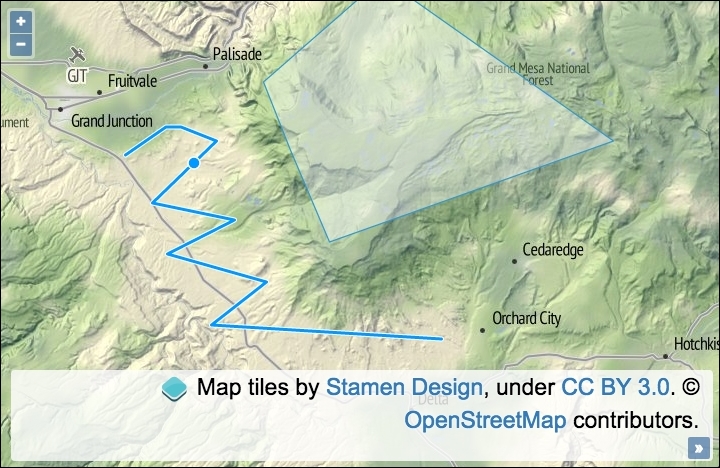
Learn how to modify existing features by following these steps:
- Create an HTML file with the OpenLayers dependencies and
divto hold the map. - Create a custom JavaScript file and begin by instantiating
mapwithview, a raster tile layer, and a vector layer that retrieves features from a local GeoJSON file:var map = new ol.Map({ view: new ol.View({ zoom: 10, center: [-12035468, 4686812] }), target: 'js-map', layers: [ new ol.layer.Tile({ source: new ol.source.Stamen({ layer: 'terrain' })}), new ol.layer.Vector({ editable: true, source: new ol.source.Vector({ url: 'features.geojson', format: new ol.format.GeoJSON({ defaultDataProjection: 'EPSG:3857' }) }) }) ] }); - Set up the
selectinteraction so that particular features can be selected for modification and add it to the map:var select = new ol.interaction.Select({ filter: function(feature, layer) { return layer.get('editable') && /Polygon|LineString/.test( feature.getGeometry().getType() ); }, condition: ol.events.condition.click }); map.addInteraction(select); - Finish off by setting up and adding the modify and translate interactions to the map:
map.addInteraction(new ol.interaction.Modify({
  features: select.getFeatures()
}));
map.addInteraction(new ol.interaction.Translate({
  features: select.getFeatures()
}));
As you can see, adding this rich type of capability is made easy with OpenLayers. Once a user has selected a feature from the map, they can edit the feature or move it around. To spice things up a bit, we've added a filter mechanism to the select interaction, which checks a layer property and the geometry type before allowing the feature to be selected. Let's take a closer look at what's going on within the JavaScript:
new ol.layer.Vector({
  editable: true,
  source: new ol.source.Vector({
    url: 'features.geojson',
    format: new ol.format.GeoJSON({
      defaultDataProjection: 'EPSG:3857'
    })
  })
})
Within this instantiation of map, we set up a vector layer with a custom property of editable, which is used to identify whether or not this layer can be edited. We have also pulled in some GeoJSON that will populate the layer with some premade features.
var select = new ol.interaction.Select({
  filter: function(feature, layer) {
    return layer.get('editable') &&
      /Polygon|LineString/.test(
        feature.getGeometry().getType()
      );
  },
  condition: ol.events.condition.click
});
The select interaction has been configured with a filtering function. The function assigned to the filter property must be of type ol.interaction.SelectFilterFunction. This type of function is passed the feature and the layer as arguments, respectively, and it must return either true or false. If true is returned, the feature is eligible for selection and, thus, it is added to the collection. If false is returned, the feature will not be selected and it won't be added to the collection.
Our custom filtering function retrieves the layer property of editable via the get method and checks to see whether it evaluates to true. If so, a second conditional check is performed on the type of geometry.
The geometry object is retrieved from feature via the getGeometry method. Once we have the geometry, there's a method available to us called getType, which returns the geometry type as a string, for example, Polygon. This result is passed into the JavaScript test method, which runs the result against a regular expression. The /Polygon|LineString/ regular expression matches a string of either Polygon or LineString (the geometry type). The pipe (|) within this particular regular expression symbolizes an OR logical condition.
If both the layer is set as editable and the feature is of one of the accepted types, then the return statement evaluates to true; otherwise, this will be false.
In other words, if a vector layer hasn't been specifically marked as editable, then the feature cannot be modified. It also doesn't allow any other geometry types other than the two that were just discussed to be selected, and, subsequently, edited. This demonstrates how you can begin to structure read only or read/write layers, depending on your application requirements.
The condition property has been set to ol.events.condition.click to avoid the 250 ms delay that you get when accepting the default ol.events.condition.singleClick value for this property.
map.addInteraction(new ol.interaction.Modify({
  features: select.getFeatures()
}));
map.addInteraction(new ol.interaction.Translate({
  features: select.getFeatures()
}));
The modify and translate interactions follow the same setup. The features property of each are passed the currently selected features from the select interaction via select.getFeatures().
Although we didn't utilize any events within this recipe, the modify interaction publishes the self-explanatory modifyend and modifystart events. The translate interaction publishes similar events, namely translateend and translatestart, but it also publishes a translating event to subscribe to movement in between.
When modifying features in OpenLayers 2, you were also able to effortlessly rotate and resize them. At the time of writing, this functionality hasn't been directly ported across to version 3.
However, there's an interesting function called applyTransform from the ol.geom.SimpleGeometry base class, which is inherited by most of the geometry types, such as ol.geom.Polygon. This function can be used to manually transform each coordinate of the geometry in order to modify the feature in place.
The function is of type ol.TransformFunction, which is passed the current array of coordinates and must return the output array of coordinates to be used. There's nothing to stop you performing some creative transforming here to imitate some missing functionality that you've become accustomed to in OpenLayers 2. This is, however, an advanced discussion, and unfortunately, it won't be covered in this book.
- The Drawing features across multiple vector layers recipe
- The Adding and removing controls recipe
- The Listening for vector layer features' event recipe in Chapter 4, Working with Events