Table of Contents for
OpenLayers 3.x Cookbook - Second Edition
 OpenLayers 3.x Cookbook - Second Edition
Published by
Packt Publishing, 2016
OpenLayers 3.x Cookbook - Second Edition
Published by
Packt Publishing, 2016
- Cover
- Table of Contents
- OpenLayers 3.x Cookbook Second Edition
- OpenLayers 3.x Cookbook Second Edition
- Credits
- About the Authors
- About the Reviewer
- www.PacktPub.com
- Preface
- What you need for this book
- Who this book is for
- Sections
- Conventions
- Reader feedback
- Customer support
- 1. Web Mapping Basics
- Creating a simple fullscreen map
- Playing with the map's options
- Managing the map's stack layers
- Managing the map's controls
- Moving around the map view
- Restricting the map's extent
- 2. Adding Raster Layers
- Using Bing imagery
- Using OpenStreetMap imagery
- Adding WMS layers
- Changing the zoom effect
- Changing layer opacity
- Buffering the layer data to improve map navigation
- Creating an image layer
- Setting the tile size in WMS layers
- 3. Working with Vector Layers
- Adding a GML layer
- Adding a KML layer
- Creating features programmatically
- Exporting features as GeoJSON
- Reading and creating features from a WKT
- Using point features as markers
- Removing or cloning features using overlays
- Zooming to the extent of a layer
- Adding text labels to geometry points
- Adding features from a WFS server
- Using the cluster strategy
- Reading features directly using AJAX
- Creating a heat map
- 4. Working with Events
- Creating a side-by-side map comparator
- Implementing a work-in-progress indicator for map layers
- Listening for the vector layer features' events
- Listening for mouse or touch events
- Using the keyboard to pan or zoom
- 5. Adding Controls
- Adding and removing controls
- Working with geolocation
- Placing controls outside the map
- Drawing features across multiple vector layers
- Modifying features
- Measuring distances and areas
- Getting feature information from a data source
- Getting information from a WMS server
- 6. Styling Features
- Styling layers
- Styling features based on geometry type
- Styling based on feature attributes
- Styling interaction render intents
- Styling clustered features
- 7. Beyond the Basics
- Working with projections
- Creating a custom control
- Selecting features by dragging out a selection area
- Transitioning between weather forecast imagery
- Using the custom OpenLayers library build
- Drawing in freehand mode
- Modifying layer appearance
- Adding features to the vector layer by dragging and dropping them
- Making use of map permalinks
- Index
So far, in this chapter, we took a look at styling features at the layer level using the setStyle method from ol.layer.Vector. We've also looked at styling individual features based on their geometry type, and then we applied the styles using the setStyle method from the ol.Feature class.
For this recipe, we'll look at a different way to style features at the feature level using a styling function at the ol.layer.Vector level. The vector layer class has a property named style, which not only accepts an instance of ol.style.Style or an array of various ol.style.Style instances, but it also accepts an ol.style.StyleFunction method. This method is called whenever a feature is rendered on the map, and the result of this method must return an array of ol.style.Style instances.
As part of this new styling technique, we'll determine how some of the styles will be applied, based on the feature attributes.
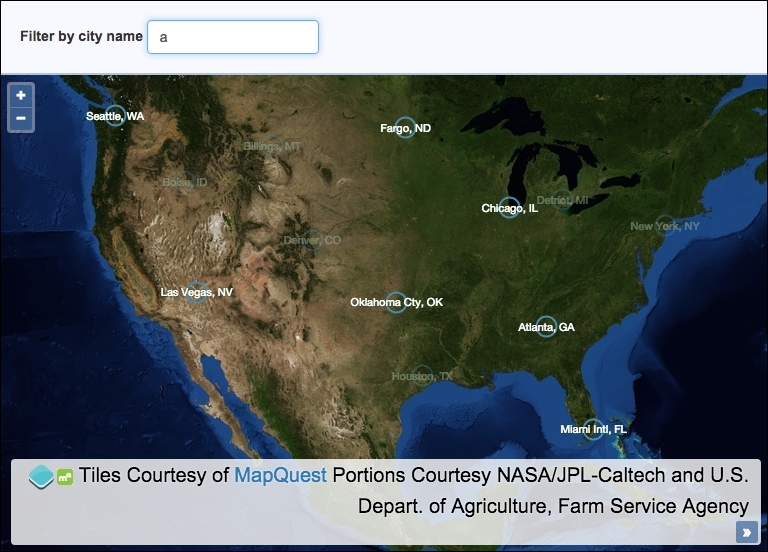
We will load a GeoJSON file of some USA cities and provide a default style for these features. The user will be able to search for a city by name from an input field, and on doing this, the cities will be filtered on the map so that matching cities stand out, while the cities that don't match the search query will be be less visible.
The source code can be found in ch06/ch06-styling-features-by-attribute, and we'll end with something that looks like the following screenshot:
Learn how to style features based on feature attributes by following these instructions:
- Start by creating a new HTML file and add the OpenLayers dependencies and a
divelement to hold themapinstance. In particular, add the HTML for the search form, as we reference this within the JavaScript:<form> <label for="js-search-query">Filter by city name</label> <input id="js-search-query" placeholder="Enter city name..."> </form>
- Create a custom JavaScript file and initialize the
mapinstance with aviewinstance and a satellite tile raster layer:var map = new ol.Map({ view: new ol.View({ zoom: 4, center: [-10987364, 4109254] }), target: 'js-map', layers: [ new ol.layer.Tile({ source: new ol.source.MapQuest({layer: 'sat'}) }) ] }); - Cache the search input field DOM element and subscribe to the
keyupevent. Have the handler trigger a change event on the vector layer:var searchQueryElem = document.getElementById('js-search-query'); searchQueryElem.addEventListener('keyup', function() { vectorLayer.changed(); }); - Implement the style function that will be applied to the vector layer:
var styleFunction = function(feature) { var cityName = feature.get('name'); var searchQuery = searchQueryElem.value; var opacity = 1; if (searchQuery && cityName.search(new RegExp(searchQuery, 'i')) === -1) { opacity = 0.3; } return [ new ol.style.Style({ image: new ol.style.Circle({ radius: 10, stroke: new ol.style.Stroke({ color: [74, 138, 168, opacity], width: 2 }) }), text: new ol.style.Text({ text: cityName, fill: new ol.style.Fill({ color: [255, 255, 255, opacity] }), stroke: new ol.style.Stroke({ color: [0, 51, 0, opacity], width: 1 }), font: '11px "Helvetica Neue", Arial' }) }) ]; }; - Create the vector layer, assign the style function to the
styleproperty, and have the vector source fetch the GeoJSON file. Finally, add the layer to the map:var vectorLayer = new ol.layer.Vector({ source: new ol.source.Vector({ url: 'cities.geojson', format: new ol.format.GeoJSON() }), style: styleFunction }); map.addLayer(vectorLayer);
As we've often done, much of the HTML and all of the CSS here has been omitted for brevity. Please view the accompanying source code for a complete understanding of the structure and styling:
searchQueryElem.addEventListener('keyup', function() {
  vectorLayer.changed();
});
Rather than waiting for the user to submit a search request via a form submission, we have opted for a more immediate reaction by subscribing to the keyup event from the input element. When this keyup event is published, we call the changed method on our vector layer. The changed method increments the internal revision counter for the layer and dispatches a change event, which, in turn, calls our ol.style.StyleFunction for each and every feature in the vector source.
It's important to force a rerender of the feature styling from this published event because our feature styles are partly based on the city filtering requirements of the user.
Now, let's move on to the bulk of the code by looking over some of the styleFunction implementation:
var styleFunction = function(feature) {
  var cityName = feature.get('name');
  var searchQuery = searchQueryElem.value;
  var opacity = 1;
When OpenLayers internally calls this function in order to determine the feature styles, it passes in the feature in question as its first argument. It also provides a second argument, representing the view's resolution, which we've left out because we don't make use of it.
Each feature from the GeoJSON file contains the city name within the name attribute. We use the get method from ol.Feature to retrieve this value and store it in the cityName variable. We get the latest search query value from the input field and store it in the searchQuery variable. We also set up a default opacity of 1, which gets used in the feature styling customization.
  if (searchQuery &&
    cityName.search(new RegExp(searchQuery, 'i')) === -1) {
    opacity = 0.3;
  }
We check to see whether the value of the input field is not blank (if it's blank, then the searchQuery variable will be false. If it's not blank, then it infers that the user has entered a search query of some sort, and we wish to filter the cities as requested by the user.
This brings us to the next condition: the city name from the feature (cityName) is checked against the search query from the input field. The search query is converted to a case insensitive regular expression (new RegExp(searchQuery, 'i') and passed to the JavaScript search method. This searches the string for the contents of the regular expression. For example, the city name 'New York, NY' from the feature attribute will match a search query of 'york', or regular expression of /york/i.
If there's a match, then the index of where the match began is returned; otherwise, -1 for no match is returned. If this feature doesn't match the search query, then we set the opacity variable to 0.3. This will make the cities that don't match less visible to the user, in turn, highlighting any cities that do match, which will retain the opacity of 1.
The rest of our style function returns an array with one item containing an ol.style.Style instance to satisfy the function contract that ol.style.StyleFunction requires. The configuration within this will look familiar to earlier recipes, and it doesn't require further explanation. You'll notice that the opacity variable is used for the alpha part of the color property array values, for example, color: [74, 138, 168, opacity]. This is the dynamic result of whether or not the city or feature matches the search query.
You'll also notice that the cityName variable is assigned to the text property of the ol.style.Text instance. The city name forms the visible geometry label.
When the vector layer is instantiated, we assign our style function to the style property.