Table of Contents for
OpenLayers 3.x Cookbook - Second Edition
 OpenLayers 3.x Cookbook - Second Edition
Published by
Packt Publishing, 2016
OpenLayers 3.x Cookbook - Second Edition
Published by
Packt Publishing, 2016
- Cover
- Table of Contents
- OpenLayers 3.x Cookbook Second Edition
- OpenLayers 3.x Cookbook Second Edition
- Credits
- About the Authors
- About the Reviewer
- www.PacktPub.com
- Preface
- What you need for this book
- Who this book is for
- Sections
- Conventions
- Reader feedback
- Customer support
- 1. Web Mapping Basics
- Creating a simple fullscreen map
- Playing with the map's options
- Managing the map's stack layers
- Managing the map's controls
- Moving around the map view
- Restricting the map's extent
- 2. Adding Raster Layers
- Using Bing imagery
- Using OpenStreetMap imagery
- Adding WMS layers
- Changing the zoom effect
- Changing layer opacity
- Buffering the layer data to improve map navigation
- Creating an image layer
- Setting the tile size in WMS layers
- 3. Working with Vector Layers
- Adding a GML layer
- Adding a KML layer
- Creating features programmatically
- Exporting features as GeoJSON
- Reading and creating features from a WKT
- Using point features as markers
- Removing or cloning features using overlays
- Zooming to the extent of a layer
- Adding text labels to geometry points
- Adding features from a WFS server
- Using the cluster strategy
- Reading features directly using AJAX
- Creating a heat map
- 4. Working with Events
- Creating a side-by-side map comparator
- Implementing a work-in-progress indicator for map layers
- Listening for the vector layer features' events
- Listening for mouse or touch events
- Using the keyboard to pan or zoom
- 5. Adding Controls
- Adding and removing controls
- Working with geolocation
- Placing controls outside the map
- Drawing features across multiple vector layers
- Modifying features
- Measuring distances and areas
- Getting feature information from a data source
- Getting information from a WMS server
- 6. Styling Features
- Styling layers
- Styling features based on geometry type
- Styling based on feature attributes
- Styling interaction render intents
- Styling clustered features
- 7. Beyond the Basics
- Working with projections
- Creating a custom control
- Selecting features by dragging out a selection area
- Transitioning between weather forecast imagery
- Using the custom OpenLayers library build
- Drawing in freehand mode
- Modifying layer appearance
- Adding features to the vector layer by dragging and dropping them
- Making use of map permalinks
- Index
As we're already discovering, OpenLayers comes with a great set of format helpers, which are used to read/write from/to different file data formats. GeoJSON, GML, and KML are some of the many available formats that we already explored.
If you read the Adding a GML layer recipe in this chapter, you will know that a vector layer can read the features stored in a file, specify the format of the data source, and place the contained features in the map.
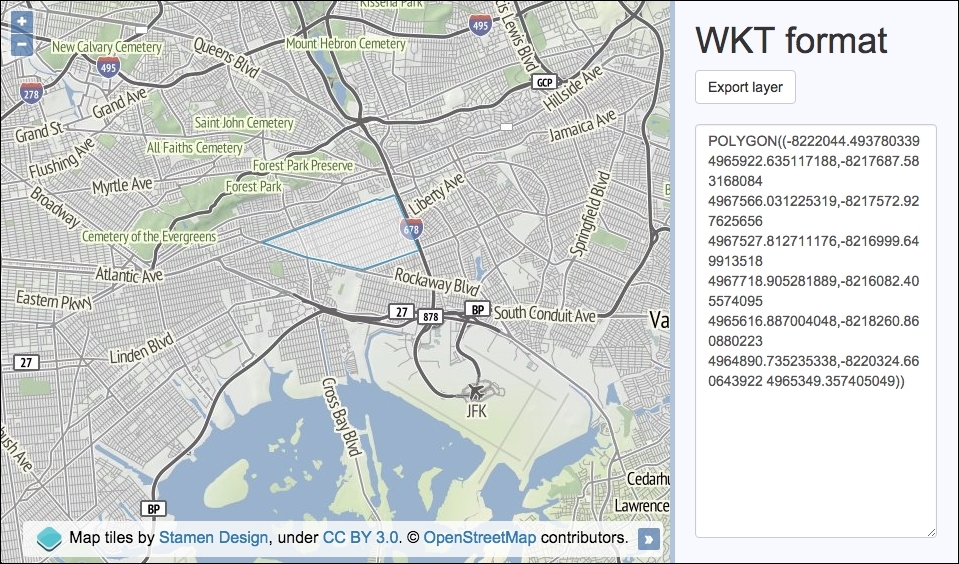
For this recipe, we will programmatically create a polygon in the WKT format and then export the feature as WKT from the vector layer. You can read more about the WKT GIS format on Wikipedia (http://en.wikipedia.org/wiki/Well-known_text). The source code can be found in ch03/ch03-wkt-format/. Here's what we'll end up with:
- Create a new HTML file with OpenLayers dependencies. In particular, add the HTML to create the map and side panel, as follows:
<div id="js-map"></div> <div> <h1>WKT format</h1> <form> <button type="submit">Export layer</button> <textarea id="js-textarea"></textarea> </form> </div> - Create a custom JavaScript file and build a polygon geometry using WKT:
var wkt = [ 'POLYGON ((', '-8222044.493780339 4965922.635117188,', '-8217687.583168084 4967566.031225319,', '-8217572.927625656 4967527.812711176,', '-8216999.649913518 4967718.905281889,', '-8216082.405574095 4965616.887004048,', '-8218260.860880223 4964890.735235338,', '-8220324.660643922 4965349.357405049', '))' ]; - Convert the array to a string, as follows:
var feature = new ol.format.WKT().readFeature(wkt.join('')); - Create the
mapinstance with a background raster layer and a vector layer, which we will add thefeatureto, as follows:var map = new ol.Map({ view: new ol.View({ zoom: 12, center: [-8224433, 4965464] }), target: 'js-map', layers: [ new ol.layer.Tile({ source: new ol.source.Stamen({layer: 'terrain'}) }), new ol.layer.Vector({ source: new ol.source.Vector({ features: [feature] }) }) ] }); - Listen to form submissions and export the vector layer features as WKT:
document.forms[0].addEventListener('submit', function(event) {
  event.preventDefault();
  var wktFormat = new ol.format.WKT();
  var features = map.getLayers().item(1)
                 .getSource().getFeatures();
  var wkt = wktFormat.writeFeatures(features);

  document.getElementById('js-textarea').value = wkt;
});
The map creation process will look familiar to the ones in the previous recipes. For the background raster layer, we used the terrain layer from Stamen, which, at the time of writing, only covers the extent of the USA. Let's continue by concentrating on the WKT OpenLayers code and functionality.
We created an array, namely wkt, that builds a polygon geometry. You can create many other geometry types from WKT, such as points, line strings, and so on. The parts of the WKT have been populated using an array because it's somewhat easier to read than a concatenated string over multiple lines.
var feature = new ol.format.WKT().readFeature(wkt.join(''));The readFeature method expects the WKT to be a string. You'll see this as when we pass our array (wkt) to the WKT format method, readFeature, the JavaScript array method, join, converts our array of items into a single string by joining them together with an empty space.
As expected, we must instantiate a new instance of the WKT format (new ol.format.WKT()), which returns the format object. We chain on the reading feature method that we discussed earlier.
document.forms[0].addEventListener('submit', function(event) {
    event.preventDefault();
    var wktFormat = new ol.format.WKT();
    var features = map.getLayers().item(1)
                   .getSource().getFeatures();
    var wkt = wktFormat.writeFeatures(features);

    document.getElementById('js-textarea').value = wkt;
});
As part of the WKT format export, we attach a handler for the form submit event and prevent the default action.
We create a new WKT format object and store it in the wktFormat variable. We then retrieve the polygon feature from the vector layer. To do this, we return an ol.Collection object from the map via map.getLayers(). This collection has a useful method called item, which is used to select the array index of the layer. We know that our map has just two layers, of these, the second one is the vector layer, at index 1.
We continue to chain on another function called getSource, which retrieves the vector layer source. Then finally, we fetch all the features with the getFeatures method available from the vector source object.
Using the WKT format object (wktFormat), we serialize the OpenLayers features in the WKT format via the writeFeatures method. The content of the textbox is updated to include the exported WKT.