Table of Contents for
OpenLayers 3.x Cookbook - Second Edition
 OpenLayers 3.x Cookbook - Second Edition
Published by
Packt Publishing, 2016
OpenLayers 3.x Cookbook - Second Edition
Published by
Packt Publishing, 2016
- Cover
- Table of Contents
- OpenLayers 3.x Cookbook Second Edition
- OpenLayers 3.x Cookbook Second Edition
- Credits
- About the Authors
- About the Reviewer
- www.PacktPub.com
- Preface
- What you need for this book
- Who this book is for
- Sections
- Conventions
- Reader feedback
- Customer support
- 1. Web Mapping Basics
- Creating a simple fullscreen map
- Playing with the map's options
- Managing the map's stack layers
- Managing the map's controls
- Moving around the map view
- Restricting the map's extent
- 2. Adding Raster Layers
- Using Bing imagery
- Using OpenStreetMap imagery
- Adding WMS layers
- Changing the zoom effect
- Changing layer opacity
- Buffering the layer data to improve map navigation
- Creating an image layer
- Setting the tile size in WMS layers
- 3. Working with Vector Layers
- Adding a GML layer
- Adding a KML layer
- Creating features programmatically
- Exporting features as GeoJSON
- Reading and creating features from a WKT
- Using point features as markers
- Removing or cloning features using overlays
- Zooming to the extent of a layer
- Adding text labels to geometry points
- Adding features from a WFS server
- Using the cluster strategy
- Reading features directly using AJAX
- Creating a heat map
- 4. Working with Events
- Creating a side-by-side map comparator
- Implementing a work-in-progress indicator for map layers
- Listening for the vector layer features' events
- Listening for mouse or touch events
- Using the keyboard to pan or zoom
- 5. Adding Controls
- Adding and removing controls
- Working with geolocation
- Placing controls outside the map
- Drawing features across multiple vector layers
- Modifying features
- Measuring distances and areas
- Getting feature information from a data source
- Getting information from a WMS server
- 6. Styling Features
- Styling layers
- Styling features based on geometry type
- Styling based on feature attributes
- Styling interaction render intents
- Styling clustered features
- 7. Beyond the Basics
- Working with projections
- Creating a custom control
- Selecting features by dragging out a selection area
- Transitioning between weather forecast imagery
- Using the custom OpenLayers library build
- Drawing in freehand mode
- Modifying layer appearance
- Adding features to the vector layer by dragging and dropping them
- Making use of map permalinks
- Index
OpenLayers offers a great number of controls, which are commonly used on mapping applications.
This recipe shows us how to use all of the available controls that have a visual representation. The list includes the OverviewMap, ScaleLine, and ZoomSlider controls, as well as many more.
We will initialize the map with all controls attached but provide a side panel that contains a button for each control so that the user can toggle the controls as they wish. The source code can be found in ch05/ch05-adding-removing-controls. Here's a screenshot of what we'll end up with:
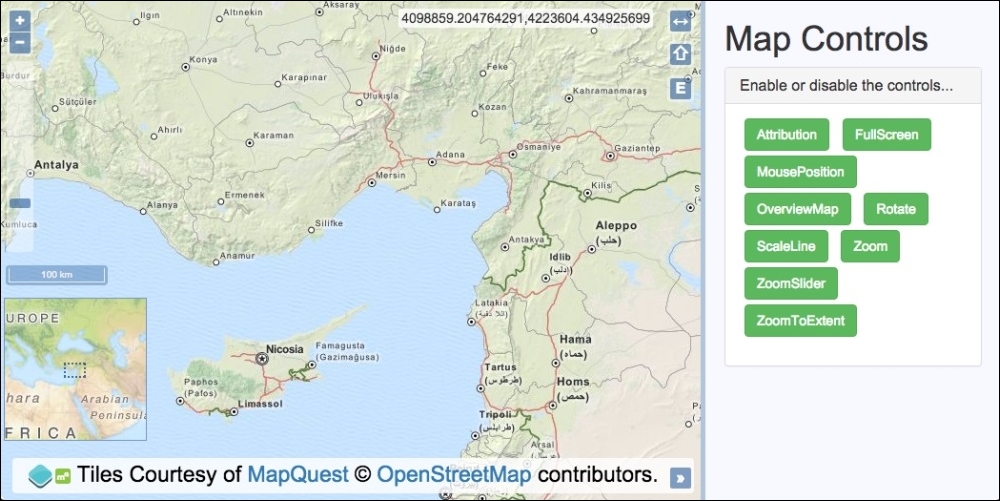
Follow these instructions to create your own map with a whole load of OpenLayers controls, which you can toggle on and off as you please:
- Create an HTML file and add the OpenLayers dependencies and a
divelement to hold the map. In particular, add the list of buttons representing each control:<ul id="js-buttons"> <li><button class="btn btn-success">Attribution</button></li> <li><button class="btn btn-success">FullScreen</button></li> <li><button class="btn btn-success">MousePosition</button></li> <li><button class="btn btn-success">OverviewMap</button></li> <li><button class="btn btn-success">Rotate</button></li> <li><button class="btn btn-success">ScaleLine</button></li> <li><button class="btn btn-success">Zoom</button></li> <li><button class="btn btn-success">ZoomSlider</button></li> <li><button class="btn btn-success">ZoomToExtent</button></li> </ul>
- Next, we create a custom JavaScript file, and we begin by creating an array of all the OpenLayers controls:
var controls = [ new ol.control.Attribution({collapsed: false}), new ol.control.FullScreen(), new ol.control.MousePosition(), new ol.control.OverviewMap({ collapsed: false, collapsible: false }), new ol.control.Rotate({autoHide: false}), new ol.control.ScaleLine(), new ol.control.Zoom(), new ol.control.ZoomSlider(), new ol.control.ZoomToExtent() ]; - Create the
mapinstance withview, a raster layer, andcontrols:var map = new ol.Map({ view: new ol.View({ zoom: 7, center: [3826743, 4325724] }), target: 'js-map', layers: [ new ol.layer.Tile({ source: new ol.source.MapQuest({layer: 'osm'}) }) ], controls: controls }); - Cache a reference to the button list DOM element and create a regular expression to use later on:
var buttonList = document.getElementById('js-buttons'); var controlEnabledRegex = /btn-success/; - Finally, create a click handler to react to the
clickevents on the buttons. Add or removecontrol, accordingly:buttonList.addEventListener('click', function(event) { var element = event.target; if (element.nodeName === 'BUTTON') { if (controlEnabledRegex.test(element.className)) { map.getControls().forEach(function(control) { if (control instanceof ol.control[element.innerHTML]) { map.removeControl(control); } }); element.className = element.className.replace( 'btn-success', 'btn-default' ); } else { controls.forEach(function(control) { if (control instanceof ol.control[element.innerHTML]) { map.addControl(control); } }); element.className = element.className.replace( 'btn-default', 'btn-success' ); } } });
We have used the CSS framework, Bootstrap, for much of the styling, and some of the HTML that scaffolds the application has been omitted for brevity. We have also used some custom styling of our own to position the controls over the map so that they don't overlap or look too cluttered. Please view the accompanying source code for a complete look at the implementation.
The array of controls provides a list of all the available OpenLayers controls that have a visual representation. We created an instance of each control, some of which we've customized so that they're always on display. We could have done something very similar for the invisible interactions controls (ol.interaction) as well, but this would have added minimal learning value. Please take a look at what interactions are available over at the OpenLayers documentation (http://openlayers.org).
The map instantiation will look familiar, so let's move right along to the click handler and the logic within:
buttonList.addEventListener('click', function(event) {
  var element = event.target;
  if (element.nodeName === 'BUTTON') {
For efficiency, we add a click event handler to the entire ul DOM element where the buttons reside. Due to this, within the handler, we first check whether the event was sourced from an element of type button, and if so, we proceed, as follows:
if (controlEnabledRegex.test(element.className)) {We check to see whether the button that was clicked contains the string, 'btn-success', within the class attribute. If it does, this means that the control is currently added to the map, but the user wishes to remove it. To achieve this, we have created a regular expression, which is used as part of the test JavaScript method, that checks for the applicable string within the DOM element's class name.
For example, the <button class="btn btn-success">Rotate</button> button contains a className string, 'btn btn-success', so this regular expression would successfully match this class name. From this information, we can ascertain that the button and control is enabled.
map.getControls().forEach(function(control) {
  if (control instanceof ol.control[element.innerHTML]) {
    map.removeControl(control);
  }
});
To process the removal of the control from the map, we begin by fetching all of the controls from the map via the getControls method. This returns an ol.Collection array that we loop over with the forEach method.
When we instantiate a new control, that is, new ol.control.Zoom(), it is an instance of the ol.control.Zoom constructor. Using this knowledge when we loop over all the controls, we take the text of the button (element.innerHTML), which, for example, equals 'Zoom', and check whether the current iteration of the loop matches this control type. For example, ol.control[element.innerHTML] is the equivalent of ol.control.Zoom in this case.
When the match is found, this must be the control that the button represents, so it is removed from the map via the removeControl method.
element.className = element.className.replace(
  'btn-success', 'btn-default'
);
In order to keep the HTML in sync with the map controls, we update the button class name from 'btn btn-success' to 'btn btn-default' via the JavaScript replace method.
} else {
  controls.forEach(function(control) {
    if (control instanceof ol.control[element.innerHTML]) {
      map.addControl(control);
    }
  });
  element.className = element.className.replace(
    'btn-default', 'btn-success'
  );
}
On the contrary, if the button is currently disabled (doesn't have the class of 'btn-success'), the user wishes to enable the control. To achieve this, we loop over the controls array that contains all of the controls, regardless of whether or not they're currently added to the map.
The same logic is applied so that if the button text in conjunction with the control object (ol.control[element.innerHTML]) matches the control instance in this iteration, it is added to the map (addControl).
The button HTML is, again, kept in sync with the JavaScript by updating the class name string.