Table of Contents for
OpenLayers 3.x Cookbook - Second Edition
 OpenLayers 3.x Cookbook - Second Edition
Published by
Packt Publishing, 2016
OpenLayers 3.x Cookbook - Second Edition
Published by
Packt Publishing, 2016
- Cover
- Table of Contents
- OpenLayers 3.x Cookbook Second Edition
- OpenLayers 3.x Cookbook Second Edition
- Credits
- About the Authors
- About the Reviewer
- www.PacktPub.com
- Preface
- What you need for this book
- Who this book is for
- Sections
- Conventions
- Reader feedback
- Customer support
- 1. Web Mapping Basics
- Creating a simple fullscreen map
- Playing with the map's options
- Managing the map's stack layers
- Managing the map's controls
- Moving around the map view
- Restricting the map's extent
- 2. Adding Raster Layers
- Using Bing imagery
- Using OpenStreetMap imagery
- Adding WMS layers
- Changing the zoom effect
- Changing layer opacity
- Buffering the layer data to improve map navigation
- Creating an image layer
- Setting the tile size in WMS layers
- 3. Working with Vector Layers
- Adding a GML layer
- Adding a KML layer
- Creating features programmatically
- Exporting features as GeoJSON
- Reading and creating features from a WKT
- Using point features as markers
- Removing or cloning features using overlays
- Zooming to the extent of a layer
- Adding text labels to geometry points
- Adding features from a WFS server
- Using the cluster strategy
- Reading features directly using AJAX
- Creating a heat map
- 4. Working with Events
- Creating a side-by-side map comparator
- Implementing a work-in-progress indicator for map layers
- Listening for the vector layer features' events
- Listening for mouse or touch events
- Using the keyboard to pan or zoom
- 5. Adding Controls
- Adding and removing controls
- Working with geolocation
- Placing controls outside the map
- Drawing features across multiple vector layers
- Modifying features
- Measuring distances and areas
- Getting feature information from a data source
- Getting information from a WMS server
- 6. Styling Features
- Styling layers
- Styling features based on geometry type
- Styling based on feature attributes
- Styling interaction render intents
- Styling clustered features
- 7. Beyond the Basics
- Working with projections
- Creating a custom control
- Selecting features by dragging out a selection area
- Transitioning between weather forecast imagery
- Using the custom OpenLayers library build
- Drawing in freehand mode
- Modifying layer appearance
- Adding features to the vector layer by dragging and dropping them
- Making use of map permalinks
- Index
Often, there are situations where you are interested in showing data to the user, but only for a specific area, which your available data corresponds to (a country, a region, a city, and so on).
In this case, there is no point in allowing the user to explore the whole world, so you need to limit the extent the user can navigate.
In this recipe, we present some ways to limit the area that a user can explore. You can find the source code in ch01/ch01-map-extent/. We'll end up with a restricted extent of the USA like in the following screenshot:
- Create the HTML to house the map and include the OpenLayers dependencies.
- Create your JavaScript file and set up a geographic extent:
var extent = ol.proj.transformExtent(
  [-125.0011, 24.9493, -66.9326, 49.5904],
  'EPSG:4326', 'EPSG:3857'
);
- Create the map instance with some layers and a restricted view, as follows:
new ol.Map({
  layers: [
    new ol.layer.Tile({
      source: new ol.source.Stamen({
        layer: 'watercolor'
      })
    }),
    new ol.layer.Tile({
      source: new ol.source.Stamen({
        layer: 'terrain-labels'
      }),
      extent: extent
    })
  ],
  target: 'js-map',
  view: new ol.View({
    zoom: 6,
    minZoom: 5,
    center: [-12100000, 3400000],
    extent: extent
  })
});
When you launch this recipe on your web browser, you'll notice that you cannot pan outside the restricted extent. Let's take a look at how this was accomplished:
var extent = ol.proj.transformExtent(
  [-125.0011, 24.9493, -66.9326, 49.5904],
  'EPSG:4326', 'EPSG:3857'
);
We've put together a bounding box which covers the United States. This extent is in longitude and latitude coordinates, but the map view is in a different projection (EPSG:3857). We need to convert our longitude and latitude extent into the map view projection.
The ol.proj.transformExtent projection helper method provides such a utility. We pass in the array of coordinates as the first parameter. The second parameter informs OpenLayers that the provided coordinates are in longitude and latitude (EPSG:4326). The final parameter tells OpenLayers what we'd like the coordinates to be converted into (EPSG:3857). This returns with an ol.Extent array we can use on the map. We store this array in a variable, namely extent, as we'll use it in a few places around the code:
new ol.Map({
  layers: [
    new ol.layer.Tile({
      source: new ol.source.Stamen({
        layer: 'watercolor'
      })
    }),
    new ol.layer.Tile({
      source: new ol.source.Stamen({
        layer: 'terrain-labels'
      }),
      extent: extent
    })
  ],
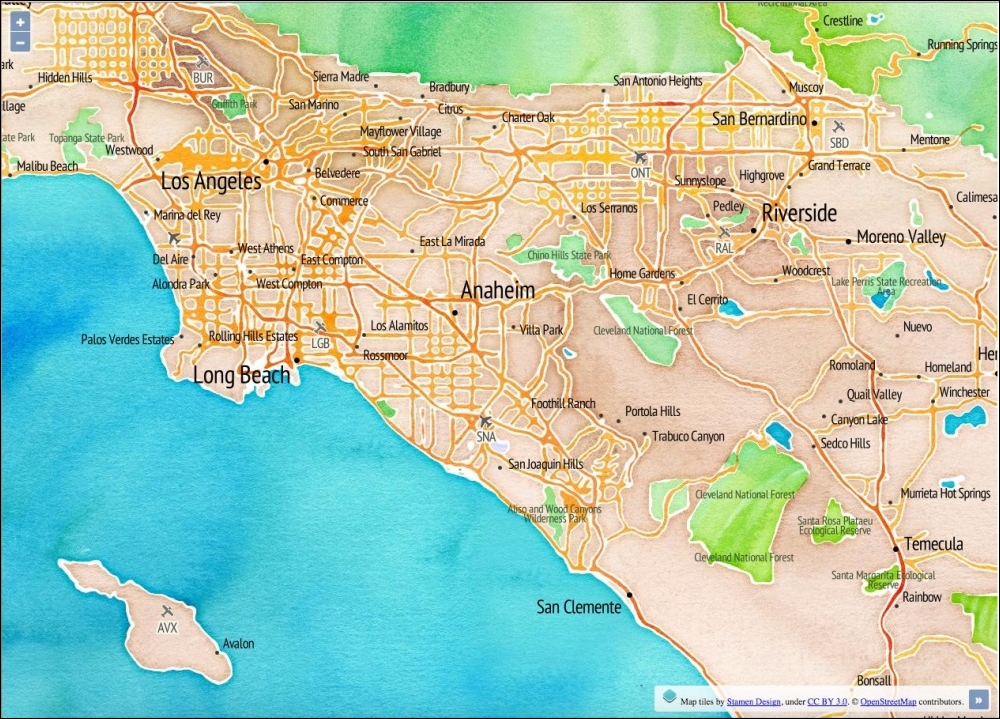
When we create the new map instance, we make use of the Stamen tile services. The background layer is made up of the watercolor layer, and the foreground layer is made up from the terrain-labels layer.
For the terrain-labels layer, we restrict the extent of the layer with our custom bounding box. It means that this layer will not request for tiles outside this extent.
view: new ol.View({
  zoom: 6,
  minZoom: 5,
  center: [-12100000, 3400000],
  extent: extent
})
When we create the view, we pass our bounding box into the extent property of the view. Passing the extent to view is where the navigation restriction gets enforced. If we hadn't passed the extent to view, the user could pan around the map as they wish.
We also set minZoom to 5, which accompanies the extent restriction quite well. It prevents the user from zooming far out and beyond the USA (our extent). This retains the user within the points of interest.