The downside of indicating that progress is being made is that there's no end in sight for the user. This leads to a feeling of unease, like when waiting for food in a microwave with no timer. When you know how much progress has been made, and how much is left to go, you feel better. This is why it's always better to use a deterministic progress bar whenever possible.
Unlike the ActivityIndicator component, there's no platform-agnostic component in React Native for progress bars. So, we'll have to make one ourselves. We'll create a component that uses ProgressViewIOS on iOS and ProgressBarAndroid on Android.
Let's handle the cross-platform issues first. React Native knows to import the correct module based on its file extension. Here's what the ProgressBarComponent.ios.js module looks like:
// Exports the "ProgressViewIOS" as the
// "ProgressBarComponent" component that
// our "ProgressBar" expects.
export {
  ProgressViewIOS as ProgressBarComponent,
} from 'react-native';

// There are no custom properties needed.
export const progressProps = {};
You're directly exporting the ProgressViewIOS component from React Native. You're also exporting properties for the component that are specific to the platform. In this case, it's an empty object because there are no properties that are specific to <ProgressViewIOS>. Now, let's take a look at the ProgressBarComponent.android.js module:
// Exports the "ProgressBarAndroid" component as
// "ProgressBarComponent" that our "ProgressBar"
// expects.
export {
  ProgressBarAndroid as ProgressBarComponent,
} from 'react-native';

// The "styleAttr" and "indeterminate" props are
// necessary to make "ProgressBarAndroid" look like
// "ProgressViewIOS".
export const progressProps = {
  styleAttr: 'Horizontal',
  indeterminate: false,
};
This module uses the exact same approach as the ProgressBarComponent.ios.js module. It exports the Android-specific component as well as Android-specific properties to pass to it. Now, let's build the ProgressBar component that the application will use:
import React from 'react';
import PropTypes from 'prop-types';
import { View, Text } from 'react-native';

// Imports the "ProgressBarComponent" which is the
// actual react-native implementation. The actual
// component that's imported is platform-specific.
// The custom props in "progressProps" is also
// platform-specific.
import {
  ProgressBarComponent,
  progressProps
} from './ProgressBarComponent';

import styles from './styles';

// The "ProgressLabel" component determines what to
// render as a label, based on the boolean "label"
// prop. If true, then we render some text that shows
// the progress percentage. If false, we render nothing.
const ProgressLabel = ({ show, progress }) =>
  show && (
    <Text style={styles.progressText}>
      {Math.round(progress * 100)}%
    </Text>
  );

// Our generic progress bar component...
const ProgressBar = ({ progress, label }) => (
  <View style={styles.progress}>
    <ProgressLabel show={label} progress={progress} />
    {/* "<ProgressBarComponent>" is really a ""<ProgressViewIOS>"
         or a "<ProgressBarAndroid>". */}
    <ProgressBarComponent
      {...progressProps}
      style={styles.progress}
      progress={progress}
    />
  </View>
);

ProgressBar.propTypes = {
  progress: PropTypes.number.isRequired,
  label: PropTypes.bool.isRequired
};

ProgressBar.defaultProps = {
  progress: 0,
  label: true
};

export default ProgressBar;
Let's walk through what's going on in this module, starting with the imports. The ProgressBarComponent and progressProps values are imported from our ProgressBarComponent module. React Native determines which module to import this from.
Next, you have the ProgressLabel utility component. It figures out what label is rendered for the progress bar based on the show property. If false, nothing is rendered. If true, it renders a <Text> component that displays the progress as a percentage.
Lastly, you have the ProgressBar component itself, when our application will import and use. This renders the label and the appropriate progress bar component. It takes a progress property, which is a value between 0 and 1. Now let's put this component to use in the App component:
import React, { Component } from 'react';
import { View } from 'react-native';

import styles from './styles';
import ProgressBar from './ProgressBar';

export default class MeasuringProgress extends Component {
  // Initially at 0% progress. Changing this state
  // updates the progress bar.
  state = {
    progress: 0
  };

  componentDidMount() {
    // Continuously increments the "progress" state
    // every 300MS, until we're at 100%.
    const updateProgress = () => {
      this.setState({
        progress: this.state.progress + 0.01
      });

      if (this.state.progress < 1) {
        setTimeout(updateProgress, 300);
      }
    };

    updateProgress();
  }

  render() {
    return (
      <View style={styles.container}>
        {/* This is awesome. A simple generic
             "<ProgressBar>" component that works
             on Android and on iOS. */}
        <ProgressBar progress={this.state.progress} />
      </View>
    );
  }
}
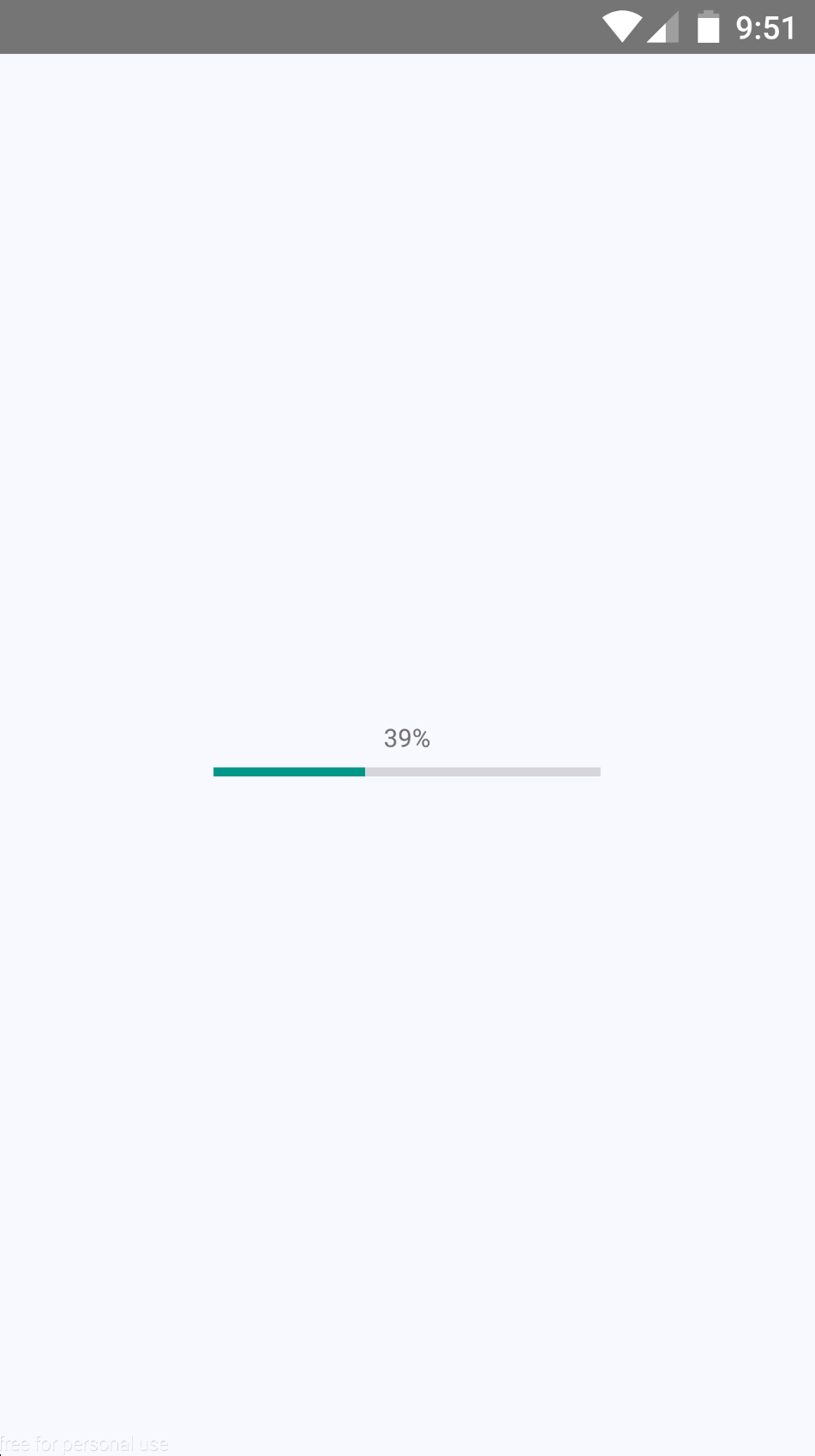
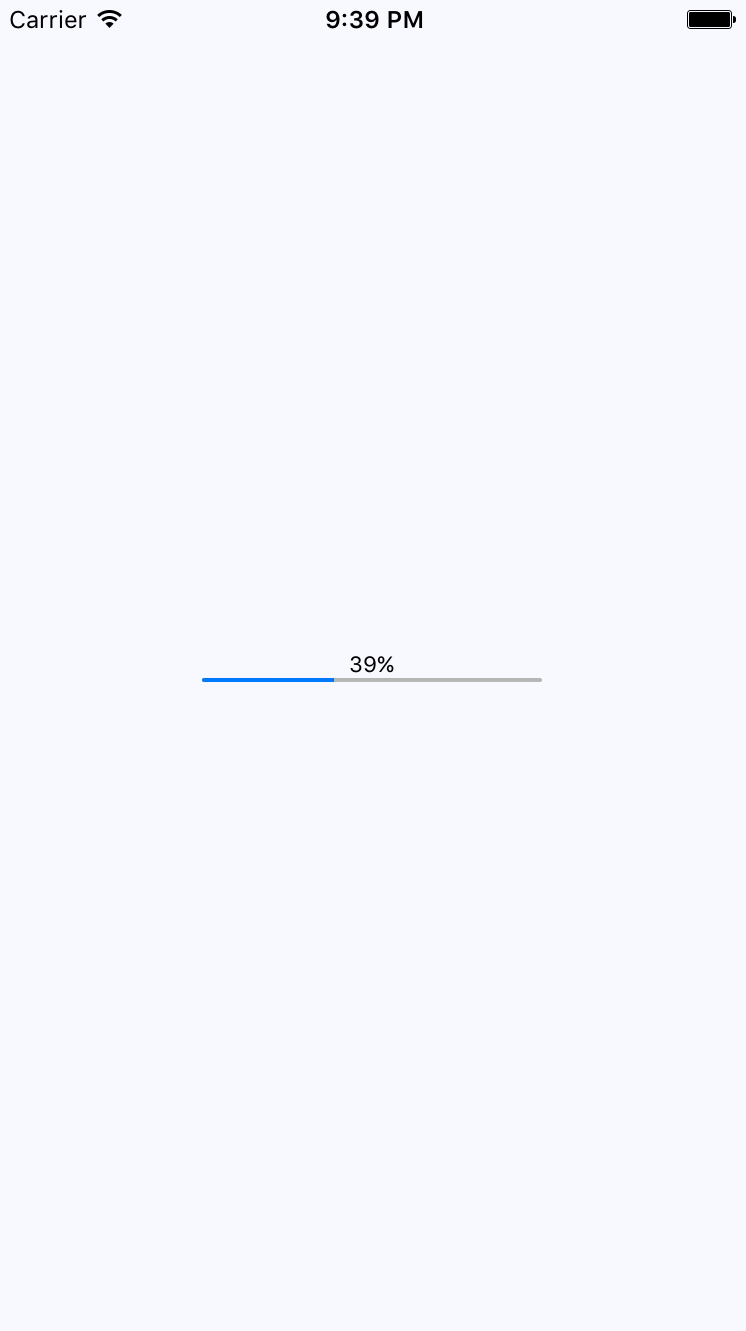
Initially, the <ProgressBar> component is rendered at 0%. In the componentDidMount() method, the updateProgress() function uses a timer to simulate a real process that you want to show progress for. Here's what the iOS screen looks like:
Here's what the same progress bar looks like on Android: