Scrolling in web applications is done by using the mouse pointer to drag the scrollbar back and forth or up and down, or by spinning the mousewheel. This doesn't work on a mobile device because there's no mouse. Everything is controlled by gestures on the screen. For example, if you want to scroll down, you use your thumb or index finger to pull the content up by physically moving your finger on the screen.
Scrolling like this is difficult to implement, but it gets more complicated. When you scroll on a mobile screen, the velocity of the dragging motion is taken into consideration. You drag the screen fast, then let go, and the screen will continue to scroll based on how fast you moved. You can also touch the screen while this is happening to stop it from scrolling.
Thankfully, you don't have to handle most of this stuff. The ScrollView component handles much of the scrolling complexity for you. In fact, you've already used the ScrollView component, back in Chapter 16, Rendering Item Lists. The ListView component has ScrollView baked into it.
You can use the ScrollView outside ListView. For example, if you're just rendering arbitrary content such as text and other widgets—not a list, in other words—you can just wrap it in a <ScrollView>. Here's an example:
import React from 'react';
import {
  Text,
  ScrollView,
  ActivityIndicator,
  Switch,
  View
} from 'react-native';

import styles from './styles';

export default () => (
  <View style={styles.container}>
    {/* The "<ScrollView>" can wrap any
         other component to make it scrollable.
         Here, we're repeating an arbitrary group
         of components to create some scrollable
         content */}
    <ScrollView style={styles.scroll}>
      {new Array(6).fill(null).map((v, i) => (
        <View key={i}>
          {/* Abitrary "<Text>" component... */}
          <Text style={[styles.scrollItem, styles.text]}>
            Some text
          </Text>

          {/* Arbitrary "<ActivityIndicator>"... */}
          <ActivityIndicator style={styles.scrollItem} size="large" />

          {/* Arbitrary "<Switch>" component... */}
          <Switch style={styles.scrollItem} />
        </View>
      ))}
    </ScrollView>
  </View>
);
The ScrollView component isn't of much use on it's own—its there to wrap other components. It does need a height in order to function correctly. Here's what the scroll style looks like:
scroll: {
  height: 1,
  alignSelf: 'stretch',
},
The height is set to 1, but the stretch value of alignSelf allows the items to display properly. Here's what the end result looks like:
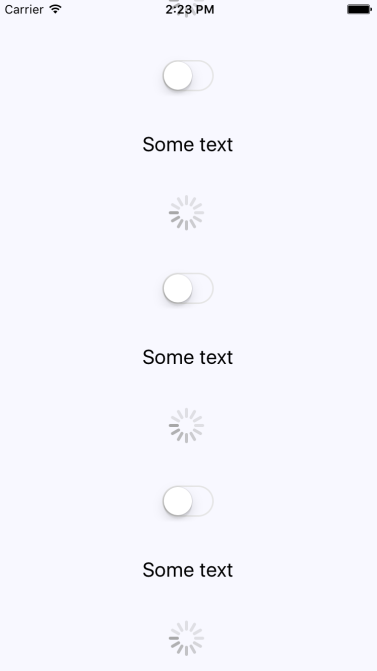
There's a vertical scrollbar on the right side of the screen as you drag the content down. If you run this example, you can play around with making various gestures, such as making content scroll on its own and then making it stop.