
The width and height style properties of Image components determine the size of what's rendered on the screen. For example, you'll probably have to work with images at some point that have a larger resolution than you want displayed in your React Native application. Simply setting the width and height style properties on the Image is enough to properly scale the image.
Let's look at some code that lets you dynamically adjust the dimensions of an image using a control as follows:
import React, { Component } from 'react';
import { View, Text, Image, Slider } from 'react-native';
import { fromJS } from 'immutable';

import styles from './styles';

export default class ResizingImages extends Component {
  // The initial state of this component includes
  // a local image source, and the width/height
  // image dimensions.
  state = {
    data: fromJS({
      source: require('./images/flux.png'),
      width: 100,
      height: 100
    })
  };

  // Getter for "Immutable.js" state data...
  get data() {
    return this.state.data;
  }

  // Setter for "Immutable.js" state data...
  set data(data) {
    this.setState({ data });
  }

  render() {
    // The state values we need...
    const { source, width, height } = this.data.toJS();

    return (
      <View style={styles.container}>
        {/* The image is rendered using the
             "source", "width", and "height"
             state values. */}
        <Image source={source} style={{ width, height }} />
        {/* The current "width" and "height"
             values are displayed. */}
        <Text>Width: {width}</Text>
        <Text>Height: {height}</Text>
        {/* This slider scales the image size
             up or down by changing the "width"
             and "height" states. */}
        <Slider
          style={styles.slider}
          minimumValue={50}
          maximumValue={150}
          value={width}
          onValueChange={v => {
            this.data = this.data.merge({
              width: v,
              height: v
            });
          }}
        />
      </View>
    );
  }
}
Here's what the image looks like if you're using the default 100 x 100 dimensions:
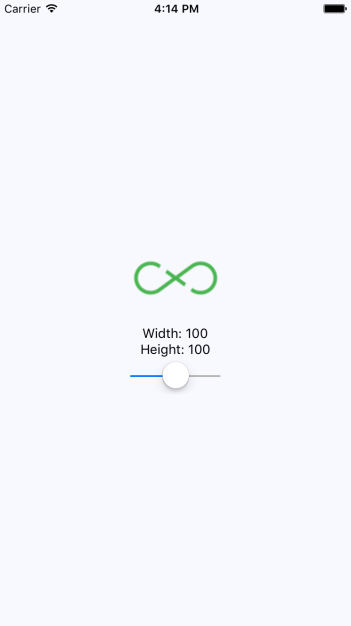
Here's a scaled-down version of the image:
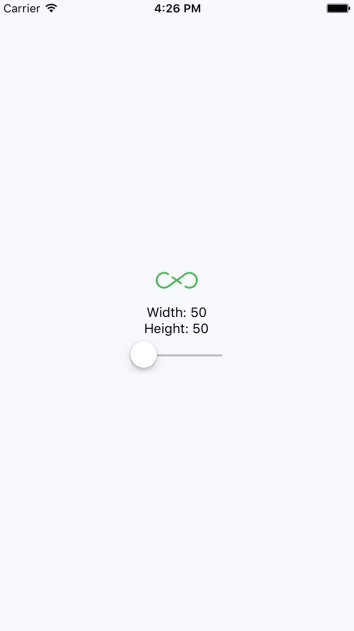
Lastly, here's a scaled-up version of the image:
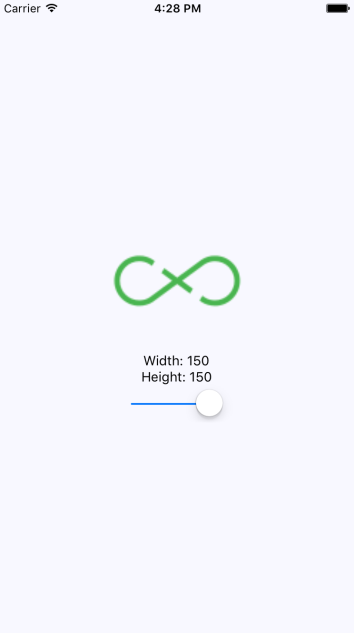
There's a resizeMode property that you can pass to Image components. This determines how the scaled image fits within the dimensions of the actual component. You'll see this property in action in the final section of this chapter.