Table of Contents for
Mastering OpenLayers 3
 Mastering OpenLayers 3
Published by
Packt Publishing, 2016
Mastering OpenLayers 3
Published by
Packt Publishing, 2016
- Cover
- Table of Contents
- Mastering OpenLayers 3
- Mastering OpenLayers 3
- Credits
- About the Author
- About the Reviewer
- www.PacktPub.com
- Preface
- What you need for this book
- Who this book is for
- Conventions
- Reader feedback
- Customer support
- 1. Creating Simple Maps with OpenLayers 3
- Structure of OpenLayers 3
- Building the layout
- Using the API documentation
- Debugging the code
- Summary
- 2. Applying Custom Styles
- Customizing the default appearance
- Styling vector layers
- Customizing the appearance with JavaScript
- Creating a WebGIS client layout
- Summary
- 3. Working with Layers
- Building a layer tree
- Adding layers dynamically
- Adding vector layers with the File API
- Adding vector layers with a library
- Removing layers dynamically
- Changing layer attributes
- Changing the layer order with the Drag and Drop API
- Clearing the message bar
- Summary
- 4. Using Vector Data
- Accessing attributes
- Setting attributes
- Validating attributes
- Creating thematic layers
- Saving vector data
- Saving with WFS-T
- Modifying the geometry
- Summary
- 5. Creating Responsive Applications with Interactions and Controls
- Building the toolbar
- Mapping interactions to controls
- Building a set of feature selection controls
- Adding new vector layers
- Building a set of drawing tools
- Modifying and snapping to features
- Creating new interactions
- Building a measuring control
- Summary
- 6. Controlling the Map – View and Projection
- Customizing a view
- Constraining a view
- Creating a navigation history
- Working with extents
- Rotating a view
- Changing the map's projection
- Creating custom animations
- Summary
- 7. Mastering Renderers
- Using different renderers
- Creating a WebGL map
- Drawing lines and polygons with WebGL
- Blending layers
- Clipping layers
- Exporting a map
- Creating a raster calculator
- Creating a convolution matrix
- Clipping a layer with WebGL
- Summary
- 8. OpenLayers 3 for Mobile
- Responsive styling with CSS
- Generating geocaches
- Adding device-dependent controls
- Vectorizing the mobile version
- Making the mobile application interactive
- Summary
- 9. Tools of the Trade – Integrating Third-Party Applications
- Exporting a QGIS project
- Importing shapefiles
- Spatial analysis with Turf
- Spatial analysis with JSTS
- 3D rendering with Cesium
- Summary
- 10. Compiling Custom Builds with Closure
- Configuring Node JS
- Compiling OpenLayers 3
- Bundling an application with OpenLayers 3
- Extending OpenLayers 3
- Creating rich documentation with JSDoc
- Summary
- Index
In the next example, called ch09_turf, we will extend our application's topological capabilities with Turf. Turf is a well-documented, simple, but capable, library for geospatial analysis. All the basic topological functions are in the library along with some more advanced and scarce functions. Turf uses GeoJSON not only as its exchange format but also as its internal format. This enables it to skip the overhead caused by data conversion.
Tip
You can grab the most recent version of Turf from the GitHub repository at https://github.com/Turfjs/turf/releases.
First, we open the HTML file and resolve the dependencies. We have an easy job with Turf as we only have to provide one extra JavaScript file:
<head>
    […]
    <script type="text/javascript" src="../../js/turf-2.0.0/turf.min.js"></script>
</head>Before jumping into the implementation of different spatial operations, we need to tweak our example a little bit. First, as we wouldn't want to involve our layer tree, we simply hack it in order to save the selected layer in the map object:
layerTree.prototype.addSelectEvent = function (node, isChild) {
    […]
        _this.map.set('selectedLayer', _this.getLayerById(targetNode.id));
        […]
};
Next, we rewrite our map constructor a little bit so that we can add one additional vector layer. As we will implement different kinds of spatial operations, we will need different types of layers to test them on. Additionally, you can add a further line layer, too:
var map = new ol.Map({
    […]
        new ol.layer.Vector({
            source: new ol.source.Vector({
                format: new ol.format.GeoJSON({
                    defaultDataProjection: 'EPSG:4326'
                }),
                url: '../../res/world_capitals.geojson'
            }),
            name: 'World Capitals'
        }),
        new ol.layer.Vector({
            source: new ol.source.Vector({
                format: new ol.format.GeoJSON({
                    defaultDataProjection: 'EPSG:4326'
                }),
                url: '../../res/world_countries.geojson'
            }),
            name: 'World Countries'
        })
    ],
    […]
});
We also add every layer created in this way to the layer tree manually, and then register an interaction with the countries' layer as we would like to be able to modify it:
var tree = new layerTree({map: map, target: 'layertree', messages: 'messageBar'})
    .createRegistry(map.getLayers().item(0))
    .createRegistry(map.getLayers().item(1))
    .createRegistry(map.getLayers().item(2));

map.getLayers().item(2).getSource().once('change', function (evt) {
    if (this.getState() === 'ready') {
        map.addInteraction(new ol.interaction.Modify({
            features: new ol.Collection(evt.target.getFeatures())
        }));
    }
});In this example, we will create a single control for three spatial operations. The first one creates a buffer around the input elements, the second one merges an entire layer, while the third one checks for self-intersections in the input polygons.
Tip
The operations presented in this example are just a little subset of the true capabilities of Turf. If you want to get introduced to the library, you can browse its API page at http://turfjs.org/static/docs/.
First, we only create a control for buffering, then we proceed and extend this control. This way, you can check every functionality before we go on to the next. First, we create the required DOM elements for our control:
ol.control.Turf = function (opt_options) {
    var options = opt_options || {};
    var _this = this;
    var controlDiv = document.createElement('div');
    controlDiv.className = options.class || 'ol-turf ol-unselectable ol-control';
    var bufferButton = document.createElement('button');
    bufferButton.textContent = 'B';
    bufferButton.title = 'Buffer selected layer';
Next, we define what will happen if we click on the buffer button. As we can access the selected layer without getting the layer tree object, this makes our job easier. The Turf API documentation says that we can provide a feature or feature collection to the buffer method; thus, we won't make any checks, just pass the content of an entire layer to the method in GeoJSON. As we need a GeoJSON object, rather than the string representation of the GeoJSON, we can use the format object's writeFeaturesObject method instead of the more commonly used writeFeatures method:
    bufferButton.addEventListener('click', function (evt) {
        var layer = _this.getMap().get('selectedLayer');
        var units = _this.getMap().getView().getProjection().getUnits();
        if (layer instanceof ol.layer.Vector) {
            var parser = new ol.format.GeoJSON();
            var geojson = parser.writeFeaturesObject(layer.getSource().getFeatures());
            var buffered = turf.buffer(geojson, 10000, units);
            var bufferedLayer = new ol.layer.Vector({
                source: new ol.source.Vector({
                    features: parser.readFeatures(buffered)
                }),
                name: 'Buffer result'
            });
            _this.getMap().addLayer(bufferedLayer);
        }
    });
    controlDiv.appendChild(bufferButton);
After the buffering is done, we load the result in a new layer. In this example, we will work with a fixed radius of 10,000 meters.
Finally, we close our control with the ordinary method, and add it to our map:
    controlDiv.appendChild(selfIntersectButton);
    ol.control.Control.call(this, {
        element: controlDiv,
        target: options.target
    });
};
ol.inherits(ol.control.Turf, ol.control.Control);
[…]
    var map = new ol.Map({
        […]
        controls: [
            […]
            new ol.control.Turf({
                target: 'toolbar'
            })
        ],
        […]
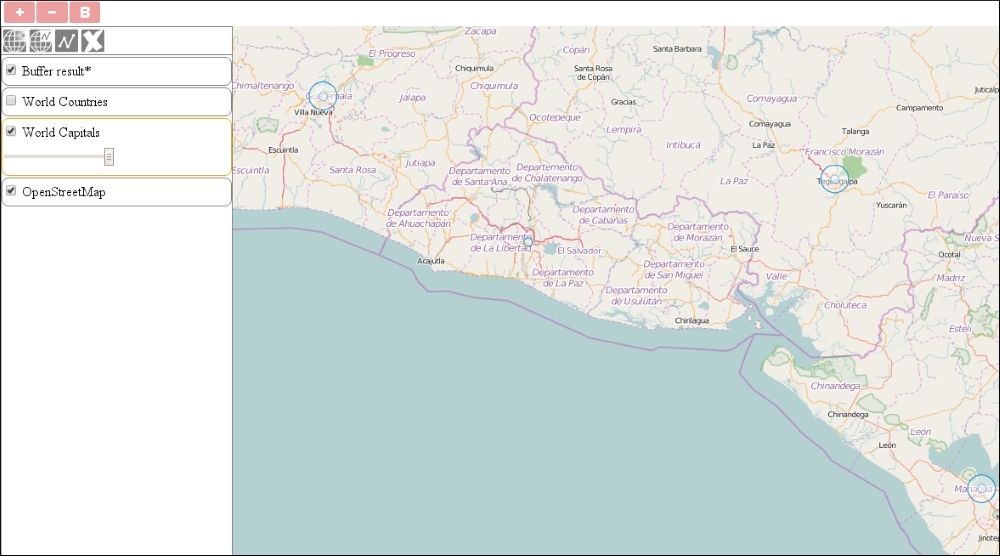
If you test our example in this state (in the World Capitals layer first), you can try out our new buffering capability. Note that this is an expensive operation; therefore, if you provide a big dataset as input, you have to wait for it to finish for quite a bit of time:
Tip
As you can see, there are some points that were not processed by the algorithm. To test it further, use the world countries' layer as an input. What do you observe? Turf returned an error and did not create the buffers. The algorithm cannot process multipart geometries correctly. Fear not! We will learn how to split up these geometries in the third operation.
Next, we implement an additional operation to merge entire polygon layers. Let's take a look at the Turf API documentation's merge operation. It requires a set of polygons in a geometry collection and returns a simple polygon or a multipart polygon. First, we create the DOM elements of the new control button:
ol.control.Turf = function (opt_options) {
    […]
    var mergeButton = document.createElement('button');
    mergeButton.textContent = 'M';
    mergeButton.title = 'Merge selected layer';
Next, we register a listener on the button's click event as usual. As we can pass a geometry collection to this method and the OpenLayers 3 GeoJSON's format returns a geometry collection when its writeFeaturesObject method is called, we don't check anything; we just pass the GeoJSON object to Turf:
    mergeButton.addEventListener('click', function (evt) {
        var layer = _this.getMap().get('selectedLayer');
        if (layer instanceof ol.layer.Vector) {
            var parser = new ol.format.GeoJSON();
            var geojson = parser.writeFeaturesObject(layer.getSource().getFeatures());
            var merged = turf.merge(geojson);
            var mergedLayer = new ol.layer.Vector({
                source: new ol.source.Vector({
                    features: parser.readFeatures(merged)
                }),
                name: 'Merge result'
            });
            _this.getMap().addLayer(mergedLayer);
        }
    });
    controlDiv.appendChild(mergeButton);
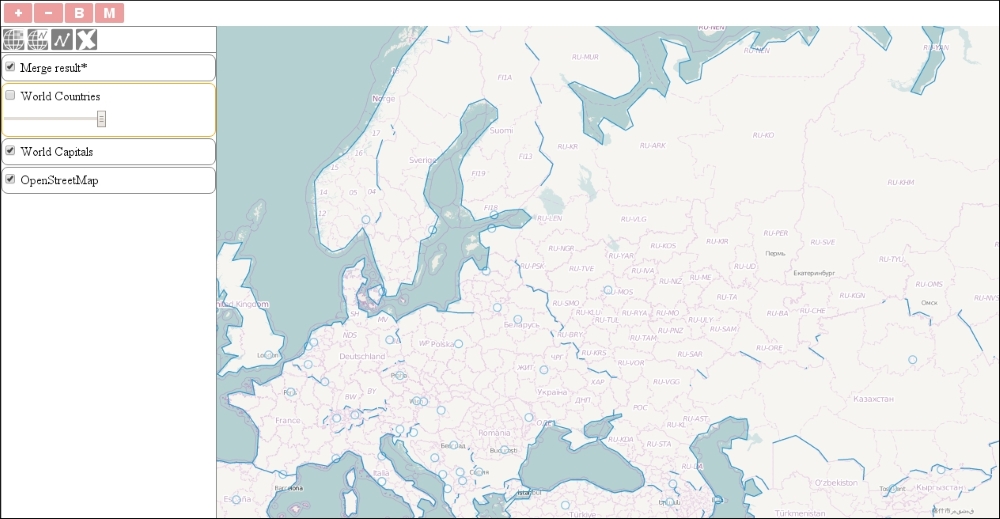
If you save the example and try out our new functionality, you will see that we can execute the merge operation on both of the vector layers. You can also observe that we do not get a simple continuous polygon for every continent but multipart polygons with some inner borders, instead. This can easily mean that we have some topology errors inside our dataset:
Tip
Once the API documentation is stated, the merge method expects a set of simple polygons as input. However, we could manage to use it in point features and multipart polygons, too. As the API documentation does not cover every use case correctly, you should always experiment with it before deploying an application.
Now that we've discovered an algorithm to detect topological integrity in Turf, we will further implement an operation that's dedicated to such a purpose. The kinks method checks one simple polygon at a time, according to the API documentation, and returns a collection of points at self-intersections. First, let's create the DOM elements for the last control button:
    var selfIntersectButton = document.createElement('button');
    selfIntersectButton.textContent = 'S';
    selfIntersectButton.title = 'Check self intersections';
Next, as we would like this method to work correctly, we limit the operation to two types of features: simple polygons and multipart polygons. We get the selected layer's features if it is a vector:
    selfIntersectButton.addEventListener('click', function (evt) {
        var layer = _this.getMap().get('selectedLayer');
        if (layer instanceof ol.layer.Vector) {
            var parser = new ol.format.GeoJSON();
            var selfIntersectLayer = new ol.layer.Vector({
                source: new ol.source.Vector(),
                name: 'Self intersects'
            });
            _this.getMap().addLayer(selfIntersectLayer);
            var features = layer.getSource().getFeatures();
Next, we iterate through the features, convert them to GeoJSON one by one, and perform additional checks on them. If we meet a simple polygon, we just call the kinks method on it, and add occasional results to a new layer. If we have to deal with a multipart polygon, we make a second loop and get the coordinates of every part. From the coordinates, we create a simple GeoJSON polygon with Turf's polygon method and call kinks on it:
            for (var i = 0; i < features.length; i += 1) {
                var geojson = parser.writeFeatureObject(features[i]);
                if (geojson.geometry.type === 'MultiPolygon') {
                    for (var j = 0; j < geojson.geometry.coordinates.length; j += 1) {
                        var selfIntersect = turf.kinks(turf.polygon(geojson.geometry.coordinates[j]));
                        if (selfIntersect.intersections.features.length > 0) {
                            selfIntersectLayer.getSource().addFeatures(parser.readFeatures(selfIntersect.intersections));
                        }
                    }
                } else if (geojson.geometry.type === 'Polygon') {
                    var selfIntersect = turf.kinks(geojson);
                    if (selfIntersect.intersections.features.length > 0) {
                        selfIntersectLayer.getSource().addFeatures(parser.readFeatures(selfIntersect.intersections));
                    }
                }
            }
        }
    });
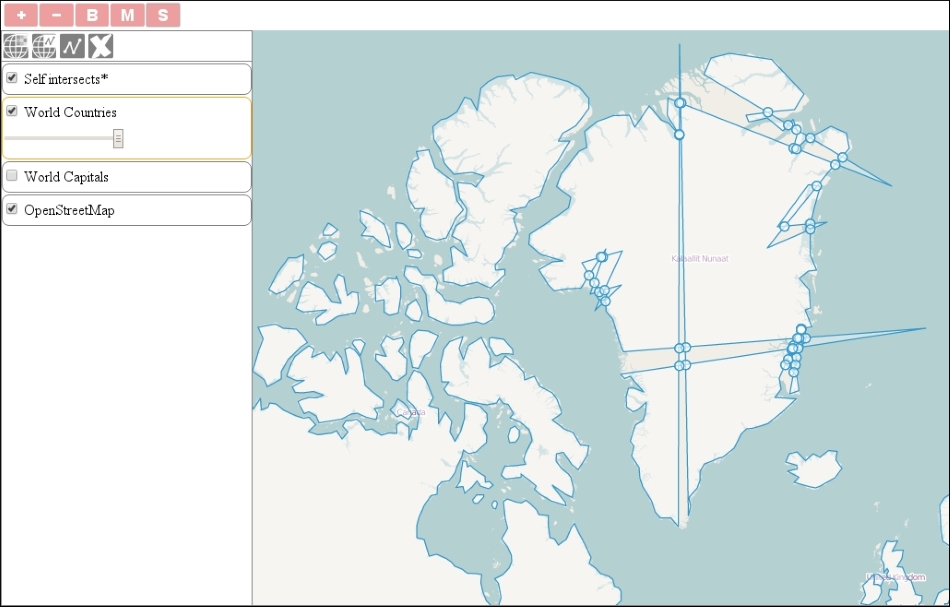
controlDiv.appendChild(selfIntersectButton);If you load the final code in your browser, you can test all of our geospatial operations implemented with Turf. For the last operation, use the modify interaction, which we added to our map at the beginning of the example, and mess up one or more polygons horribly (create a lot of self-intersections):