Table of Contents for
Mastering OpenLayers 3
 Mastering OpenLayers 3
Published by
Packt Publishing, 2016
Mastering OpenLayers 3
Published by
Packt Publishing, 2016
- Cover
- Table of Contents
- Mastering OpenLayers 3
- Mastering OpenLayers 3
- Credits
- About the Author
- About the Reviewer
- www.PacktPub.com
- Preface
- What you need for this book
- Who this book is for
- Conventions
- Reader feedback
- Customer support
- 1. Creating Simple Maps with OpenLayers 3
- Structure of OpenLayers 3
- Building the layout
- Using the API documentation
- Debugging the code
- Summary
- 2. Applying Custom Styles
- Customizing the default appearance
- Styling vector layers
- Customizing the appearance with JavaScript
- Creating a WebGIS client layout
- Summary
- 3. Working with Layers
- Building a layer tree
- Adding layers dynamically
- Adding vector layers with the File API
- Adding vector layers with a library
- Removing layers dynamically
- Changing layer attributes
- Changing the layer order with the Drag and Drop API
- Clearing the message bar
- Summary
- 4. Using Vector Data
- Accessing attributes
- Setting attributes
- Validating attributes
- Creating thematic layers
- Saving vector data
- Saving with WFS-T
- Modifying the geometry
- Summary
- 5. Creating Responsive Applications with Interactions and Controls
- Building the toolbar
- Mapping interactions to controls
- Building a set of feature selection controls
- Adding new vector layers
- Building a set of drawing tools
- Modifying and snapping to features
- Creating new interactions
- Building a measuring control
- Summary
- 6. Controlling the Map – View and Projection
- Customizing a view
- Constraining a view
- Creating a navigation history
- Working with extents
- Rotating a view
- Changing the map's projection
- Creating custom animations
- Summary
- 7. Mastering Renderers
- Using different renderers
- Creating a WebGL map
- Drawing lines and polygons with WebGL
- Blending layers
- Clipping layers
- Exporting a map
- Creating a raster calculator
- Creating a convolution matrix
- Clipping a layer with WebGL
- Summary
- 8. OpenLayers 3 for Mobile
- Responsive styling with CSS
- Generating geocaches
- Adding device-dependent controls
- Vectorizing the mobile version
- Making the mobile application interactive
- Summary
- 9. Tools of the Trade – Integrating Third-Party Applications
- Exporting a QGIS project
- Importing shapefiles
- Spatial analysis with Turf
- Spatial analysis with JSTS
- 3D rendering with Cesium
- Summary
- 10. Compiling Custom Builds with Closure
- Configuring Node JS
- Compiling OpenLayers 3
- Bundling an application with OpenLayers 3
- Extending OpenLayers 3
- Creating rich documentation with JSDoc
- Summary
- Index
The HTML5 File API makes it possible for us to load nearly any kind of file from our hard drive to a browser and process these files with JavaScript. It has capabilities way beyond our use case (it can even handle binary files); thus, it is advisable for every frontend developer to look into it in further detail. The files for this example are named ch03_fileapi.
First, we create a new form as usual. You can grab it from the HTML file.
The basic interface to access our new functionality is the same, as shown in the previous examples. First, we extend our layer constructor, adding a new button to the layer tree:
var layerTree = function (options) {
[…]
        controlDiv.appendChild(this.createButton('addvector', 'Add Vector Layer', 'addlayer'));
[…]
};
Next, we create a new rule for its button class in our CSS file:
.layertree-buttons .addvector {
    background-image: url(../../res/button_vector.png);
}
We also add a new event listener to our init function to link the form to our object:
document.getElementById('addvector_form').addEventListener('submit', function (evt) {
    evt.preventDefault();
    tree.addVectorLayer(this);
    this.parentNode.style.display = 'none';
});
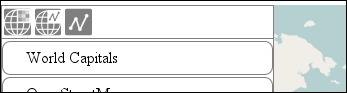
Adding a new button to the layer tree, which is based on our knowledge from the previous example, is simple. If you save the code and load it, you will see the new option in the button container:
As usual, the method accepts a form as an argument. As you have seen in the HTML file, the parameters are the usual ones, with one exception: the format. We use some predefined formats for our users to choose from and construct our new layer accordingly. First, we start our method by initializing some essential parameters and constructing a new file reader:
layerTree.prototype.addVectorLayer = function (form) {
    var file = form.file.files[0];
    var currentProj = this.map.getView().getProjection();
    var fr = new FileReader();
    var sourceFormat;
    var source = new ol.source.Vector();
File readers, similar to AJAX requests, are asynchronous. We have to register a listener to the file reader's load event to reliably get all of the fetched data:
    fr.onload = function (evt) {
        var vectorData = evt.target.result;
        switch (form.format.value) {
            case 'geojson':
                sourceFormat = new ol.format.GeoJSON();
                break;
            case 'topojson':
                sourceFormat = new ol.format.TopoJSON();
                break;
            case 'kml':
                sourceFormat = new ol.format.KML();
                break;
            case 'osm':
                sourceFormat = new ol.format.OSMXML();
                break;
            default:
                return false;
        }
        var dataProjection = form.projection.value || sourceFormat.readProjection(vectorData) || currentProj;
        source.addFeatures(sourceFormat.readFeatures(vectorData, {
            dataProjection: dataProjection,
            featureProjection: currentProj
        }));
    };
When the data is available to be processed, we assign it to a variable. Based on the user's choice, we construct a format object and then try to guess the data's projection. Note that the order is important. First, we check whether the user has provided a projection by enabling manual overriding. We start guessing whether the form's projection field is empty. As all of the spatial formats have some way to store their projection, we try to access it. If we have no luck, we default the projection to our map's projection. Finally, we finish our method by telling the file reader to start reading, and while it's working, we create the layer and add it to the map:
Tip
TopoJSON is the new cutting-edge ASCII format to store vector data. It reduces redundancy in the coordinates by mapping topological connections, and it further decreases the file size by quantizing the coordinates. If you are not obligated to use a specific format, always consider using TopoJSON.
    fr.readAsText(file);
    var layer = new ol.layer.Vector({
        source: source,
        name: form.displayname.value,
        strategy: ol.loadingstrategy.bbox
    });
    this.addBufferIcon(layer);
    this.map.addLayer(layer);
    this.messages.textContent = 'Vector layer added successfully.';
    return this;
};
You can try out our new functionality with the vector layers that are located in the code appendix's res folder. All of the layers are in the EPSG:4326 projection.