Table of Contents for
Mastering OpenLayers 3
 Mastering OpenLayers 3
Published by
Packt Publishing, 2016
Mastering OpenLayers 3
Published by
Packt Publishing, 2016
- Cover
- Table of Contents
- Mastering OpenLayers 3
- Mastering OpenLayers 3
- Credits
- About the Author
- About the Reviewer
- www.PacktPub.com
- Preface
- What you need for this book
- Who this book is for
- Conventions
- Reader feedback
- Customer support
- 1. Creating Simple Maps with OpenLayers 3
- Structure of OpenLayers 3
- Building the layout
- Using the API documentation
- Debugging the code
- Summary
- 2. Applying Custom Styles
- Customizing the default appearance
- Styling vector layers
- Customizing the appearance with JavaScript
- Creating a WebGIS client layout
- Summary
- 3. Working with Layers
- Building a layer tree
- Adding layers dynamically
- Adding vector layers with the File API
- Adding vector layers with a library
- Removing layers dynamically
- Changing layer attributes
- Changing the layer order with the Drag and Drop API
- Clearing the message bar
- Summary
- 4. Using Vector Data
- Accessing attributes
- Setting attributes
- Validating attributes
- Creating thematic layers
- Saving vector data
- Saving with WFS-T
- Modifying the geometry
- Summary
- 5. Creating Responsive Applications with Interactions and Controls
- Building the toolbar
- Mapping interactions to controls
- Building a set of feature selection controls
- Adding new vector layers
- Building a set of drawing tools
- Modifying and snapping to features
- Creating new interactions
- Building a measuring control
- Summary
- 6. Controlling the Map – View and Projection
- Customizing a view
- Constraining a view
- Creating a navigation history
- Working with extents
- Rotating a view
- Changing the map's projection
- Creating custom animations
- Summary
- 7. Mastering Renderers
- Using different renderers
- Creating a WebGL map
- Drawing lines and polygons with WebGL
- Blending layers
- Clipping layers
- Exporting a map
- Creating a raster calculator
- Creating a convolution matrix
- Clipping a layer with WebGL
- Summary
- 8. OpenLayers 3 for Mobile
- Responsive styling with CSS
- Generating geocaches
- Adding device-dependent controls
- Vectorizing the mobile version
- Making the mobile application interactive
- Summary
- 9. Tools of the Trade – Integrating Third-Party Applications
- Exporting a QGIS project
- Importing shapefiles
- Spatial analysis with Turf
- Spatial analysis with JSTS
- 3D rendering with Cesium
- Summary
- 10. Compiling Custom Builds with Closure
- Configuring Node JS
- Compiling OpenLayers 3
- Bundling an application with OpenLayers 3
- Extending OpenLayers 3
- Creating rich documentation with JSDoc
- Summary
- Index
In a WebGIS application, it is especially feasible to have controls to zoom into various extents. Users are used to the luxury of zooming in to a layer or a feature to the maximum extent with a single click. In this example, called ch06_extent, we will implement such zooming capabilities. We will create a tool to zoom into the validity extent of the current projection, one for zooming into the selected layer, and the other to zoom into the selected feature. First, let's make some CSS rules for our new tools:
.toolbar .ol-zoom-extent button {
    background-image: url(../../res/button_zoom_extent.png);
}
.toolbar .ol-zoom-layer button {
    background-image: url(../../res/button_zoom_layer.png);
}
.toolbar .ol-zoom-selected button {
    background-image: url(../../res/button_zoom_selected.png);
}There is a built-in control in OpenLayers 3 to zoom into various extents. However, the main weakness of ol.control.ZoomToExtent lies in its static nature. We can define an arbitrary extent on construction and cannot change it afterwards. There is one strength of this control, however. If we do not provide an extent, it reads the current projection's validity extent. This spark of dynamism makes this control suitable for our first use case. For the rest of the tools, we make our own zoom control, which accepts a function, rather than a static extent, and zooms into the return value of that function:
ol.control.ZoomTo = function (opt_options) {
    var options = opt_options || {};
    var _this = this;
    var controlDiv = document.createElement('div');
    controlDiv.className = options.class || 'ol-unselectable ol-control';
    var controlButton = document.createElement('button');
    controlButton.textContent = options.label || '';
    controlButton.title = options.tipLabel || 'Zoom to extent';
    controlButton.addEventListener('click', function (evt) {
        var zoomCandidate = _this.get('extentFunction')();
        if (zoomCandidate instanceof ol.geom.SimpleGeometry ||
            (Object.prototype.toString.call(zoomCandidate) === '[object Array]' && zoomCandidate.length === 4)) {
            _this.getMap().getView().fit(zoomCandidate, _this.getMap().getSize());
        }
    });
    controlDiv.appendChild(controlButton);
    ol.control.Control.call(this, {
        element: controlDiv,
        target: options.target
    });
    this.set('extentFunction', options.zoomFunction);
};
ol.inherits(ol.control.ZoomTo, ol.control.Control);
As the view object's fit method can only receive a simple geometry or an extent besides a mandatory size argument, we will check whether the return value of the provided function fits this criteria. Note that we only check this if the returned extent is an array has exactly four members. For a more general control, further checks should be considered.
Note
If you played with JavaScript's typeof method, you may know that only primitives are distinguishable from it. Arrays are considered as objects. However, objects have subtypes, which can be extracted by calling Object.prototype.toString with an object. Be careful, though. This method is not protected; therefore, any library can overwrite it.
Next, we extend our toolbar with a method, which creates three extent controls:
toolBar.prototype.addExtentControls = function () {
    var _this = this;
    var zoomFull = new ol.control.ZoomToExtent({
        label: ' ',
        tipLabel: 'Zoom to full extent'
    });
    var zoomToLayer = new ol.control.ZoomTo({
        class: 'ol-zoom-layer ol-unselectable ol-control',
        tipLabel: 'Zoom to layer extent',
        extentFunction: function () {
            var source = _this.layertree.getLayerById(_this.layertree.selectedLayer.id).getSource();
            if (source.getExtent()) {
                return source.getExtent();
            }
            return false;
        }
    });
The first two controls are very simple. For the full extent control, we use OpenLayers 3's mechanism, while for the layer extent control, we provide a function, calling the getExtent method of the layer's source.
Tip
Only vector sources have a factory method to get their extent. However, you can create such a method for any layer with the same functionality. Just make sure that you store the extent of the layer in its source object. For WMS layers, you can parse their extent from their GetCapabilities response.
Next, we create the selection extent control, which is a little more complicated, and close our method appropriately:
    var zoomToSelected = new ol.control.ZoomTo({
        class: 'ol-zoom-selected ol-unselectable ol-control',
        tipLabel: 'Zoom to selected feature',
        extentFunction: function () {
            var features = _this.selectInteraction.getFeatures();
            if (features.getLength() === 1) {
                var geom = features.item(0).getGeometry();
                if (geom instanceof ol.geom.SimpleGeometry) {
                    return geom;
                }
                return geom.getExtent();
            }
            return false;
        }
    });
    this.addControl(zoomFull).addControl(zoomToLayer).addControl(zoomToSelected);
    return this;
};
We only accept one feature in this scenario, as allowing more features requires extra calculations. If the feature is a single part, we return it, avoiding unnecessary operations, while if it's multipart, we calculate its extent and return this instead. Finally, we add the new controls to the toolbar:
tools.addExtentControls().addSelectControls().addEditingToolBar();
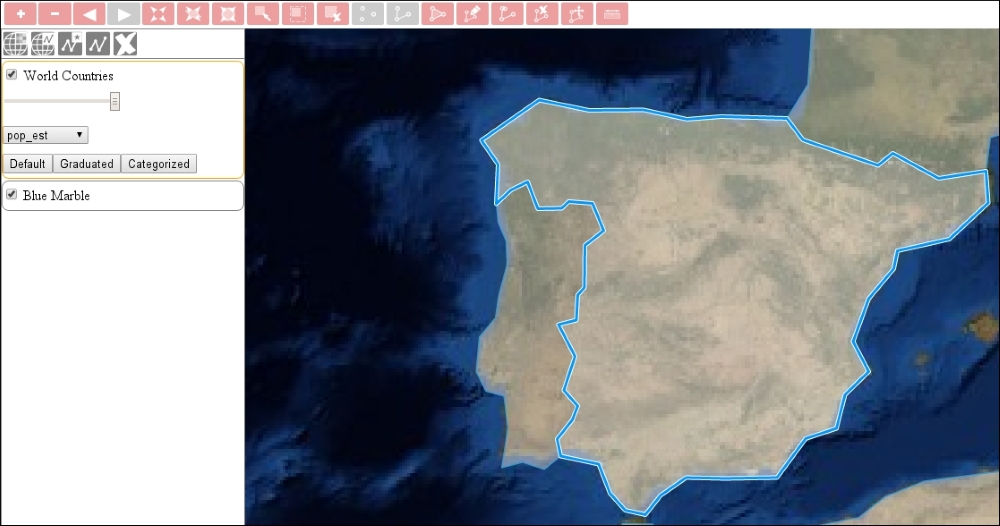
If you save the code and run it in your browser, you will see our extent controls up and running: