Table of Contents for
Mastering OpenLayers 3
 Mastering OpenLayers 3
Published by
Packt Publishing, 2016
Mastering OpenLayers 3
Published by
Packt Publishing, 2016
- Cover
- Table of Contents
- Mastering OpenLayers 3
- Mastering OpenLayers 3
- Credits
- About the Author
- About the Reviewer
- www.PacktPub.com
- Preface
- What you need for this book
- Who this book is for
- Conventions
- Reader feedback
- Customer support
- 1. Creating Simple Maps with OpenLayers 3
- Structure of OpenLayers 3
- Building the layout
- Using the API documentation
- Debugging the code
- Summary
- 2. Applying Custom Styles
- Customizing the default appearance
- Styling vector layers
- Customizing the appearance with JavaScript
- Creating a WebGIS client layout
- Summary
- 3. Working with Layers
- Building a layer tree
- Adding layers dynamically
- Adding vector layers with the File API
- Adding vector layers with a library
- Removing layers dynamically
- Changing layer attributes
- Changing the layer order with the Drag and Drop API
- Clearing the message bar
- Summary
- 4. Using Vector Data
- Accessing attributes
- Setting attributes
- Validating attributes
- Creating thematic layers
- Saving vector data
- Saving with WFS-T
- Modifying the geometry
- Summary
- 5. Creating Responsive Applications with Interactions and Controls
- Building the toolbar
- Mapping interactions to controls
- Building a set of feature selection controls
- Adding new vector layers
- Building a set of drawing tools
- Modifying and snapping to features
- Creating new interactions
- Building a measuring control
- Summary
- 6. Controlling the Map – View and Projection
- Customizing a view
- Constraining a view
- Creating a navigation history
- Working with extents
- Rotating a view
- Changing the map's projection
- Creating custom animations
- Summary
- 7. Mastering Renderers
- Using different renderers
- Creating a WebGL map
- Drawing lines and polygons with WebGL
- Blending layers
- Clipping layers
- Exporting a map
- Creating a raster calculator
- Creating a convolution matrix
- Clipping a layer with WebGL
- Summary
- 8. OpenLayers 3 for Mobile
- Responsive styling with CSS
- Generating geocaches
- Adding device-dependent controls
- Vectorizing the mobile version
- Making the mobile application interactive
- Summary
- 9. Tools of the Trade – Integrating Third-Party Applications
- Exporting a QGIS project
- Importing shapefiles
- Spatial analysis with Turf
- Spatial analysis with JSTS
- 3D rendering with Cesium
- Summary
- 10. Compiling Custom Builds with Closure
- Configuring Node JS
- Compiling OpenLayers 3
- Bundling an application with OpenLayers 3
- Extending OpenLayers 3
- Creating rich documentation with JSDoc
- Summary
- Index
In the next example, called ch06_projection, we close our basic WebGIS client with a final control, which is able to change the map's projection dynamically. First, as we will need the PROJ4JS library for this example, we include it in the HTML file:
<script type="text/javascript" src="../../js/proj4js-2.3.10/proj4.js"></script>
Next, we style the control with CSS:
.notification-bar #projection {
    text-align: center;
}
.notification-bar #projection select {
    background: none;
    border: none;
    outline: 0;
}
The scheme is the same as the one in the previous example. We will strip the natural look of the select element, which will contain the possible projection options. Next, we start building the control by creating two options for the two default projections:
ol.control.Projection = function (opt_options) {
    var options = opt_options || {};
    var _this = this;
    var projSwitcher = document.createElement('select');
    var webMercator = document.createElement('option');
    webMercator.value = 'EPSG:3857';
    webMercator.textContent = 'EPSG:3857';
    projSwitcher.appendChild(webMercator);
    var plateCarree = document.createElement('option');
    plateCarree.value = 'EPSG:4326';
    plateCarree.textContent = 'EPSG:4326';
    projSwitcher.appendChild(plateCarree);
The concept here is that we store the projection's string representation as the option's value, and request the appropriate projection from the library. As HTML elements can be overridden in the browser, further checks might be necessary. Next, we add an event listener to the control element and close our control:
    projSwitcher.addEventListener('change', function (evt) {
        var view = _this.getMap().getView();
        var oldProj = view.getProjection();
        var newProj = ol.proj.get(this.value);
        var newView = new ol.View({
            center: ol.proj.transform(view.getCenter(), oldProj, newProj),
            zoom: view.getZoom(),
            projection: newProj,
            extent: newProj.getExtent()
        });
        _this.getMap().setView(newView);
        _this.getMap().getLayers().forEach(function (layer) {
            _this.changeLayerProjection(layer, oldProj, newProj);
        });
    });
    ol.control.Control.call(this, {
        element: projSwitcher,
        target: options.target
    });
    this.set('element', projSwitcher);
};
ol.inherits(ol.control.Projection, ol.control.Control);
When we change the projection, we simply construct a new view object with the appropriate projection and a transformed center in order to preserve the previous view. We also loop through the layers and apply a method on them, which we will discuss soon. For now, we set the control element's default value to the current projection:
ol.control.Projection.prototype.setMap = function (map) {
    ol.control.Control.prototype.setMap.call(this, map);
    if (map !== null) {
        this.get('element').value = map.getView().getProjection().getCode();
    }
};
As we need to transform vector layers to the new projection and also request new tiles, if available, we will create a changeLayerProjection method, which can deal with every case:
ol.control.Projection.prototype.changeLayerProjection = function (layer, oldProj, newProj) {
    if (layer instanceof ol.layer.Group) {
        layer.getLayers().forEach(function (subLayer) {
            this.changeLayerProjection(subLayer, oldProj, newProj);
        });
    } else if (layer instanceof ol.layer.Tile) {
        var tileLoadFunc = layer.getSource().getTileLoadFunction();
        layer.getSource().setTileLoadFunction(tileLoadFunc);
    } else if (layer instanceof ol.layer.Vector) {
        var features = layer.getSource().getFeatures();
        for (var i = 0; i < features.length; i += 1) {
            features[i].getGeometry().transform(oldProj, newProj);
        }
    }
};
The method itself is recursive, as it needs to deal with grouped layers, too. If it finds one, it simply calls itself on every member of the group.
The second case is the that of the tile layers. WMS servers often offer tiles in multiple projections. However, there is a truly wonderful but also very sneaky feature in OpenLayers 3, called tile cache. If we do not clear the cache, the application renders tiles from the old projection to the new one's tile grid, which yields bad results. As the tile cache is completely hidden from us, our only chance to tackle this problem is to call a method, which clears the cache as a side effect. There are two such methods: setTileLoadFunction and setTileUrlFunction. We save the old function, set it back, and thus clear the cache without any other change in the layer.
The last case is the case of vector layers. This is quite straightforward, as our only task is iterating through the features and transforming their geometries from the old projection to the new one.
Tip
OpenLayers 3 is capable of warping raster layers; you just have to provide a projection parameter to the given image source. Note that if you reset the cache of a tile layer and the server cannot give out tiles in the destination projection, you will end up with a blank layer. Sometimes, blurred and ugly labels are better than nothing.
We also need a method to add projections dynamically to the control. Here's how we can do this:
ol.control.Projection.prototype.addProjection = function (projection) {
    ol.proj.addProjection(projection);
    var projSwitcher = this.get('element');
    var newProjOption = document.createElement('option');
    newProjOption.value = projection.getCode();
    newProjOption.textContent = projection.getCode();
    projSwitcher.appendChild(newProjOption);
};Next, we will construct our new control in the init function, create a new projection with PROJ4JS, and add the projection to the control:
var projControl = new ol.control.Projection({
    target: 'projection'
});
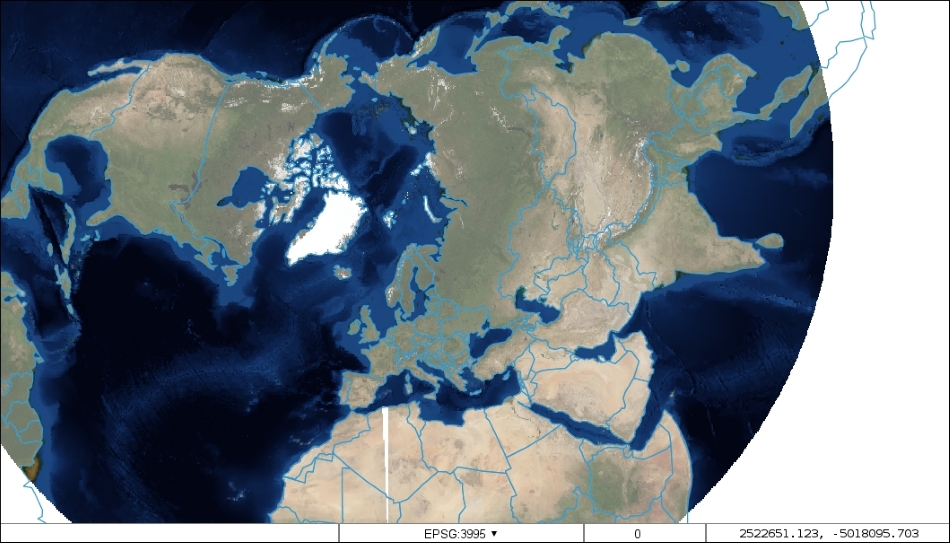
proj4.defs('EPSG:3995', '+proj=stere +lat_0=90 +lat_ts=71 +lon_0=0 +k=1 +x_0=0 +y_0=0 +datum=WGS84 +units=m +no_defs');
var polarProj = new ol.proj.Projection({
    code: 'EPSG:3995',
    extent: [-12382000, -12382000, 12382000, 12382000],
    worldExtent: [-180, 60, 180, 90]
});
projControl.addProjection(polarProj);OpenLayers 3 and PROJ4JS are so closely integrated that we do not need to implement any wrapper functions; we can construct an OpenLayers 3 projection object directly from a PROJ4JS definition. PROJ4JS definitions can be made with proj4.defs, which are called with two arguments. The first one represents a name, with which the projection will be saved. The second one is the projection's PROJ.4 definition.
Tip
Wondering how to get definition strings and extents? The database behind http://www.epsg.io offers many definitions along with recommended extents. Do not rely blindly on those extents, though. They can fail, especially when the projection is not cylindrical.
Finally, we add the control to our map:
var map = new ol.Map({
    […]
    controls: [
        […]
        projControl
    […]
});
If you save the code and look it up, you can try out our new projection. Note that the Arctic Polar Stereographic projection's validity extent only covers the northern hemisphere. For features with lower latitudes, the distortion will be ludicrously high.
This is the better case, though, as exceeding some projections' validity extent results in an erroneous transform, destroying the feature's geometry. To make your application more stable, you shouldn't leave geometry handling entirely to the library.