Table of Contents for
Mastering OpenLayers 3
 Mastering OpenLayers 3
Published by
Packt Publishing, 2016
Mastering OpenLayers 3
Published by
Packt Publishing, 2016
- Cover
- Table of Contents
- Mastering OpenLayers 3
- Mastering OpenLayers 3
- Credits
- About the Author
- About the Reviewer
- www.PacktPub.com
- Preface
- What you need for this book
- Who this book is for
- Conventions
- Reader feedback
- Customer support
- 1. Creating Simple Maps with OpenLayers 3
- Structure of OpenLayers 3
- Building the layout
- Using the API documentation
- Debugging the code
- Summary
- 2. Applying Custom Styles
- Customizing the default appearance
- Styling vector layers
- Customizing the appearance with JavaScript
- Creating a WebGIS client layout
- Summary
- 3. Working with Layers
- Building a layer tree
- Adding layers dynamically
- Adding vector layers with the File API
- Adding vector layers with a library
- Removing layers dynamically
- Changing layer attributes
- Changing the layer order with the Drag and Drop API
- Clearing the message bar
- Summary
- 4. Using Vector Data
- Accessing attributes
- Setting attributes
- Validating attributes
- Creating thematic layers
- Saving vector data
- Saving with WFS-T
- Modifying the geometry
- Summary
- 5. Creating Responsive Applications with Interactions and Controls
- Building the toolbar
- Mapping interactions to controls
- Building a set of feature selection controls
- Adding new vector layers
- Building a set of drawing tools
- Modifying and snapping to features
- Creating new interactions
- Building a measuring control
- Summary
- 6. Controlling the Map – View and Projection
- Customizing a view
- Constraining a view
- Creating a navigation history
- Working with extents
- Rotating a view
- Changing the map's projection
- Creating custom animations
- Summary
- 7. Mastering Renderers
- Using different renderers
- Creating a WebGL map
- Drawing lines and polygons with WebGL
- Blending layers
- Clipping layers
- Exporting a map
- Creating a raster calculator
- Creating a convolution matrix
- Clipping a layer with WebGL
- Summary
- 8. OpenLayers 3 for Mobile
- Responsive styling with CSS
- Generating geocaches
- Adding device-dependent controls
- Vectorizing the mobile version
- Making the mobile application interactive
- Summary
- 9. Tools of the Trade – Integrating Third-Party Applications
- Exporting a QGIS project
- Importing shapefiles
- Spatial analysis with Turf
- Spatial analysis with JSTS
- 3D rendering with Cesium
- Summary
- 10. Compiling Custom Builds with Closure
- Configuring Node JS
- Compiling OpenLayers 3
- Bundling an application with OpenLayers 3
- Extending OpenLayers 3
- Creating rich documentation with JSDoc
- Summary
- Index
In the next example, called ch09_shp, we implement a method to import binary layers to our maps. Shapefile is an old specification to store vector data; however, it is still a very common and popular exchange format. It stores the geometry in a binary file, which has an shp MIME type. There are usually at least three more files along with the geometry. The shx file stores the shape indexes of the geometries in a binary format, providing an internal spatial indexing for faster lookups. The prj file is an ASCII file containing the projection string of the layer, while the dbf file is a dBASE database file containing attribute data. For this example to work, we will need at least the shp and dbf files of a shapefile.
First, let's edit the HTML file of the example. In this example, we will implement an easy way and replace the function associated with the Add Vector Layer button in our layer tree. This way, we don't have to touch the GUI elements, just modify the form and the function. As we will use the Shapefile JS library to load our shapefiles, we have to link it in our HTML file's head section:
<head>
    […]
    <script type="text/javascript" src="../../js/shp-3.3.1/shp.min.js"></script>
</head>
Tip
You can grab the latest version of the Shapefile JS from the GitHub repository at https://github.com/calvinmetcalf/shapefile-js/releases.
The next consideration we have to make before we continue with reshaping the form is how we would like to handle the user-provided files. Shapefile JS offers three mechanisms for inputs. It can handle a path with the name of the shapefile, individual shp, dbf, and optional prj files, or a zip file, which contains one or more shapefiles. Providing a path is the most convenient; however, it is only possible if the shapefile is located in our server. As requiring the three files individually is quite annoying, we will require a simple zip file from our users:
<div id="addvector" class="toggleable" style="display: none;">
    <form id="addvector_form" class="addlayer">
        <p>Add Shapefile</p>
        <table>
            <tr>
                <td>Vector file:</td>
                <td><input name="file" type="file" required="required" accept=".zip"></td>
            </tr>
            <tr>
                <td>Display name:</td>
                <td><input name="displayname" type="text"></td>
            </tr>
            <tr>
                <td>Projection:</td>
                <td><input name="projection" type="text"></td>
            </tr>
            <tr>
                <td><input type="submit" value="Add layer"></td>
                <td><input type="button" value="Cancel" onclick="this.form.parentNode.style.display = 'none'"></td>
            </tr>
        </table>
    </form>
</div>Now that our form is in its place, the only thing left to do is replace the old addVectorLayer method with a new one. Let's open the JavaScript file of the example and navigate to line 305. The structure of the function remains the same. We read the form, create a file reader and, once it has finished reading the file, we parse its content and display it as a layer in our map. However, in this case, we only read shapefiles; therefore, we do not need to switch between multiple formats. As Shapefile JS returns the parsed binary data in GeoJSON, we only need this particular format:
layerTree.prototype.addVectorLayer = function (form) {
    var file = form.file.files[0];
    var currentProj = this.map.getView().getProjection();
    var fr = new FileReader();
    var sourceFormat = new ol.format.GeoJSON();
    var source = new ol.source.Vector();
Once we have the right variables and constructors, we can create the file reader's onload listener and read the file right away:
    fr.onload = function (evt) {
        var vectorData = evt.target.result;
        var dataProjection = form.projection.value || sourceFormat.readProjection(vectorData) || currentProj;
        shp(vectorData).then(function (geojson) {
            source.addFeatures(sourceFormat.readFeatures(geojson, {
                dataProjection: dataProjection,
                featureProjection: currentProj
            }));
        });
    };
    fr.readAsArrayBuffer(file);
    […]
};
Now, there are two things we should discuss from the listener in more detail. First, we've called the Shapefile JS's shp method with the input file and placed the loading mechanism inside its then method. If you know some of the perks and new features of ES6 (EcmaScript, which is the official name of JavaScript), you may have identified the returned object of the shp method as a promise. Promises, in a nutshell, are the new way to handle asynchronous functions. They offer a simple and clean interface to make nestable asynchronous calls and handle occasional errors. To learn more about promises, you can consult the MDN page at http://developer.mozilla.org/en-US/docs/Web/JavaScript/Reference/Global_Objects/Promise.
Tip
Don't worry about using Shapefile JS in browsers that do not have the ES6 features implemented yet. The library uses another library, called lie, to create and handle promises. However, it does not use the polyfill version of lie; therefore, Shapefile JS cannot use the ES6 Promise constructor even if a browser has one.
The second thing is that we read our data using the file reader's readAsArrayBuffer method. As we have to deal with a set of binary files packed into a single binary file, we need a binary representation of our content. This way, the library can read our shapefiles correctly. Shapefile JS uses another third-party JavaScript library, JSZip, to read zip files from the client side. With the file reader's readAsArrayBuffer method, we simply request a read-only buffer object with the binary content of the opened zip file.
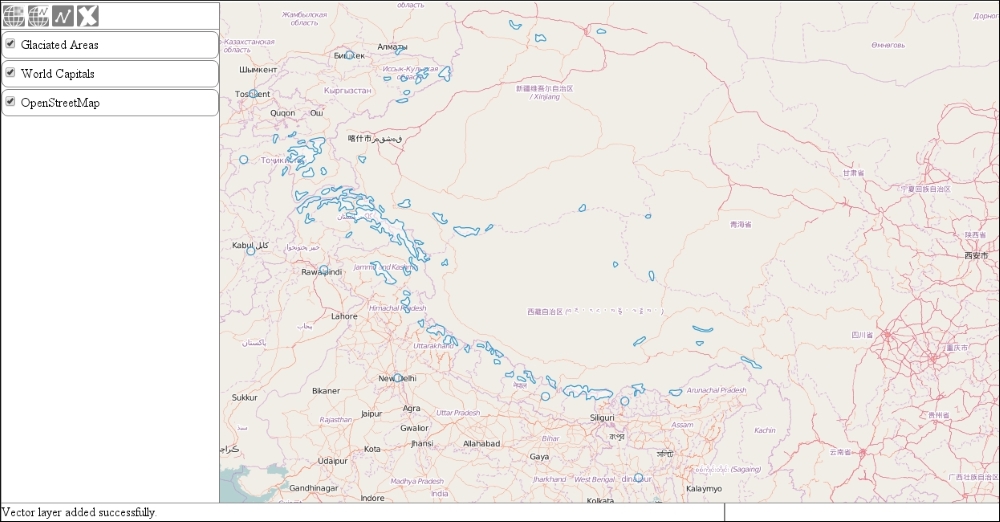
Now that we have our replaced method in place, we can test our new capability. Open up the result in a browser, and try to load a zipped shapefile in our application. You can find one in the res folder, called glaciated.zip.