Table of Contents for
Mastering OpenLayers 3
 Mastering OpenLayers 3
Published by
Packt Publishing, 2016
Mastering OpenLayers 3
Published by
Packt Publishing, 2016
- Cover
- Table of Contents
- Mastering OpenLayers 3
- Mastering OpenLayers 3
- Credits
- About the Author
- About the Reviewer
- www.PacktPub.com
- Preface
- What you need for this book
- Who this book is for
- Conventions
- Reader feedback
- Customer support
- 1. Creating Simple Maps with OpenLayers 3
- Structure of OpenLayers 3
- Building the layout
- Using the API documentation
- Debugging the code
- Summary
- 2. Applying Custom Styles
- Customizing the default appearance
- Styling vector layers
- Customizing the appearance with JavaScript
- Creating a WebGIS client layout
- Summary
- 3. Working with Layers
- Building a layer tree
- Adding layers dynamically
- Adding vector layers with the File API
- Adding vector layers with a library
- Removing layers dynamically
- Changing layer attributes
- Changing the layer order with the Drag and Drop API
- Clearing the message bar
- Summary
- 4. Using Vector Data
- Accessing attributes
- Setting attributes
- Validating attributes
- Creating thematic layers
- Saving vector data
- Saving with WFS-T
- Modifying the geometry
- Summary
- 5. Creating Responsive Applications with Interactions and Controls
- Building the toolbar
- Mapping interactions to controls
- Building a set of feature selection controls
- Adding new vector layers
- Building a set of drawing tools
- Modifying and snapping to features
- Creating new interactions
- Building a measuring control
- Summary
- 6. Controlling the Map – View and Projection
- Customizing a view
- Constraining a view
- Creating a navigation history
- Working with extents
- Rotating a view
- Changing the map's projection
- Creating custom animations
- Summary
- 7. Mastering Renderers
- Using different renderers
- Creating a WebGL map
- Drawing lines and polygons with WebGL
- Blending layers
- Clipping layers
- Exporting a map
- Creating a raster calculator
- Creating a convolution matrix
- Clipping a layer with WebGL
- Summary
- 8. OpenLayers 3 for Mobile
- Responsive styling with CSS
- Generating geocaches
- Adding device-dependent controls
- Vectorizing the mobile version
- Making the mobile application interactive
- Summary
- 9. Tools of the Trade – Integrating Third-Party Applications
- Exporting a QGIS project
- Importing shapefiles
- Spatial analysis with Turf
- Spatial analysis with JSTS
- 3D rendering with Cesium
- Summary
- 10. Compiling Custom Builds with Closure
- Configuring Node JS
- Compiling OpenLayers 3
- Bundling an application with OpenLayers 3
- Extending OpenLayers 3
- Creating rich documentation with JSDoc
- Summary
- Index
In the next three examples, we will fall back on the Canvas renderer. It is the most developed and stable one, providing a lot of perks by allowing canvas manipulation methods. The map and every layer is rendered on a different canvas, while in the end, they are aggregated into a single composition. This pattern, the existence of precompose, and the postcompose events (rendering hooks) enable us to manipulate the context of any layer or the map as a whole. We can basically use any canvas manipulation method as long as we can get the original context of the layers or map with these events.
In this example, called ch07_blend, we will discuss one of the most useful canvas manipulation methods, the
globalCompositionContext. For this example, we modify our layer tree's createRegistry method, and add some blending options to every registered layer:
var layerTree = function (options) {
    […]
        this.createRegistry = function (layer, buffer) {
            […]
            layerControls.appendChild(document.createElement('br'));
            var blendMode = document.createElement('select');
            blendMode.appendChild(this.createOption('source-over'));
            blendMode.appendChild(this.createOption('lighten'));
            blendMode.appendChild(this.createOption('darken'));
            blendMode.appendChild(this.createOption('multiply'));
            blendMode.appendChild(this.createOption('difference'));
            blendMode.addEventListener('change', function () {
                if (layer.get('blendMode')) {
                    ol.Observable.unByKey(layer.get('blendMode'));
                    layer.unset('blendMode');
                }
                layer.set('blendMode', layer.on('precompose', function (evt) {
                    evt.context.globalCompositeOperation = blendMode.value;
                }));
                _this.map.render();
            });
            layerControls.appendChild(this.stopPropagationOnEvent(blendMode, 'click'));
            […]
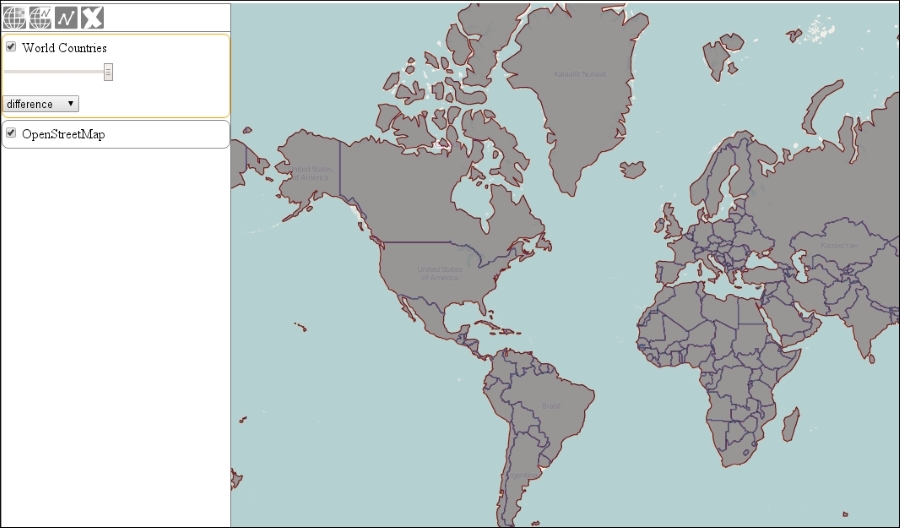
We create a select element for a limited number of blending options. When we change the element's value, we remove the current event listener, if we have one, and then register a new listener on the layer's precompose event. In the listener, we simply change the canvas element's context globalCompositeOperation property.
Tip
The default composite operation is source-over. You can find a description for every valid operation on the MDN site at http://developer.mozilla.org/en-US/docs/Web/API/CanvasRenderingContext2D/globalCompositeOperation.
Remember: only one composite operation can be used on a single canvas. Because of the rendering pattern of OpenLayers 3, we can apply a different operation on every layer. However, the library keeps the last operation for every layer from there. Due to this phenomenon, we should explicitly define an operation for every layer. This can be done by registering a listener with the default value (source-over) in every layer that's added to the map or leaving the whole process to the users for the purpose of experimenting.
If you load the example, you can experiment with blending methods too. For a better experience, you can change or extend the blending options with the help of more legal operations, load more layers, and try to create complex compositions: