
Our last part will be to add images and links.
Web pages will be boring without images. To add an image, you need to add a tag, <img>:
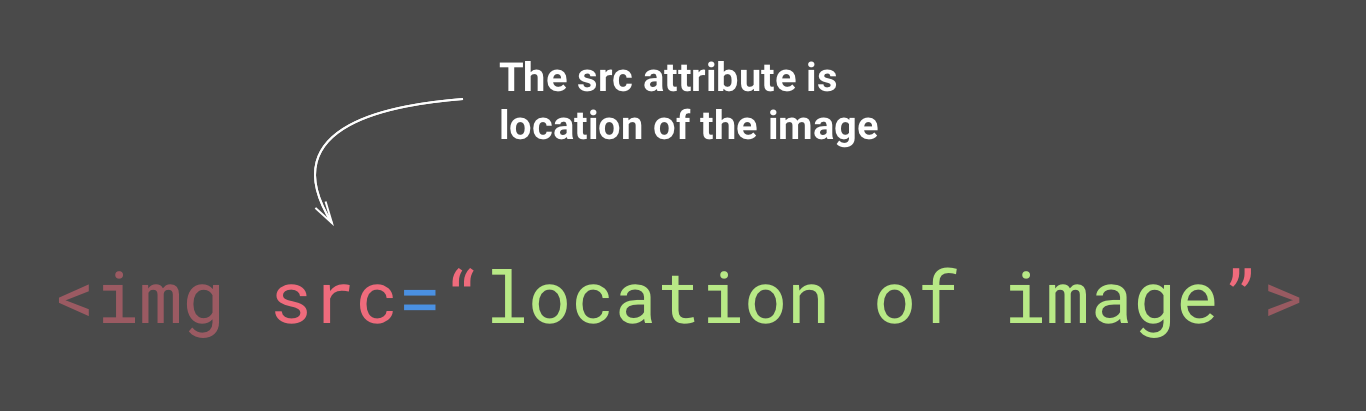
You'll need to add the src attribute to put the location of your image.
But first, let's create a folder to put all our images inside. Go back to your main folder, Racing Club Website, which we created earlier. Inside, let's create a folder named images.
In the Images folder in code bundle on GitHub, you can see an image called designer.jpg; let's copy and paste this image into our folder images.
Now that we have the image in your images folder, we can link it to our img tag. To do so, add the following:
<img src="images/designer.jpg">
You can put two different types of URL in the src attribute. A relative URL, such as the one we put, only works if you're linking to a file on the same domain as the current page. Since we're doing it locally, it's considered the same domain. And an absolute URL, a URL that includes http://, directs you to the image directory, for example, http://philippehong.com/img/image-example.jpg.
Let's now add a link. Links are added with the tag <a> and with attribute href.
You can put two different types of URL in the href attribute, just as you can for the image. Let's put an absolute URL this time, by adding our Twitter page:
<a href="http://twitter.com/philippehong">My Twitter</a>
But we still need to add some text inside the <a> tag to make it visible.
Your HTML document should look as follows:
<html> <!--This is our HTML main tag-->
  <head> <!--This is our head tag where we put our title and script and all infos relative to our page.-->
    <title>My Page Title</title>
  </head>
  <body> <!--This is where all our content will go-->

    <h1>John Doe</h1>
    <p>I'm an <b>amazing</b> Designer</p>
    <input type="email" placeholder="Your email">
    <input type="submit">
    <img src="images/designer.jpg">
    <a href="http://twitter.com/philippehong">My Twitter</a>

  </body>
</html>
Note that you can see that the code is ready. Let's save our HTML document and see how it looks in our internet browser:

This is what you should have in your browser. Save your HTML document with Ctrl (or Cmd) + S and refresh your browser.
It does look very plain, but this is because we didn't add any CSS.