
To make that happen, we'll use the new CSS property display: flex. CSS flexbox is very practical because it allows you to position element very easily. Centering, ordering, and aligning is made very easy with flexbox. If you can handle this new property, I guarantee you'll be a killer in CSS.
In our case, we want our .container to be centered vertically. To do that, we'll target the class and add these properties:
#hero .container {
  display: flex;
  align-items: center;
  height: 700px;
}
By adding #hero before .container, we're targeting only elements with the class .container inside #hero. We don't want all .container to have the same properties:
- display: flex; has to be set on the parent element.
- align-items: center; will vertically align and center all elements inside this element. Magic!
- The height needs to be set so you can align the elements in the middle.
Let's continue with our text styling:
.hero-text {
  max-width: 470px;
}
We set this width because we don't want the text to go all the way to the right, so we set the max-width to half of the .container 's max-width. Continue to follow our design:
.hero-text .hero-date {
  font-family: 'built_titling', Helvetica, sans-serif;
  font-size: 30px;
  color: #FFFFFF;
  font-weight: normal;
}
Next, we have our title:
.hero-text .hero-title {
  font-family: 'built_titling', Helvetica, sans-serif;
  font-size: 120px;
  margin: 20px 0px;
  font-weight: normal;
  color: #FFFFFF;
  line-height: 1;
}
Lastly, we have our button:
.btn-primary {
  display: inline-block;
  font-family: 'built_titling', Helvetica, sans-serif;
  font-weight: 400;
  font-size: 18px;
  letter-spacing: 4.5px;
  background: #BF0000;
  color: white;
  padding: 12px 22px;
  border: none;
  outline: none;
}
We use display: inline-block; so we can use the button as an inline element but with the characteristic of a block element (width and height). border and outline are set to none by default. Every button has a border and outline.
Let's see what we have:
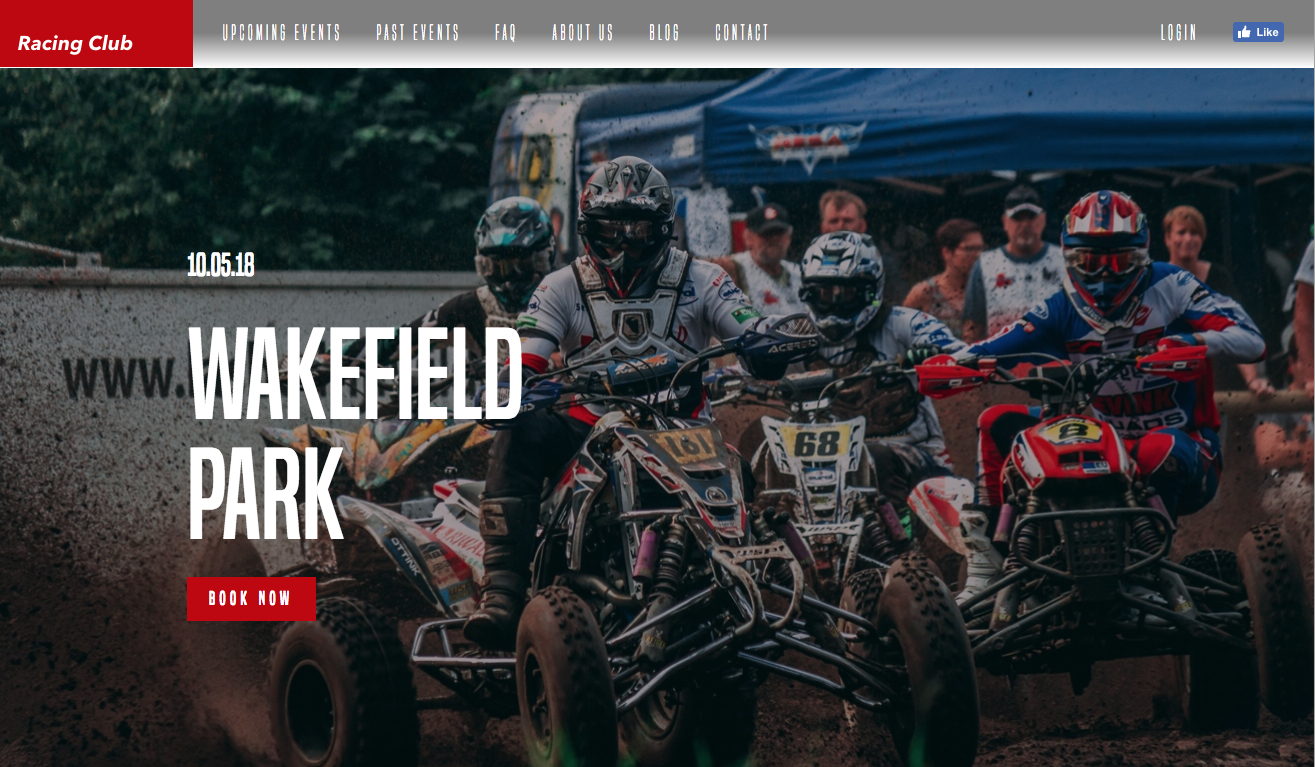
The website is looking great, but we have some annoying margins at the top. To fix this, we need to use the CSS property "position".