
Favicons are those little icons you see on browser tabs and on your bookmarks bar. They are part of the identity of any website and make users recognize your website:

Don't skip this step. There is a very easy online tool to do this. We just need an image to serve as our icon, so let's do that for now. Let's go to https://realfavicongenerator.net/, which is the favicon generator. With this, we can create icons for browsers or even design them according to the different operating systems that it will run on. We just need to pick our image. In this case, we're going to use the logo provided in the assets folder, and find the image Logo_Square.png. Click Select your Favicon picture on the website and upload the logo.
Here's what we have:
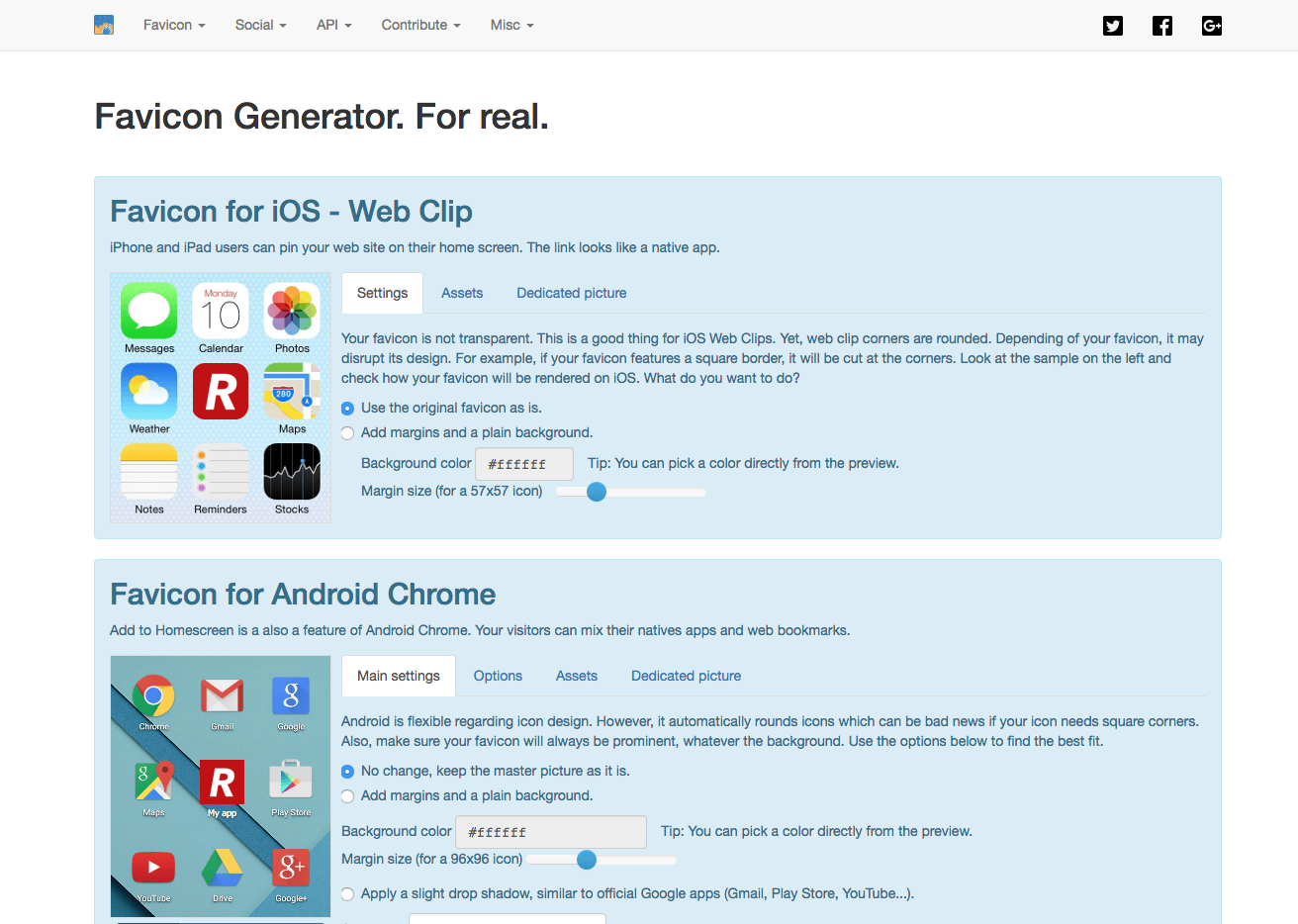
It provides us with a bunch of icons for iOS, Android, and Windows phones with some customization, but this is not really what matters. What really matters is what's at the bottom of the page:
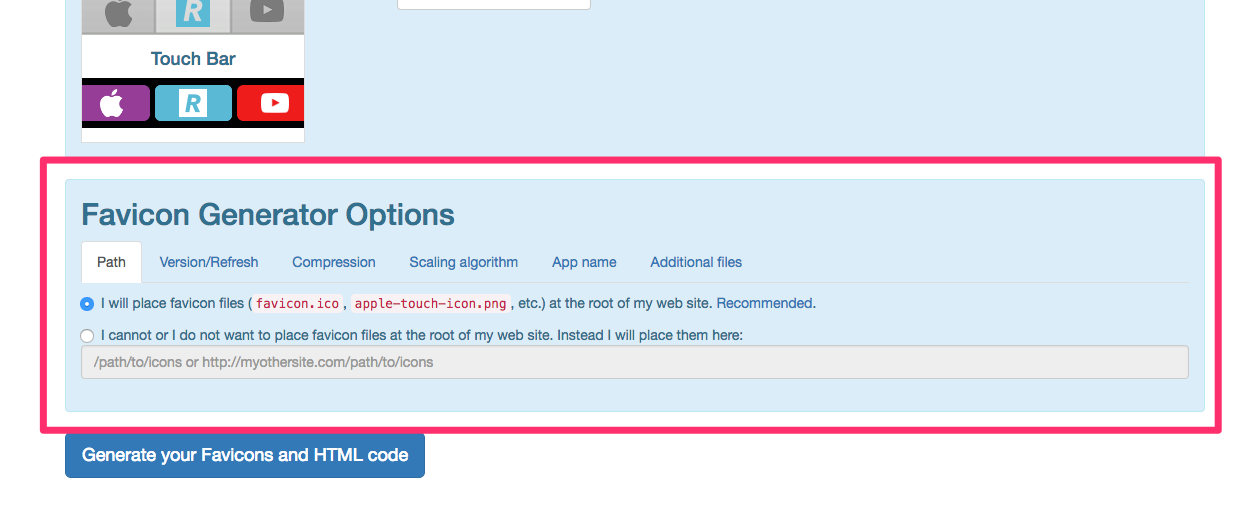
We will now click on the second option because we want to choose a path where we are going to put our icons since we don't want them in the root, in the main project folder. The website recommends that we put the favicon in the root, but we'll specify a different path, since there will be a lot of images and we want to keep it organized. Let's create a folder inside our img folder, and call it icons. Then, we'll edit the value in the input on the website and put /img/icons as the folder we just created. Now, let's generate the favicon! First, we need to click on Generate your Favicons and HTML code, which will take us to another page, and then we can click on the Favicon package to download it. There is also a code snippet provided, which we can copy and paste.
This code will be inserted into the <head> tag of our website, just after <!-- Place favicon.ico in the root directory -->.
You can remove the three lines of code provided by Boilerplate now:
<link rel="manifest" href="site.webmanifest">
<link rel="apple-touch-icon" href="icon.png">
<!-- Place favicon.ico in the root directory -->
Our head section should look like this now:
<head>
        <meta charset="utf-8">
        <meta http-equiv="x-ua-compatible" content="ie=edge">
        <title></title>
        <meta name="description" content="">
        <meta name="viewport" content="width=device-width, initial-scale=1">

        <link rel="apple-touch-icon" sizes="180x180" href="/img/icons/apple-touch-icon.png">
        <link rel="icon" type="image/png" sizes="32x32" href="/img/icons/favicon-32x32.png">
        <link rel="icon" type="image/png" sizes="16x16" href="/img/icons/favicon-16x16.png">
        <link rel="manifest" href="/img/icons/site.webmanifest">
        <link rel="mask-icon" href="/img/icons/safari-pinned-tab.svg" color="#5bbad5">
        <link rel="shortcut icon" href="/img/icons/favicon.ico">
        <meta name="msapplication-TileColor" content="#da532c">
        <meta name="msapplication-config" content="/img/icons/browserconfig.xml">
        <meta name="theme-color" content="#ffffff">

        <link href="https://fonts.googleapis.com/css?family=Roboto:400,700" rel="stylesheet">
        <link rel="stylesheet" href="fonts/font.css"> <!-- Font face CSS link -->
        <link rel="stylesheet" href="css/normalize.css">
        <link rel="stylesheet" href="css/animate.css">
        <link rel="stylesheet" href="css/main.css">
        <link rel="stylesheet" href="css/styles.css">
    </head>
The last step is to copy the files which we downloaded to our icons folder. Well done! Let's jump to the next section, where we will see how to optimize the performance of our website.