
Let's have a look at our Bootstrap documentation (https://getbootstrap.com/docs/4.0/getting-started/introduction/), more specifically the Component section. This sits on the Documentation tab and contains a lot of the elements that you will use by coding your website with Bootstrap:
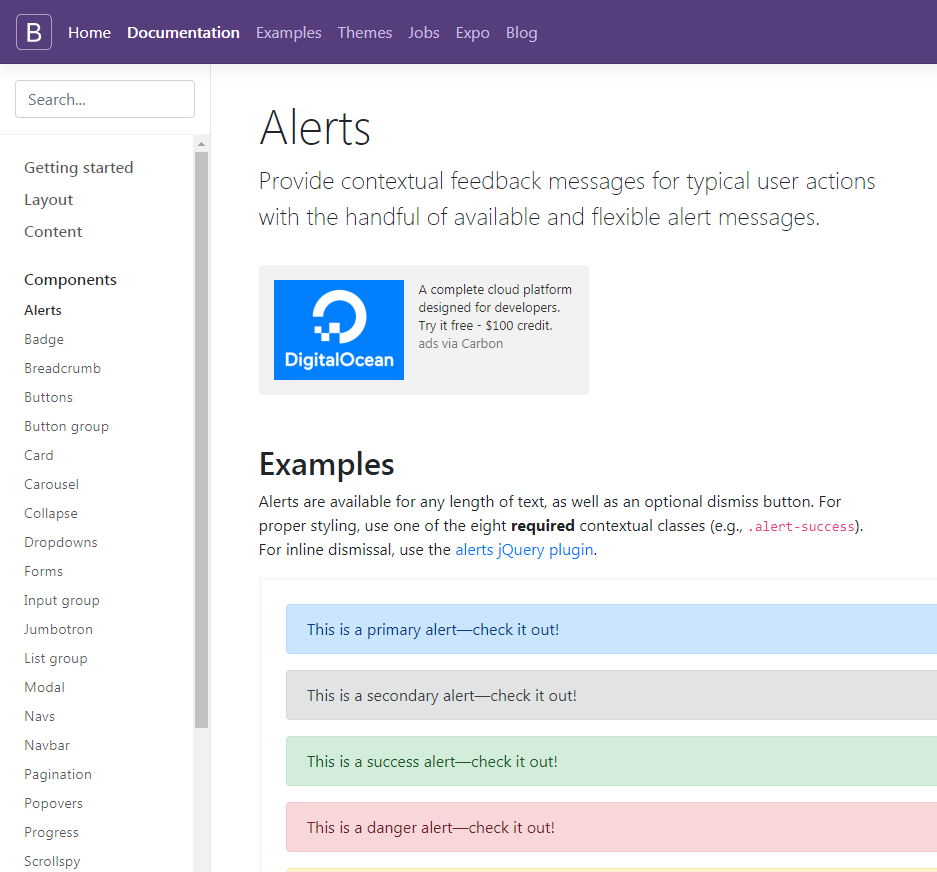
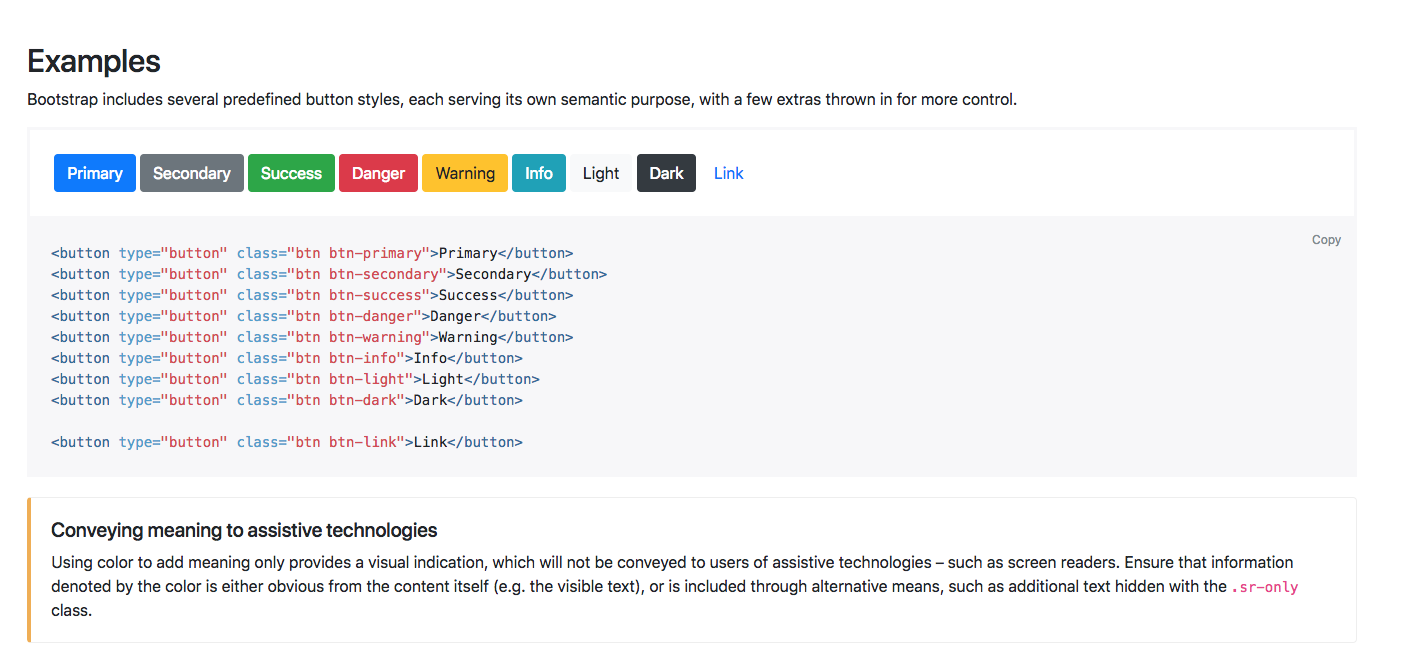
These are all listed in alphabetical order, so you can easily find what you need. For example, if we just have a look at the buttons, this provides all you need to know on getting started with buttons in Bootstrap. The default buttons have their own style classes; we can see here that there's primary, secondary, success, danger, warning, info, light, dark, and link:
To add any of these buttons to your page, you could use this code that's provided here, or if you wanted the outline of a button, for example, if we just scroll down, you can see that the outline buttons have their own class as well. You just need to add this code to add an outline button:
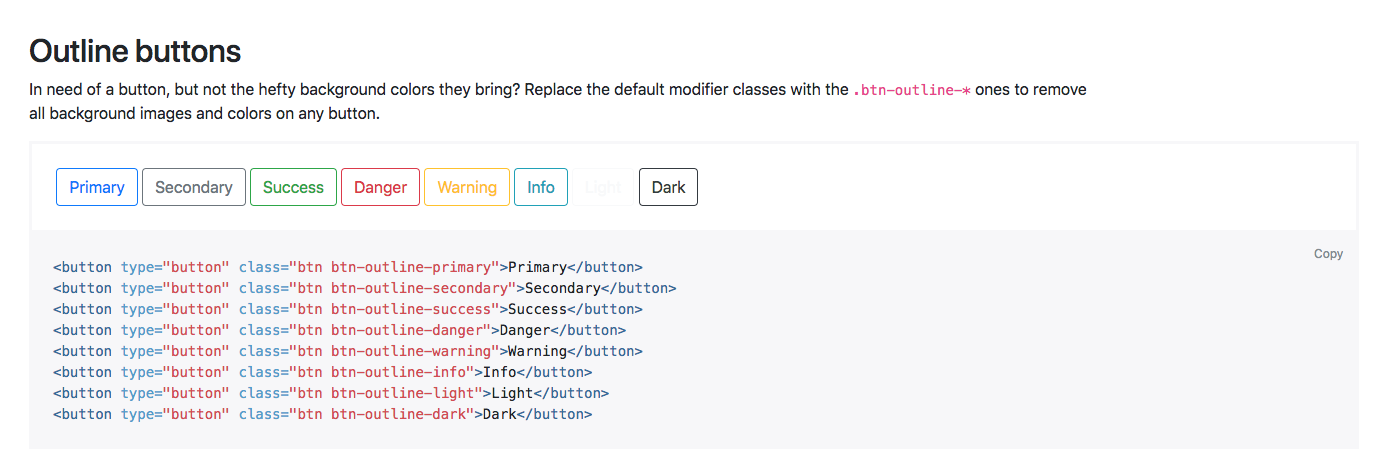
If we just continue to scroll down, you can see that there are many different button options available. Of course, you can just add a standard button and start it yourself manually, but these examples are a great way to get up and running quickly with buttons on your page.
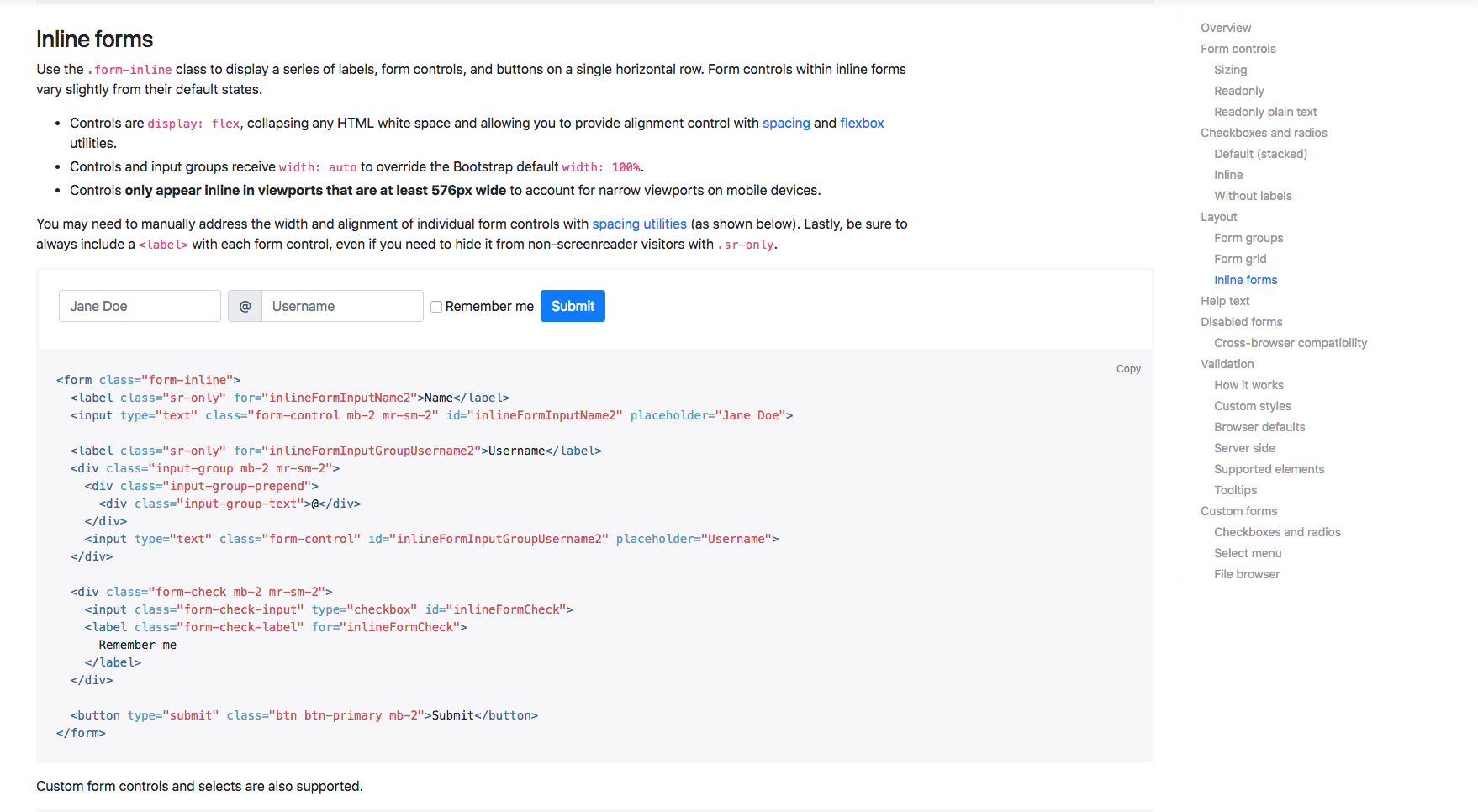
Now, obviously, buttons aren't that exciting; it's just an example of how much detail there is in Bootstrap and how much support there is when coding in Bootstrap. Let's have a look at another example, such as forms. We have all our form contents on the right side here. Let's just click on Inline forms, for example; we can see all the information describing the inline form option, but also the code that you need to add to your page:
If you choose another one, Navbar, for example, this shows all the different options you can use when adding navigation bars to your page. It starts with the basics then states the Navbar requires a Navbar class and that its fluid by default. This just means that they stretch the entire width of the page. Then, it goes on to describe the different elements of the Navbar, including adding your brand, the different color schemes, and how to make your Navbar responsive. There is a lot of information to help make sure you can quickly get up and running if you need to. Feel free to have a look around these components if you want. It's certainly worth bookmarking this page too for future use.
We'll obviously go into more detail as we start to build our page. Next, we are going to move on and have a look at the Bootstrap Grid system.