
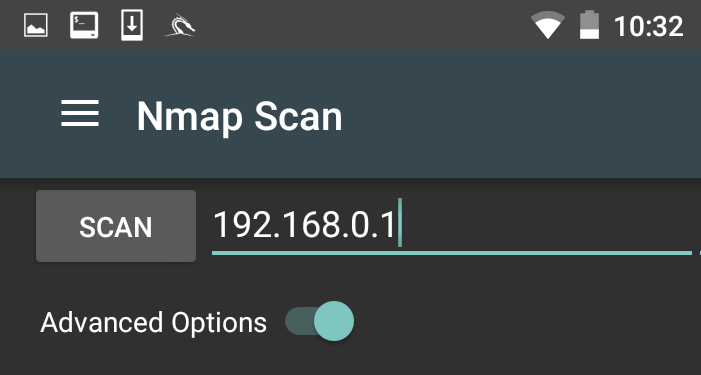
One of those tools that is most often used and which we have covered in detail is Nmap. While you can run Nmap at the command line in NetHunter with all of the same features as Kali Linux, the NetHunter Nmap screen cuts down on the effort necessary to enter those commands. To get to NMAP, click on the NetHunter icon and then navigate to Nmap. Here we have the interface that allows us to enter a single IP address, a range, or CIDR notation. In this case, we are going to use a single IP address for a router:
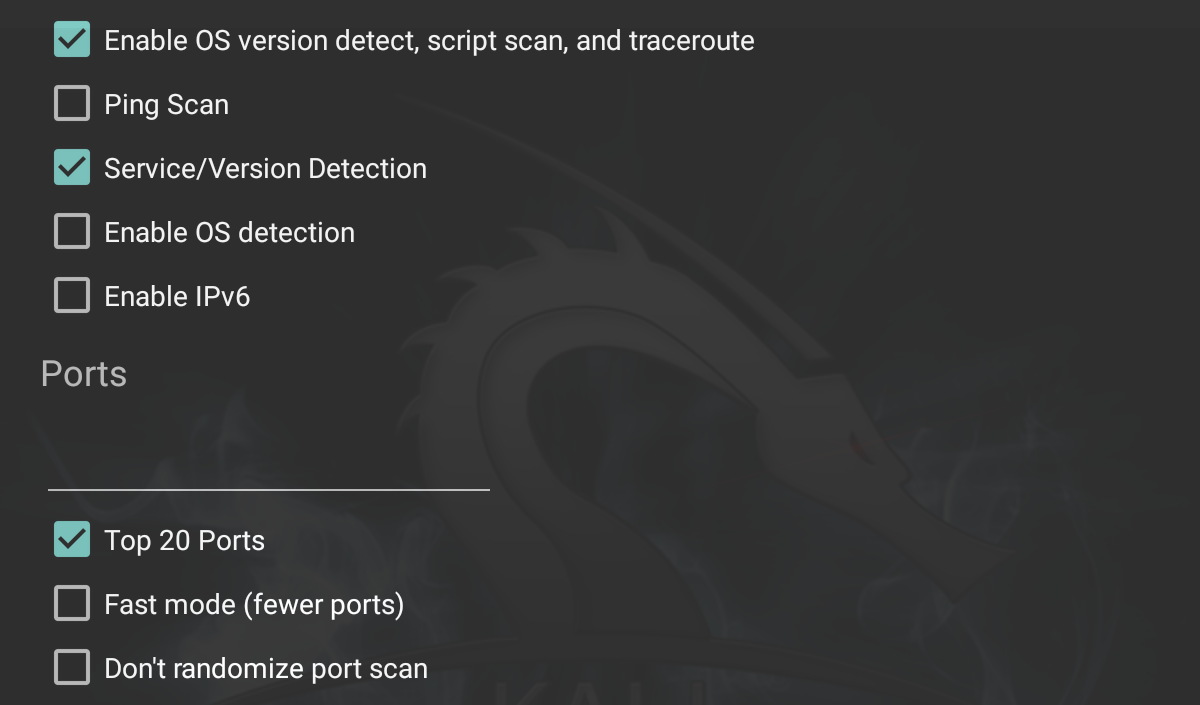
The NetHunter interface allows you to set the type of NMAP scan, operating system detection, service detection, and support for IPv6. There is also the ability to set specific port scanning options. Penetration testers can set the scanning to their own specifications or choose the NMAP app options to limit their port scanning:
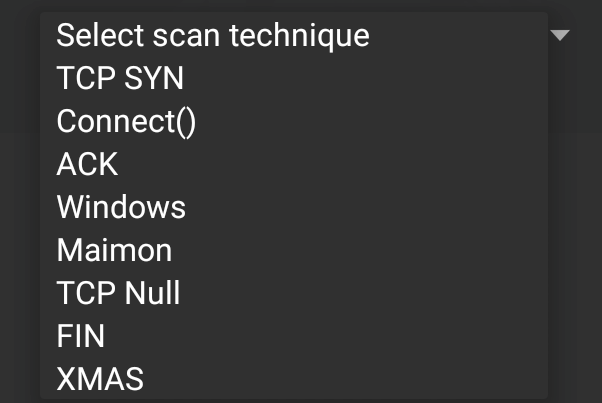
By clicking on Select timing template, the scan timing can be set. Just as with the command-line version of NMAP, the timing of the scan can be tailored to the situation. Finally, the type of scan can be set as well. Clicking on Select scan techniques brings up the options for the types of scans that are available. This includes options such as a SYN or TCP scan:
Once the scan is configured to run, hit the SCAN button. NetHunter will open a command window and run the scan:
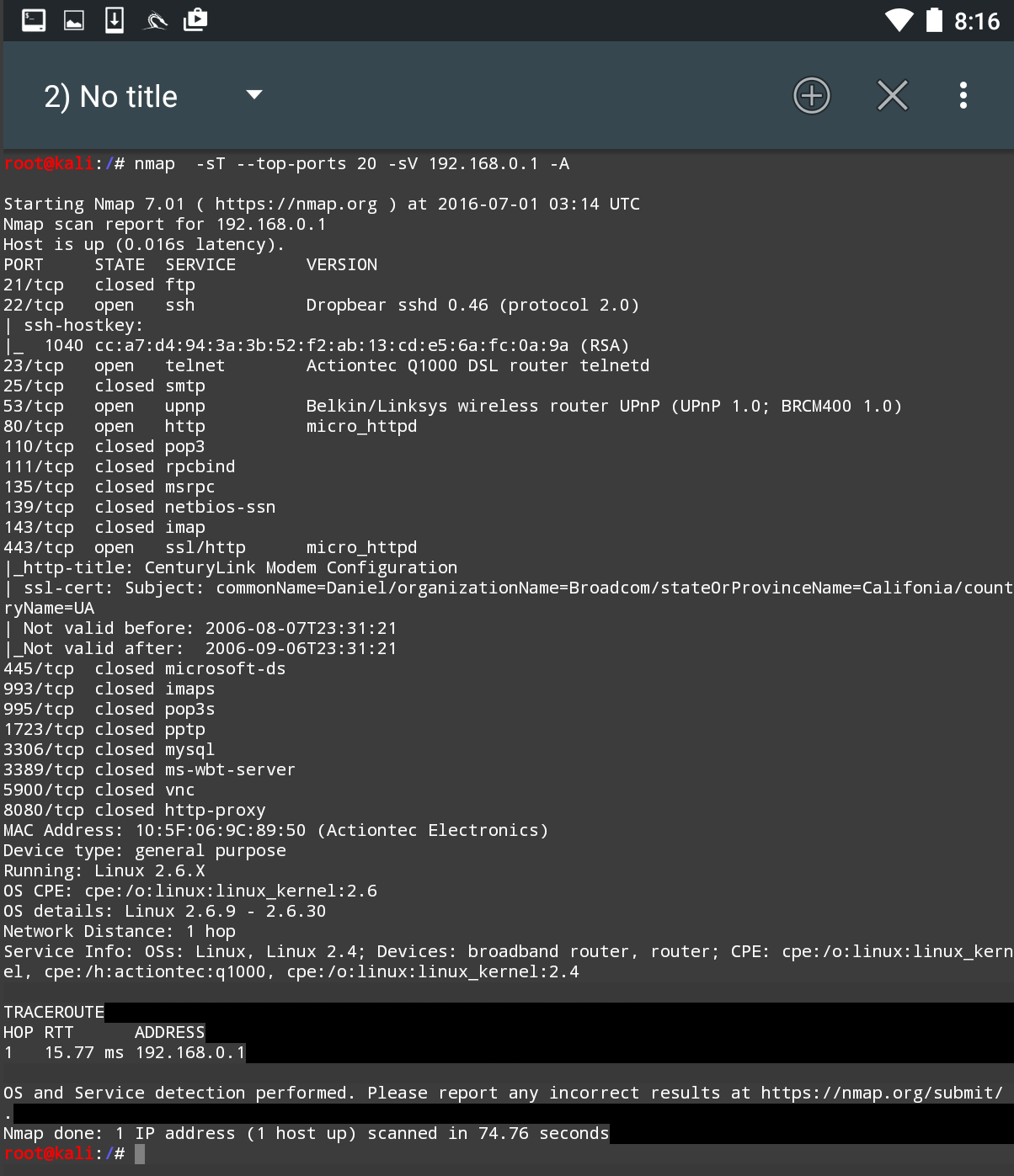
The GUI included with NetHunter is excellent for running simple scans such as this. For more detailed scans or the use of scripts, you will have to shift to the command-line version of NMAP.