Table of Contents for
Magento 2 - Build World-Class online stores
 Magento 2 - Build World-Class online stores
Published by
Packt Publishing, 2017
Magento 2 - Build World-Class online stores
Published by
Packt Publishing, 2017
- Cover
- Table of Contents
- Magento 2 - Build World-Class online stores
- Magento 2 - Build World-Class online stores
- Credits
- Preface
- 1. Module 1
- 1. Magento Fundamentals
- XAMPP installation
- Magento
- Summary
- 2. Magento 2.0 Features
- An introduction to the Magento order management system
- Magento 2.0 command-line configuration
- The command-line utility
- Summary
- 3. Working with Search Engine Optimization
- Store configuration
- SEO and searching
- SEO catalog configuration
- Google Analytics tracking code
- Optimizing Magento pages
- Summary
- 4. Magento 2.0 Theme Development – the Developers' Holy Grail
- Magento 2.0 theme structure
- The Magento Luma theme
- Magento theme inheritance
- CMS blocks and pages
- Custom variables
- Creating a basic Magento 2.0 theme
- Summary
- 5. Creating a Responsive Magento 2.0 Theme
- Composer – the PHP dependency manager
- Building the CompStore theme
- CSS preprocessing with LESS
- Applying new CSS to the CompStore theme
- Creating the CompStore logo
- Applying the theme
- Creating CompStore content
- Customizing Magento 2.0 templates
- Summary
- 6. Write Magento 2.0 Extensions – a Great Place to Go
- Using the Zend framework
- Magento 2.0 extension structure
- Developing your first Magento extension
- The Twitter REST API
- The TweetsAbout module structure
- Using TwitterOAuth to authenticate our extension
- Developing the module
- Summary
- 7. Go Mobile with Magento 2.0!
- Adjusting the CompStore theme for mobile devices
- The Magento 2.0 responsive design
- The Magento UI
- Implementing a new CSS mixin media query
- Adjusting tweets about extensions for mobile devices
- Summary
- 8. Speeding up Your Magento 2.0
- Indexing and caching Magento
- Indexing and re-indexing data
- The Magento cron job
- Caching
- Fine-tuning the Magento hosting server
- Selecting the right Magento hosting service
- Apache web server deflation
- Enabling the expires header
- Minifying scripts
- Summary
- 9. Improving Your Magento Skills
- Magento knowledge center
- Improving your Magento skills
- Summary
- 2. Module 2
- 1. Magento 2 System Tools
- Installing Magento 2 sample data via GUI
- Installing Magento 2 sample data via the command line
- Managing Magento 2 indexes via the command line
- Managing Magento 2 cache via the command line
- Managing Magento 2 backup via the command line
- Managing Magento 2 set mode (MAGE_MODE)
- Transferring your Magento 1 database to Magento 2
- 2. Enabling Performance in Magento 2
- Configuring Redis for backend cache
- Configuring Memcached for session caching
- Configuring Varnish as the Full Page Cache
- Configuring Magento 2 with CloudFlare
- Configuring optimized images in Magento 2
- Configuring Magento 2 with HTTP/2
- Configuring Magento 2 performance testing
- 3. Creating Catalogs and Categories
- Create a Root Catalog
- Create subcategories
- Manage attribute sets
- Create products
- Manage products in a catalog grid
- 4. Managing Your Store
- Creating shipping and tax rules
- Managing customer groups
- Configuring inventories
- Configuring currency rates
- Managing advanced pricing
- 5. Creating Magento 2 Extensions – the Basics
- Initializing extension basics
- Working with database models
- Creating tables using setup scripts
- Creating a web route and controller to display data
- Creating system configuration fields
- Creating a backend data grid
- Creating a backend form to add/edit data
- 6. Creating Magento 2 Extensions – Advanced
- Using dependency injection to pass classes to your own class
- Modifying functions with the use of plugins – Interception
- Creating your own XML module configuration file
- Creating your own product type
- Working with service layers/contracts
- Creating a Magento CLI command option
- 3. Module 3
- 1. Planning for Magento
- Technical considerations
- Global-Website-Store methodology
- Planning for multiple stores
- Summary
- 2. Managing Products
- Managing products the customer focused way
- Creating products
- Managing inventory
- Pricing tools
- Autosettings
- Related products, up-sells, and cross-sells
- Importing products
- Summary
- 3. Designs and Themes
- The concept of theme inheritance
- Default installation of design packages and themes
- Installing third-party themes
- Inline translations
- Working with theme variants
- Customizing themes
- Customizing layouts
- Summary
- 4. Configuring to Sell
- Payment methods
- Shipping methods
- Managing taxes
- Transactional e-mails
- Summary
- 5. Managing Non-Product Content
- Summary
- 6. Marketing Tools
- Promotions
- Newsletters
- Using sitemaps
- Optimizing for search engines
- Summary
- 7. Extending Magento
- The new Magento module architecture
- Extending Magento functionality with Magento plugins
- Building your own extensions
- Summary
- 8. Optimizing Magento
- Indexing and caching
- Caching in Magento 2 – not just FPC
- Tuning your server for speed
- Summary
- 9. Advanced Techniques
- Version control
- Magento cron
- Backing up your database
- Upgrading Magento
- Summary
- 10. Pre-Launch Checklist
- System configurations
- Design configurations
- Search engine optimization
- Sales configurations
- Product configurations
- Maintenance configurations
- Summary
- Index
From time to time, as Magento improves its platform features, or to address bugs and security issues, you will receive a notice that your system needs to be upgraded. With Magento 2, this upgrade process is made infinitely easier and better than in Magento 1.x.
In order to keep your Magento installation upgraded, you must take certain steps:
- Obtain Magento Marketplace keys
- Run the System Upgrade routine in your Magento 2 backend
In order for your store to communicate to Magento for upgrade verifications, you or a developer has to obtain developer keys. While this suggests that keys are only for developers, anyone can create an account at Magento and obtain keys.
If you don't already have an account at Magento, go to https://www.magentocommerce.com/magento-connect/customer/account/create/ and create your free account. Once you are registered, log in to your account at https://www.magentocommerce.com/magento-connect/customer/account/login/.
After you log in:
- Click on the Connect tab.
- Click on the Developers side menu tab.
- Click on Secure Keys in the sidebar menu.
- Enter a Name for your keys. This is only a reference name (such as "Production Server"), so you can easily determine which keys are for which Magento installation.
- Click on Generate new.
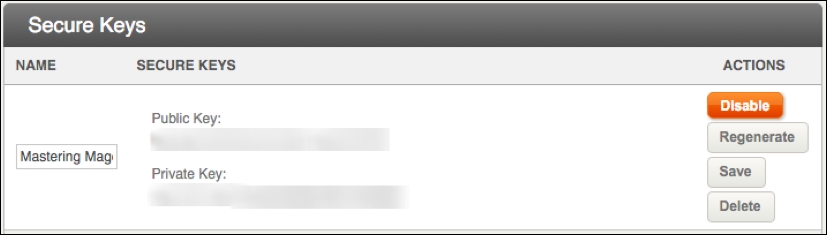
- On the results screen, you will see two keys: Public Key and Private Key. You will use these for the next part of this process:
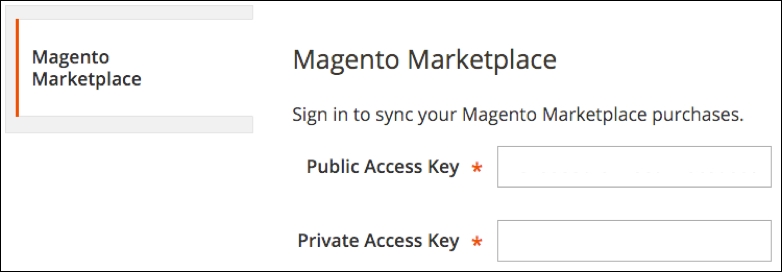
- In your Magento 2 backend, go to System | Web Setup Wizard.
- Click the large button labeled System Configuration.
- On this page, paste the keys obtained previously into the appropriate spaces and click on Save Config.
Now that you're able to communicate with Magento Connect, you can begin the process of upgrading your installation.
After entering your keys, you should still be within the Wizard. Find the System Upgrade button or sidebar menu and click it to begin the upgrade process.
The System Upgrade screen shows the steps the process will undertake to complete:
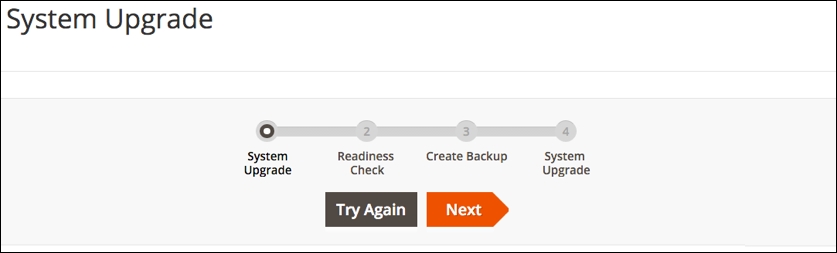
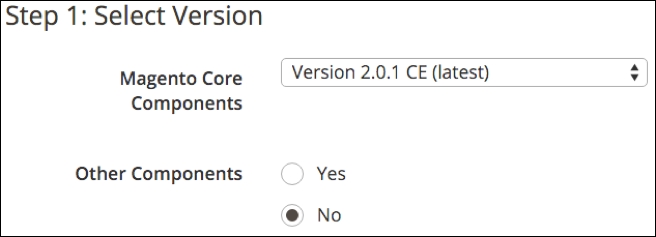
When this screen first loads, it goes through a series of checks to find out what needs to be upgraded. You can choose the version of Magento Core Components you wish to upgrade, as well as any other components that may have been added to your installation.
Once you make your choices, click on Next:
Note
There are many reasons why an upgrade might fail. We have certainly had our share of issues, although far less with Magento 2 than with earlier versions. If you are a developer, you can find that most upgrade errors can be fixed by going to http://devdocs.magento.com/guides/v2.0/comp-mgr/trouble/cman/were-sorry.html and reviewing the advice shown there.
On the next screen, you can determine whether your installation is truly ready for a system upgrade. Click on Start Readiness Check and wait for it to complete its analysis:
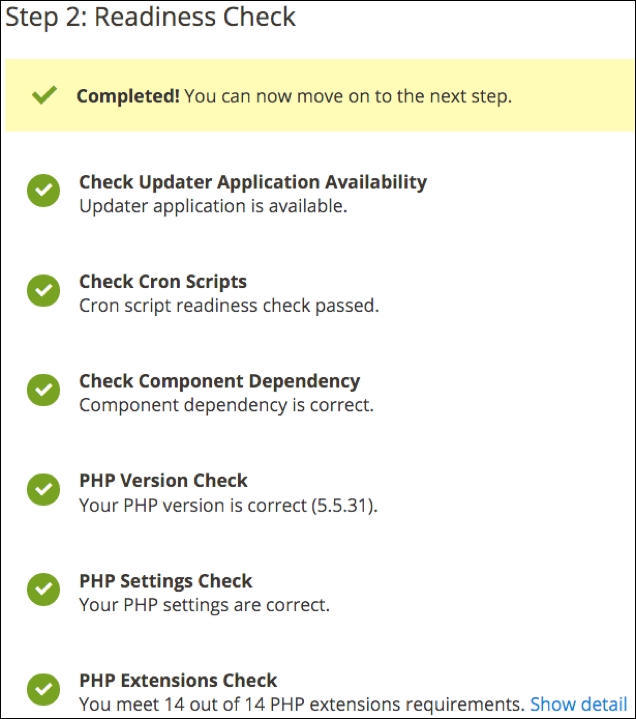
Click Next to create a backup of your installation.
Tip
If you're not using a hosting company that provides backups or you do not have a backup protocol, well, you're flirting with trouble. No matter how well a server is configured or you maintain your Magento installation, you should never fail to make regular backups. As in this process, you should also make a backup whenever you make any changes to your Magento code.
In most cases, you will want to include all items in your backup. However, if your server is regularly backed up and you have lots of product images (for example, thousands of product SKUs), you might consider not backing up site "media." Media can take a long time to back-up and consume considerable space. However, if you update your media often, don't hesitate to include it in your backup.
Click on Create Backup to trigger the backup process.
When the backup is complete, click on Next. If all has gone well, the system will tell you it's ready for you to click on Upgrade.