Table of Contents for
Magento 2 - Build World-Class online stores
 Magento 2 - Build World-Class online stores
Published by
Packt Publishing, 2017
Magento 2 - Build World-Class online stores
Published by
Packt Publishing, 2017
- Cover
- Table of Contents
- Magento 2 - Build World-Class online stores
- Magento 2 - Build World-Class online stores
- Credits
- Preface
- 1. Module 1
- 1. Magento Fundamentals
- XAMPP installation
- Magento
- Summary
- 2. Magento 2.0 Features
- An introduction to the Magento order management system
- Magento 2.0 command-line configuration
- The command-line utility
- Summary
- 3. Working with Search Engine Optimization
- Store configuration
- SEO and searching
- SEO catalog configuration
- Google Analytics tracking code
- Optimizing Magento pages
- Summary
- 4. Magento 2.0 Theme Development – the Developers' Holy Grail
- Magento 2.0 theme structure
- The Magento Luma theme
- Magento theme inheritance
- CMS blocks and pages
- Custom variables
- Creating a basic Magento 2.0 theme
- Summary
- 5. Creating a Responsive Magento 2.0 Theme
- Composer – the PHP dependency manager
- Building the CompStore theme
- CSS preprocessing with LESS
- Applying new CSS to the CompStore theme
- Creating the CompStore logo
- Applying the theme
- Creating CompStore content
- Customizing Magento 2.0 templates
- Summary
- 6. Write Magento 2.0 Extensions – a Great Place to Go
- Using the Zend framework
- Magento 2.0 extension structure
- Developing your first Magento extension
- The Twitter REST API
- The TweetsAbout module structure
- Using TwitterOAuth to authenticate our extension
- Developing the module
- Summary
- 7. Go Mobile with Magento 2.0!
- Adjusting the CompStore theme for mobile devices
- The Magento 2.0 responsive design
- The Magento UI
- Implementing a new CSS mixin media query
- Adjusting tweets about extensions for mobile devices
- Summary
- 8. Speeding up Your Magento 2.0
- Indexing and caching Magento
- Indexing and re-indexing data
- The Magento cron job
- Caching
- Fine-tuning the Magento hosting server
- Selecting the right Magento hosting service
- Apache web server deflation
- Enabling the expires header
- Minifying scripts
- Summary
- 9. Improving Your Magento Skills
- Magento knowledge center
- Improving your Magento skills
- Summary
- 2. Module 2
- 1. Magento 2 System Tools
- Installing Magento 2 sample data via GUI
- Installing Magento 2 sample data via the command line
- Managing Magento 2 indexes via the command line
- Managing Magento 2 cache via the command line
- Managing Magento 2 backup via the command line
- Managing Magento 2 set mode (MAGE_MODE)
- Transferring your Magento 1 database to Magento 2
- 2. Enabling Performance in Magento 2
- Configuring Redis for backend cache
- Configuring Memcached for session caching
- Configuring Varnish as the Full Page Cache
- Configuring Magento 2 with CloudFlare
- Configuring optimized images in Magento 2
- Configuring Magento 2 with HTTP/2
- Configuring Magento 2 performance testing
- 3. Creating Catalogs and Categories
- Create a Root Catalog
- Create subcategories
- Manage attribute sets
- Create products
- Manage products in a catalog grid
- 4. Managing Your Store
- Creating shipping and tax rules
- Managing customer groups
- Configuring inventories
- Configuring currency rates
- Managing advanced pricing
- 5. Creating Magento 2 Extensions – the Basics
- Initializing extension basics
- Working with database models
- Creating tables using setup scripts
- Creating a web route and controller to display data
- Creating system configuration fields
- Creating a backend data grid
- Creating a backend form to add/edit data
- 6. Creating Magento 2 Extensions – Advanced
- Using dependency injection to pass classes to your own class
- Modifying functions with the use of plugins – Interception
- Creating your own XML module configuration file
- Creating your own product type
- Working with service layers/contracts
- Creating a Magento CLI command option
- 3. Module 3
- 1. Planning for Magento
- Technical considerations
- Global-Website-Store methodology
- Planning for multiple stores
- Summary
- 2. Managing Products
- Managing products the customer focused way
- Creating products
- Managing inventory
- Pricing tools
- Autosettings
- Related products, up-sells, and cross-sells
- Importing products
- Summary
- 3. Designs and Themes
- The concept of theme inheritance
- Default installation of design packages and themes
- Installing third-party themes
- Inline translations
- Working with theme variants
- Customizing themes
- Customizing layouts
- Summary
- 4. Configuring to Sell
- Payment methods
- Shipping methods
- Managing taxes
- Transactional e-mails
- Summary
- 5. Managing Non-Product Content
- Summary
- 6. Marketing Tools
- Promotions
- Newsletters
- Using sitemaps
- Optimizing for search engines
- Summary
- 7. Extending Magento
- The new Magento module architecture
- Extending Magento functionality with Magento plugins
- Building your own extensions
- Summary
- 8. Optimizing Magento
- Indexing and caching
- Caching in Magento 2 – not just FPC
- Tuning your server for speed
- Summary
- 9. Advanced Techniques
- Version control
- Magento cron
- Backing up your database
- Upgrading Magento
- Summary
- 10. Pre-Launch Checklist
- System configurations
- Design configurations
- Search engine optimization
- Sales configurations
- Product configurations
- Maintenance configurations
- Summary
- Index
As customers make purchases in your store, Magento sends — based on your configurations — a number of e-mails to notify customers about their purchases. There are also e-mails for recovering passwords, creating accounts and more.
Magento installs some basic templates for all these transactional e-mails. You can create new e-mail templates to use for your stores that reflect your branding and messaging. In Magento 2, this is quite easy to do.
When you first go to Marketing | Email Templates, you'll see an empty list. That's normal. The base templates installed with Magento will not appear in this list — but they are there, nonetheless. E-mail templates can also be included in Magento themes added to your installation. These will also not show in the list, but will be available for customization.
The process of customizing e-mail templates is:
- Create a new template.
- Apply an existing template to your new template.
- Modify to accommodate your needs.
Once you create your new e-mail template, you can assign it for use as sales e-mails, customer account e-mails, and so on.
You can create new e-mail templates for the following purposes:
- Failed Payment*
- Contact Us Form
- Forgot Password
- New Account
- New Account Confirmation Key
- New Account Confirmed
- New Account Without Password
- Remind Password
- Reset Password
- Currency Update Warning*
- Subscription Confirmation
- Subscription Success
- Unsubscription Success
- Cron Error Warning*
- Price Alert
- Stock Alert
- Credit Memo Update
- Credit Memo Update for Guest (purchaser who does not log in)
- Invoice Update
- Invoice Update for Guest
- New Credit Memo
- New Credit Memo for Guest
- New Invoice
- New Invoice for Guest
- New Order
- New Order for Guest
- Order Update
- Order Update for Guest
- Shipment Update
- Shipment Update for Guest
- Send Product Link to Friend
- Sitemap Generation Warnings*
- Forgot Admin Password
- Reset Password
- Wish List Sharing
As you can see, Magento has quite a number of e-mails. The items in this list with an asterisk (*) are e-mails that are not sent to your customers, but, rather, sent to you or someone you designate. These e-mails are for alerting your team when something doesn't quite go right.
There are also two additional templates that are used to create the headers and footers for your e-mails. In other words, you can manage the top and bottom of your e-mails without having to modify every single e-mail if, for example, you want to change your logo or phone number.
To illustrate how to do this, let's create a new e-mail template for our sportswear store. We will begin by modifying the header and footer for our sportswear store, then create a new New Order e-mail template.
On the Email Templates panel, click on Add New Template. At the top of the New Template panel, you'll see an area titled Load default template. Here, you can select the base template — or a template provided by a theme — and load it into the New Template panel for modification.
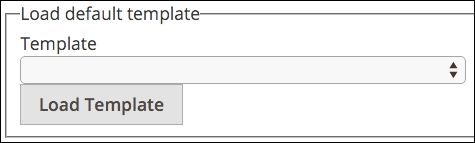
For our new header, select Header and click on Load Template. This will load the base header template into our New Template form.
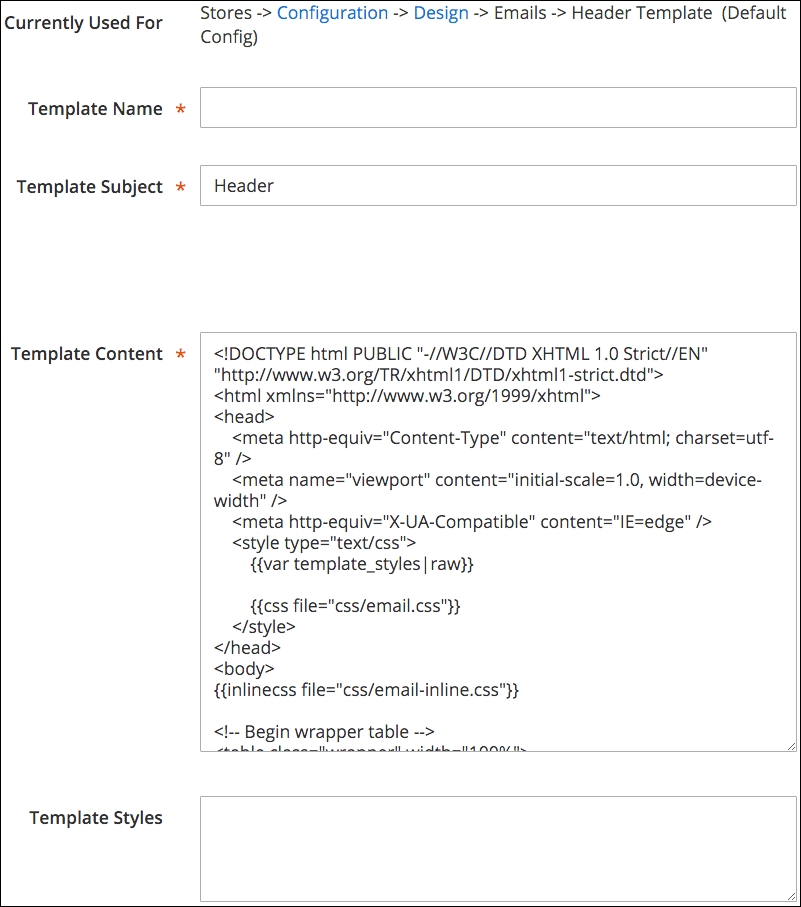
Let's first review the fields shown on this screen:
- Currently Used For: Not actually an editable field, this shows where this e-mail is assigned for use. In this case, we can see that the header template we loaded is being used in the Stores | Configuration | Design | Emails | Header Template configuration at the Default configuration scope. That means that the header template is used as the default header for all e-mails in your installation. Once we build our sportswear header (and footer) templates, we will assign them at the sportswear website configuration scope so that they will be used for all sportswear e-mails.
- Template Name: Use a name that is useful when shown in the list of e-mail templates. In our example here, we might use Header (Sportswear).
- Template Subject: For e-mails, this is the subject that would appear in the e-mail sent. For the header and footer, leave as shown so they are properly included in generated e-mails.
- Template Content: It is into this field that you will make any changes to layout and content.
Once we have modified the header to our liking, we can save it by clicking Save Template. If we look at our list of e-mail templates, we now have the one template listed.

If we click on the template and view its detail, we can see that it has no Currently Used For field, as it has not been assigned to a particular website or store. Once we have created our sportswear footer (it is not necessarily required to create both to be able to create and assign only a header or footer), we can now assign these to our sportswear website so that they appear for each store view.
- Go to Stores | Configuration | General | Design in your backend.
- Change your Store View setting to Sportswear Website.
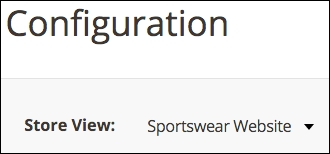
- Expand the Emails panel.
- Beside Header Template and Footer Template, uncheck the Use Default checkbox.
- For Header Template, select Header (Sportswear) in the drop-down menu.
- For Footer Template, select Footer (Sportswear).
- Click Save Config.
We have now assigned our new e-mail header and footer to all outgoing e-mails related to the sportswear stores. If you view the detail for your header and footer e-mail templates, they will now display a Currently Used For value.

Now that we have created our special header and footer, we can create our new order email for our sportswear customers.
- Return to Marketing | Email Templates.
- Click on Add New Template.
- Load the New Order default template. Note that for the Magento Luma theme, there is an installed new order template specific to the Luma theme. Since we're using the Luma theme for our example stores, we will choose New Order (Magento/luma) as our default template.
- Give your new e-mail template a suitable name. In our case, we'll use new order (sportswear).
- For our template subject, we're going to adjust it a bit by replacing its default contents with
Thanks for Your {{var store.getFrontendName()}} Order!Tip
As you can see, the subject contains a Magento variable that will dynamically include the name of the store. Since we name our sportswear stores Sportswear English View, Sportswear French View, and Sportswear German View, we may not want to use the dynamic store view name, as these don't sound particularly consumer-friendly.
For our example, we would prefer to use Thanks for Your Acmes Sportswear Order!
- Make any other changes you wish to the Template Content and Template Styles.
- Click on Save Template.
As with the header and footer, we will now assign this e-mail to the appropriate sales e-mail:
- Go to Stores | Configuration | Sales | Sales Emails.
- Change Store View to Sportswear Website.
- Open the Order panel.
- For New Order Confirmation Template, uncheck Use Default and select New Order (Sportswear) in the dropdown.
- Click on Save Config.
We have now created a modified new order template for our logged-in purchasers and assigned it for our sportswear stores.