- Go to Structure and then Views. This will bring you to the administrative overview of all the views that have been created. Click on Add view to create a new view.
- Set the View name to My Content Reference View, and retain the current View settings configuration.
- Do not choose to create a page or block. Click on Save and edit to continue working on your view.
- Click on the Add button to create a new display. Select the Entity Reference option to create the display:
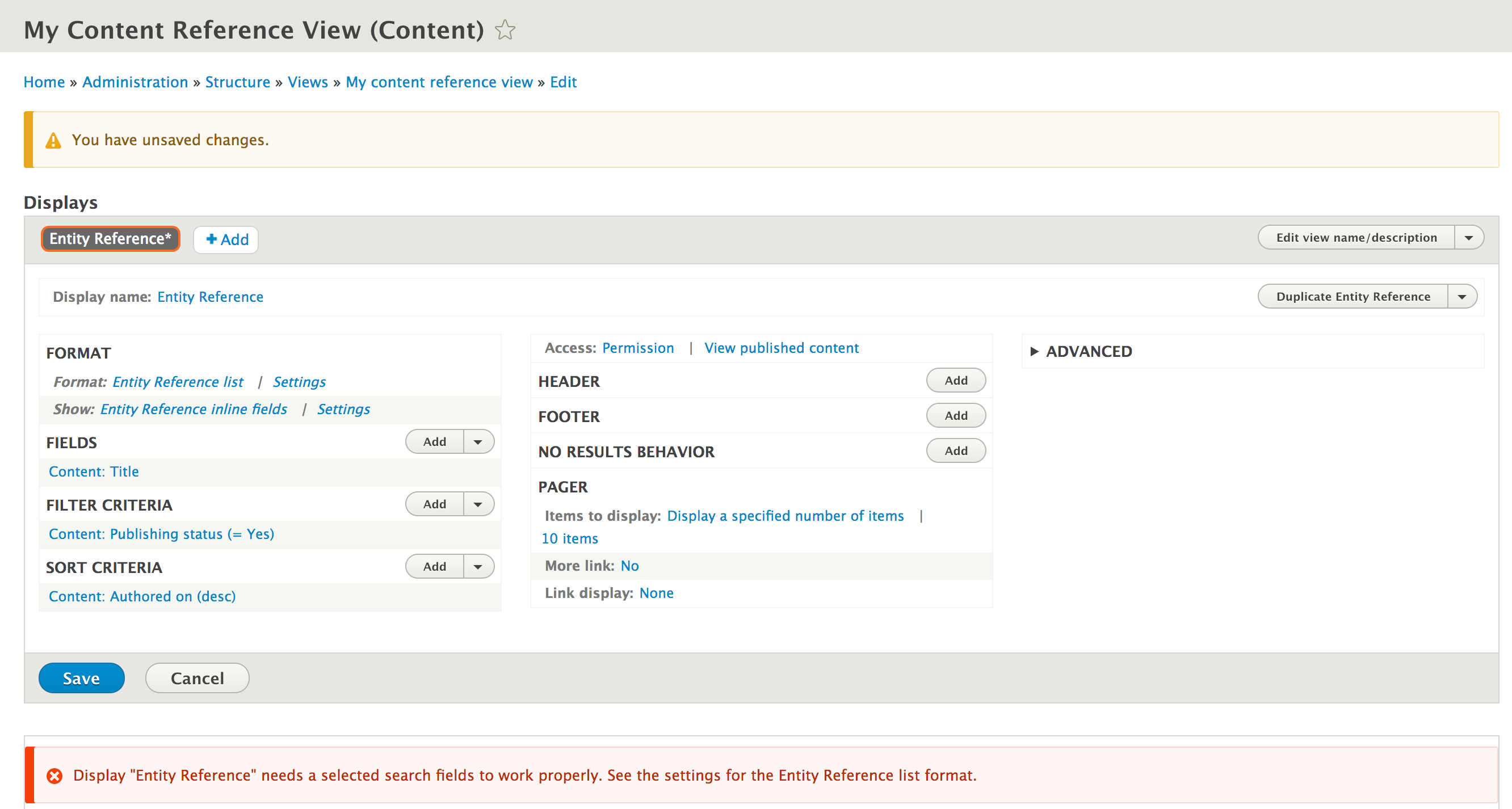
- The Format will be automatically set to Entity Reference List, which utilizes fields. Click on Settings next to it to modify the style format.
- For Search Fields, check the Content: Title option and then click on Apply. This is what the field will perform the autocomplete search on.
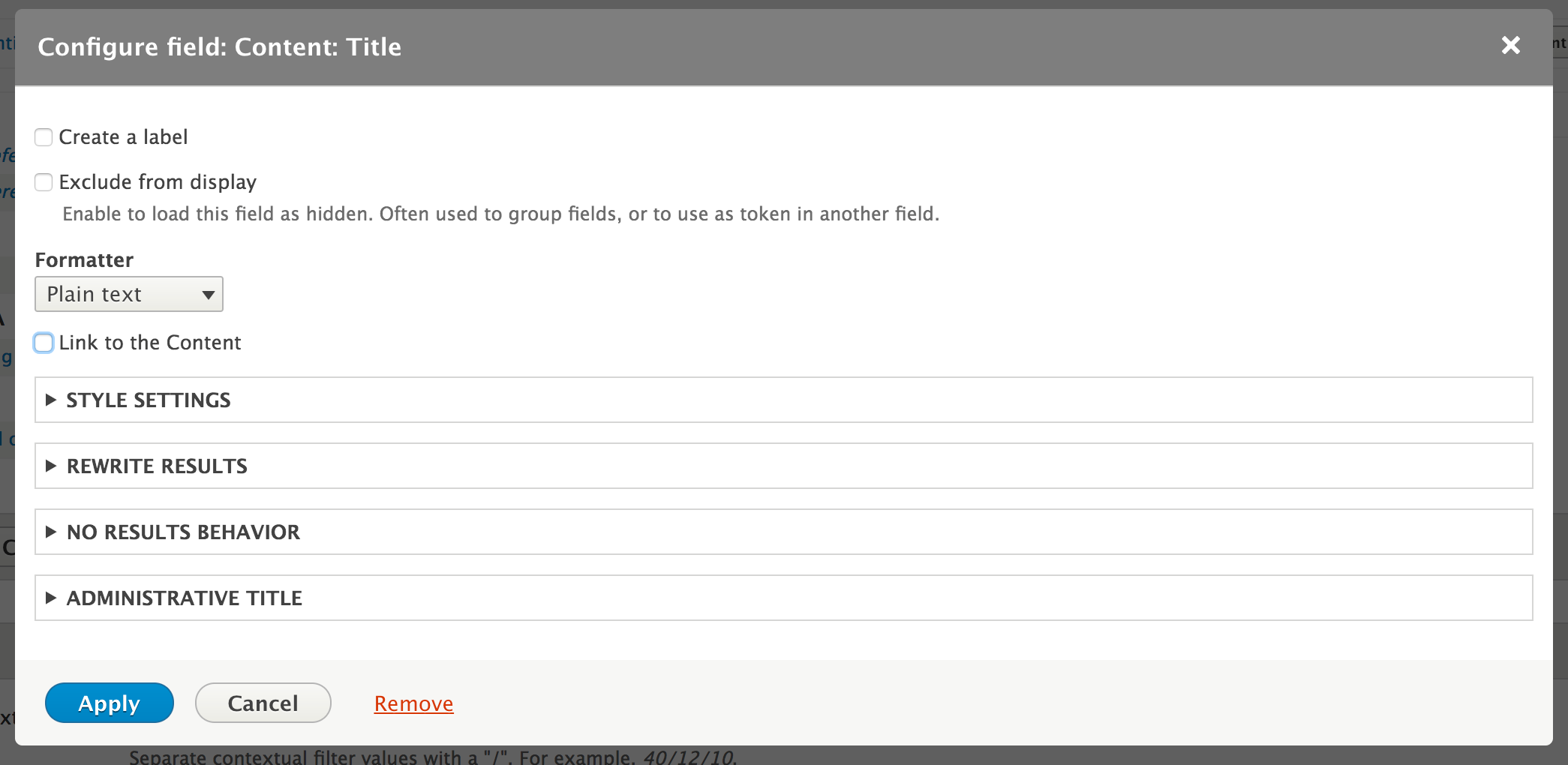
- You will need to modify the Content: Title field to stop it from wrapping the result as a link. Click on the field label and uncheck Link to the Content. Click on Apply to save the field settings:
- We will then use a contextual filter to limit the results to the currently loggedin user. Click on Add from Contextual Filters in the Advanced section.
- Select the Authored by: Content option and click on Add and configure contextual filters.
- Change the When the filter value is not available setting to Provide a default value. Select User ID from the logged in user for the type value. Click on Apply to configure the contextual filter.
- Click on Save to save the view.
- Go to Configuration and then Account settings to be able to manage fields on user accounts.
- Add a new Entity Reference field that references Content, call it Highlighted Contributions, and allow it to have unlimited values. Click on the Save field settings button.
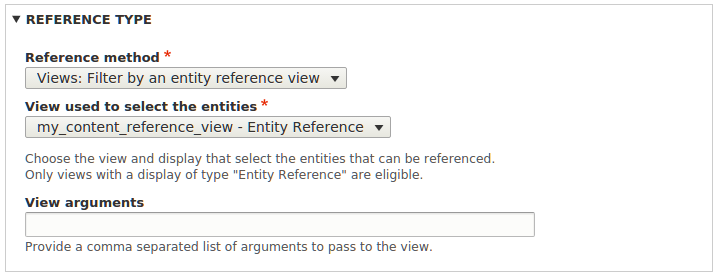
- Change the Reference type method to use View: Filter by an entity reference view and select the view we have just created:
- Now, when a user edits their account, they can reference only content that they have created in this reference field.