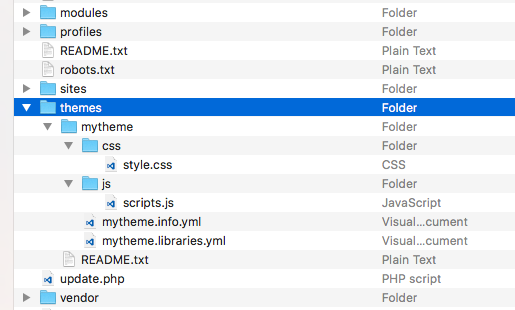
- Create a folder named css in your theme's base directory.
- In your css folder, add a style.css file that will hold the theme's CSS declarations. For the purpose of demonstration, add the following CSS declaration to style.css:
body {
  background: cornflowerblue;
}
- Then, create a js folder in your theme's directory and add a scripts.js file that will hold the theme's JavaScript items.
- In your theme folder, create a mytheme.libraries.yml file, as shown in the following screenshot:
- Edit the mytheme.libraries.yml file. Add the following YAML text to define the global-styling library for your theme that will load the CSS and JavaScript files:
global-styling:
  version: VERSION
  css:
    theme:
      css/style.css: {}
  js:
    js/scripts.js: {}
- The preceding text tells Drupal that there is a global-styling library. You can specify a library version and use the VERSION defaults for your themes. It also defines the css/styles.css style sheet as part of the library under the theme group.
- Edit your mytheme.info.yml, and add the declaration to your global-styling library:
name: My Theme
description: My custom theme
type: theme
core: 8.x
base theme: classy
libraries:
  - mytheme/global-styling
- Themes can specify a libraries key that defines the libraries that should always be loaded. This YAML array lists libraries to be loaded for each page.
- Go to Configuration and then to Performance under the DEVELOPMENT section to rebuild Drupal's caches.
- With your theme set to the default, navigate to your Drupal site's home page.
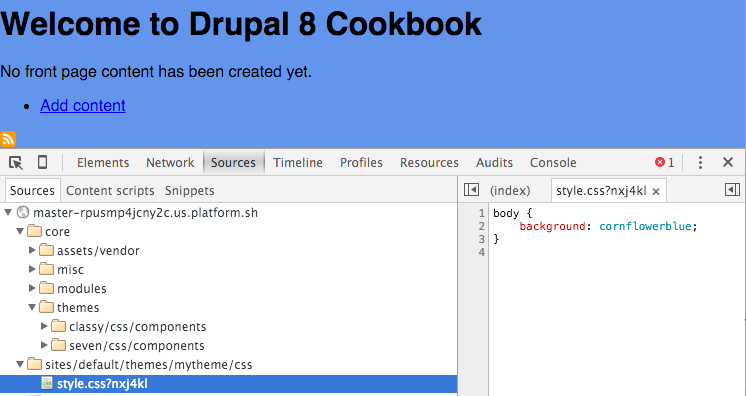
- Your theme's global-styling library will be loaded, and the page's background color will be styled appropriately: