- To get started, create a new content type on the development site. Name the content type Staff Page and click on Save and manage fields to save the content type. We will not add any additional fields.
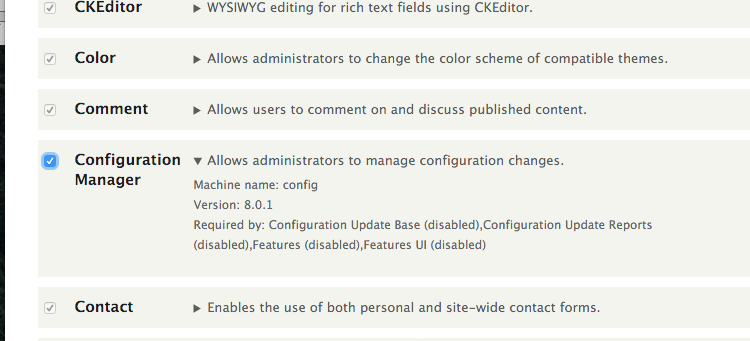
- Once the content type has been saved, go to Extend and install the Configuration Manager module if it is not installed:
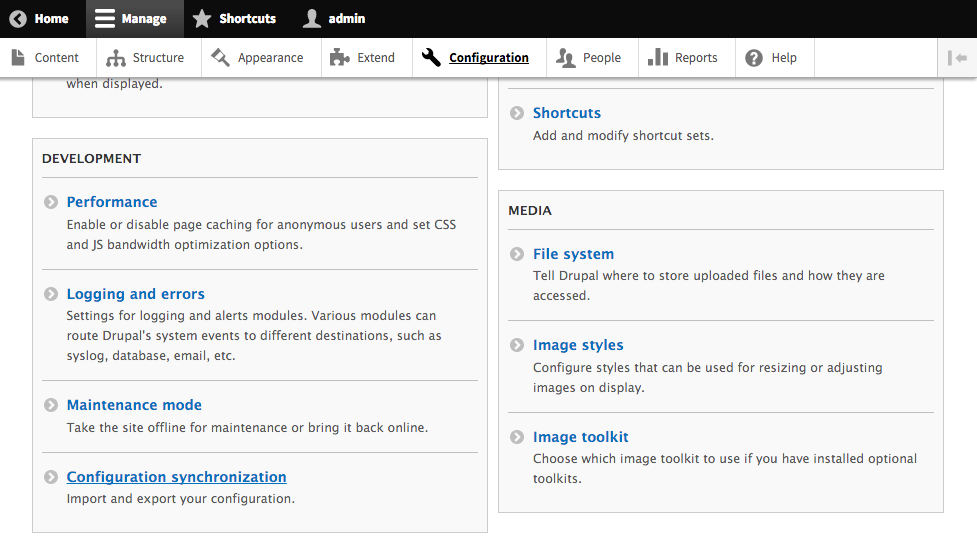
- From your Drupal site's Configuration page, go to Configuration synchronization under the Development group. This section allows you to import and export configuration:
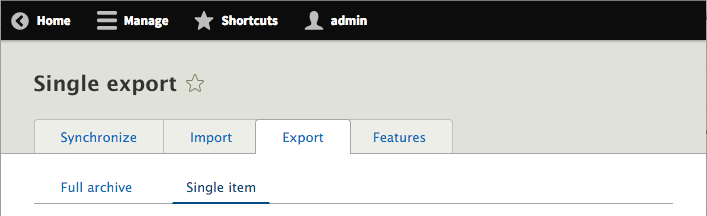
- Click on the Export tab at the top of the page. The default page will be for a Full archive export, that contains the configuration of your entire Drupal site. Click on the Single item subtab to export a single configuration entity instead:
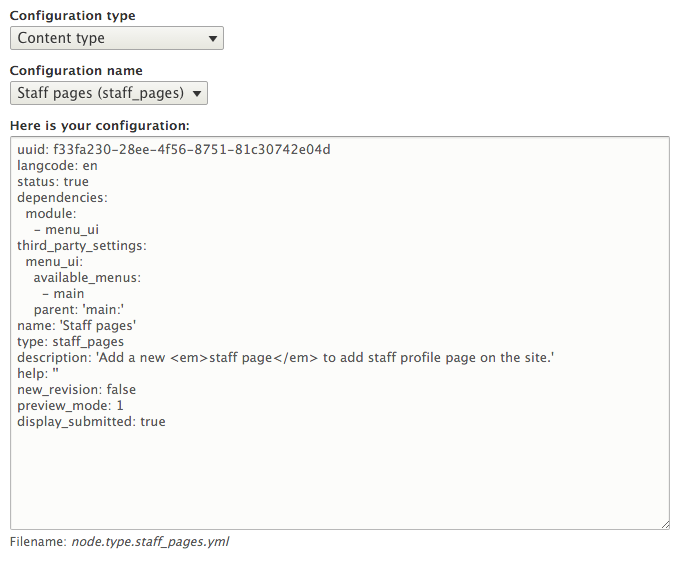
- Select Content type from the Configuration type drop-down menu. Then, choose your content type from the Configuration name drop-down menu. Its configuration will populate the configuration textbox:
- Copy the YAML content from the textbox so that you can import it into your other Drupal site.
- On your production Drupal site, install the Configuration management module just as you did for the development site, if it is not yet installed.
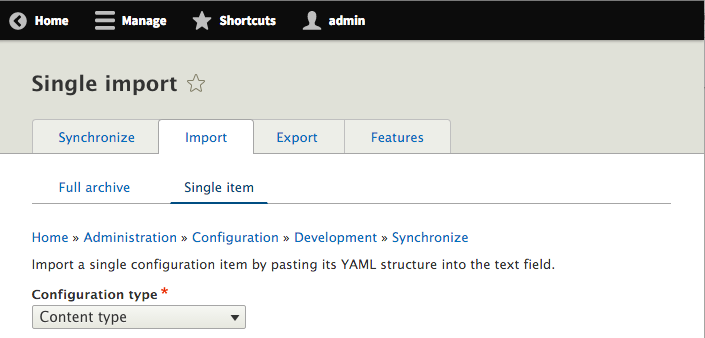
- Go to the Configuration synchronization page and click on the Import tab.
- Click on Single item and select Content type from the Configuration type:
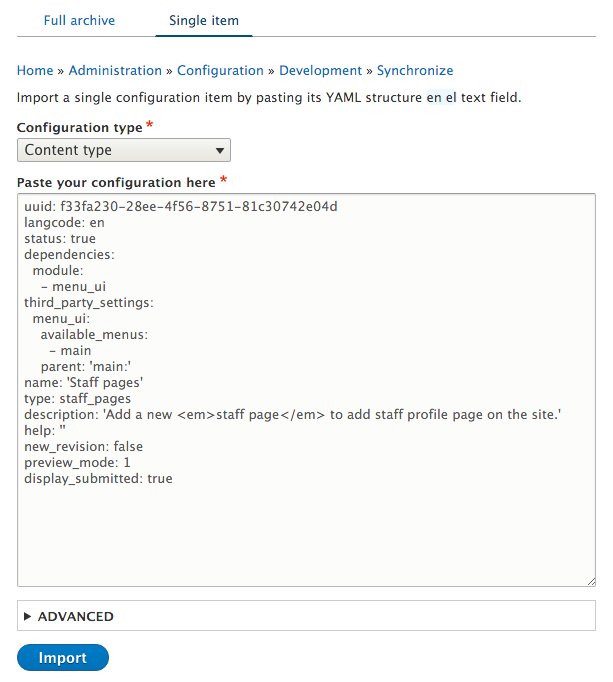
- Paste your exported configuration YAML into the textbox and click on Import:
- Click on Confirm on the confirmation form to finalize your import to the production Drupal site for your custom content type.
- Go to the Structure page and then to the Content Types page to verify that your content type has been imported.