
- Create a templates folder in your theme's base directory to hold your Twig templates.
- To begin, you will need to copy the input.html.twig file from core/themes/classy/templates/form/input.html.twig to your theme's templates folder.
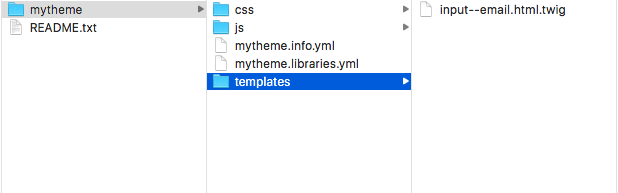
- Rename the input.html.twig file to input--email.html.twig in order to use the proper theme hook suggestion, as shown in the following screenshot:
- We will use the addClass Twig function to add an input__email class:
<input{{ attributes.addClass('input__email') }}/>{{ children }}
- Before the preceding line, we will create a Twig variable using ternary operators to provide a customer placeholder:
{% set placeholder = attributes.placeholder ? attributes.placeholder : 'email@example.com' %}
<input{{ attributes.addClass('input__email').setAttribute('placeholder', placeholder) }}/>{{ children }}
- This creates a new variable called placeholder using the set operator. The question mark (?) operator checks whether the placeholder property is empty in the attributes object. If it is not empty, it uses the existing value. If the value is empty, it provides a default value.
- Go to the Configuration tab and then to Performance under the DEVELOPMENT section to rebuild Drupal's cache. We need to do this because Drupal caches the generated Twig output and template overrides.
New Twig template overrides provided by a theme and any changes made to a Twig template require a cache rebuild.
- Assuming that you have used the standard Drupal install, go to the Feedback contact form installed at /contact/feedback, while logged out, and review the changes to the email field:
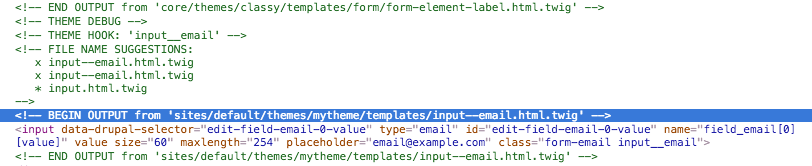
This screenshot contains theme debug output. In the There's more... section of this chapter, we will discuss how to enable the output of theming debug comments.