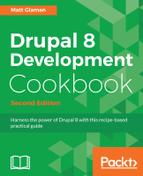
- Create a config folder in your module's base directory. Drupal requires its configuration YAML to be in a subfolder of config.
- Create a folder named install in the config folder. The configuration YAML in this folder will be imported on module installation.
- In the install folder, create a contact.form.contactus.yml to store the YAML definition of the contact form, Contact Us:
- We will define the configuration of a contact form based on the contact.schema.yml file provided by the Contact module. Add the following YAML content into the file:
langcode: en
status: true
dependences: {}
id: contactus
label: 'Contact Us'
recipients:
  - webmaster@example.com
reply: ''
weight: 0
The configuration entry is based on a schema definition, which we will cover in Chapter 9, Configuration Management - Deploying in Drupal 8. The langcode, status, and dependencies are the required configuration management keys.
The id is the contact form's machine name and the label is the human display name. The recipients key is a YAML array of valid email addresses. The reply key is a string of text for the Auto-reply field. Finally, the weight defines the form's weight in the administrative list.
- Go to Extend and enable your module to import the configuration item.
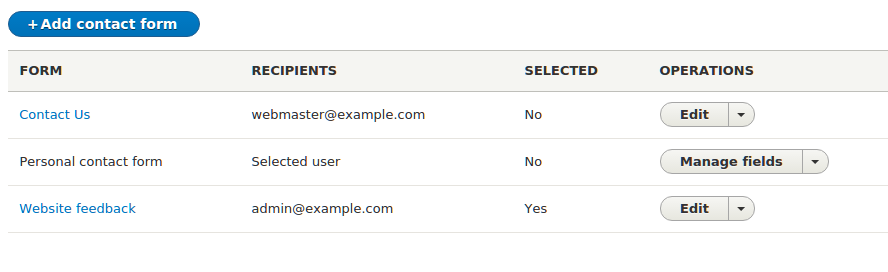
- The Contact Us form will now be located on the Contact forms overview page, located under Structure:
- Create a mymodule.install file in the module's base directory. Drupal checks .install files for update hooks.
- We will create a function called mymodule_update_8001() that will be read by the update system and make our configuration changes:
<?php

/**
 * Update "Contact Us" form to have a reply message.
 */
function mymodule_update_8001() {
  $contact_form = \Drupal\contact\Entity\ContactForm::load('contactus');
  $contact_form->setReply(t('Thank you for contacting us, we will reply shortly'));
  $contact_form->save();
}
This function uses the entity's class to load our configuration entity object. It loads contactus, which our module has provided, and sets the reply property to a new value.
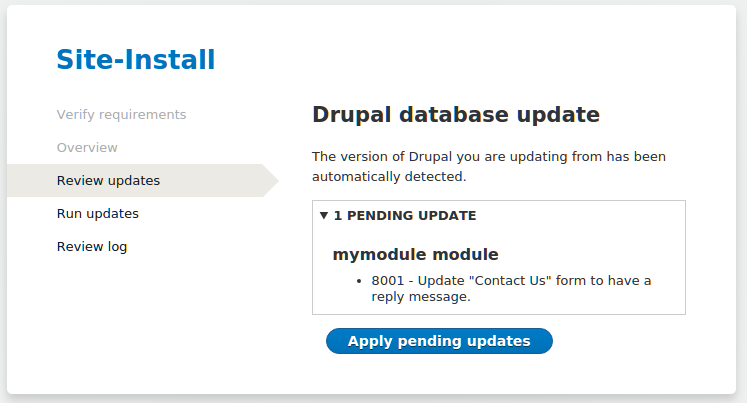
- Go to /update.php in your browser to run the Drupal's database update system. Click on Apply pending updates to run the update system:
- Review the Contact Us form settings and verify that the reply message has been set.