- Create a custom module named mymodule that will serve the AngularJS library and its implementation:
name: My Module!
type: module
description: Provides an AngularJS app.
core: 8.x
- Run the bower init command to create a Bower project in our module's directory. We will use most of the default values for the prompted questions:
$ bower init
? name mymodule
? description Example module with AngularJS
? main file
? what types of modules does this package expose?
? keywords
? authors Matt Glaman <nmd.matt@gmail.com>
? license GPL
? homepage
? set currently installed components as dependencies? Yes
? would you like to mark this package as private which prevents it from being accidentally published to the registry? No
{
  name: 'mymodule',
  authors: [
    'Matt Glaman <nmd.matt@gmail.com>'
  ],
  description: 'Example module with AngularJS',
  main: '',
  moduleType: [],
  license: 'GPL',
  homepage: '',
  ignore: [
    '**/.*',
    'node_modules',
    'bower_components',
    'test',
    'tests'
  ]
}

? Looks good? Yes
- Next, we will install the AngularJS library using bower install:
$ bower install --save angular
bower angular#*                 cached git://github.com/angular/bower-angular.git#1.5.0
bower angular#*               validate 1.5.0 against git://github.com/angular/bower-angular.git#*
bower angular#^1.5.0           install angular#1.5.0
angular#1.5.0 bower_components/angular
The --save option will ensure that the package's dependency is saved in the created bower.json. If you do not have Bower, you can download AngularJS from https://angularjs.org/ and place it in the bower_components folder.
- Create mymodule.libraries.yml. We will define AngularJS as its own library:
angular:
  js:
    'bower_components/angular/angular.js: {}
  css:
    component:
      'bower_components/angular/angular-csp.css': {}
When the angular library is attached, it will add the AngularJS library file and attach the CSS style sheet.
- Next, create a mymodule.module file. We will use the theme layer's preprocess functions to add an ng-app attribute to the root HTML element:
<?php

/**
 * Implements hook_preprocess_html().
 */
function mymodule_preprocess_html(&$variables) {
    $variables['html_attributes']['ng-app'] = '';
}
AngularJS uses the ng-app attribute as a directive for bootstrapping an AngularJS application. It marks the root of the application.
- We will use a custom block to implement the HTML required for the AngularJS example. Create an src/Plugin/Block directory and an AngularBlock.php file.
- Extend the BlockBase class and implement the build method to return our Angular app's HTML:
<?php

namespace Drupal\mymodule\Plugin\Block;

use Drupal\Core\Block\BlockBase;

/**
 * Provides a block for AngularJS example.
 *
 * @Block(
 *   id = "mymodule_angular_block",
 *   admin_label = @Translation("AngularJS Block")
 * )
 */
class AngularBlock extends BlockBase {

  public function build() {
    return [
      'input' => [
        '#type' => 'textfield',
        '#title' => $this->t('Name'),
        '#placeholder' => $this->t('Enter a name here'),
        '#attributes' => [
          'ng-model' => 'yourName',
        ],
      ],
      'name' => [
        '#markup' => '<hr><h1>Hello {{yourName}}!</h1>',
      ],
      '#attached' => [
        'library' => [
          'mymodule/angular',
        ],
      ],
    ];
  }

}
We return a render array that contains the input, name, and our library attachments. The input array returns the Form API render information for a text field. The name returns a regular markup that will bind Angular's changes to the yourName scope variable.
- Install your custom module, or rebuild Drupal's cache if the module is already installed.
- Go to the block layout form from the Structure page and place your block within a region, such as the Sidebar first region.
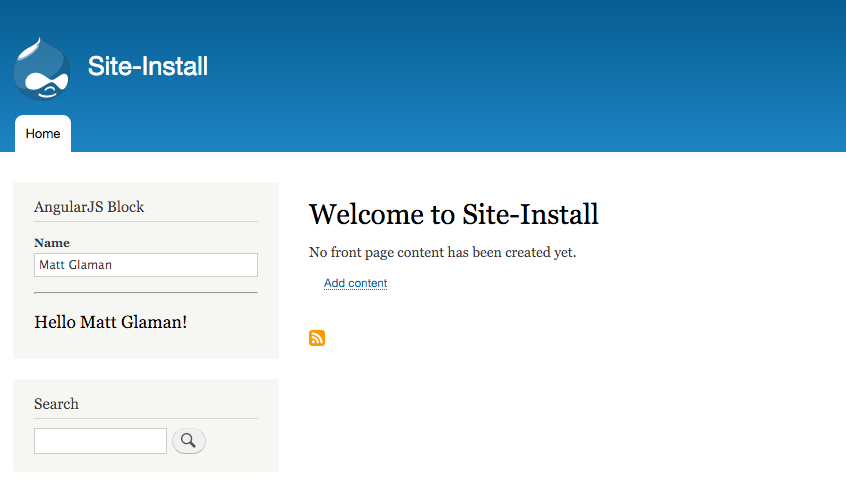
- View your Drupal site and interact with your block, which is powered by AngularJS: