- Got to Structure and then Views. This will bring you to the administrative overview of all the views that have been created
- Find the Files view and click on Edit.
- Click on Advanced to expand the section and then click on Add that is next to Relationships.
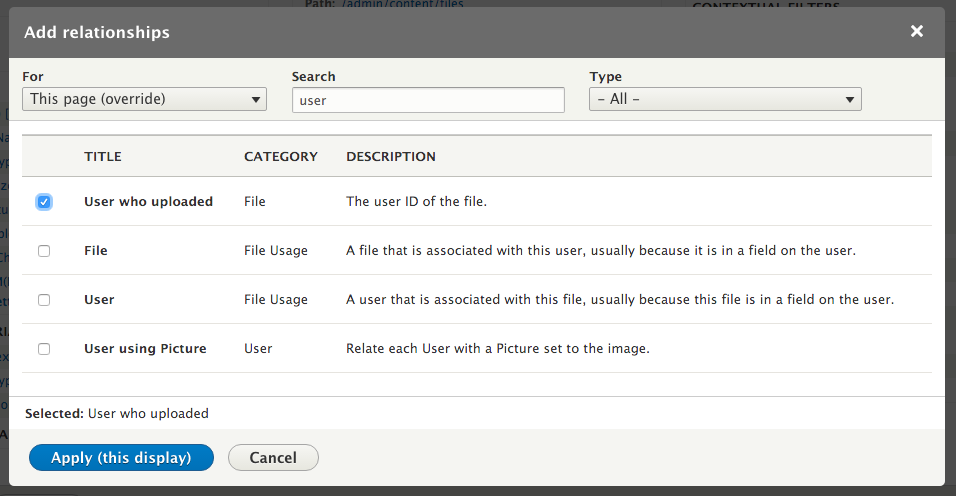
- Search for user. Select the User who uploaded relationship option and click on Apply (this display):
- Next, we will be presented with a configuration form for the relationship. Click on Apply (this display) to use the defaults.
- Add a new field by clicking on Add in the Fields section.
- Search for name and select the Name: User field and, click on Apply (all display).
- This view uses aggregation, which presents a new configuration form when you first add a field. Click on Apply and continue to use the defaults.
We will discuss Views and aggregation in the There's more... section of this recipe.
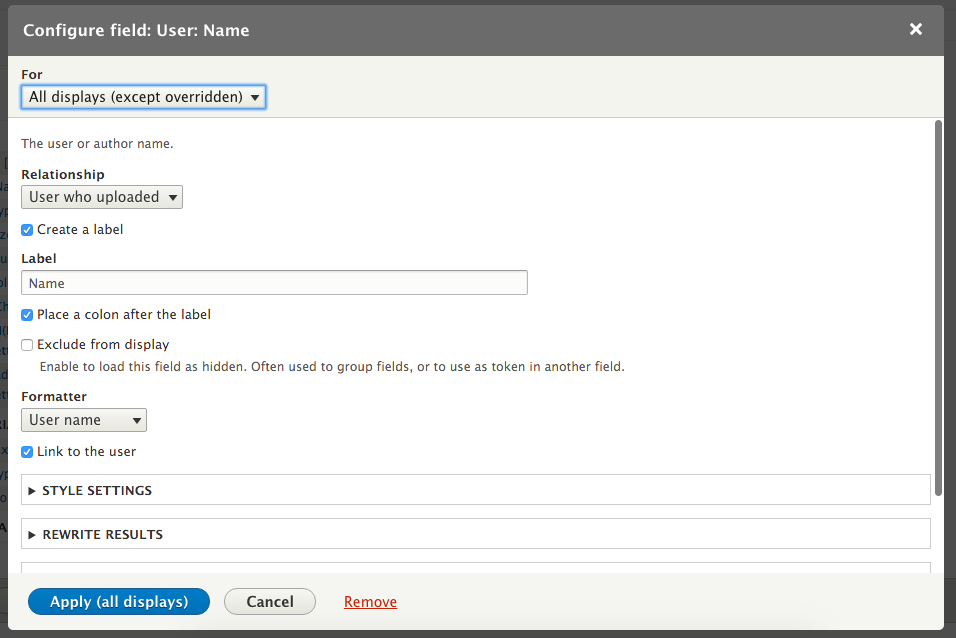
- We will use the default field settings that will provide the label Name and format it as the username and link to the user's profile. Click on Apply (this display).
- Click on Save to finish editing the view and commit your changes.
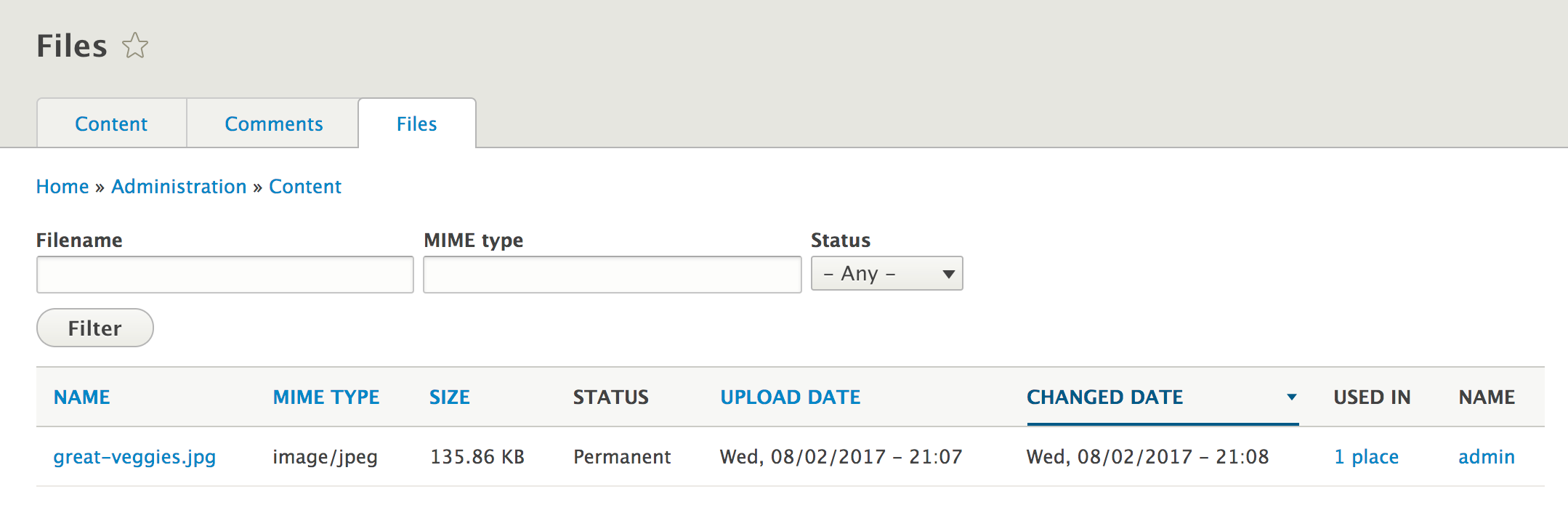
- When viewing the Files list in /admin/content/files, the username that uploaded the file will now be displayed: