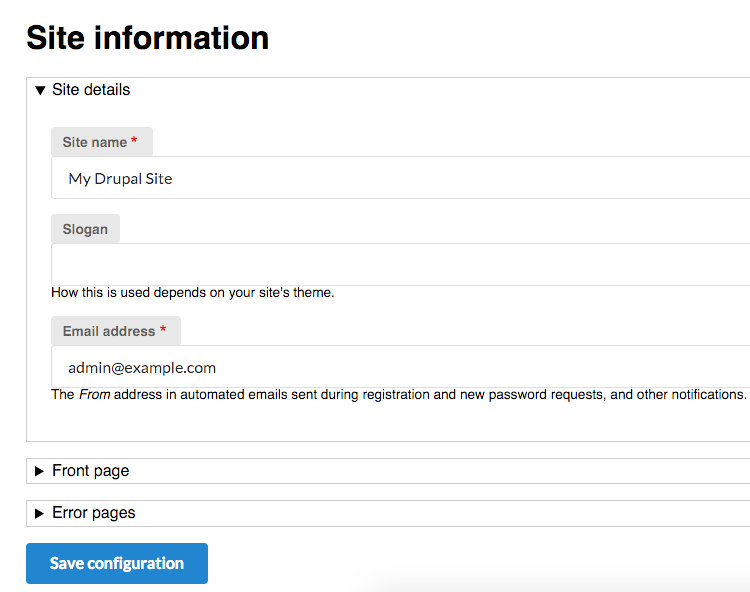
- For this recipe, create a new custom theme named mytheme using Classy as a base theme. This way, you can reuse some existing styling. If you are unfamiliar with creating a base theme, refer to the Creating a custom theme based on Classy recipe of Chapter 5, Frontend for the Win.
- Using your terminal, navigate to your theme's directory. Run bower init to create a bower project:
$ bower init
? name mytheme
? description Example theme with Semantic UI
? main file
? what types of modules does this package expose?
? keywords
? authors Matt Glaman <nmd.matt@gmail.com>
? license GPL
? homepage
? set currently installed components as dependencies? Yes
? would you like to mark this package as private which prevents it from being accidentally published to the registry? No
{
  name: 'mytheme',
  authors: [
    'Matt Glaman <nmd.matt@gmail.com>'
  ],
  description: 'Example theme with Semantic UI,
  main: '',
  moduleType: [],
  license: 'GPL',
  homepage: '',
  ignore: [
    '**/.*',
    'node_modules',
    'bower_components',
    'test',
   'tests'
  ]
}

? Looks good? Yes
- Next, use bower install to save the Semantic UI library:
$ bower install --save semantic-ui
bower semantic-ui#*         not-cached git://github.com/Semantic-Org/Semantic-UI.git#*
bower semantic-ui#*            resolve git://github.com/Semantic-Org/Semantic-UI.git#*
bower semantic-ui#*           download https://github.com/Semantic-Org/Semantic-UI/archive/2.1.8.tar.gz
bower semantic-ui#*            extract archive.tar.gz
bower semantic-ui#*           resolved git://github.com/Semantic-Org/Semantic-UI.git#2.1.8
bower jquery#>=1.8          not-cached git://github.com/jquery/jquery-dist.git#>=1.8
bower jquery#>=1.8             resolve git://github.com/jquery/jquery-dist.git#>=1.8
bower jquery#>=1.8            download https://github.com/jquery/jquery-dist/archive/2.2.0.tar.gz
bower jquery#>=1.8             extract archive.tar.gz
bower jquery#>=1.8            resolved git://github.com/jquery/jquery-dist.git#2.2.0
bower semantic#^2.1.8          install semantic#2.1.8
bower jquery#>=1.8             install jquery#2.2.0
The --save option will ensure that the package's dependency is saved in the created bower.json. If you do not have Bower, you can download Semantic UI from https://github.com/semantic-org/semantic-ui/ and place it in a bower_components folder.
- Create mytheme.libraries.yml in your theme's base directory. This will hold your main Semantic UI definition along with specific component library definitions.
- You will then add a new library to the form component:
semantic_ui.form:
  js:
    bower_components/semantic/dist/components/form.js: {}
  css:
    component:
      bower_components/semantic/dist/components/form.css: {}
The form component for Semantic UI has a style sheet and JavaScript file. Your library ensures that both are loaded when the library is attached.
- The button, input, and label components do not have any JavaScript files. Add a library for each component:
semantic_ui.button:
  css:
    component:
      bower_components/semantic/dist/components/button.css: {}
semantic_ui.input:
  css:
    component:
      bower_components/semantic/dist/components/input.css: {}
semantic_ui.label:
  css:
    component:
      bower_components/semantic/dist/components/label.css: {}
- Now that the libraries are defined, you can use the attach_library Twig function to add your libraries to the appropriate templates when you add the Semantic UI classes.
- Copy the form.html.twig file from the Classy theme's templates folder and paste it into your theme's templates folder. Then, attach mytheme/semantic_ui.form and add the ui and form classes:
{{ attach_library('mytheme/semantic_ui.form') }}
  <form{{ attributes.addClass(['ui', 'form']) }}>
{{ children }}
</form>
The attach_library function will attach the specified library. Use the addClass method from Twig to add the ui and form classes. Semantic UI requires all elements to have the matching ui class.
- Next, copy the input.html.twig file from the Classy theme and paste it into your theme's template folder. Then, attach mytheme/semantic_ui.input and add the ui and input classes:
{{ attach_library('mytheme/semantic_ui.input') }}
<input{{ attributes.addClass(['ui', 'input']) }} />{{ children }}
- Copy the input.html.twig file that you just created and use it to make input-submit.html.twig. This template file will be used for submit and other buttons:
{{ attach_library('mytheme/semantic_ui.button') }}
<input{{ attributes.addClass(['ui', 'button', 'primary']) }} />{{ children }}
- Finally, copy the form-element-label.html.twig file from Classy to your theme and add the label library and appropriate class, along with the defaults that Classy has defined:
{{ attach_library('mytheme/semantic_ui.label') }}

{%
  set classes = [
    title_display == 'after' ? 'option',
    title_display == 'invisible' ? 'visually-hidden',
    required ? 'js-form-required',
    required ? 'form-required',
    'ui',
    'label',
  ]
%}
{% if title is not empty or required -%}
  <label{{ attributes.addClass(classes) }}>{{ title }}</label>
{%- endif %}
- View a form and check whether it has been styled by the Semantic UI CSS framework: