- Go to Views from Structure, and click on Add view.
- Provide a view name, such as Recent articles, and change the type of content to Article. Mark that you would like to Create a block and then click on Save and edit.
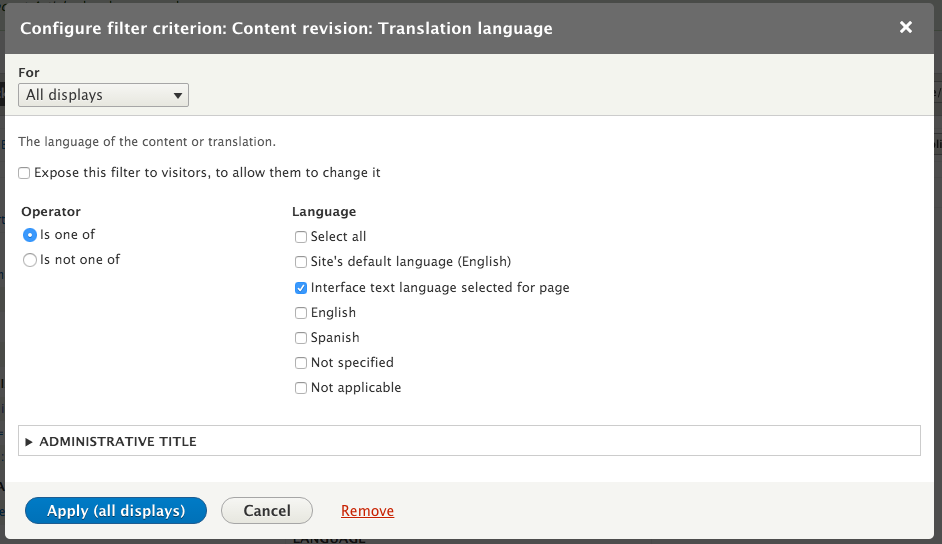
- Add a new Filter criteria. Search for Translation language and add the filter for the Content category. Click on Add and configure filter criteria. Set the filter to check the Interface text language selected for page. This will only display that the content that has been translated or the base language is the current language:
- Click on Add next to No Results and search for Text area. Check the checkbox and click on Add and configure no results behavior. Provide some sample text, such as Currently no recent articles.
- Save the view.
- Click on the Translate view tab. Click on Add for the Spanish row to translate the view for the language.
- Expand the Master display settings and then the Recent articles display options fieldsets. Modify the Display title option to provide a translated title:

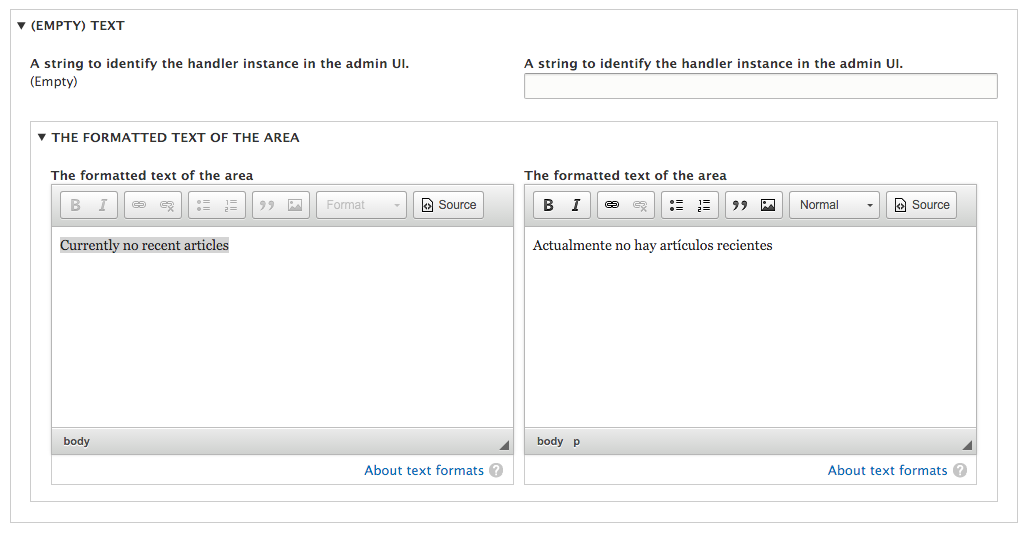
- Expand No results behavior to modify the text on the right-hand side of the screen using the textbox on the left-hand side of the screen as the source for the original text:
- Click on Save translation.
- Place the block on your Drupal site by going to Structure and then to Block Layout.
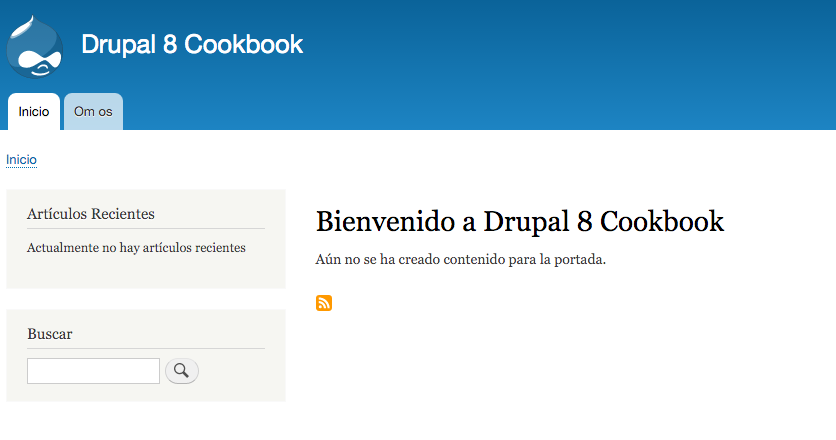
- Go to the site through /es and note the translated Views block: