Now we're ready to run the Notes application and try our hand at logging in and out.
We need to change the scripts section of package.json as follows:
"scripts": {
    "start": "DEBUG=notes:* SEQUELIZE_CONNECT=models/sequelize-sqlite.yaml NOTES_MODEL=sequelize USER_SERVICE_URL=http://localhost:3333 node --experimental-modules ./bin/www.mjs",
    "dl-minty": "mkdir -p minty && npm run dl-minty-css && npm run dl-
    minty-min-css",
    "dl-minty-css": "wget https://bootswatch.com/4/minty/bootstrap.css
    -O minty/bootstrap.css",
    "dl-minty-min-css": "wget https://bootswatch.com/4/minty/bootstrap.min.css -O minty/bootstrap.min.css"
},
In the previous chapters, we built up quite a few combinations of models and databases for running the Notes application. This leaves us with one, configured to use the Sequelize model for Notes, using the SQLite3 database, and to use the new user authentication service that we wrote earlier. We can simplify the scripts section by deleting those other configurations. All the other Notes data models are still available just by setting the environment variables appropriately.
The USER_SERVICE_URL needs to match the port number that we designated for that service.
In one window, start the user authentication service as follows:
$ cd users
$ npm start

> user-auth-server@0.0.1 start /Users/david/chap08/users
> DEBUG=users:* PORT=3333 SEQUELIZE_CONNECT=sequelize-sqlite.yaml node user-server

  users:server User-Auth-Service listening at http://127.0.0.1:3333
  +0ms
Then, in another window, start the Notes application:
$ cd notes
$ DEBUG=notes:* npm start

> notes@0.0.0 start /Users/david/chap08/notes
> SEQUELIZE_CONNECT=models/sequelize-sqlite.yaml NOTES_MODEL=models/notes-sequelize USERS_MODEL=models/users-rest USER_SERVICE_URL=http://localhost:3333 node ./bin/www

  notes:server Listening on port 3000 +0ms
You'll be greeted with the following:
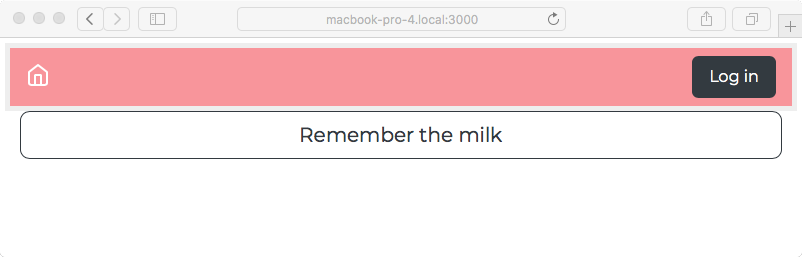
Notice the new button, Log in, and the lack of an ADD Note button. We're not logged in, and therefore partials/header.hbs is rigged to show only the Log in button.
Click on the Log in button, and you will see the login screen:
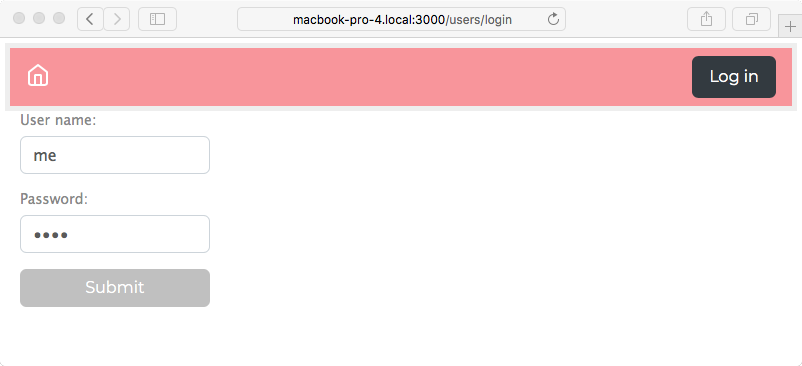
This is our login form from views/login.hbs. You can now log in, create a note or three, and you might end up with the following on the home page:
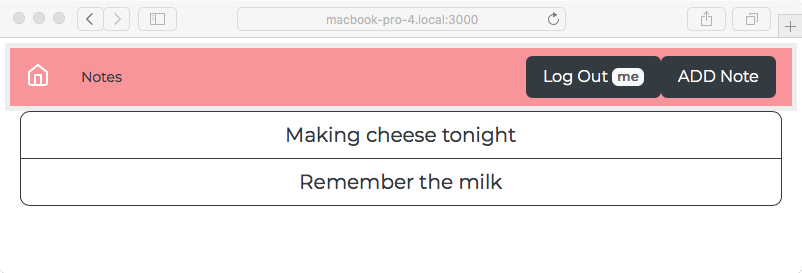
You now have both Log Out and ADD Note buttons.
You'll notice that the Log Out button has the username (me) shown. After some thought and consideration, this seemed the most compact way to show whether the user is logged in or not, and which user is logged in. This might drive the user experience team nuts, and you won't know whether this user interfaces design works until it's tested with users, but it's good enough for our purpose at the moment.