
There are many ways to manage server processes, to ensure restarts if the process crashes, and so on. We'll use PM2 (http://pm2.keymetrics.io/) because it's optimized for Node.js processes. It bundles process management and monitoring into one application.
Let's create a directory, init, in which to use PM2. The PM2 website suggests you install the tool globally but, as students of the Twelve Factor Application model, we recognize it's best to use explicitly declared dependencies and avoid global unmanaged dependencies.
Create a package.json file containing:
{
  "name": "pm2deploy",
  "version": "1.0.0",
  "scripts": {
    "start": "pm2 start ecosystem.json",
    "stop": "pm2 stop ecosystem.json",
    "restart": "pm2 restart ecosystem.json",
    "status": "pm2 status",
    "save": "pm2 save",
    "startup": "pm2 startup"
  },
  "dependencies": {
    "pm2": "^2.9.3"
  }
}
Install PM2 using npm install as usual.
In normal PM2 usage, we launch scripts with pm2 start script-name.js. We could make an /etc/init script which does that, but PM2 also supports a file named ecosystem.json that can be used to manage a cluster of processes. We have two processes to manage together, the user-facing Notes application, and the user authentication service on the back end.
Create a file named ecosystem.json containing the following:
{
  "apps" : [
    {
      "name": "User Authentication",
      "script": "user-server.mjs",
      "cwd": "/opt/users",
      "node_args": "--experimental-modules",
      "env": {
        "PORT": "3333",
        "SEQUELIZE_CONNECT": "sequelize-server-mysql.yaml"
      },
      "env_production": { "NODE_ENV": "production" }
    },
    {
      "name": "Notes",
      "script": "app.mjs",
      "cwd": "/opt/notes",
      "node_args": "--experimental-modules",
      "env": {
        "PORT": "3000",
        "SEQUELIZE_CONNECT": "models/sequelize-server-mysql.yaml",
        "NOTES_MODEL": "sequelize",
        "USER_SERVICE_URL": "http://localhost:3333",
        "TWITTER_CONSUMER_KEY": "..",
        "TWITTER_CONSUMER_SECRET": "..",
        "TWITTER_CALLBACK_HOST": "http://45.55.37.74:3000"
      },
      "env_production": { "NODE_ENV": "production" }
    }
  ]
}
This file describes the directories containing both services, the script to run each service, the command-line options, and the environment variables to use. It's the same information that is in the package.json scripts, but spelled out more clearly. Adjust TWITTER_CALLBACK_HOST for the IP address of the server. For documentation, see http://pm2.keymetrics.io/docs/usage/application-declaration/.
We then start the services with npm run start, which looks like the following on the screen:
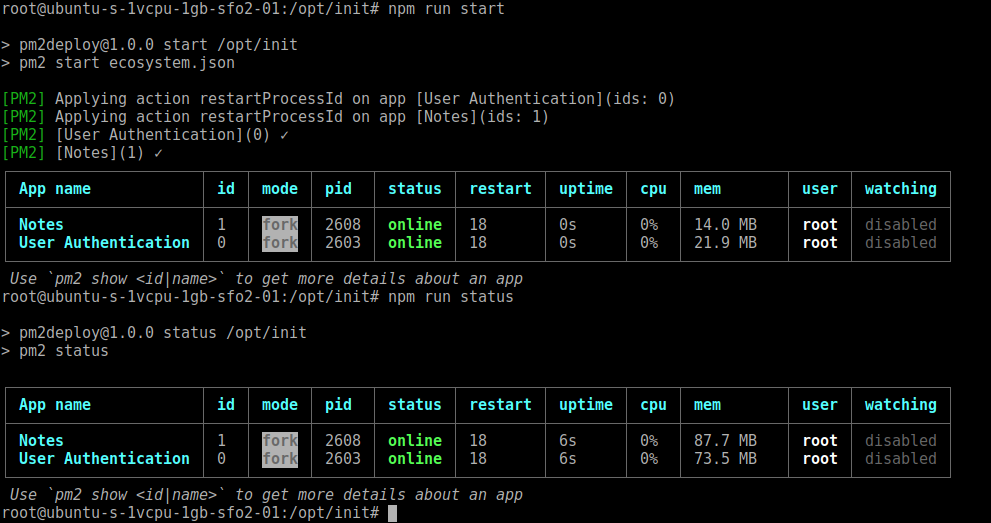
You can again navigate your browser to the URL for your server, such as http://159.89.145.190:3000, and check that Notes is working. Once started, some useful commands are as follows:
# pm2 list
# pm2 describe 1
# pm2 logs 1
These commands let you query the status of the services.
The pm2 monit command gives you a pseudo-graphical monitor of system activity. For documentation, see http://pm2.keymetrics.io/docs/usage/monitoring/.
The pm2 logs command addresses the application log management issue we raised elsewhere. Activity logs should be treated as an event stream, and should be captured and managed appropriately. With PM2, the output is automatically captured, can be viewed, and the log files can be rotated and purged. See http://pm2.keymetrics.io/docs/usage/log-management/ for documentation.
If we restart the server, these processes don't start with the server. How do we handle that? It's very simple because PM2 can generate an init script for us:
# pm2 save
[PM2] Saving current process list...
[PM2] Successfully saved in /root/.pm2/dump.pm2

# pm2 startup
[PM2] Init System found: systemd
Platform systemd
Template
[Unit]
Description=PM2 process manager
Documentation=https://pm2.keymetrics.io/
After=network.target

... more output is printed
The pm2 save command saves the current state. Whatever services are running at that time will be saved and managed by the generated start up script.
The next step is to generate the startup script, using the pm startup command. PM2 supports generating start up scripts on several OSes, but when run this way, it autodetects the system type and generates the correct start up script. It also installs the start up script, and starts it running. See the documentation at http://pm2.keymetrics.io/docs/usage/startup/ for more information.
If you look closely at the output, some useful commands will be printed. The details will vary based on your operating system, because each operating system has its own commands for managing background processes. In this case, the installation is geared to use the systemctl command, as verified by this output:
Command list
[ 'systemctl enable pm2-root',
  'systemctl start pm2-root',
  'systemctl daemon-reload',
  'systemctl status pm2-root' ]
[PM2] Writing init configuration in /etc/systemd/system/pm2-root.service
[PM2] Making script booting at startup...
...
[DONE]
>>> Executing systemctl start pm2-root
[DONE]
>>> Executing systemctl daemon-reload
[DONE]
>>> Executing systemctl status pm2-root
You are free to run these commands yourself:
# systemctl status pm2-root
● pm2-root.service - PM2 process manager
   Loaded: loaded (/etc/systemd/system/pm2-root.service; enabled; vendor preset: enabled)
   Active: active (running) since Fri 2018-02-02 22:27:45 UTC; 29min ago
     Docs: https://pm2.keymetrics.io/
  Process: 738 ExecStart=/opt/init/node_modules/pm2/bin/pm2 resurrect (code=exited, status=0/SUCCESS)
 Main PID: 873 (PM2 v2.9.3: God)
    Tasks: 30 (limit: 4915)
   Memory: 171.6M
      CPU: 11.528s
   CGroup: /system.slice/pm2-root.service
           ├─873 PM2 v2.9.3: God Daemon (/root/.pm2)
           ├─895 node /opt/users/user-server.mjs
           └─904 node /opt/notes/app.mjs
To verify that PM2 starts the services as advertised, reboot your server, then use PM2 to check the status:
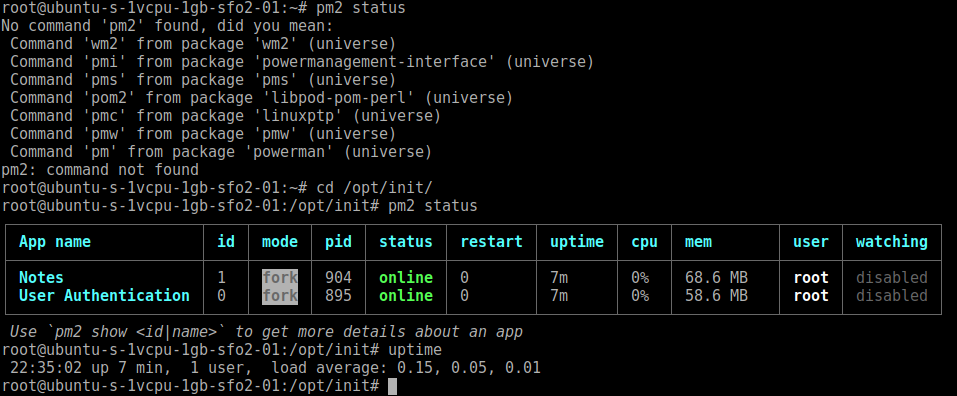
The first thing to notice is that upon initially logging in to the root account, the pm2 status command is not available. We installed PM2 locally to /opt/init, and the command is only available in that directory.
After going to that directory, we can now run the command and see the status. Remember to set the correct IP address or domain name in the TWITTER_CALLBACK_HOST environment variable. Otherwise, logging in with Twitter will fail.
We now have the Notes application under a fairly good management system. We can easily update its code on the server and restart the service. If the service crashes, PM2 will automatically restart it. Log files are automatically kept for our perusal.
PM2 also supports deployment from the source on our laptop, which we can push to staging or production environments. To support this, we must add deployment information to the ecosystem.json file and then run the pm2 deploy command to push the code to the server. See the PM2 website for more information: http://pm2.keymetrics.io/docs/usage/deployment/.
While PM2 does a good job at managing server processes, the system we've developed is insufficient for an internet-scale service. What if the Notes application were to become a viral hit and suddenly we need to deploy a million servers spread around the planet? Deploying and maintaining servers one at a time, like this, is not scalable.
We also skipped over implementing the architectural decisions at the beginning. Putting the user authentication data on the same server is a security risk. We want to deploy that data on a different server, under tighter security.
In the next section, we'll explore a new system, Docker, that solves these problems and more.