
We've verified on our laptop that the services described by the compose file work as intended. Launching the containers is now automated, fixing one of the issues we named earlier. It's now time to see how to deploy to a cloud-hosting provider. This is where we turn to Docker machine.
Docker machine can be used to provision Docker instances inside a VirtualBox host on your laptop. What we'll be doing is provisioning a Docker system on DigitalOcean. The docker-machine command comes with drivers supporting a long list of cloud-hosting providers. It's easy to adapt the instructions shown here for other providers, simply by substituting a different driver.
After signing up for a DigitalOcean account, click on the API link in the dashboard. We need an API token to grant docker-machine access to the account. Go through the process of creating a token and save away the token string you're given. The Docker website has a tutorial at https://docs.docker.com/machine/examples/ocean/.
With the token in hand, type the following:
$ docker-machine create --driver digitalocean --digitalocean-size 2gb \
    --digitalocean-access-token TOKEN-FROM-PROVIDER \
    sandbox
Running pre-create checks...
Creating machine...
(sandbox) Creating SSH key...
(sandbox) Creating Digital Ocean droplet...
(sandbox) Waiting for IP address to be assigned to the Droplet...
Waiting for machine to be running, this may take a few minutes...
Detecting operating system of created instance...
Waiting for SSH to be available...
Detecting the provisioner...
Provisioning with ubuntu(systemd)...
Installing Docker...
Copying certs to the local machine directory...
Copying certs to the remote machine...
Setting Docker configuration on the remote daemon...
Checking connection to Docker...
Docker is up and running!
To see how to connect your Docker Client to the Docker Engine running on this virtual machine, run: docker-machine env sandbox
The digitalocean driver is, as we said earlier, used with Digital Ocean. The Docker website has a list of drivers at https://docs.docker.com/machine/drivers/.
A lot of information is printed here about things being set up. The most important is the message at the end. A series of environment variables are used to tell the docker command where to connect to the Docker Engine instance. As the messages say, run: docker-machine env sandbox:
$ docker-machine env sandbox
export DOCKER_TLS_VERIFY="1"
export DOCKER_HOST="tcp://45.55.37.74:2376"
export DOCKER_CERT_PATH="/home/david/.docker/machine/machines/sandbox"
export DOCKER_MACHINE_NAME="sandbox"
# Run this command to configure your shell:
# eval $(docker-machine env sandbox)
That's the environment variables used to access the Docker host we just created. You should also go to your cloud-hosting provider dashboard and see that the host has been created. This command also gives us some instructions to follow:
$ eval $(docker-machine env sandbox)
$ docker-machine ls
NAME      ACTIVE   DRIVER         STATE     URL                      SWARM   DOCKER        ERRORS
sandbox   *        digitalocean   Running   tcp://45.55.37.74:2376           v18.01.0-ce
This shows that we have a Docker Engine instance running in a host at our chosen cloud-hosting provider.
One interesting test at this point is to run docker ps -a on this Terminal, and then to run it in another Terminal that does not have these environment variables. That should show the cloud host has no containers at all, while your local machine may have some containers (depending on what you currently have running):
$ docker run hello-world
Unable to find image 'hello-world:latest' locally
latest: Pulling from library/hello-world
ca4f61b1923c: Pull complete
Digest: sha256:66ef312bbac49c39a89aa9bcc3cb4f3c9e7de3788c944158df3ee0176d32b751
Status: Downloaded newer image for hello-world:latest
 ...
$ docker images
REPOSITORY          TAG                 IMAGE ID            CREATED             SIZE
hello-world         latest              f2a91732366c        2 months ago        1.85kB
Here, we've verified that we can launch a container on the remote host.
The next step is to build our containers for the new machine. Because we've switched the environment variables to point to the new server, these commands cause action to happen there rather than inside our laptop:
$ docker-compose build
db-userauth uses an image, skipping
db-notes uses an image, skipping
Building notes
Step 1/22 : FROM node:9.5
9.5: Pulling from library/node
f49cf87b52c1: Pull complete
7b491c575b06: Pull complete
b313b08bab3b: Pull complete
51d6678c3f0e: Pull complete
...
Because we changed the environment variables, the build occurs on the sandbox machine rather than on our laptop, as previously.
This will take a while because the Docker image cache on the remote machine is empty. Additionally, building the notesapp and userauth containers copies the entire source tree to the server and runs all build steps on the server.
The build may fail if the default memory size is 500 MB, the default on DigitalOcean at the time of writing. If so, the first thing to try is resizing the memory on the host to at least 2 GB.
Once the build is finished, launch the containers on the remote machine:
$ docker-compose up
Creating notes ... done
Recreating db-userauth ... done
Recreating db-notes ... done
Creating notes ...
Attaching to db-userauth, db-notes, userauth, notes
Once the containers start, you should test the userauth container as we've done previously. Unfortunately, the first time you do this, that command will fail. The problem is these lines in the docker-compose.yml:
 - ../authnet/my.cnf:/etc/my.cnf
...
 - ../frontnet/my.cnf:/etc/my.cnf
In this case, the build occurs on the remote machine, and the docker-machine command does not copy the named file to the server. Hence, when Docker attempts to start the container, it is unable to do so because that volume mount cannot be satisfied because the file is simply not there. This, then, means some surgery on docker-compose.yml, and to add two new Dockerfiles.
First, make these changes to docker-compose.yml:
  ...
  db-userauth:
    build: ../authnet
    container_name: db-userauth
    networks:
      - authnet
    volumes:
      - db-userauth-data:/var/lib/mysql
    restart: always
  ...
  db-notes:
    build: ../frontnet
    container_name: db-notes
    networks:
      - frontnet
    volumes:
      - db-notes-data:/var/lib/mysql
    restart: always
Instead of building the database containers from a Docker image, we're now building them from a pair of Dockerfiles. Now we must create those two Dockerfiles.
In authnet, create a file named Dockerfile containing the following:
FROM mysql/mysql-server:5.7
EXPOSE 3306
COPY my.cnf /etc/
ENV MYSQL_RANDOM_ROOT_PASSWORD="true"
ENV MYSQL_USER=userauth
ENV MYSQL_PASSWORD=userauth
ENV MYSQL_DATABASE=userauth
CMD [ "mysqld", "--character-set-server=utf8mb4", \
  "--collation-server=utf8mb4_unicode_ci", "--bind-address=0.0.0.0" ]
This copies certain settings from what had been the db-userauth description in docker-compose.yml. The important thing is that we now COPY the my.cnf file rather than use a volume mount.
In frontnet, create a Dockerfile containing the following:
FROM mysql/mysql-server:5.7
EXPOSE 3306
COPY my.cnf /etc/
ENV MYSQL_RANDOM_ROOT_PASSWORD="true"
ENV MYSQL_USER=notes
ENV MYSQL_PASSWORD=notes12345
ENV MYSQL_DATABASE=notes
CMD [ "mysqld", "--character-set-server=utf8mb4", \
  "--collation-server=utf8mb4_unicode_ci", "--bind-address=0.0.0.0" ]
This is the same, but with a few critical values changed.
After making these changes, we can now build the containers, and launch them:
$ docker-compose build
... much output
$ docker-compose up --force-recreate
... much output
Now that we have a working build, and can bring up the containers, let's inspect them and verify everything works.
Execute a shell in userauth to test and set up the user database:
$ docker exec -it userauth bash
root@931dd2a267b4:/userauth# PORT=3333 node users-list.js
List [ { id: 'me', username: 'me', provider: 'local',
    familyName: 'Einarrsdottir', givenName: 'Ashildr', middleName: '',
    emails: '[]', photos: '[]' } ]
As mentioned previously, this verifies that the userauth service works, that the remote containers are set up, and that we can proceed to using the Notes application.
The question is: What's the URL to use? The service is not on localhost, because it's on the remote server. We don't have a domain name assigned, but there is an IP address for the server.
Run the following command:
$ docker-machine ip sandbox
45.55.37.74
Docker tells you the IP address, which you should use as the basis of the URL. Hence, in your browser, visit http://IP-ADDRESS:3000
With Notes deployed to the remote server, you should check out all the things we've looked at previously. The bridge networks should exist, as shown previously, with the same limited access between containers. The only public access should be port 3000 on the notes container.
Remember to set the TWITTER_CALLBACK_HOST environment variable appropriately for your server.
Because our database containers mount a volume to store the data, let's see where that volume landed on the server:
$ docker volume ls
DRIVER VOLUME NAME
local compose_db-notes-data
local compose_db-userauth-data
Those are the expected volumes, one for each container:
$ docker volume inspect compose_db-notes-data
[
    {
        "CreatedAt": "2018-02-07T06:30:06Z",
        "Driver": "local",
        "Labels": {
            "com.docker.compose.project": "compose",
            "com.docker.compose.volume": "db-notes-data"
        },
        "Mountpoint": "/var/lib/docker/volumes/compose_db-notes-
        data/_data",
        "Name": "compose_db-notes-data",
        "Options": {},
        "Scope": "local"
    }
]
Those are the directories, but they're not located on our laptop. Instead, they're on the remote server. Accessing these directories means logging into the remote server to take a look:
$ docker-machine ssh sandbox
Welcome to Ubuntu 16.04.3 LTS (GNU/Linux 4.4.0-112-generic x86_64)

 * Documentation: https://help.ubuntu.com
 * Management: https://landscape.canonical.com
 * Support: https://ubuntu.com/advantage

  Get cloud support with Ubuntu Advantage Cloud Guest:
    http://www.ubuntu.com/business/services/cloud

4 packages can be updated.
0 updates are security updates.

Last login: Wed Feb 7 04:00:29 2018 from 108.213.68.139
root@sandbox:~#
From this point, you can inspect the directories corresponding to these volumes and see that they indeed contain MySQL configuration and data files:
root@sandbox:~# ls /var/lib/docker/volumes/compose_db-notes-data/_data
auto.cnf         client-key.pem  ib_logfile1  mysql.sock.lock     public_key.pem
ca-key.pem       ib_buffer_pool  ibtmp1       notes               server-cert.pem
ca.pem           ibdata1         mysql        performance_schema  server-key.pem
client-cert.pem  ib_logfile0     mysql.sock   private_key.pem     sys
You'll also find that the Docker command-line tools will work. The process list is especially interesting:
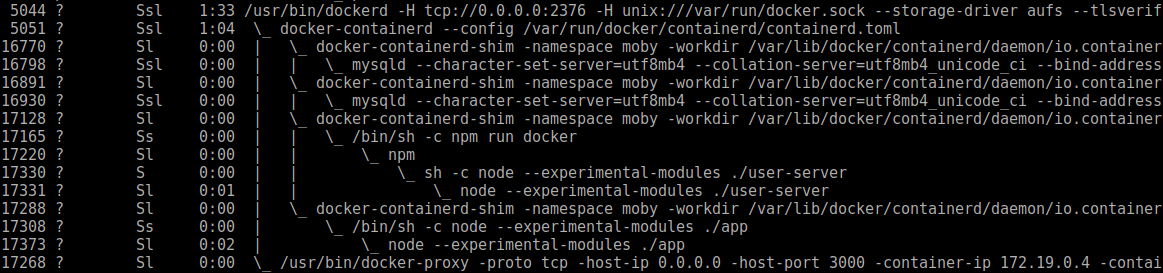
Look closely at this and you see a process corresponding to every container in the system. These processes are running in the host operating system. Docker creates layers of configuration/containment around those processes to create the appearance that the process is running under a different operating system, and with various system/network configuration files, as specified in the container screenshot.
The claimed advantage Docker has over virtualization approaches, such as VirtualBox, is that Docker is very lightweight. We see right here why Docker is lightweight: there is no virtualization layer, there is only a containerization process (docker-containerd-shim).
Once you're satisfied that Notes is working on the remote server, you can shut it down and remove it as follows:
$ docker-compose stop
Stopping notesapp ... done
Stopping userauth ... done
Stopping db-notes ... done
Stopping db-auth ... done
This shuts down all the containers at once:
$ docker-machine stop sandbox
Stopping "sandbox"...
Machine "sandbox" was stopped.
This shuts down the remote machine. The cloud-hosting provider dashboard will show that the Droplet has stopped.
At this point, you can go ahead and delete the Docker machine instance as well, if you like:
$ docker-machine rm sandbox
About to remove sandbox
Are you sure? (y/n): y
Successfully removed sandbox
And, if you're truly certain you want to delete the machine, the preceding command does the deed. As soon as you do this, the machine will be erased from your cloud-hosting provider dashboard.