JQuery is a fast, light, and powerful JavaScript library; it eliminates DOM-related complexity by providing direct access to HTML elements once the DOM three has been loaded. To use jQuery within an HTML document, you have to import it:
<script type="text/javascript" src="https://code.jquery.com/jquery-3.3.1.min.js "></script>
Assume that somewhere within an HTML document, there is a button defined as <input type="button" id="btnDelete" value="Delete"/>.
To assign a function to the click event of this button with JQuery means we need to do the following:
- Import the jquery library in the HTML document
- Assure that the DOM document of the HTML document is completely loaded
- Access the button using the identifier defined by the ID attribute
- Provide a handler function as an argument to the click event:
$(document).ready(function() {
    $('#btn').click(function () {
       alert('Clicked');
    });
});
The $('#identifier') expression provides direct access to elements in DOM three, $ states that an object is referenced, and the value within the bracket, prefix by # specifies its identifier. jQuery will have access to the element only after the entire document has been loaded; that's why elements should be accessed within ${document).ready() block scope.
Similarly, you can access the value of a text input with an identifier txt:
  $(document).ready(function() {
    var textValue = $('#txt').val();
    });
  });
The $(document) object is predefined in jQuery and represents the entire DOM document of the HTML page. In a similar way, jQuery predefines a function for AJAX-enabled communication, that is, for sending HTTP request to an HTTP endpoint. This function is named after Asynchronous JavaScript + XML- AJAX, which was the de facto standard that enabled a JavaScript application to communicate with HTTP-enabled backends. Nowadays, JSON is being widely used; however, naming conversion for AJAX is still used as a term for asynchronous communication, regardless of the data format; that is why the predefined function in jQuery is called $.ajax(options, handlers).
To send an http request with the $.ajax function, invoke it by providing the endpoint URL, http method for the request, and its content type; the result will be returned in a callback function. The following example shows how an item with identifier 3 is requested from our catalog:
  $.ajax({
      contentType: 'application/json',
      url: 'http://localhost:3000/catalog/v2/item/3',
      type: 'GET',
      success: function (item, status, xhr) {
          if (status === 'success') {
              //the item is successfully retrieved load & display its details here
          }
      }
      ,error: function (xhr, options, error) {
        //Item was not retrieved due to an error handle it here
      }
    });
  });
Posting data to an endpoint is rather similar:
  $.ajax({
    url: "http://localhost:3000/catalog/v2/",
    type: "POST",
    dataType: "json",
    data: JSON.stringify(newItem),
     success: function (item, status, xhr) {
       if (status === 'success') {
         //item was created successfully
       }
     },
     error: function(xhr, options, error) {
       //Error occurred while creating the iteam
     }
   });
Simply use the appropriate options type set to POST, and the dateType set to JSON. Those will specify that a POST request is to be sent to the endpoint in the JSON format. The payload of the object is provided as a value to the data attribute.
Invoking a delete method is quite similar:
      $.ajax({
        contentType: 'application/json',
        url: 'http://localhost:3000/catalog/v2/item/3',
        type: 'DELETE',
        success: function (item, status, xhr) {
            if (status === 'success') {
              //handle successful deletion
            }
        }
        ,error: function (xhr, options, error) {
            //handle errors on delete
        }
      });
A basic understanding of how jQuery works is just about fine for the scope of this book. Now, let's glue all this together and create two HTML pages; that way, we will handle creating, displaying, and deleting an item in our catalog, starting with the page that displays an item and allows its deletion. This page loads an item from the catalog using GET request, and then displays the item's attributes in the HTML page in a table-like manner:
<html>
<head><title>Item</title></head>
<body>
    <script type="text/javascript" src="https://code.jquery.com/jquery-3.3.1.min.js "></script>
  <script>
  $(document).ready(function() {
    $('#btnDelete').click(function () {
      $.ajax({
        contentType: 'application/json',
        url: 'http://localhost:3000/catalog/v2/item/3',
        type: 'DELETE',
        success: function (item, status, xhr) {
            if (status === 'success') {
              $('#item').text('Deleted');
              $('#price').text('Deleted');
              $('#categories').text('Deleted');
            }
        }
        ,error: function (xhr, options, error) {
          alert('Unable to delete item');
        }
      });
    });
    $.ajax({
      contentType: 'application/json',
      url: 'http://localhost:3000/catalog/v2/item/3',
      type: 'GET',
      success: function (item, status, xhr) {
          if (status === 'success') {
            $('#item').text(item.itemName);
            $('#price').text(item.price + ' ' + item.currency);
            $('#categories').text(item.categories);
          }
      }
      ,error: function (xhr, options, error) {
        alert('Unable to load details');
      }
    });
  });
  </script>
  <div>
    <div style="position: relative">
      <div style="float:left; width: 80px;">Item: </div>
      <div><span id="item"/>k</div>
    </div>
    <div style="position: relative">
      <div style="float:left; width: 80px;">Price: </div>
      <div><span id="price"/>jjj</div>
    </div>
    <div style="position: relative">
      <div style="float:left; width: 80px;">Categories: </div>
      <div><span id="categories"/>jjj</div>
    </div>
    <div><input type="button" id="btnDelete" value="Delete"/></div>
  </div>
</body>
</html>
The page that handles creation is quite similar. However, it provides text inputs instead of span labels for an item's fields, where the view page will display the data for the attributes of the loaded item. JQuery provides a simplified access model to the input controls, rather than DOM—simply access the input element as follows:
<html>
<head><title>Item</title></head>
<body>
  <script type="text/javascript" src="https://code.jquery.com/jquery-3.3.1.min.js "></script>
  <script>
  $(document).ready(function() {
    $('#btnCreate').click(function(){
      var txtItemName = $('#txtItem').val();
      var txtItemPrice = $('#txtItemPrice').val();
      var txtItemCurrency = $('#txtItemCurrency').val();
      var newItem = {
        itemId: 4,
        itemName: txtItemName,
        price: txtItemPrice,
        currency: txtItemCurrency,
        categories: [
          "Watches"
        ]
      };
      $.ajax({
        url: "http://localhost:3000/catalog/v2/",
        type: "POST",
        dataType: "json",
        data: JSON.stringify(newItem),
        success: function (item, status, xhr) {
              alert(status);
            }
      });
    })
  });
  </script>
  <div>
    <div style="position: relative">
      <div style="float:left; width: 80px;">Id: </div>
      <div><input type="text" id="id"/></div>

      <div style="float:left; width: 80px;">Item: </div>
      <div><input type="text" id="txtItem"/></div>
    </div>
    <div style="position: relative">
      <div style="float:left; width: 80px;">Price: </div>
      <div><input type="text" id="price"/></div>
    </div>
    <div style="position: relative">
      <div style="float:left; width: 80px;">Categories: </div>
      <div><input type="text" id="categories"/></div>
    </div>
    <div><input type="button" id="btnCreate" value="Create"/></div>
  </div>
</body>
</html>
Let's give that a try and load an existing item in the view page by opening our static page directly from the filesystem in a browser of your choice. It looks as if we have some kind of a problem, as nothing gets displayed. Enabling client-side debugging using the browser's developer suite doesn't give much more information either:
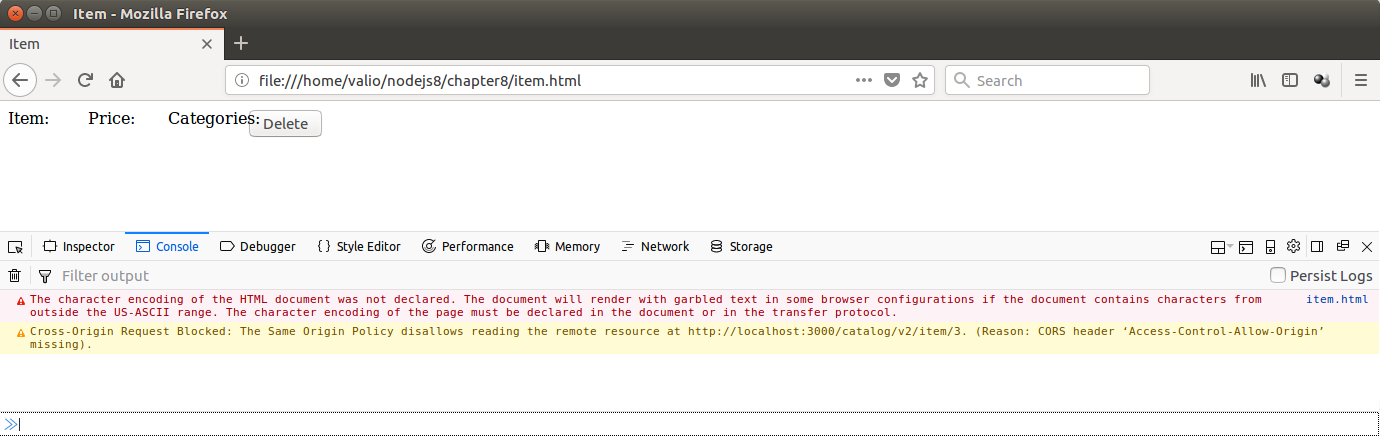
It states that the content is partially blocked; however, it is not quite clear whether this is due to a backend-related error, or something has gone wrong on the client side. We will look at how to troubleshoot such problematic situations in the next section.