
In this section, we'll take a look at how HTTP works (what are some of the codes within HTTP and what's inside a packet), source and destination information and some of the options there, and how servers and clients interact and show a connection between a server and a client.
What we'll do is start another packet capture and open up a website. In this example, I opened up a web page to https://www.npr.org/, which happens to be an unencrypted website. It uses plain HTTP by default so, that way, the communication is not hidden behind TLS encryption. This way, we can take a look at what actually happens within the HTTP headers.
If we scroll down, we can see we have the www.npr.org DNS resolution, our answer, and the beginning of the SYN, ACK three-way handshake for the TCP connection:
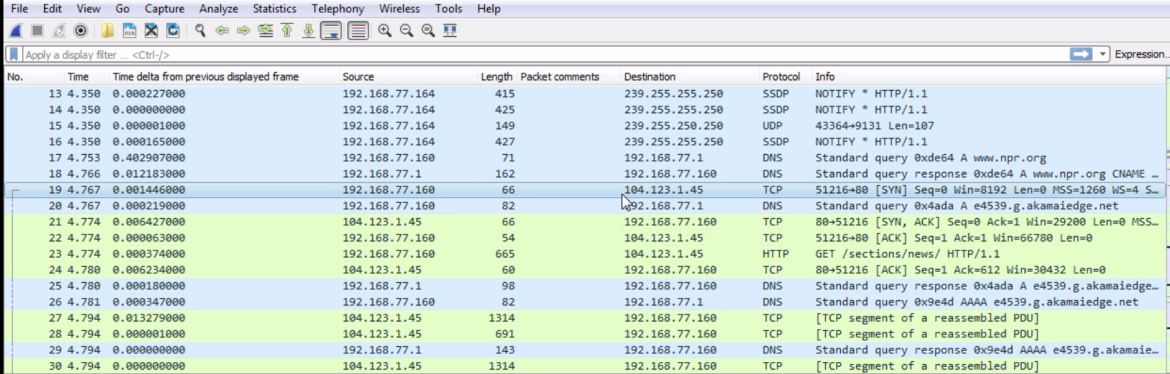
We can see that we have an initial TCP request to the actual server, and then my system asks for sections /news because I was opening up the news section on https://www.npr.org/:

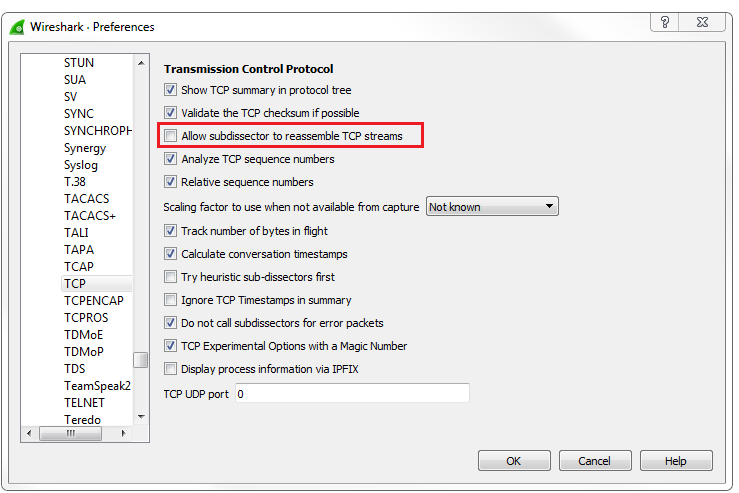
If we scroll down, we'll see that there's an HTTP protocol and some TCP reassembled segment stuff. This is a lot of TCP and I can't see anything for HTTP. Why is that? It's because we have the reassembly enabled in the options. This is something you'll probably want to turn off if you're doing HTTP analysis.
Go to Edit | Preferences... | Protocols | TCP and turn off Allow subdissector to reassemble TCP streams:
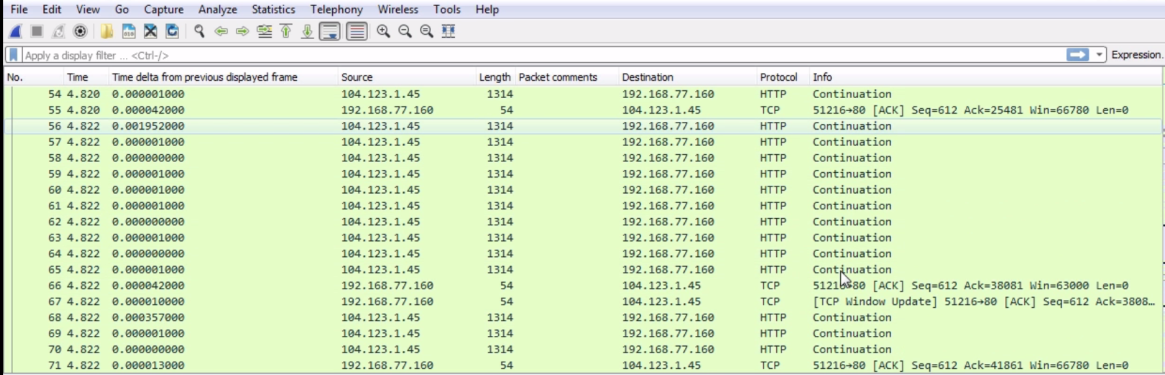
If you turn that off, you can see that we now get some insight into HTTP, and it actually shows up in the Info column what are the commands back and forth for the HTTP traffic. You can see that they will now show up properly as HTTP in the Protocol column, and it will say that it's a continuation of HTTP as it transmits all of the website information from the server to my client. You can see that the Window size is actually used, as well. We have a nice, big window size and then we have a list of packets that we then acknowledge:
If we take a look at the HTTP here, my system 77.160 did a GET request. HTTP has two primary commands that we use: GET and POST. A GET request retrieves information while a POST request sends information. So, you know how, in some forms on certain websites or if you make changes to web settings in a profile, you're sending data to the server, telling it to change something on the server: you do that with POST. With GET we are asking for information. So, in this example, I am getting /sections/news, and I'm requesting it over version HTTP 1.1. There is a new version of HTTP, which has recently come in use, and it's based off of Google's SPDY protocol which they had previously created.
What it did was it basically optimized the HTTP header information and the communications so that it could achieve up to a 50% speed increase on loading a website: that's very powerful and impressive.
So, when you see these GET requests, you'll most likely be seeing 1.1 for some really old clients if you're using, like, a really old program on a very old system, maybe even asking for 1.0. But you may now see 2.0 requests. Probably about a third of the major websites out there now use HTTP 2.0, and these will of course only increase over time. So, we are asking for /sections/news, and then it's insinuated there that we are asking for the index.html page from inside that. Thus, we're asking for a folder structure. By default, HTTP will look for index.html or a couple of other different files indexed at HTML or some other file format. It's the responsibility of the server to serve up that core page that'll first show up.
From the server, we can see that we have a TCP acknowledgment to that GET request, and then the server responds back with: "ok, that sounds good. I will send that to you because I've been able to find that page." Thus, if you request a page that's incorrect, you'll get an error message.
In HTTP, we have different types of commands with different numbers. If you'd like to learn about HTTP in more depth, take a look at the RFC on the IETF website. You're looking for number 2616, and that's for 1.1. Remember I said there's a new one, 2.0, coming out, so of course that's going to have a higher number. When you look through the standard, you'll see a bunch of different codes. You will see a bunch of the code blocks that are available, and the details of each code within it but, if you look to the left, you will see a status code number. Anything that is 200 or 300 are OK. So a 200 OK means "I found the file, no problem." 201 says "ok, I created it." 202 is an accept. These are all good things. If you get a 300, this might be a redirect or to move a file somewhere else. A 400 or a 500 is an error. So, a 400 is a server error. All 400 numbers are server errors saying: "I can't find the file. You're not allowed to get there"; or "It's forbidden"; or "Your method is not allowed"; or "The server is rejecting your request". A 500 error is a client error, so there's a problem on your client side. It is very common to see a 404 error when you try to request a web page that does not exist. You'll see it all over the internet and now everyone's used to it, but a 404 error is: "I cannot find the file." The server says: "I don't know what you're requesting It's, not where you say it is" and it sends back a 404 error.
If we look in the packet details into the HTTP header information you see that we have a server, Apache; this may also say something such as nginx or some other server that's running—Apache is still the most common one. It'll tell you what it's running. If it's running PHP of different versions or Python or something like that, it'll tell you what the content type is. Is it an HTML page? Is it some other kind of content type? Is it an XML page? Sometimes you can have encoding as well. Some pages and some servers allow for compression. So, they'll compress with gzip, which is like creating a ZIP file of the server page that it's sending back so that it is smaller, and so uses less packets and is quicker to send to the client. It takes a little bit of processing power on the server or the clients' sides to do that, but it's usually beneficial. It'll also tell us how long the content length is.
Now that we've gone through all these different protocols, they almost always tell you how long the content is so that you can validate whether you've received everything. We also have an expiry and a cache control. This tells the system how long to save a page. When your client receives the page, it will cache it for a period of time based on this so that it can refer to its local cache if it goes back there again.
So, if you're constantly going back to the same web page all the time, it will load it off of your local cache rather than constantly pull the server for it and use up unnecessary bandwidth and resources on the server. If you don't wish to use the cache, that's when you refresh a page. You can usually press Ctrl + F5 and it will force the cache in your browser to delete that page and request a new one. If we expand the packet details, we will see Line-based text data; it will actually show us the web page itself, as it's sent to us:

In the next section, we'll dive into HTTP a little bit more, talk about some more problems, and take a look at how you can decrypt TLS-encrypted HTTP data—HTTPS in Wireshark.