
You will need to perform the following steps:
- Go to the https://www.wireshark.org/ web page:
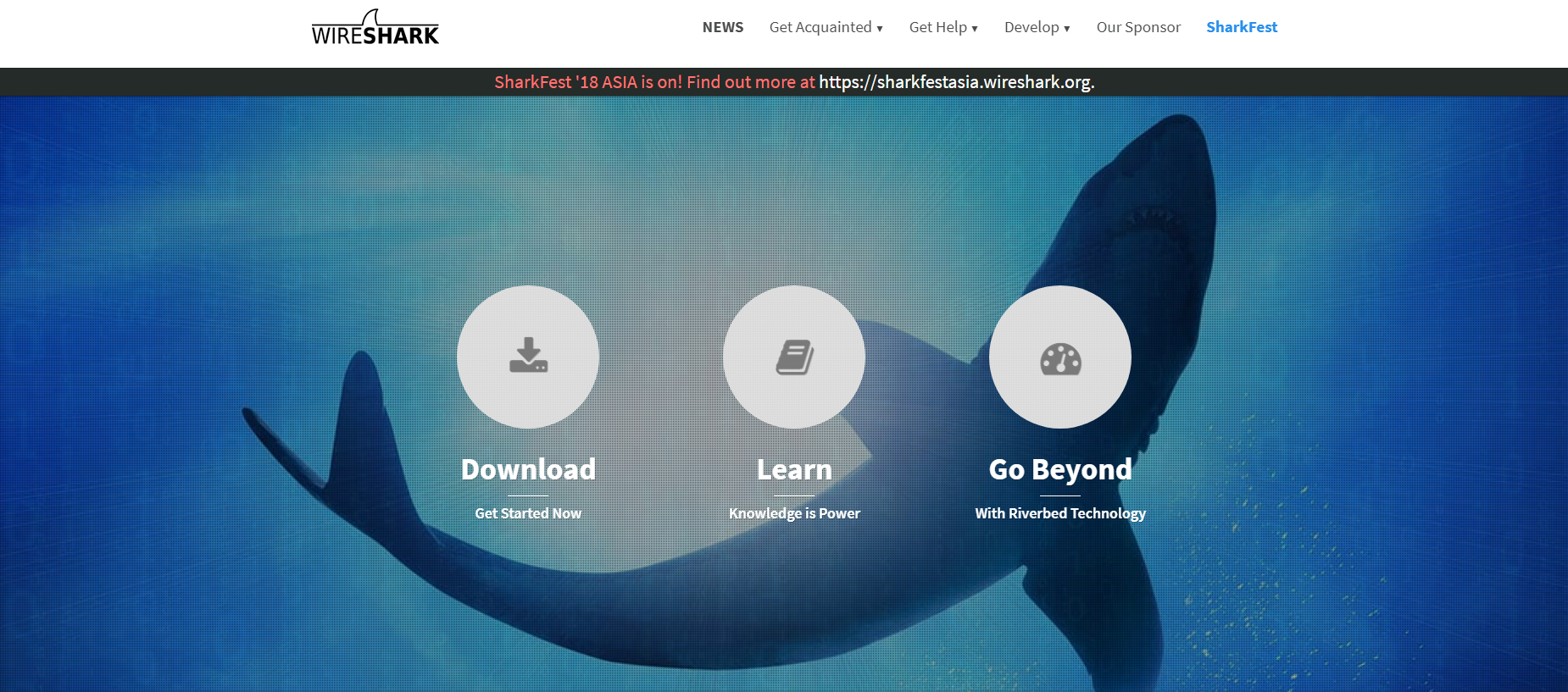
- When you get there, scroll down on the home page and click on Download.
- The latest version of Wireshark will be visible. Select the installer for the version of Windows that you are currently running.
Most people on a modern computer, on a modern version of Windows, will be running 64-bit.
If you happen to be running an older version of Windows on 32-bit or older hardware, make sure you select the 32-bit version. If you're not sure which one to use, do the following:
Open your Control Panel, go to System and Security, and click on the System link. In the System section, you'll see that it says System type: 64-bit Operating System. If you have a 32-bit, it'll show that here as well.
If you happen to be running an older version of Windows on 32-bit or older hardware, make sure you select the 32-bit version. If you're not sure which one to use, do the following:
Open your Control Panel, go to System and Security, and click on the System link. In the System section, you'll see that it says System type: 64-bit Operating System. If you have a 32-bit, it'll show that here as well.
- Back on the download Wireshark page, download the version that you need, and run that file; now, click on Next to begin the setup.
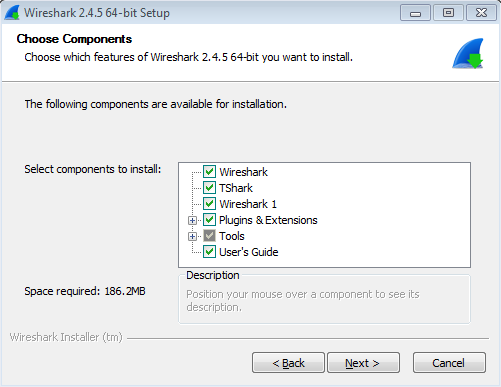
- Read the License Agreement, click on I Agree, and select the features of Wireshark that you wish to include. Most people include all of the defaults. You'll see here that we have the main Wireshark application; we have the classic interface version of Wireshark; and we have TShark, which is a command-line version of running Wireshark; as well as some plugins, the User's Guide, and some additional tools:
- We'll go ahead and accept the defaults, and then click on Next. And, in this window, we can go ahead and customize what shortcuts show up and whether file extensions are associated to Wireshark. We're going to turn off the Wireshark Legacy Quick Launch Icon and Wireshark Legacy Start Menu Item:
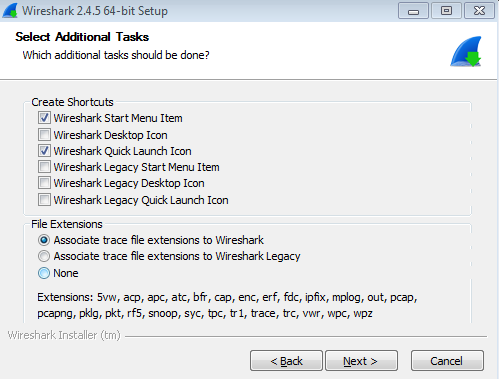
- Go ahead and click on Next, and select a location for Wireshark to install. We'll select the defaults here as well.
- And on the next page here, it says: Install WinPcap? If you don't have WinPcap installed, leave that checked and it will install it as part of the install process:
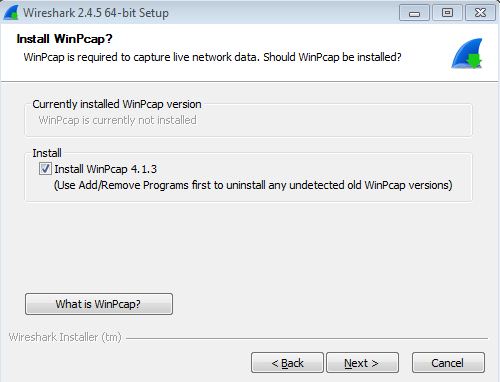
WinPcap is the driver that allows Wireshark to interface with your network card. WinPcap is required for it to be able to view all the packets.
- Click on Next.
You can also install USBPcap, which allows you to view the traffic on a USB connection. Most people won't need this, so we'll leave that unchecked.
- Go ahead and click on Install and Wireshark will now install.
- Partway through the install, the WinPcap installer will then run, and we'll go ahead and click on Next.
- Read the License Agreement and click on I Agree. You can then decide whether or not you want the WinPcap driver to run at boot time. Most people allow it to do so. We'll leave that as default, and click on Install.
- That will finish very quickly; then click on Finish.
- The Wireshark install will then continue. When the text window says completed, go ahead and click Next; and then you can select whether or not you want to run Wireshark at that moment, and click on Finish.
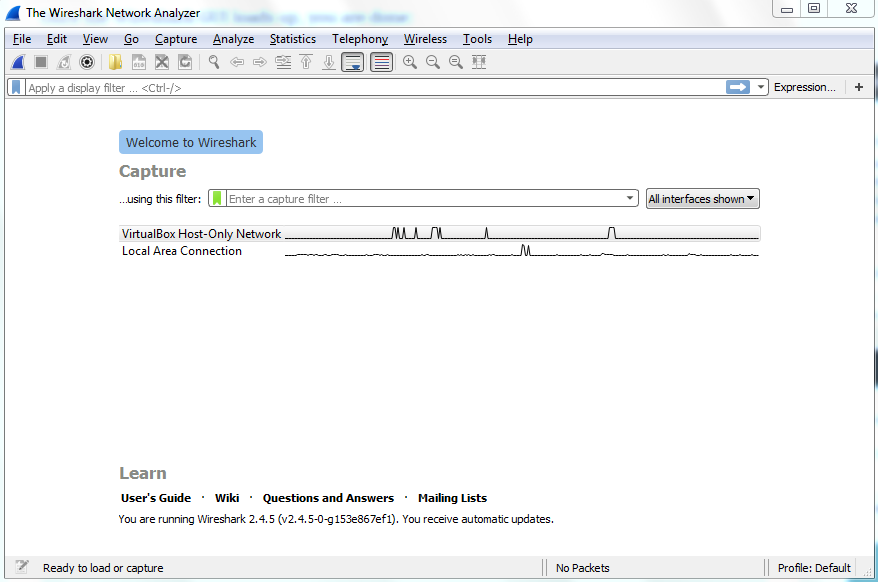
Once the Wireshark GUI loads up, you are done:
In the next section, we'll go over how to install Wireshark on macOS and Linux.