In this section, we'll take a look at the expert system in Wireshark, which is a great feature that not many people know about, and it allows you to easily find problems in a packet capture.
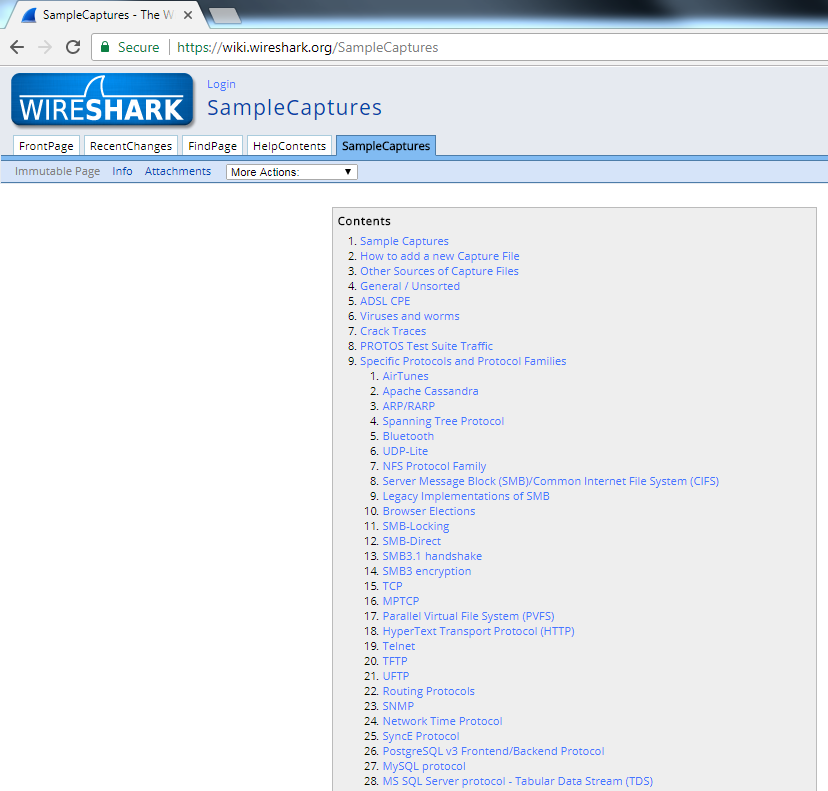
You can follow along with the capture that I'll use by downloading the same one off of the Wireshark website. There's a great section of their wiki called SampleCaptures that allows you to download captures that have been submitted by the community:
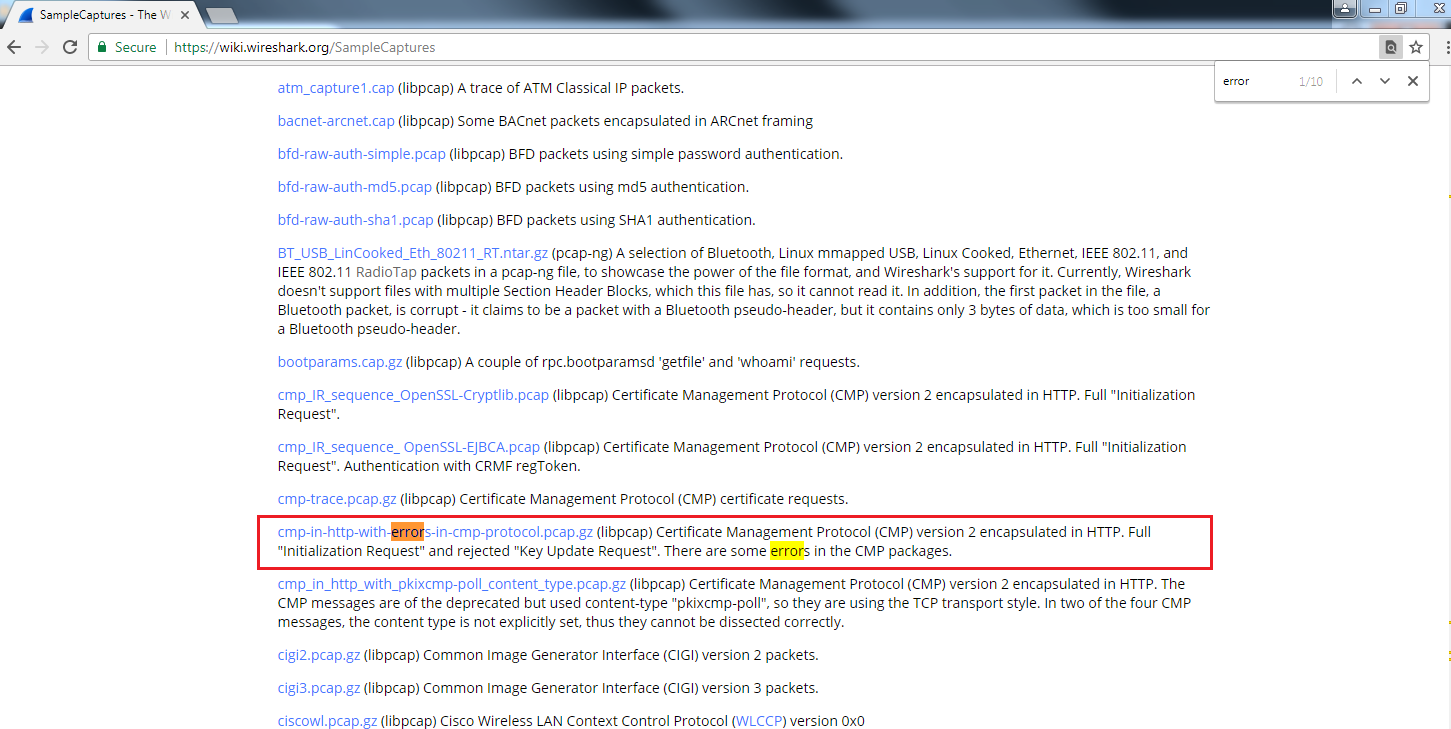
What we'll do is search for errors, and the first one that comes up is cmp-in-http-with-errors-in-cmp-protocol.pcap.gz. If you download that and extract it, you can open up the pcap file and follow along:
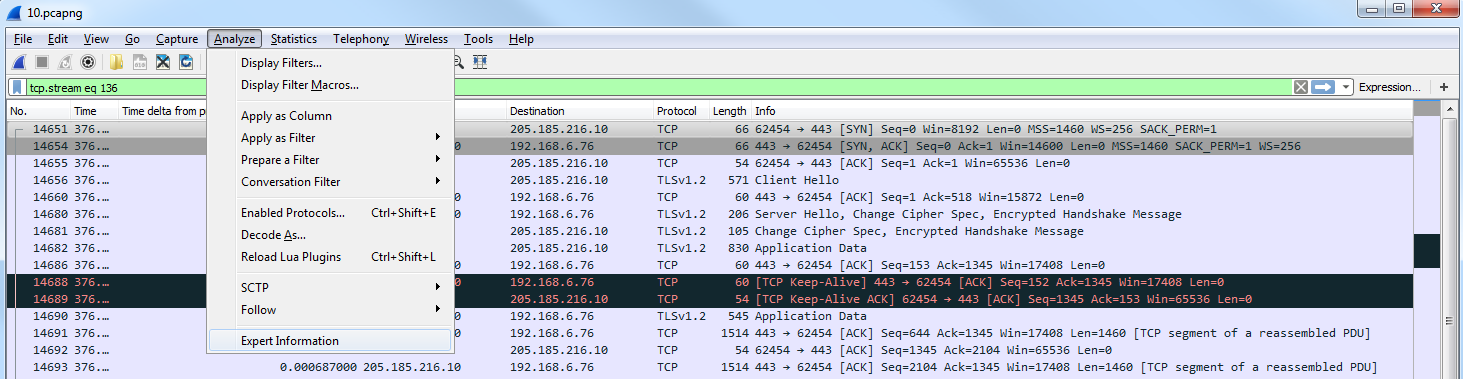
Here, we have our pcap file from the wiki, and there are two ways to get to the expert system. The first way is from the Analyze menu. We click on Analyze, and go to Expert Information:
The second method is in the bottom left. As you can see in the following screenshot, it is a yellow colored icon:

This icon color will change based on the errors that are available in the packet capture. If this is yellow, the highest problem in this packet capture is a warning. If this is red, the highest problem in this packet capture is an error. If it's blue, it's chat information or informational. If you click on that, it will bring up the expert information. As you can see, there is a listing of all of the problems that Wireshark has automatically found in the packet capture:
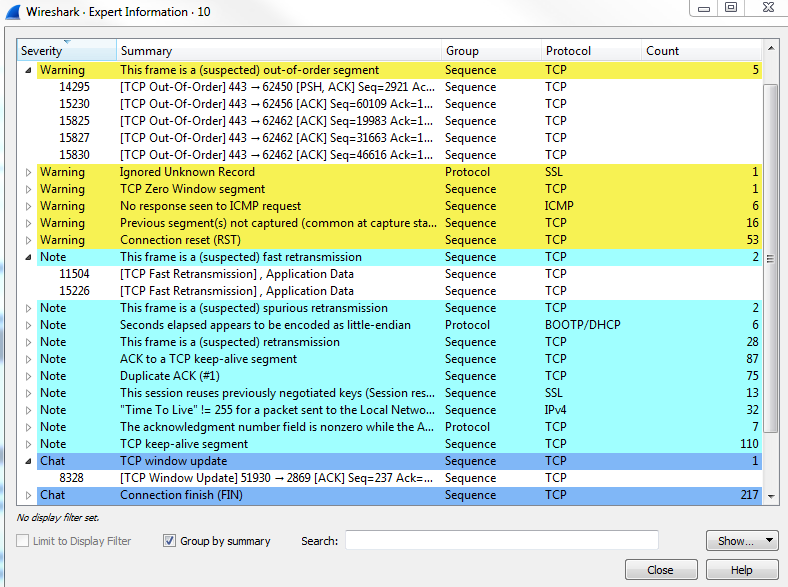
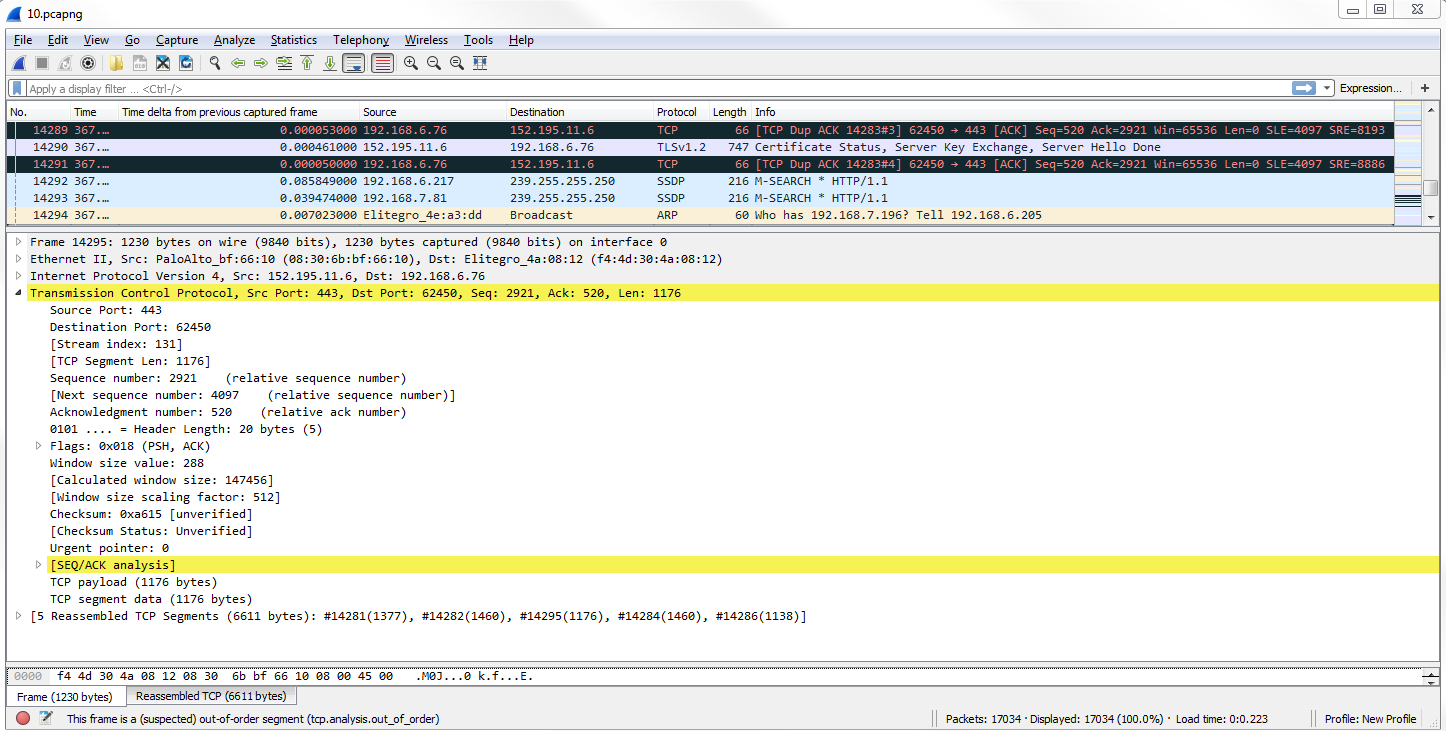
The chat ones are usually just generic informational data that you don't need to see, so we can minimize them. On your packet capture, if you have warnings or errors, these are things you want to take care of. The errors are the most critical. These are problems in the actual TCP communications or there's a problem in the packet in some way. There's a malformed issue or a CRC failure. Warnings are usually application problems, weird responses, and spooky stuff like that. Wireshark notices that and will alert you to it with this expert information window. Not only does it show you the type of errors and warnings it finds, but it tells you what packet number it's available on, and you can click on it. If we click on packet number 14295, it will jump in the packet list down to 14295, select it, and then show us what it's talking about. If we scroll down and look, we can see that it's under the Transmission Control Protocol:
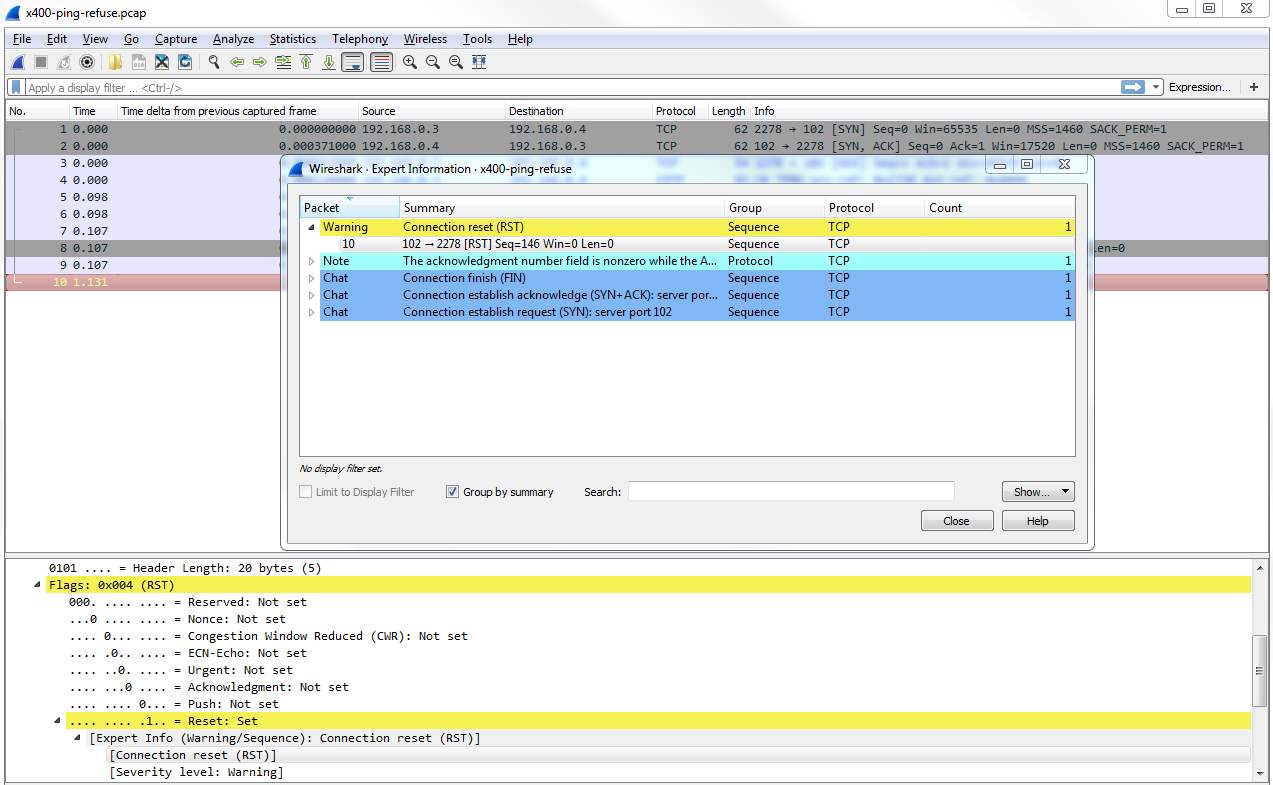
For another example we can take a look at on the SampleCaptures, if you search for x400, the first one that we'll get is this x400-ping-refuse.pcap:
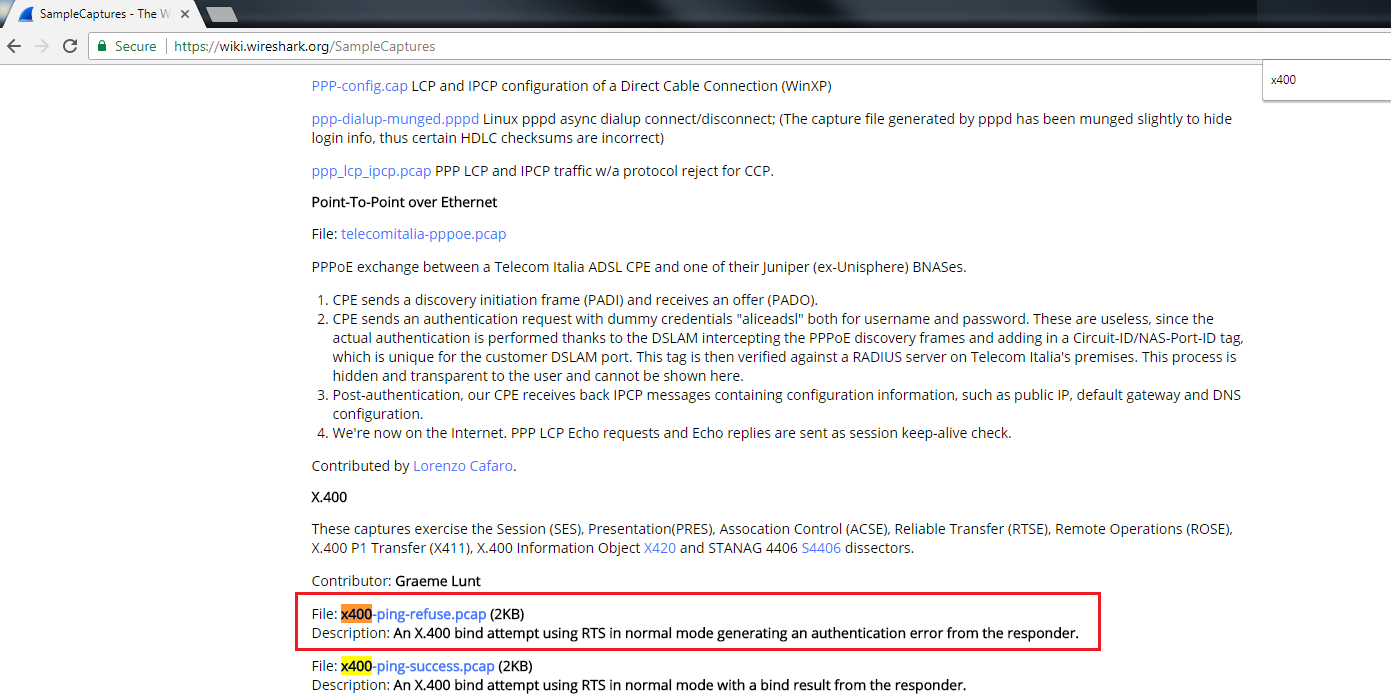
You can download the highlighted file as shown in the preceding screenshot and open it with Wireshark. If we go into expert information, you can see that there is a warning on packet 10. There's a Connection reset (RST), so we can click on that. It takes us to packet 10, and highlights exactly what the problem is: